




Category filter
How to set up your Hexnode IdP account?
This guide provides step-by-step instructions on how to set up your Hexnode IdP account. Follow these quick steps to activate your account, set your password, and enable Multi-Factor Authentication (MFA) for secure access to all your work applications.
Before You Begin
Before initiating the Hexnode IdP account activation process, ensure you have:
- Access to your corporate email inbox.
- A smartphone with an Authenticator App installed (e.g., Google Authenticator, Microsoft Authenticator).
- Access to an alternative personal email address (optional, for account recovery).
Step 1: Open Activation Email & Sign In
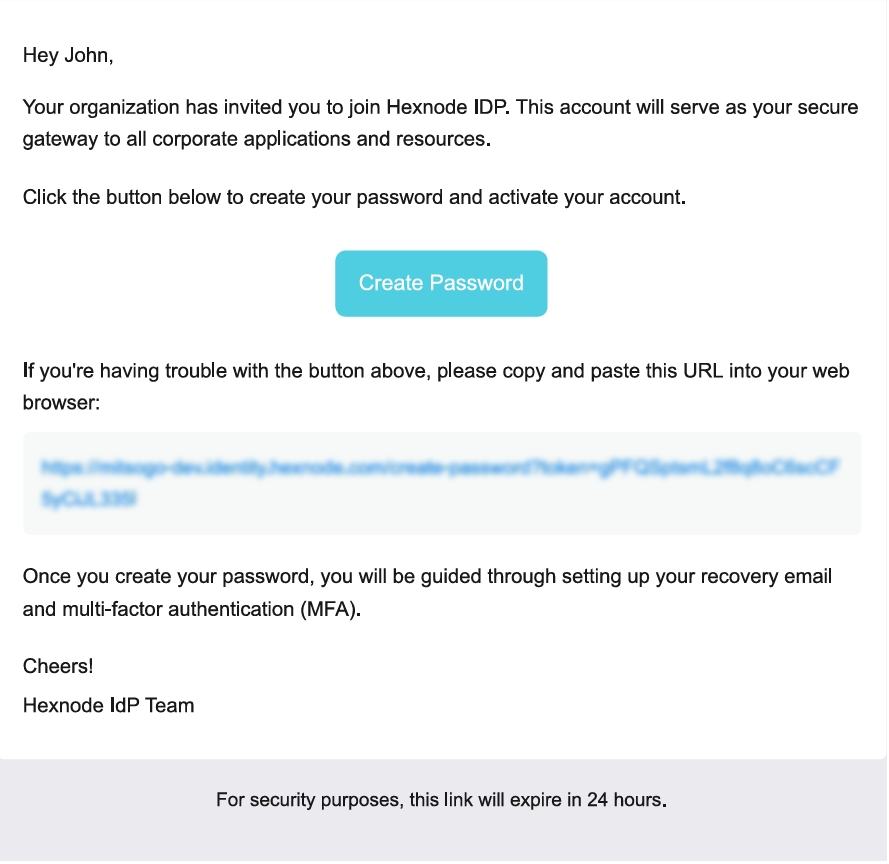
Open your corporate email inbox and locate the activation email received from Hexnode IdP. Depending on how your IT Administrator configured your account, you will receive an activation email that contains either of the following:
- A Create Password link (if no password was set by your admin).
- A Login to your Portal link (if your admin has set a password, which will be shared with you separately).
Scenario A: You received a “Create Password” link
- Click Create Password link in the email.
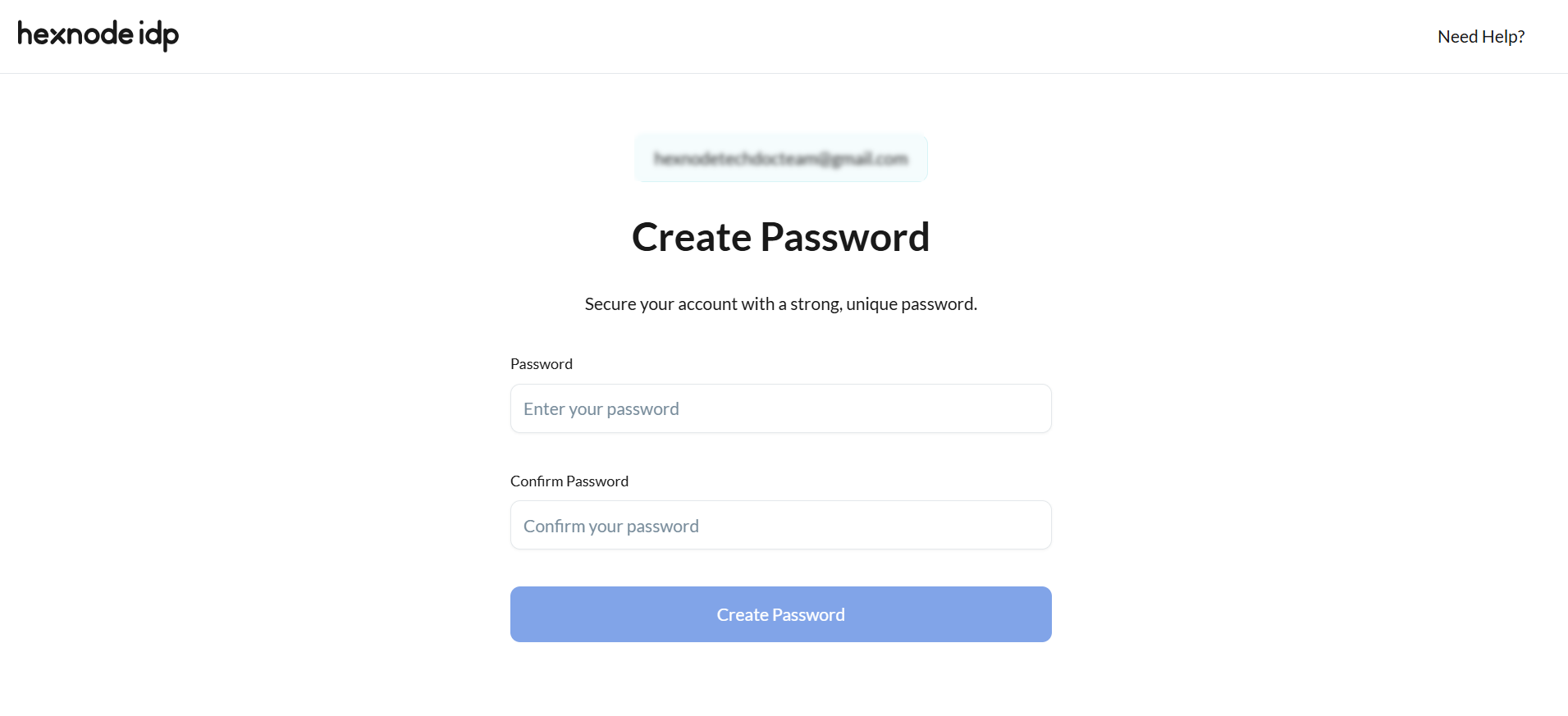
- Enter a new password and re-enter it to confirm.
- Click Create Password.
- Enter your corporate email address.
- (Optional) Select the Keep me signed in checkbox (if you are on a trusted corporate device) and click Next.
- Enter the newly created password once again and click Sign In.
Scenario B: You received a “Login to your Portal” link
- Open the Hexnode IdP invitation email.
- Click on the Login to your Portal link in the email.
- Enter your corporate email address.
- (Optional) Select the Keep me signed in checkbox if you are on a trusted corporate device and click Next.
- Enter the temporary password shared by the Hexnode IdP admin and click Sign In.
Step 2: Configure Multi-Factor Authentication (MFA)
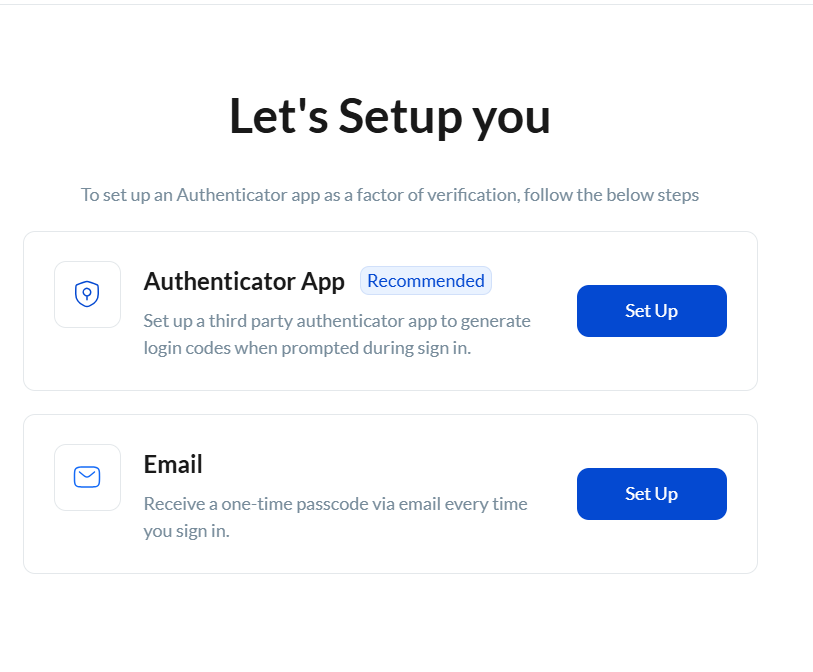
Upon your initial sign-in, you will be redirected to the Hexnode IdP Set-up screen for configuring the multi-factor authentication (MFA).
Option A: Authenticator App (Recommended)
- On the Hexnode IdP Setup screen, locate Authenticator App and click Set Up.
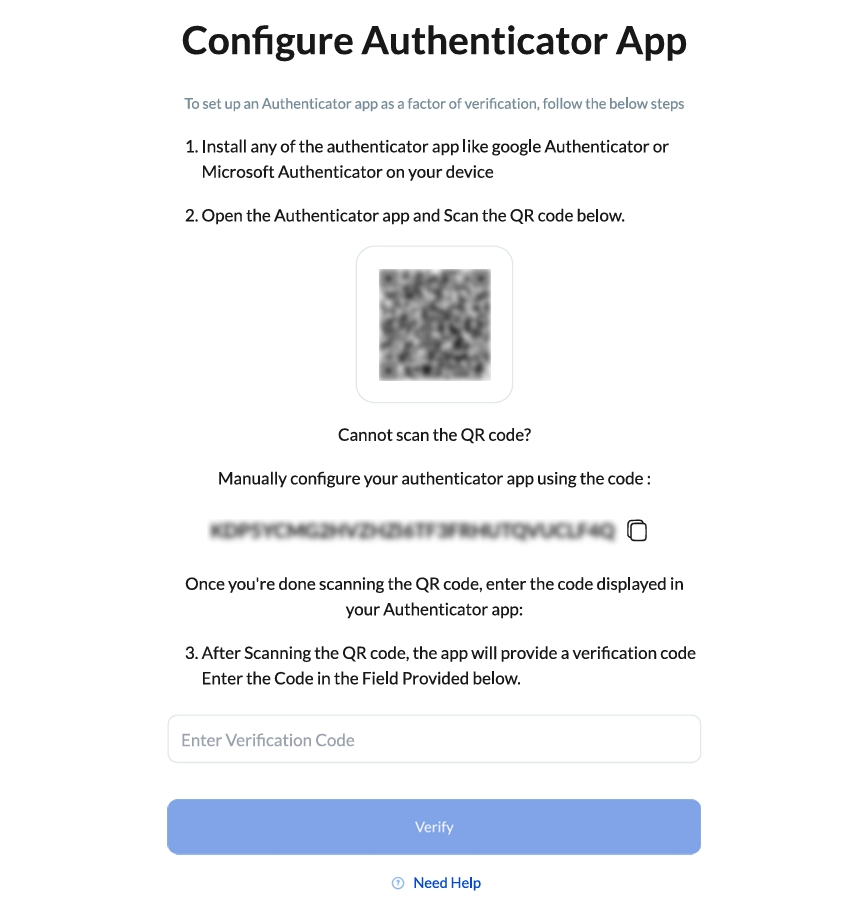
- This returns a screen with a QR Code and a 32-character hash key.
- Open your mobile Authenticator App (Google Authenticator, Microsoft Authenticator, etc.) and follow either of the following methods:
- Method 1 (QR Code): Tap the option to add a new account and scan the QR code displayed on your screen.
- Method 2 (Hash key): If you cannot scan the QR code, copy the 32-character hash key and paste it into your authenticator app under manual entry.
- Your authenticator app will generate a 6-digit verification code.
- Enter this 6-digit code into the field provided and click Verify.
Option B: Email Verification
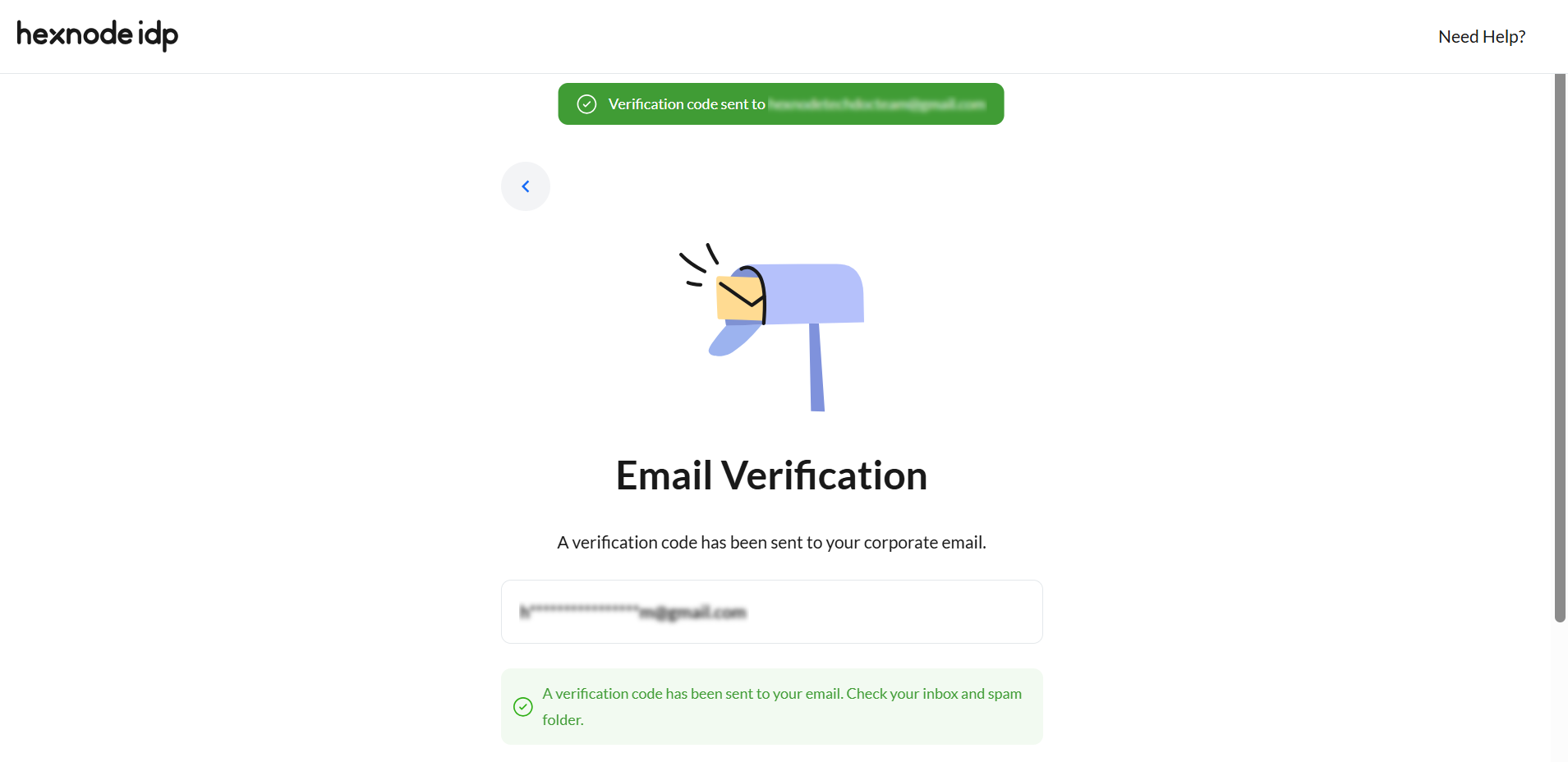
- On the Hexnode IdP Setup screen, locate Email and click Set Up.
- Hexnode IdP will automatically send a verification code to your corporate email address.
- Enter the verification code on Hexnode IdP portal and click Verify Code.
Add a Recovery Email for your Hexnode IdP Account
Once you finish setting up your initial MFA method (either Authenticator App or Email), Hexnode IdP will return a Recovery Email setup screen.
To set up a recovery email
- Enter an alternative personal email address and click Send Verification Code.
- Enter the code received and click Verify Code.
Once completed or skipped, you will return to the main factor setup page that displays a green checkmark next to your configured factor.
Step 3: Finalize Setup & Access Apps via SSO and MFA
- Confirm that green checkmarks appear next to your configured MFA factor(s).
- Click Save to complete your onboarding.
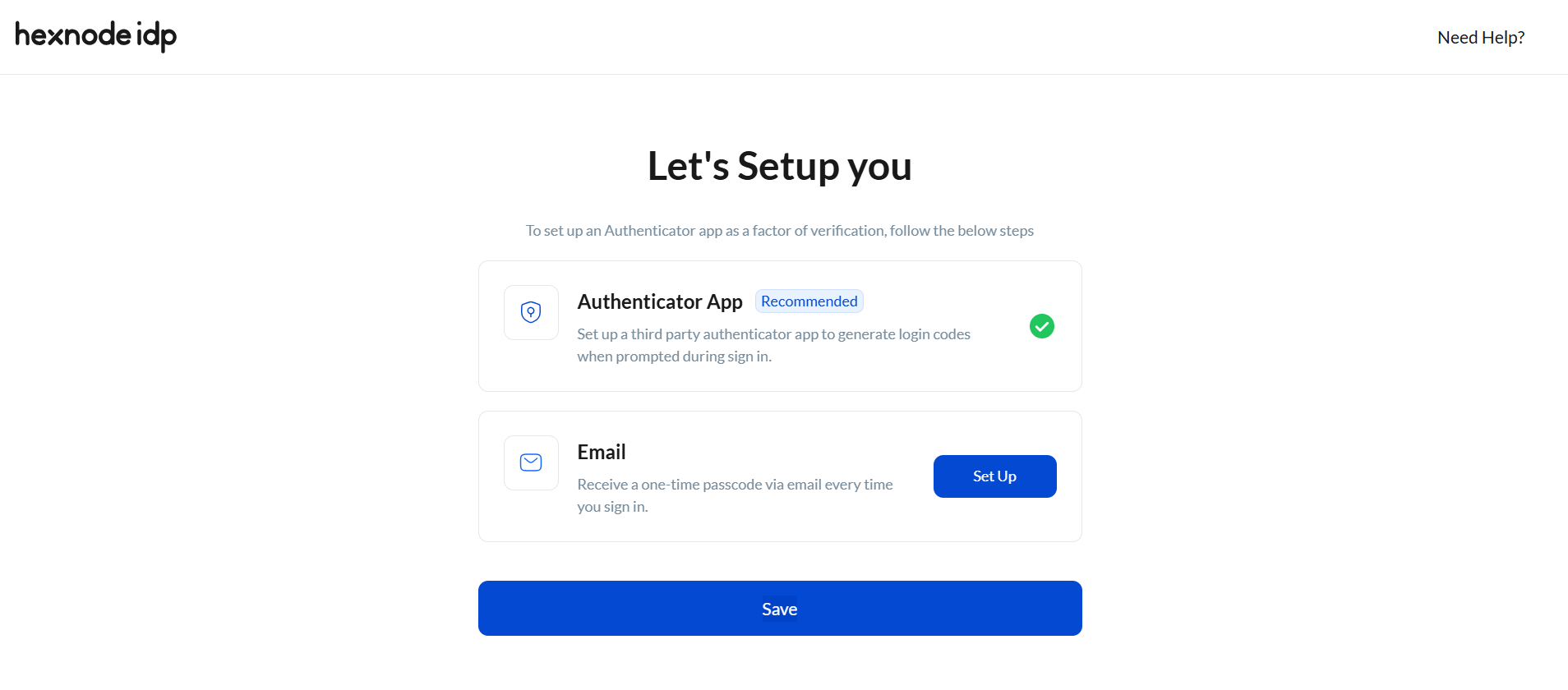
That’s it! You can now use your Hexnode IdP credentials to log in seamlessly to all your organization’s configured corporate applications via Single Sign-On (SSO).
Frequently Asked Questions
What if I lose access to my Authenticator App which was used for setting up MFA?
If you have configured a Recovery Email during setup, use it to regain access to your account. If you have not added a recovery email, contact your organization’s IT Administrator to reset your MFA factors.
Why am I not receiving the verification code on my email?
Check your Spam/Junk folder. If the email is still missing, wait a few minutes and click Resend Code. If the issue persists, contact your administrator for further assistance.
What should I do if I forget my Hexnode IdP password?
- Navigate to Hexnode IdP Sign-In page.
- Enter your corporate email address and click Next.
- Click on Forgot Password option to send a password reset link to your corporate or alternate email address.
- Follow the instructions on the email to reset your password.
Do I need to verify both MFA methods (Authenticator App and Email) every time I log in to Hexnode IdP?
No. If you set up both MFA methods during initial configuration, you can choose either your Authenticator App code or an Email verification code to verify your identity during sign-in.


