Secure multi-user access on shared kiosk devices requires more than application lockdown. IT teams must manage authentication, user sessions, and access restrictions together.
Poorly managed shared access can expose sensitive data, disrupt workflows, and increase IT support demands.
Configure user roles, restrict applications, enforce authentication, and test session handoffs to prevent unauthorized access.
Hexnode UEM supports shared-device management through Shared iPad sessions, kiosk lockdown, and platform-specific controls across multiple operating systems.
Why is multi-user access challenging on shared kiosk devices?
Managing multi-user access on shared kiosk devices is challenging because IT teams must provide each employee with the right level of access while keeping the device secure for the next user. Unlike individually assigned endpoints, shared devices serve multiple users across shifts, departments, and daily operations.
These devices are common in workplaces such as:
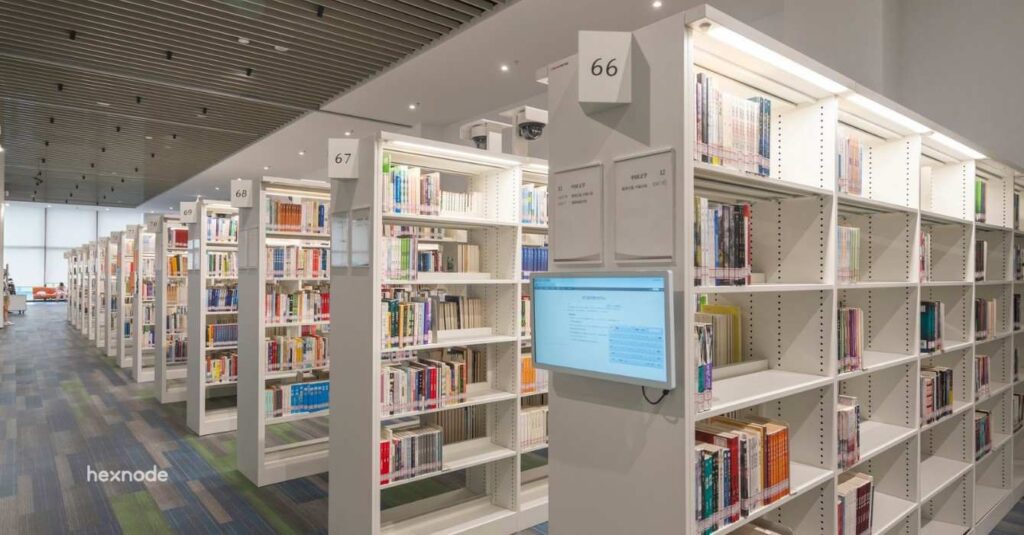
Warehouses: Shared tablets for inventory tracking and order processing.
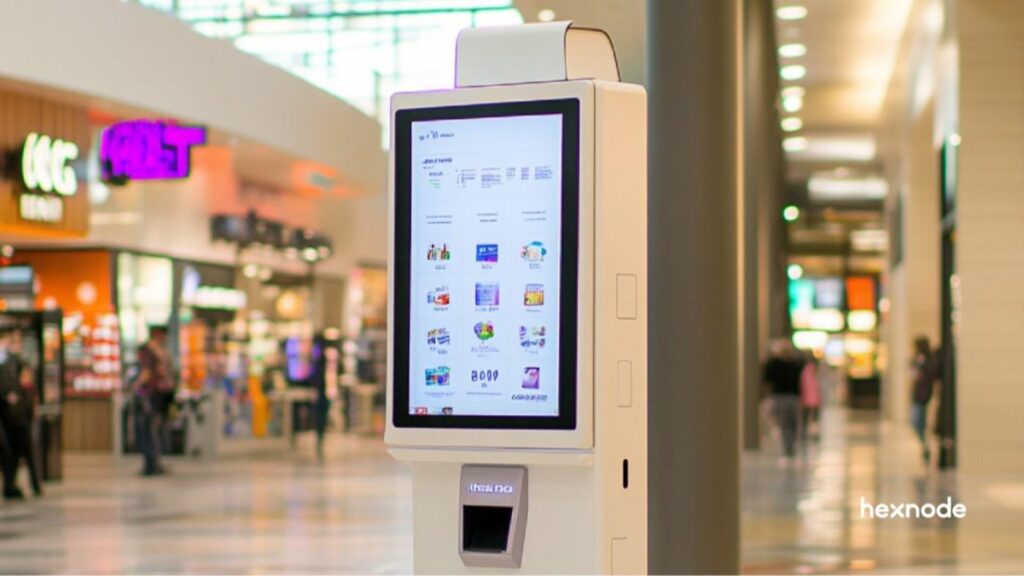
Retail stores: Kiosk terminals for checking stock and assisting customers.
Hospitals: Shared workstations for accessing patient records and clinical applications.
Frontline operations: Devices used by employees across rotating shifts.
IT must provide access to approved tools while protecting device settings and user data. Kiosk lockdown restricts applications but does not automatically provide user authentication, session isolation, or secure handoffs.
What happens when shared kiosk access is not properly managed?
Poorly managed access on shared kiosk devices can expose sensitive information, disrupt daily operations, and increase IT support demands. When employees leave applications open or fail to end their sessions, the next user may gain access to information or functions they are not authorized to use.
Without proper session and access controls, organizations face several risks:
Unauthorized access: Users may access sensitive records, authenticated applications, or functions left available by previous employees.
Interrupted workflows: Expired sessions, login failures, and incorrect permissions can delay shift changes and prevent employees from completing tasks.
Increased IT workload: Administrators spend additional time resolving authentication issues, clearing abandoned sessions, and correcting inconsistent kiosk configurations.
Accountability gaps: Shared credentials make it difficult to identify who performed specific actions, complicating activity tracking and security investigations.
These issues become harder to manage as more employees and departments share the same device fleet.
What are shared kiosk devices, and how does multi-user access work?
Shared kiosk devices are endpoints used by multiple people within an administrator-controlled application or website environment. They allow employees to access assigned tools on the same physical device without giving them unrestricted access to the operating system.
Multi-user access combines three essential controls:
Device lockdown: Limits access to approved applications, websites, and device functions through supported platform restrictions, reducing access to unauthorized settings and applications.
User authentication: Verifies the identity of employees accessing the device or business applications, while authorization controls their access permissions.
Session management: Controls how user sessions start, end, and remain separate, reducing the risk of exposing information between users.
OS-level accounts, kiosk accounts, and application logins serve different purposes. For example, employees may share one kiosk account but log in individually to a business application. IT must coordinate device restrictions, authentication, and session controls for secure multi-user access.
Which multi-user access models work for shared kiosks?
Shared kiosks generally support different access approaches depending on the operating system, application requirements, and how user data must be handled.
Access model
How it works
Suitable scenario
Key consideration
Shared kiosk account with individual application logins
Employees use one restricted device environment but authenticate separately within an application.
Retail terminals and warehouse tablets
Application logout and session cleanup must be enforced.
Individual OS user accounts
Each employee signs in to a separate supported OS account or profile.
OS support, account switching, and profile management must be verified.
Temporary or guest sessions
Users receive temporary access, with session data cleared according to supported platform controls.
Visitor terminals and temporary-use devices
Data removal and session termination must be validated.
The right model depends on whether employees need persistent profiles, individual application access, or temporary sessions. IT must also verify platform compatibility and authentication requirements before deployment.
Multi-app kiosk mode is not the same as multi-user access. Multi-app mode allows several approved applications to run within a restricted environment, but it does not automatically provide separate user identities or sessions.
What should IT consider before configuring multi-user kiosk access?
Before deploying shared kiosk devices, IT teams need to establish how employees will sign in, what resources they require, and how the devices will behave between shifts. These decisions should reflect the operating environment and the capabilities of the chosen platform.
Start by answering four questions:
Who needs access? Identify user roles and decide whether the workflow requires individual OS accounts, application logins, or temporary guest sessions.
What resources are required? Map the applications, websites, and connected peripherals needed for each role.
What happens between users? Define session timeouts, logout requirements, and whether user-specific information must persist or be removed.
Can the devices support the configuration? Check OS compatibility, enrollment requirements, kiosk capabilities, and authentication dependencies.
Plan for shift changes, network outages, and restarts to ensure secure access recovery. Verify that session cleanup removes local data and ends application sessions, as clearing browser data alone may not terminate server-side access.
Single-app vs. Multi-app Kiosk Mode: A Complete Guide
Compare kiosk lockdown modes to choose the right device configuration.
How do you configure multi-user access on shared kiosk devices?
Configure multi-user access on shared kiosk devices by defining user roles, preparing endpoints, applying restrictions, setting up authentication and session controls, and testing handoffs. Specific configurations depend on the OS, management solution, and applications.
Step 1: Define user roles and the access model
Start by identifying who will use the devices and whether they need individual accounts, application logins, or temporary sessions.
Map user access requirements
User roles: List employee groups and their required applications.
Authentication: Choose the sign-in method and identify who manages accounts.
Session handling: Decide whether user data should persist or be cleared after logout.
Access ownership: Assign responsibility for permission changes and exceptions.
Choose an access model that supports these requirements without granting unnecessary privileges. Avoid shared credentials when individual accountability is necessary.
Step 2: Prepare and lock down the shared devices
Verify device enrollment, OS compatibility, connectivity, and required applications before applying kiosk restrictions.
Configure the kiosk environment
Allowlist applications: Permit only the websites and applications required for work.
Restrict settings: Block unauthorized applications and access to sensitive system controls.
Secure maintenance: Limit kiosk exits and configuration changes to administrators.
Apply role-based restrictions: Configure different access levels where supported.
Test these settings on a small device group before deploying them across the fleet.
Step 3: Configure authentication and session controls
Set up the selected sign-in method at the OS or application level, depending on the access model.
Protect each user session
Enforce authentication: Require individual sign-ins where necessary.
Set session limits: Configure supported inactivity timeouts and automatic logout, ensuring application sessions expire on the server.
Clear temporary data: Remove supported browser or application data after sessions end.
Device logout, application logout, and local data removal may require separate configurations. Test each control to confirm session isolation.
Step 4: Test user switching and maintain the fleet
Validate how devices behave during normal shift changes, abandoned sessions, restarts, and connectivity failures.
Validate the shared-device experience
Check permissions: Confirm users can access only their assigned resources.
Verify handoffs: Ensure previous sessions and sensitive information are inaccessible.
Test restrictions: Confirm kiosk lockdown persists after logout, restart, and reconnection.
Prepare recovery: Document procedures for failed logins and application errors.
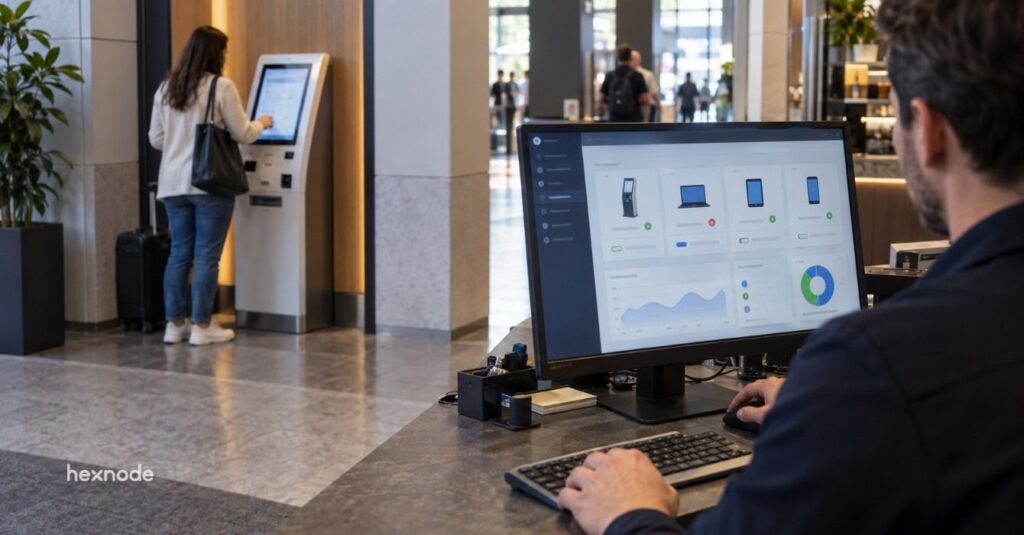
After deployment, monitor device health, maintain application versions, and review access requirements as operational needs change.
How does Hexnode help manage shared kiosk devices?
Hexnode UEM helps IT teams configure and manage shared kiosk devices across iPadOS, Android, Windows, Linux, ChromeOS, macOS, and tvOS. Its capabilities range from native multi-user sessions on Shared iPad to application lockdown and kiosk account configurations on other platforms.
iPadOS: Shared iPad and session management
Shared Device Settings: Configure Shared iPad through Automated Device Enrollment (ADE) on supervised iPads running iPadOS 13.4 or later, with X-Server-Protocol-Version 2 or later.
User Mode: Support Managed Apple Account sign-ins and per-user storage allocation, with user timeouts on iPadOS 14.5+ and configurable authentication requirements on iPadOS 16.0+.
Guest Mode: Enable temporary sessions with auto-lock and guest timeout settings (iPadOS 14.5+ for Guest Timeout). Guest session data is deleted upon sign-out.
Android: Kiosk lockdown and browser controls
Single App and Multi App Kiosk Lockdown: Restrict devices to approved applications and websites. Android Enterprise deployments require Device Owner enrollment.
Advanced Website Kiosk Settings: Configure inactivity-based webpage reloads and supported options to clear cookies, cache, browsing history, and web storage on page reload.
Windows: Multi App Kiosk Lockdown
Multi App Kiosk Lockdown: Restrict Windows devices to approved applications using a designated local, Active Directory, or Microsoft Entra ID kiosk account.
Autologon: Automatically create and sign in to a local standard kiosk account on supported Windows versions.
Linux: Single App and Multi App Kiosk
Linux Kiosk Lockdown: Restrict devices to selected GUI applications using a designated local kiosk account.
Auto Login: Automatically sign in to the kiosk account without prompting for credentials.
ChromeOS: Kiosk lockdown and device settings
Single App and Multi App Kiosk: Restrict access to supported applications and web apps, with configurable auto-launch behavior.
Kiosk Settings: Manage URL allowlisting/blocklisting, accessibility, power settings, and device status alerts.
ChromeOS kiosk management requires a Kiosk & Signage Upgrade license for each device.
Can multiple employees use the same kiosk device without sharing login credentials?
Yes, employees can use the same kiosk device with individual OS accounts or application-level logins, depending on platform support. This allows organizations to maintain individual access permissions and improve accountability without assigning a separate device to every employee.
How can IT prevent users from accessing previous sessions on shared kiosks?
IT teams can configure session timeouts, logout procedures, and supported data-clearing controls to protect information between users. Both locally stored data and application-side sessions must be addressed, as clearing browser data alone may not terminate server-side access.
Does Hexnode support multi-user kiosk access across all operating systems?
Hexnode supports kiosk management across multiple operating systems, but multi-user capabilities vary. Shared iPad supports individual and guest sessions, while other platforms primarily offer kiosk lockdown and require separate user authentication controls.
Configure secure shared kiosk access with Hexnode
Managing shared kiosk devices requires device lockdown, user authentication, and session controls to maintain secure access across shifts.
Hexnode UEM supports shared-device workflows through Shared iPad settings, Windows kiosk account configurations, Android kiosk lockdown, and other platform-specific controls.
Secure shared devices and simplify kiosk management.
Lock down applications, manage access, and maintain control over shared kiosk fleets with Hexnode UEM.
A storyteller for practical people. Breaks down complicated topics into steps, trade-offs, and clear next actions—without the buzzword fog. Known to replace fluff with facts, sharpen the message, and keep things readable—politely.