Verifying PKG signing before Mac app deployment helps prevent untrusted installers and avoidable rollout failures.
Know the risks: An unchecked PKG may have an invalid signature or unexpected signer, while a valid signature alone does not guarantee software safety.
Verify before deploying: Check the signing identity, certificate trust, package integrity, Gatekeeper acceptance, and applicable notarization requirements before piloting.
Deploy with Hexnode: Upload the verified PKG, test installation using the Install Application remote action, and assign approved apps through the Required Apps policy.
Checking a PKG’s signature helps administrators verify the installer’s signing identity and integrity before distributing it to managed Macs. It establishes who signed the package and whether its signed contents have changed since signing.
A completed download does not establish trust. Neither does a successful installation on one test Mac: that result confirms installation under those conditions, without proving the expected publisher supplied the package or that it is ready for fleet deployment.
Apple requires packages distributed through its documented device management mechanism to carry a signature verifiable by the device. Checking Mac PKG signing before deployment therefore starts with the existing installer intended for distribution: inspect its signature, confirm the expected signer, and investigate verification errors before adding that exact file to the deployment workflow for your managed Mac fleet.
What are the risks of distributing an unchecked PKG?
Distributing an unchecked PKG leaves software provenance unverified and can allow signing problems to reach multiple endpoints before IT identifies them. Administrators may discover an invalid signature or unexpected signing identity only after the rollout has started.
Consider an application update assigned to a department before its installer is checked. If devices cannot verify the package’s signature, installation failures can interrupt the update schedule. IT must investigate the cause, obtain a corrected installer, and repeat deployment. For new hires waiting on required applications, the same issue can delay onboarding and generate additional support requests.
The security boundary matters equally: a valid signature is not a safety guarantee. It supports verification of the signing identity and package integrity, but does not prove that the software is harmless, approved for business use, or operationally ready. Those decisions require separate security review, application approval, and testing through the intended deployment channel before broader distribution.
What is PKG signing, and how does it differ from notarization?
PKG signing applies a digital signature that binds an installer package to a signing identity and allows verification of its signed contents. Notarization adds an automated Apple security assessment of submitted software; it does not replace signing or guarantee that the software is harmless.
The installer’s signature is separate from the application’s code signature. Signing the PKG does not automatically sign the application inside it. Each signature covers its respective artifact, so checking the installer alone does not establish the application’s code-signing status.
Check
Purpose
Limitation
PKG signing
Verifies the installer’s signing identity and integrity.
Does not establish application functionality or business approval.
Application code signing
Identifies the application’s signer and allows verification of its signed code and resources.
Does not verify the enclosing PKG’s signature.
Notarization
Checks submitted software for malicious components and code-signing issues through Apple’s notary service.
Does not replace signatures, organizational approval, or functional testing.
Gatekeeper assessment
Evaluates software against the Mac’s applicable security policy.
Acceptance does not guarantee installation success or identical results on other Macs.
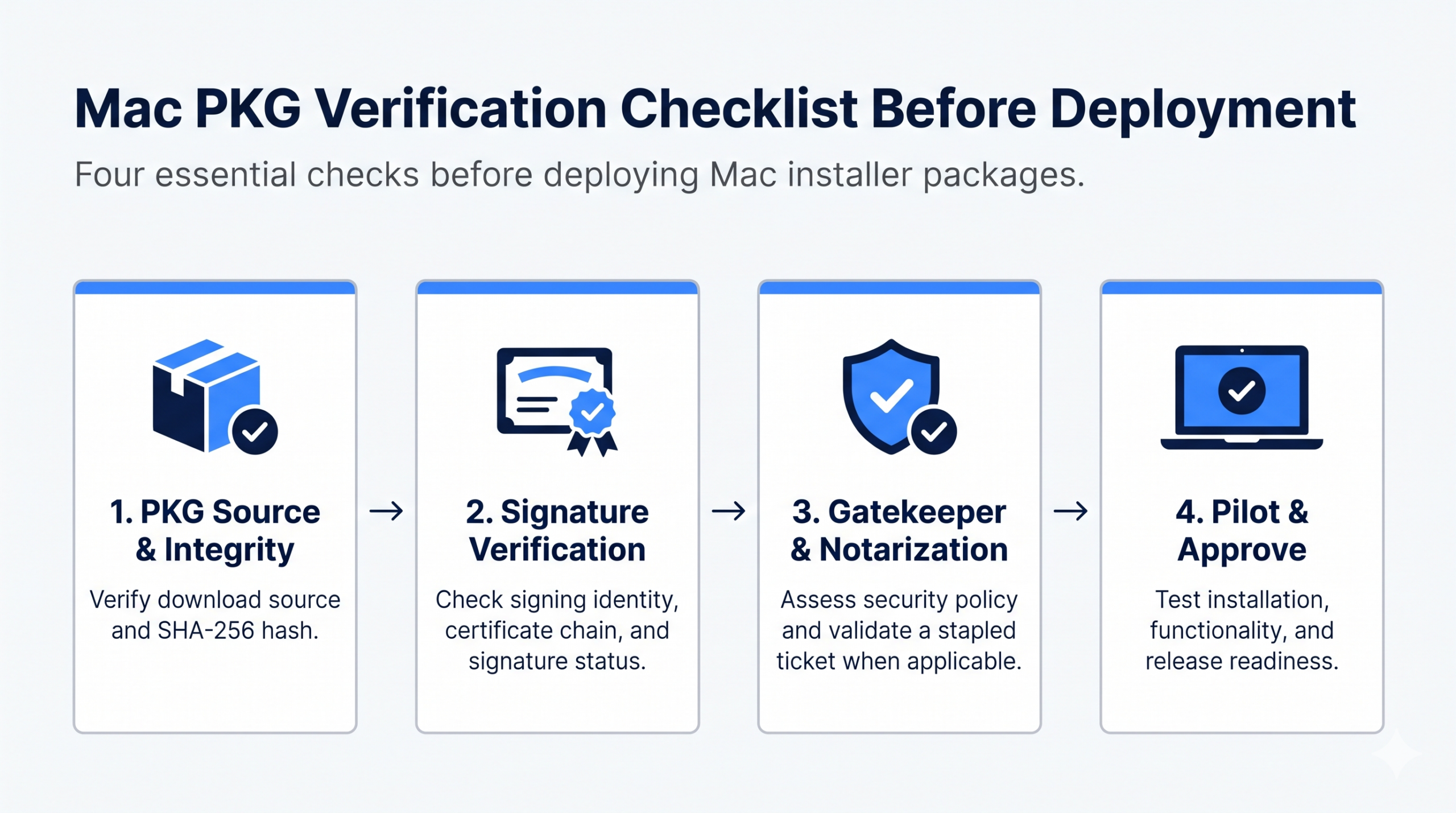
Mac PKG Verification Checklist Before Deployment
These checks answer different questions. Signature validity concerns identity and integrity; policy acceptance concerns whether software meets the assessed security rules. Successful installation confirms that deployment completed, while functional testing establishes whether the application works as required.
Manually opened installers and packages delivered through device management can follow different enforcement paths. A local assessment therefore provides useful evidence, but should not be treated as a complete simulation of the intended managed deployment.
Important: A Valid Signature Doesn't Guarantee Safety
A valid PKG signature confirms the signing identity and integrity of the installer, not whether the software is safe or approved for deployment. Always combine signature verification with applicable security checks and pilot testing.
Which certificate should sign a Mac installer package?
For Developer ID distribution, a Mac installer package uses a Developer ID Installer certificate, while the application inside it uses a Developer ID Application certificate. These certificates serve different signing purposes and are not interchangeable: signing the application does not sign its enclosing PKG, and signing the PKG does not sign the application.
Compare the reported signing organization and Team ID, where displayed, with independently confirmed vendor information. A recognizable application name is insufficient. An unexpected signer requires investigation, even if the signature otherwise verifies successfully.
The certificate chain links the signing certificate through intermediate certificates to a trusted root. A trusted timestamp provides evidence of when signing occurred, allowing verification to account for the certificate’s validity at that time.
Certificate expiration alone does not necessarily invalidate an existing, correctly timestamped signature. Revocation is a separate trust issue and must not be treated as ordinary expiration. Evaluate the verification tool’s reported result rather than deciding from certificate dates alone.
Investigate invalid signatures, untrusted chains, revocation errors, or missing timestamp evidence before approving the package for distribution to managed Macs.
How do you verify a PKG signature on macOS?
Use pkgutil --check-signature to inspect the installer’s signature, then compare its reported signing identity with the expected publisher. Check the exact file intended for deployment.
Step 1—Confirm the source and artifact
Download the installer from an approved vendor location and record its version. If the vendor publishes a SHA-256 checksum, calculate the downloaded file’s hash:
1
shasum-a256"/path/to/Installer.pkg"
Compare the complete value with the published checksum. This comparison supports verification only when the reference checksum comes from a trustworthy source. A matching hash from an unverified download page does not independently authenticate the publisher.
Step 2—Inspect the signature
Run:
1
pkgutil--check-signature"/path/to/Installer.pkg"
Review the reported signature status, signing identity, certificate chain, and trusted timestamp where present. Confirm that the signer matches independently verified vendor information and investigate any trust warnings. This command does not establish notarization status.
Pro Tip: Verify the Exact Package You Deploy
Run signature verification against the final PKG intended for distribution. If the installer is updated, replaced, or rebuilt, repeat the checks and record the new package hash before approving deployment.
Step 3—Interpret the result
Result
Deployment decision
Trusted signature, expected signer
Continue with the remaining checks required by organizational policy.
Unsigned package
Hold distribution and obtain an appropriately signed installer.
Unexpected signer
Hold distribution and confirm the signing identity with the vendor through a trusted channel.
Verification failure
Investigate the reported error; obtain a corrected package where necessary.
Retain the command output alongside the package version, source, and hash. Proceed only when the results meet organizational requirements, and resolve discrepancies before uploading the installer for distribution.
Signature verification is one approval checkpoint; policy assessment and deployment testing still follow.
How do you check Gatekeeper acceptance and notarization?
Use spctl to assess security policy acceptance and stapler to validate an attached notarization ticket. These checks complement signature inspection: they answer different questions about whether the package meets local policy and carries notarization evidence.
Review the accepted or rejected result and the reported source. A source such as Notarized Developer ID indicates recognition of notarized Developer ID software. Investigate rejection details rather than assuming every failure means an invalid signature.
The assessment reflects the test Mac’s current security policy. Acceptance does not guarantee successful installation or identical results across other devices and deployment channels.
Step 5—Validate a stapled ticket when applicable
With the necessary Apple developer tools available, run:
1
xcrun stapler validate"/path/to/Installer.pkg"
This checks the notarization ticket attached to the package. An absent stapled ticket does not, by itself, prove that the package was never notarized: notarization and attaching its ticket are separate operations. If validation fails, distinguish a missing ticket from other validation errors.
Record both results alongside the signature output. Apply your organization’s notarization requirements and evaluate the intended distribution route; a local Gatekeeper assessment should not be treated as a universal prediction of managed installation behavior.
What should you do when a package fails verification?
Hold the rollout and resolve the underlying issue before distributing the package. A verification failure requires investigation, even when the installer previously worked on a test device.
Step 6—Remediate
For third-party software, obtain a corrected installer from the vendor’s approved distribution channel. Return internally maintained packages to their authorized packaging owner to correct signing or notarization issues. Preserve the error output so the owner can investigate the specific failure.
Disabling Gatekeeper or bypassing trust checks should not become the standard response to a failed check.
Step 7—Pilot the approved package
After verification succeeds, deploy the exact approved artifact through the intended management channel. Select devices representing supported macOS versions and hardware architectures.
Confirm:
Successful installation and the expected application version.
Application launch and required permissions.
Core functionality relevant to the deployment.
Step 8—Approve and retain evidence
Record the final package’s hash, signer, verification output, and pilot result alongside its release approval. Repeat the checks whenever a replacement installer arrives or the package is rebuilt.
Before expanding distribution, define stop conditions, such as repeated installation failures, unexpected versions, or application launch errors, and identify who will investigate them.
Breeze through the rough terrains of Mac app distribution with Hexnode
Learn how to distribute and manage applications across enterprise Macs using Hexnode UEM.
How can Hexnode deploy a verified PKG to managed Macs?
Hexnode’s macOS enterprise app distribution workflow distributes an installer after IT completes its verification. Administrators can upload the approved PKG, deploy it to pilot devices, and then assign it to the wider fleet once testing meets release requirements.
Add the approved PKG to the app inventory
Navigate to Apps > +Add Apps > Enterprise App and select Mac as the platform. Enter the application details, upload the verified PKG, and add it to the inventory.
Keep the verification evidence linked to that exact artifact in your release records. This upload step does not replace the signing and notarization checks completed before deployment.
Pilot the installer before expanding distribution
Select the pilot devices or device group and use the Install Application remote action to deploy the application. Confirm its version, launch behavior, permissions, and functionality through this management channel.
After the pilot succeeds, configure a macOS > App Management > Required Apps policy. Add the approved application from the inventory and associate the policy with its intended devices or groups.
Featured Resource
Manage Mac App Deployment with Hexnode
Explore how Hexnode helps IT teams deploy, configure, and manage enterprise applications across devices.
Both deployment methods support these Success Criteria:
Criterion
Required configuration
Installation condition
App Exists
Application identifier, typically the bundle ID.
The specified application identifier is found on the device.
File Exists
Expected file path.
The specified file is present at that location.
These checks establish the configured installation condition. They do not independently establish cryptographic validity, verify the expected application version, or confirm functional readiness.
During scheduled device scans, the Required Apps policy can also detect missing required applications, flag affected devices as noncompliant, and attempt reinstallation. This helps maintain application availability after the rollout while separate verification records document the approved package’s provenance.
FAQs about Mac PKG signing and verification
Do I need to verify a PKG again after updating or rebuilding it?
Yes, every updated or rebuilt PKG should undergo signature verification before distribution. Changes to the installer can affect its integrity or signing status, so previous verification results should not be reused. Record the new package hash, signing identity, and verification results before approving deployment.
Can a Mac PKG have a valid signature but still be unsafe to install?
Yes, a valid PKG signature confirms the signing identity and integrity of the signed package, not the software’s safety. A properly signed installer can still contain vulnerable, unwanted, or malicious software. IT teams should evaluate the publisher, assess security requirements, and test the application before deployment.
Does a signed PKG need an internet connection to install on macOS?
Not necessarily. A signed PKG can be installed offline when the device can establish the required trust and installation conditions are satisfied. However, some security checks may require network access, particularly when notarization information is not locally available.
Can I use the same signed PKG across Intel and Apple silicon Macs?
Yes, a signed PKG can be distributed to both Intel and Apple silicon Macs if its contents and installation requirements support both architectures. A valid signature does not establish processor compatibility. Test the package on representative devices before approving a fleet-wide rollout.
What should IT teams do if a vendor changes the signing certificate for a Mac app?
IT teams should verify the new certificate’s signing identity and confirm the change with the vendor through a trusted channel. A different signing certificate does not automatically indicate tampering, but an unexpected signer requires investigation. Approve the updated installer only after its signature and publisher identity have been verified.
How can IT teams confirm that a deployed PKG installed the correct application?
IT teams should verify the installed application’s identity, version, and expected files after deployment. Installation checks based on application identifiers or file paths can confirm presence, but they do not independently validate the application version or functionality. Pilot testing should also confirm that the application launches and operates as intended.
Before distributing a Mac installer, verify its signing identity and integrity, assess applicable trust requirements, and pilot the final package through your intended management channel. Approve wider distribution only after the package meets your security and operational requirements.
Try Mac app deployment with Hexnode to test the Install Application action on pilot devices, then use the Required Apps policy to assign the approved PKG to its intended devices or groups.
Ready to Deploy Verified Mac Apps?
Test enterprise app deployment on managed Macs using Hexnode's Install Application action and Required Apps policy.
Associate Product Marketer at Hexnode focused on SaaS content marketing. I craft blogs that translate complex device management concepts into content rooted in real IT workflows and product realities.