Employees need external storage for legitimate work, but unrestricted access creates uncontrolled paths for moving company data. IT must preserve necessary transfers while limiting how sensitive information enters or leaves managed Macs.
Those requirements vary by role. Creative teams use external SSDs to exchange large video files. Field staff import data from SD cards or USB drives, sometimes without reliable network access. Meanwhile, administrators must protect sensitive information across distributed Macs where they cannot inspect every connected drive.
The challenge is deciding which access each workflow requires. Someone importing field measurements may need to read files without writing company data back to the drive. A team delivering media assets may require transfers in both directions.
Effective removable media access control on Mac starts by identifying who needs storage access, whether they need to import or export files, and where restrictions can apply without interrupting essential work or creating repeated support requests.
What happens when removable media policies are too permissive or restrictive?
Permissive policies increase exposure to unauthorized data transfers, while excessive restrictions disrupt approved workflows. Both create problems when access rules fail to reflect how employees actually use external storage.
Unrestricted access introduces several distinct risks:
Accidental disclosure: Employees may copy sensitive files onto personal or shared drives alongside approved materials.
Lost storage: Losing an unencrypted drive can expose its contents to whoever obtains it.
Malicious files: External storage can introduce harmful files when users open or execute them. A connected USB drive is not inherently an attack.
Overly restrictive policies create operational friction. Blocking an approved project transfer can delay delivery and generate repeated exception requests. Without documented criteria, administrators may grant different permissions for identical requirements, making enforcement inconsistent.
Employees facing persistent access barriers may adopt unapproved transfer services or personal accounts. IT then has additional transfer paths to assess, alongside the support workload created by the original restrictions.
What does macOS removable media control actually manage?
macOS removable media control governs whether external storage can mount and how users can access its contents. Relevant media include USB flash drives, external HDDs and SSDs, and SD cards. Mounting makes a storage volume accessible to the operating system; access controls determine which operations users can perform through the applicable management mechanism.
These controls have a specific scope:
Storage access: Governs access to mounted volumes and, where supported, reading or writing their contents.
Physical ports and peripherals: Blocking external storage does not necessarily disable USB ports, keyboards, or docks.
External startup disks: Controlling whether a Mac can boot from another disk is a separate security function.
Network shares: Access to SMB shares and other network storage requires separate consideration from removable drives.
Storage restrictions also serve a different purpose from encryption and endpoint protection. Mounting restrictions determine whether a volume becomes accessible. Encryption protects stored data from access without the required credentials or keys. Endpoint security examines files and activity for threats, subject to the security tool’s capabilities and configuration.
On Macs, FileVault protects the startup volume. Enabling FileVault for the startup disk does not automatically encrypt connected removable drives. Configure encryption separately for external storage that requires protection at rest.
macOS Security: A Practical Guide for IT Teams
Explore the security controls IT teams need to protect company Macs beyond removable storage restrictions.
Should Macs block external storage or allow read-only access?
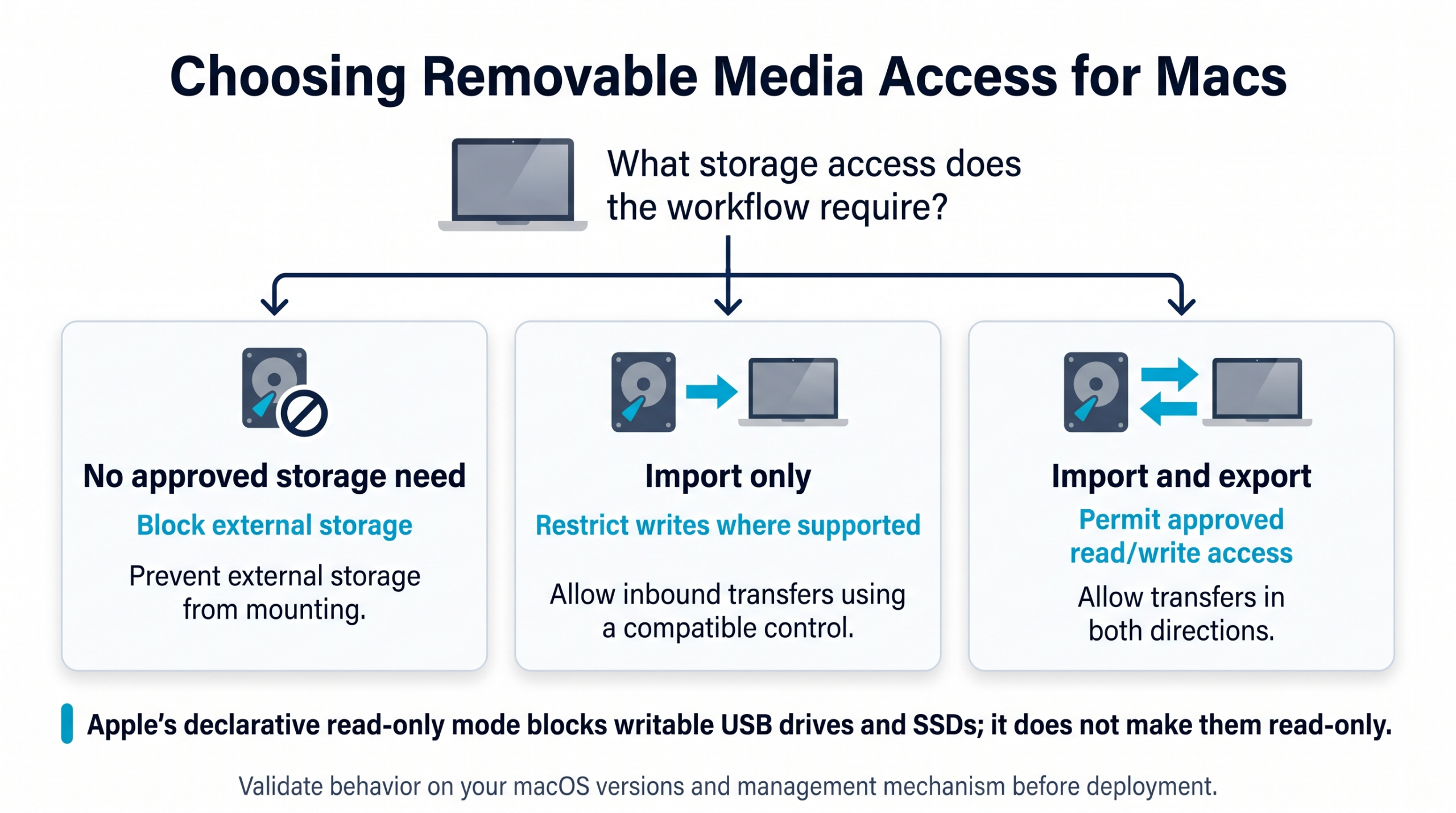
Block external storage where no business need exists. Consider restricted access for import workflows and approved read/write access where exports are necessary. Choose controls according to the required transfer direction and verify how the management mechanism enforces them.
Access mode
Permitted activity
Suitable workflow
Residual risk
Blocked
No external storage mounting
Devices without storage requirements
Other transfer channels remain available
Read-only access, where supported
Read or import files; prevent writes
Importing field data
Harmful files can enter the Mac
Read/write access
Import and export files
Exchanging project deliverables
Unauthorized exports and harmful imports remain possible
Choosing Removable Media Access for Macs
Preventing writes does not prevent malicious files from being read or copied onto a Mac. An “allowed” policy also does not override filesystem permissions, encryption requirements, or other device restrictions.
The meaning of read-only requires particular attention. Apple’s storage management declaration for supervised Macs running macOS 15 or later allows only inherently read-only external media, such as CDs or DVDs, in this mode. Writable USB drives and SSDs cannot mount—even as read-only storage. Administrators must distinguish this behavior from controls that restrict writes to otherwise writable media.
How do you identify which employees need removable media access?
Inventory actual workflows before choosing restrictions. Identify which employees depend on external storage, what they transfer, and why another transfer method would not meet their requirements.
For each workflow, record:
Device context: Ownership, macOS version, enrollment method, and user privileges.
Storage and applications: Media types, required applications, and how those applications access external files.
Data sensitivity and direction: Whether users import, export, or transfer information both ways.
Importing camera footage requires different permissions from exporting customer deliverables. Moving diagnostic files may involve sensitive system information, while disconnected environments may make network-based alternatives impractical. Confirm these requirements with the team responsible for the work.
Build a requirements matrix before translating business needs into technical settings:
Field
What to document
Business owner
Person accountable for the workflow
Permitted activity
Reading, importing, exporting, or both
Approved storage requirements
Ownership, media type, and encryption requirements
Access duration
Ongoing, project-specific, or temporary
Alternative transfer method
Approved fallback, where available
Treat this matrix as policy requirements. Verify separately whether the chosen management tool can enforce each requirement on the relevant Macs.
How do you create a practical removable media policy for Macs?
Assign the minimum access needed for each workflow, using the requirements matrix to define separate policy groups. Base permissions on documented tasks rather than giving every employee the same access.
Organize devices into three groups:
No external storage: Block mounting where employees have no approved storage requirement.
Import access: Permit required inbound transfers while restricting writes where the management mechanism supports that behavior.
Approved exports: Permit read/write access for workflows that require files to leave the Mac.
Document handling rules alongside technical restrictions. Specify when employees must use company-issued media, which data requires external-drive encryption, how to report a lost drive, and why unknown or found storage must not be connected. Identify who prepares approved drives and verifies their encryption before use.
A requirement such as encrypted-drive-only access needs a verified enforcement mechanism. Writing it into policy does not establish that the management tool can identify and block unencrypted storage.
Define exceptions through a documented process covering:
Owner and justification: Who needs access and which task requires it.
Approval and expiry: Who authorizes access and when it ends.
Rollback: Who restores the baseline restriction and verifies the result.
Treat temporary access as a governed change. Verify support for per-drive allowlisting, automatic expiry, or content-aware enforcement before relying on these capabilities; otherwise, document the administrative steps required to manage the exception.
How should IT test removable media restrictions before deployment?
Pilot restrictions on representative Macs and verify actual access behavior before expanding deployment. Check each device’s macOS version, enrollment method, policy delivery status, account privileges, and selected control mechanism. A delivered policy does not, by itself, confirm that the intended restriction works.
Use disposable test data and a checklist:
Connect approved and unapproved test media: Include the storage types used in documented workflows.
Attempt mounting: Confirm whether each volume becomes accessible under the assigned policy.
Open files: Verify that permitted reading works through required applications.
Copy in both directions: Test importing files onto the Mac and exporting files to external storage separately.
Reconnect storage: Check whether disconnecting and reconnecting changes enforcement.
Repeat after logout or restart: Test persistence and any authentication requirements.
Record expected versus observed results for each combination of device, account, policy, and media. Investigate discrepancies before widening the rollout.
Compatibility needs particular attention: Apple deprecated the legacy Media Management payload in macOS 11. Deprecation does not establish that every setting has stopped working, but administrators must validate enforcement on each supported fleet version. Keep legacy controls separate from declarative storage management in test records because similarly named options can produce different mounting behavior.
Pro tip:
Test the transfer, not just the policy status. Use disposable files to check copying in both directions. A successfully delivered policy does not prove that the intended restriction is enforced.
How do you maintain access controls without creating support bottlenecks?
Deploy restrictions in stages, explain expected behavior to users, and provide an accessible exception route before broad enforcement. Tell employees which storage activities remain permitted, what a blocked connection may look like, and where to request access for approved work.
When a drive is unexpectedly blocked, troubleshoot in a consistent order:
Policy assignment and delivery: Confirm that the intended policy reached the correct Mac.
Overlapping settings: Check whether another configuration imposes additional restrictions.
Account type: Verify whether standard-user or administrator privileges affect access.
Storage characteristics: Identify the media type, encryption state, and whether it is inherently read-only.
Filesystem permissions: Check whether volume or file permissions explain the failure.
OS compatibility: Confirm the control’s tested behavior on that macOS version.
Complete these checks before relaxing restrictions.
Track exception volume, blocked business workflows, support resolution time, and pilot results through service tickets and available management evidence. Policy delivery records help establish configuration status; they should not be treated as file-level USB transfer logs.
Revalidate controls after major macOS upgrades, using the same representative workflows and test media from the pilot.
How can Hexnode help manage removable media access on Macs?
Hexnode’s macOS Media Management policy, available under macOS > Security > Media Management, provides documented controls for external storage access. Administrators can configure two distinct restrictions:
Block external media: Prevent drives from mounting, stopping transfers in either direction.
Permit read-only access: Allow files to be read or imported while preventing writes from the Mac to external storage.
For workflows requiring additional oversight, Hexnode also documents administrator-authenticated external-media access, including a read-only variant. Standard users must authenticate with administrator credentials; that authentication remains valid throughout their active login session. Users already signed in to an administrator account do not receive the same authentication prompt.
and use Policy Targets to select relevant devices, device groups, users, or user groups. Save the policy, then verify its behavior against the approved workflows. Hexnode also notes that third-party applications can enable mobile-device connections despite the configured media restrictions.
These documented settings should be evaluated separately from Apple’s declarative storage management. Apple deprecated its legacy Media Management payload in macOS 11, making a compatibility pilot necessary before broader enforcement. Test mounting, imports, exports, and authentication on representative fleet versions rather than assuming similarly named controls behave identically.
For requirements involving individual-drive approval, encryption enforcement, or transfer auditing, establish a separately verified mechanism before including them in the rollout’s acceptance criteria.
Featured Resource
Secure and Manage Your Mac Fleet
Explore macOS security restrictions, configuration policies, and device management with Hexnode UEM.
Can an encrypted USB drive still expose company data?
Yes, encryption protects data while the drive is locked, but authorized users can access its contents after unlocking it. Encryption does not prevent someone from copying sensitive files onto the drive or introducing malicious files from it.
Does blocking removable storage on Macs also block USB keyboards and docks?
Blocking removable storage does not necessarily disable USB keyboards or docks because storage restrictions target access to storage volumes. Test multifunction docks separately to confirm that required peripherals work while connected storage follows the intended policy.
Why is a writable USB drive blocked when macOS storage management is set to read-only?
Apple’s declarative storage management read-only mode permits inherently read-only media rather than converting writable drives into read-only volumes. A writable USB drive or SSD therefore cannot mount under that setting, even if the user only intends to read files.
Can IT allow USB transfers temporarily without permanently changing a Mac’s restrictions?
Temporary access can be managed through an approved exception with a defined owner, purpose, and expiry. Verify whether the management tool supports automatic expiration; otherwise, assign an administrator to restore and test the original restrictions.
Does a successful MDM policy deployment prove that no files were copied to USB?
No, successful policy deployment does not establish whether individual files were transferred. Verify enforcement through controlled transfer tests, and use a separately validated auditing mechanism if file-level evidence is required.
Ready to evaluate removable media controls for your Mac fleet?
Evaluate Hexnode’s macOS Media Management policy against one representative import workflow, one export workflow, and one restricted device group. Confirm whether the selected settings preserve required transfers and enforce the intended restrictions on your fleet’s macOS versions.
Request a Hexnode demo to review policy options and macOS compatibility against your requirements. Use those findings to define pilot acceptance criteria before planning wider deployment across your managed Macs.
Evaluate Removable Media Controls for Your Macs
Review Hexnode’s macOS media policy options against your fleet’s access requirements and compatibility needs.
Associate Product Marketer at Hexnode focused on SaaS content marketing. I craft blogs that translate complex device management concepts into content rooted in real IT workflows and product realities.