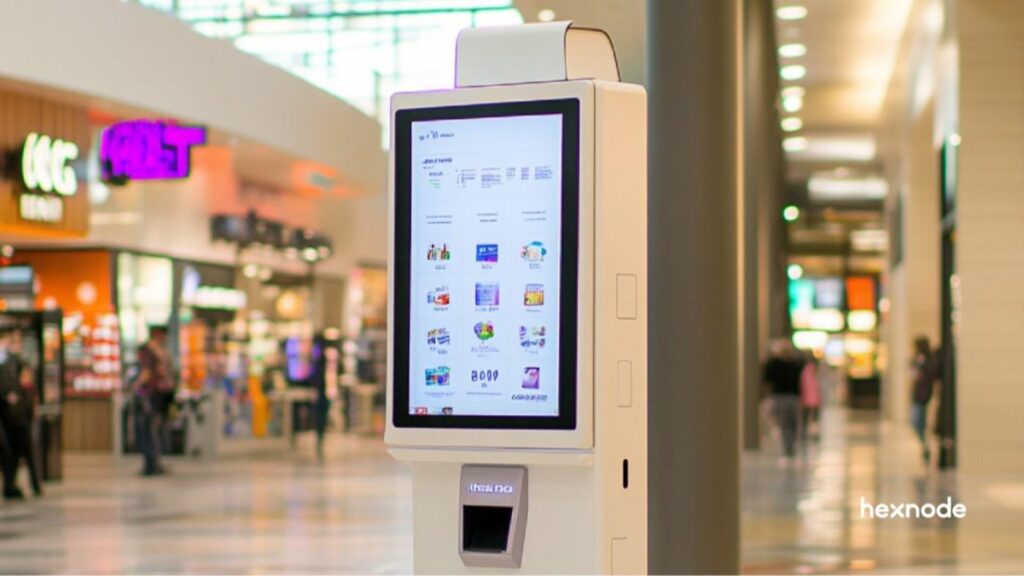
Effective library kiosk management must balance restricted access, patron privacy, accessibility, and reliable service across shared public-facing devices.
Choose kiosk or shared-session configurations according to the service, then validate applications, websites, peripherals, accessibility, and complete patron workflows.
Session controls should address explicit logout, inactivity, maximum duration, and cleanup so one patron cannot access another user’s local data or accounts.
Hexnode UEM supports Windows kiosk configurations and ChromeOS managed guest sessions for dedicated and shared library-access scenarios.
Why are library and public-access kiosks difficult to manage?
Library and public-access kiosks serve changing users with different needs, while IT must maintain consistent restrictions, privacy protections, and availability. Each terminal must support its intended services without exposing administrative controls or retaining another patron’s information.
A catalog search may take minutes. Research databases, job applications, document editing, and printing demand longer sessions and additional functions. Abandoned sessions leave staff checking whether users have finished. Configuration changes can disrupt the next patron’s task, prompting repeated intervention.
For endpoint administrators and IT directors, public access kiosk management requires consistent policies across branches while accommodating different services. A catalog terminal needs tighter restrictions than a document-editing workstation. Applying the same configuration everywhere can block legitimate tasks and push troubleshooting onto branch staff.
What happens when public kiosks lack effective controls?
Weak kiosk controls can expose patron information, interrupt public services, and create avoidable support work. These failures affect both service availability and confidence in the library’s ability to protect private activity.
An active browser session may let the next user access a previous patron’s account. Downloaded forms and locally saved documents can reveal personal details. The American Library Association recommends clearing browser data and removing traces of individual use from shared computers.
IT teams can measure the operational impact through unavailable terminal hours, repeat support tickets, failed patron tasks, and staff restoration time. Track these measures by branch and device role to identify recurring problems and prioritize remediation across affected terminals.
Featured Resource
How to set up a self-service kiosk for your business
Learn how to set up self-service kiosks to improve service, efficiency, and customer experiences.
Public access kiosk management is the configuration, restriction, maintenance, and monitoring of shared devices that provide public-facing services. It gives IT teams control over what patrons can access, how devices operate, and what remains after each session.
Kiosk lockdown limits available applications, websites, and device functions. Session management governs how users enter, use, and leave the shared environment, including logout, inactivity handling, and cleanup. A restricted browser can still retain a signed-in account if session controls do not clear it.
Effective management combines several layers: application access rules, session cleanup, endpoint protection, network controls, accessibility, and ongoing maintenance. Each addresses a different requirement, from preventing unauthorized software execution to preserving assistive functions.
Full-screen presentation alone does not enforce these protections. Administrators must configure and test the underlying controls against each terminal’s intended services, including what happens when a patron walks away.
Which kiosk mode fits catalog searches, research, and public computing?
Catalog terminals typically suit website or single-app configurations. Research and general computing stations may require multiple applications or a managed shared session for broader temporary access.
Service
Access model
Required functions
Cleanup needs
Catalog-only terminal
Website kiosk or single catalog app
Catalog search, navigation, accessibility tools
Clear search history and any account sessions
Research station
Website kiosk or multi-app configuration
Research databases, authentication, PDF viewing, approved printing
Clear browser sessions, downloads, and temporary files
Clear browser data, local documents, and application session data
Choose single-app mode for one application, website kiosk mode for browser-based services, and multi-app mode when patrons need several approved applications. A managed shared session provides a temporary user environment; it is distinct from application lockdown.
Validate browser and desktop application dependencies, assistive technology, printing, downloads, peripherals, and operating-system support before selecting a configuration. Test complete patron workflows, including authentication redirects and file handling.
How do you implement secure public-access kiosks?
Implement secure public-access kiosks by defining services, restricting access, protecting sessions, preserving accessibility, hardening infrastructure, and validating operations. Use the numbered checklist below to translate those requirements into configurations and tests.
IT teams own technical controls and maintenance. Branch staff verify everyday usability and report failures. Service owners approve required functions, access policies, and acceptance criteria before terminals enter service.
Define services and create device profiles
Inventory each terminal by branch, operating system, intended service, peripherals, and connectivity. Document whether patrons need catalog access, research databases, document editing, or broader browsing. Record dependencies such as printers, scanners, and authentication services.
Create separate configuration profiles for distinct services. Each profile should identify approved applications and websites, session expectations, and a named owner responsible for reviewing changes. Group terminals by function so administrators can apply consistent settings without imposing catalog-only restrictions on research workstations.
Before deployment, establish acceptance criteria:
Patrons can complete approved tasks.
Restrictions prevent unauthorized access.
Cleanup removes the intended session data.
Branch staff have a documented support route and know when to escalate recurring failures.
Restrict applications and websites without breaking services
Apply least privilege to patron accounts by granting only the permissions required for approved tasks. Restrict administrative settings and unauthorized application installation, then select application and website rules according to the terminal’s purpose.
For dedicated catalog or service kiosks, test the complete website workflow. Authentication redirects, embedded content, and supporting domains may require additional access beyond the homepage. Record each dependency and its purpose before approving it. For general research terminals, align browsing restrictions with the library’s access policy and provide a process for reviewing blocked resources.
Test potential escape paths through:
Keyboard shortcuts and system menus.
Open, save, and print dialogs.
External links and downloaded files.
Attached storage and other peripherals.
Verify that these paths cannot expose unauthorized applications or settings. Repeat approved printing and assistive-technology workflows after changing restrictions, since tighter controls can also interrupt legitimate patron tasks during use.
Protect patron privacy between sessions
Configure three controls separately: explicit logout ends a session on request, inactivity timeout responds to abandonment, and maximum session duration limits total use. Provide a visible end-session action and explain what patrons must save before leaving.
Build a cleanup matrix that assigns each data type to a control and trigger. The ALA recommends removing session data from public computers.
Data
Responsible control to configure
Cleanup trigger
Cookies and browser history
Browser data-clearing policy
Session exit or inactivity reset
Saved credentials and autofill
Browser saving restrictions and cleanup
During use and session exit
Downloads and local documents
File cleanup or device restoration
Logout or restoration cycle
Print-related records
Print-system retention controls
Configured job-completion or expiry event
Browser cleanup and device-wide restoration have different scopes. Verify each control’s coverage rather than assuming a browser reset removes local documents.
Test with two consecutive users. Confirm that the second cannot reopen the first user’s accounts or recover files through ordinary interfaces. Repeat after logout and inactivity expiry. Clearing local browser data does not delete records retained by external services.
Make sessions accessible and easy to complete
Test keyboard navigation, text readability, contrast, screen-reader compatibility, physical reach, and access to assistance. Keep required accessibility settings available within the restricted environment, and verify that session resets do not remove essential configuration.
Provide understandable timeout warnings and appropriate ways to request additional time. For applicable web-content time limits, follow WCAG’s Timing Adjustable guidance on turning off, adjusting, or extending limits, subject to its exceptions. Device-level timeouts do not all carry identical conformance requirements.
Use plain-language instructions for starting a session, printing, saving work, and logging out. Explain privacy and cleanup behavior before users enter personal information.
Include representative users and assistive technologies in testing. Ask participants to complete actual library tasks, including responding to timeout warnings and requesting help, so testing captures barriers that configuration reviews alone can miss.
Secure networks, peripherals, and maintenance access
Separate public terminals from staff and administrative systems through network segmentation and explicit access rules. Permit required service connections while restricting unnecessary access across that boundary. The ALA recommends separating public computers, staff computers, and wireless users; segmentation still requires endpoint protections and maintained configurations.
Define USB and peripheral rules by service. A document workstation may need approved removable storage, while a catalog terminal may not. Preserve required keyboards, scanners, printers, and accessibility equipment. Protect device enclosures and inspect terminals for tampering or unfamiliar attachments.
Maintain supported operating systems, browsers, and applications. Test updates on a pilot device before scheduling deployment and restarts around service hours.
Document authorized maintenance access, including who may enter administrative mode, how they authenticate, and how they restore kiosk restrictions afterward. Verify the patron environment before returning each serviced terminal to public use at the branch.
Pilot, monitor, and standardize branch operations
Pilot devices that represent each service, operating system, and peripheral configuration. Test power recovery, network loss, application failure, printing, and session cleanup. After each disruption, confirm that the terminal returns to its intended kiosk environment with restrictions intact.
Give branch staff a troubleshooting checklist:
Blank pages: Check connectivity and service availability.
Blocked redirects: Record the affected workflow for IT review.
Unavailable printers: Check printer status and the approved connection.
Failed resets: Remove the terminal from public use until cleanup works.
Assign escalation owners and document rollback procedures. Define other withdrawal conditions, including exposed administrative access or repeated failures that prevent patrons from completing tasks.
Track availability, configuration status, cleanup failures, and support effort by branch and device role. Minimize patron activity collection. If remote viewing or monitoring is necessary, disclose its purpose and scope in the library’s privacy policy and limit access to authorized staff responsible for support.
The Definitive Guide to Kiosk Management and Strategy (2026 Edition)
Explore kiosk management strategies for secure deployments and optimized device performance.
How does Hexnode UEM support library kiosk management?
Hexnode UEM provides Windows kiosk controls and ChromeOS managed guest session settings relevant to dedicated and shared library terminals. These options address different service models, from restricted catalog access to temporary browsing environments.
Use the platform-specific mappings below to select controls. Validate operating-system support, browser behavior, enrollment prerequisites, and service requirements before deployment; functionality and configuration requirements differ across platforms.
Which Windows controls support dedicated and multi-app terminals?
Windows Multi App kiosk supports stations requiring several approved applications. Navigate to Kiosk Lockdown > Windows Kiosk Lockdown > Multi App, allowlist required applications, and assign the policy through Policy Targets > Device Groups. Prepare the appropriate kiosk account and install required applications before applying the configuration.
For catalog and service terminals, use Windows Website Kiosk with Website Kiosk URLs and its Allowlist/Blocklist options to control website access. Test supporting domains and authentication redirects before deployment.
Session controls depend on the selected browser:
Kiosk Browser: Show Reset Button lets patrons end the session, clear browsing data, and return to the homepage. Browser Timeout automatically resets an inactive session after a warning.
Microsoft Edge: Enable Delete downloaded files in the kiosk session upon exit where required. Configure Idle timeout actions to clear cookies, browsing history, cached files, and autofill.
Keep these browser-specific settings separate when documenting profiles. Validate cleanup against actual patron workflows; these controls do not establish complete device-wide data erasure.
How can ChromeOS managed guest sessions support shared access?
ChromeOS managed guest sessions provide temporary device access without requiring users to sign in to a Google account. Configure them under ChromeOS > Managed Guest Session > Basic for shared library browsing stations. This session model differs from single-app kiosk lockdown.
Under Power Management, enable Idle device management, then configure Idle warning, Idle timeout, and Idle device settings > Log the user out. Set AC-power and battery behavior separately so abandoned-session handling works under both power conditions.
Assign policies through Policy Targets > Domains/OUs, selecting the relevant organizational units under the integrated Google Workspace account.
Before expanding deployment, test logout behavior, accessibility tools, and service continuity on representative devices. Confirm that patrons can complete required browsing tasks and that inactivity settings trigger the intended warning and logout behavior during actual library use.
FAQs
What is the difference between a public-access kiosk and a regular shared computer?
A public-access kiosk uses configured restrictions, session controls and maintenance policies to limit what users can access and what data remains after each session. A regular shared computer may provide broader access without the same application lockdown, session cleanup or administrative restrictions.
How can libraries protect patron privacy on public computers?
Libraries should configure controls for browser history, cookies, saved credentials, downloads, local documents and other session data according to their retention requirements. IT should test cleanup with consecutive users to confirm that the next patron cannot reopen the previous user’s accounts or recover files through ordinary interfaces.
Should libraries use single-app or multi-app kiosk mode?
The choice depends on the service offered by the terminal. Single-app or website kiosk configurations suit dedicated services such as catalog searches, while research and general computing stations may require multi-app configurations or managed shared sessions.
How can you evaluate Hexnode UEM for your library kiosks?
Evaluate one representative terminal against the service, privacy, accessibility, and recovery criteria established above. Bring your device inventory, application requirements, and session-cleanup checklist to the evaluation.
Use these requirements to assess platform compatibility and verify complete patron workflows, including printing, logout, and recovery after disruption. Record any configuration gaps before planning deployment across additional branches or service types.
Simplify Public-Access Kiosk Management
Secure shared devices, control user access, and maintain reliable public kiosks with Hexnode UEM.
Content writer at Hexnode. Fueled by good coffee and the occasional cat cuddle, I enjoy crafting content that informs, connects, and resonates. Nothing excites me more than knowing my words have been read, appreciated, and maybe even bookmarked.