iOS Onboarding: Everything You Need To Know
Secure your iPhone by making it a Hexnode managed device.

Get fresh insights, pro tips, and thought starters–only the best of posts for you.
Your iPhone isn’t just a phone anymore. It’s your digital identity. That’s exactly what makes it a target for all kinds of attacks. In hybrid workplaces, your personal devices have evolved into a corporate endpoint. With this shift comes the responsibility to secure it. Usually, iOS is built with strong security, but no device is immune to attacks. If your iPhone has begun to slow down, display advertisements unnecessarily, or behave differently, it may have been infected with malware. And knowing how to remove malware from your iPhone is a necessity.
Malware is short for malicious software. It refers to any software designed to harm a device, steal information, or get unauthorized access to personal data. In iPhones, malware is usually introduced from phishing links, jailbreaking or downloads outside of the App Store. The common types of malware in iPhones are,
Malware usually affects the device’s performance and usability. The common indicators are,
If you see the above signs, then it is essential to take immediate action. While system-wide antivirus scans are not applicable in iPhones, the remediation relies on manual removal steps like cleaning browser data, uninstalling suspicious apps or configuration profiles, applying software update, or, in extreme cases, performing a factory reset.
A simple restart can terminate any temporary malware in the device.
To restart,
You can also turn off the device by going to Settings > General > Shut Down. This will bring the Slide to Power Off slider.
Malware often comes from infected web data or cache.
To clear Safari data,
Clearing all the cookies and cache is important for removing the trace of malware.
If your iPhone started to behave oddly after installing an app, then it may be the cause of the attack. Scroll through the apps and find the app which started the issue.
To uninstall it,
Likewise, if the system settings are changed or unknown VPNs are added, then malicious profiles have been configured.
To remove it,
Security updates can fix malware in the device. So, regularly check for patches and keep the device updated.
To update,
Rapid Security Responses allows your iPhone to get urgent security fixes between full iOS updates. These micro-updates protect your device from attacks faster than standard updates.
To enable this,
Stolen Device Protection prevents unauthorized users from changing your security settings or using passwords.
To enable,
If the malware or malicious configuration profile issue persists, a full erase removes everything and restores factory settings.
To perform an erase and restore,
Make sure you restore the backup which was selected is infection free. Select the backup which was done before the malware attack if available.
The above-mentioned steps are a way of removing malware from the device, which could be easily prevented in the first place by,
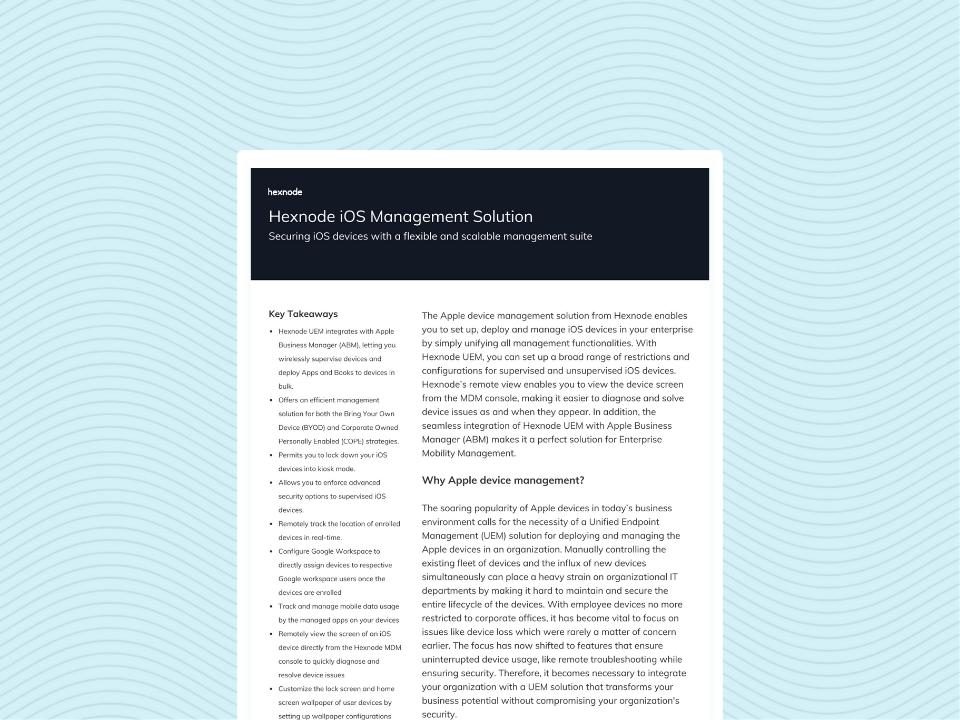
Explore how Hexnode helps in iPhone management with deployment, security, and compliance capabilities for enterprises.
Download datasheetFor organizations managing multiple iOS devices, Hexnode offers remote controls to detect, remove, and prevent malware threats at a large scale. Hexnode acts as a central hub allowing IT admins to remotely manage the device and introduce policies to minimize security risks.
With Hexnode we can,
Can iPhones actually get malware?
Yes, although iPhones are more secure than most smartphones due to Apple’s closed ecosystem and strict App Store policies, they are not immune to malware. Malware can enter through malicious configurations, unsafe websites, or phishing links.
How do I know if my iPhone has malware?
Common signs of malware in iPhone include heavy battery drain, overheating, unknown apps or profiles, unusual pop-ups and redirects, slow performance, excessive data usage, change in default settings or security options.
Should I install anti-virus apps on my iPhone?
Due to the iOS security model (“sandboxing”), no third-party app can deeply scan the operating system or other apps for viruses. Apps that claim to be “antivirus” for iPhone cannot perform this function.
How can I prevent malware from my iPhone?
Keep your OS updated, only use App Store for installing apps, avoid jailbreaking, never click suspicious links, and regularly check the profiles configured in your iPhone.
While iPhones benefit from Apple’s strong security architecture, they are not immune to unwanted software or threats. Understanding the signs of attack, taking immediate action to remove it, and establishing preventive measures with the help of tools like Hexnode or individually, can maintain the performance and safety of the device. But constant supervision and responsible usage remain the best defense.
Start your 14-day free trial to secure and manage iOS devices efficiently.
Sign up now