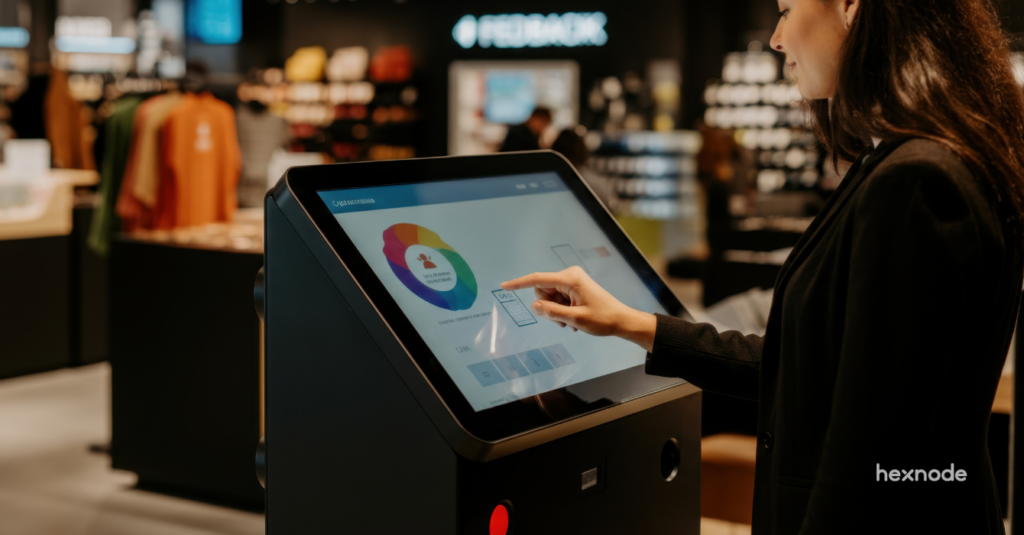
ChromeOS kiosk deployments require centralized lockdown, monitoring, and remote management to keep distributed, customer-facing and frontline devices secure and operational at scale.
Enterprises should evaluate kiosk software for device restrictions, signage management, centralized policies, monitoring, remote troubleshooting, and cross-platform management requirements.
Native ChromeOS management, signage platforms, and UEM solutions serve different operational needs, so organizations should match the platform to their deployment model.
Organizations are investing in ChromeOS kiosks because customer-facing experiences, frontline workflows, and digital signage networks now demand secure, always-on endpoints. As ChromeOS kiosk deployments grow, centralized policies, health monitoring, and remote troubleshooting can reduce configuration drift and onsite maintenance. Google Admin Console provides native ChromeOS kiosk controls, while UEM platforms can centralize ChromeOS management with other endpoint platforms.
ChromeOS devices now power digital displays, self service kiosks, visitor management systems, and operational terminals across industries. As deployments scale, so do the risks. Unrestricted access, inconsistent policies, and limited visibility create compliance gaps and operational inefficiencies.
Modern IT teams must implement strict usage restrictions, enforce automated policy controls, and maintain continuous device monitoring. The right platform goes beyond simple app configuration. It enables IT to lockdown ChromeOS devices, manage ChromeOS signage remotely, and enforce enterprise-grade security standards across distributed environments.
This guide breaks down the top solutions in the market and explains what enterprises should demand from ChromeOS kiosk software in 2026.
ChromeOS has evolved into a serious enterprise endpoint. Organizations deploy Chromebooks and Chromeboxes as:
Retail self service kiosks
Healthcare check in terminals
Manufacturing workflow stations
Education testing devices
Corporate lobby displays
These use cases demand strict access control. A single-app kiosk runs one approved app, while a multi-app kiosk provides access to an approved set of apps. ChromeOS version 150 is scheduled to be the last release supporting Chrome apps in kiosk mode, with Long-term Support devices covered until April 2027, so new kiosk and signage deployments should use web apps or progressive web apps instead of legacy Chrome apps. Kiosk policies can restrict system settings and prevent users from leaving the assigned kiosk session. For unattended deployments, device-health reporting and offline or crash alerts can help IT teams respond to failures. Google Admin Console supports device enrollment, kiosk and web-app deployment, policy management, log collection, reporting, and Chrome Remote Desktop sessions; kiosk health monitoring is available for eligible auto-launched kiosk and managed guest-session deployments. They must:
Lockdown ChromeOS devices against misuse
Enforce browser restrictions and URL allowlists
Control peripherals and USB access
Deploy and manage ChromeOS signage remotely
Monitor device compliance continuously
Organizations should choose between native ChromeOS management, signage content management, and cross-platform UEM based on their operational requirements. That is why selecting the right ChromeOS kiosk software matters.
The Complete Guide to ChromeOS Device Management
Learn how to manage ChromeOS devices, apps, policies, and security across enterprise environments.
Top 5 Best ChromeOS Kiosk Software Solutions in 2026
Explore five ChromeOS kiosk software solutions to find the right fit for your device management and deployment needs.
1. Hexnode UEM
With Google Workspace integrated, Hexnode UEM lets administrators configure ChromeOS single-app and multi-app kiosk policies; kiosk deployments require a Kiosk & Signage Upgrade license for each device. From Hexnode, administrators can configure kiosk apps, ChromeOS restrictions, device-status alerts, and remote-access initiation for imported Google organizational units.
Per-URL content controls for Google Chrome on ChromeOS, including JavaScript, pop-ups, cookies, clipboard, and file-system access, through Hexnode’s Browser Settings policy.
Advanced Device Lockdown
Restrict system settings.
Control WebUSB, Web Serial, WebHID, and Web Bluetooth access for Google Chrome on ChromeOS through Hexnode’s Browser Settings policy.
Control access to external storage through Managed Guest Session policies.
Track device compliance and generate compliance and audit reports.
These controls help IT teams manage kiosk-app power settings, browser content and hardware-access permissions in Google Chrome, external-storage access in managed guest sessions, and selected device functions in customer-facing and frontline environments.
ChromeOS Signage Management
Deploy supported Chrome Web Store applications and web apps to ChromeOS kiosks through centralized policies.
Configure auto launch apps.
Monitor the auto-launched kiosk application for crashes, with email or text notifications sent to administrators, and enable system log upload for diagnostics and troubleshooting.
Apply supported kiosk settings and app policies to ChromeOS devices through imported Google organizational units.
Enterprise Management
Integrate Google Workspace, import organizational units, and enroll ChromeOS devices so administrators can apply ChromeOS policies and application settings from Hexnode.
Control administrative permissions through role-based access control.
Start remote access from Hexnode and continue in Google Remote Desktop. Sessions require a same-domain managed Google account and device-side screen-sharing approval.
Track device compliance and review audit logs.
Beyond kiosk mode, Hexnode configures managed guest sessions on ChromeOS, including basic session settings, content controls, security and hardware settings such as external-storage access, network settings, remote access, power management, accessibility, printing, and user-experience options.
Free Trial Availability
Hexnode offers a 14-day free trial with access to its platform features.
Hexnode manages ChromeOS alongside Android, Android TV, Fire OS, iOS/iPadOS, macOS, Windows, Linux, tvOS, visionOS, and Zebra Link-OS printers from the same UEM console. It supports ChromeOS Flex enrollment and provides ChromeOS Flex policies for browser settings, restrictions, OS updates, printing, password requirements, and power management on repurposed PCs and Macs. This allows ChromeOS kiosk policies, restrictions, alerts, and reporting to be administered in the same console as the organization’s other managed endpoints.
Best suited for organizations that want to manage ChromeOS kiosk settings alongside policies for other endpoint platforms from one console.
2. Google Admin Console with Kiosk & Signage Upgrade
Google Admin Console provides native ChromeOS device management. Organizations need an eligible ChromeOS management upgrade for kiosk deployments, with the Kiosk & Signage Upgrade serving as the purpose-built option for kiosk and digital-signage-only devices.
Platform Overview
Native ChromeOS management within Google’s ecosystem.
Kiosk and signage licensing specifically for ChromeOS devices.
Device and policy management through Google Admin.
Free Trial Availability
There is no free trial for the ChromeOS Education Upgrade or Kiosk & Signage Upgrade; however, Google offers a 30-day ChromeOS Enterprise Upgrade trial for up to 50 devices, and the Enterprise Upgrade also supports kiosk deployments.
Considerations
Google Admin Console provides ChromeOS policies, kiosk and web-app deployment, device reporting, remote log collection, and Chrome Remote Desktop; private remote sessions require ChromeOS 132 or later, no signed-in user, and a managed network. Organizations seeking unified management across ChromeOS and non-ChromeOS endpoints may separately evaluate a cross-platform UEM platform.
Best suited for organizations that operate primarily within Google’s ecosystem and prefer native ChromeOS licensing.
3. Scalefusion
Scalefusion’s ChromeOS management requires its Enterprise license, ChromeOS version 96 or later, and a Chrome Enterprise, Kiosk & Signage, or Education Upgrade.
Positioning
Scalefusion ChromeOS device profiles cover enrollment and sign-in settings, accessibility, web apps, Chrome apps and extensions, Android app settings, OS updates, and custom policies; its documented device actions include reboot, clear user profiles, mark as lost, and factory reset. For ChromeOS, Scalefusion device profiles can configure web apps, Chrome apps and extensions, Android app settings, URL policies, and OS update settings, then apply those profiles to imported Google organizational units.
Free Trial Availability
Scalefusion provides a 14-day free trial with full feature access.
Best suited for organizations that need to manage supported ChromeOS devices alongside Android, iOS, macOS, Windows, and Linux endpoints.
4. Arreya
Arreya is a digital signage CMS that supports ChromeOS displays and provides content creation, publishing, scheduling, remote device management, and device-health monitoring. Administrators manage ChromeOS operating-system policies and kiosk lockdown through Google Admin Console and the applicable ChromeOS management upgrade.
Platform Focus
Cloud based digital signage management
Content scheduling and publishing
Designed for marketing, communications, and signage teams
Free Trial Availability
Arreya offers a free trial for evaluating its digital-signage platform.
Arreya focuses on digital signage and interactive touchscreen content, while Google Admin Console provides ChromeOS enrollment, operating-system policies, kiosk lockdown, and remote device controls.
Considerations
Organizations deploying ChromeOS signage for internal communications, marketing displays, or digital content boards may evaluate Arreya. For ChromeOS devices enrolled in Google Admin Console, administrators can configure kiosk mode and use remote reboot, kiosk screenshots, log collection, and Chrome Remote Desktop for troubleshooting.
Best suited for ChromeOS deployments centered on scheduled or interactive signage content, with operating-system management handled through Google Admin Console.
5. OptiSigns
OptiSigns is a cloud-based digital-signage platform that supports ChromeOS devices, including Chromebooks, Chromeboxes, and Chromebits. It enables organizations to publish media and web content, create playlists, schedule content, and deploy its PWA to enrolled ChromeOS devices through Google Admin Console.
Platform Focus
Cloud-based digital-signage and content management
Media, playlist, and web-content publishing
Calendar-based content scheduling
Screen monitoring and offline-device alerts
Interactive Kiosk Lite support on ChromeOS under Engage and Enterprise plans
OptiSigns supports ChromeOS provisioning templates through its Device Management and Mass Provisioning feature for Pro Plus subscribers with at least five paired screens. OptiSigns’ ChromeOS PWA setup requires a Standard plan or higher, Google Admin Console enrollment, a Google administrator account, and Chrome Enterprise Single App licenses for each device; touch-screen functionality requires an Engage plan.
Free Trial Availability
OptiSigns offers a 14-day free trial. Its ongoing Free Plan does not support ChromeOS, so organizations must use an eligible paid plan for continued ChromeOS deployment.
Best suited for organizations prioritizing scheduled or interactive signage content on ChromeOS, with Google Admin Console providing device enrollment and operating-system-level kiosk controls.
Features to Look for in the Best ChromeOS Kiosk Software
Selecting a solution requires a strategic evaluation of capabilities.
1. Advanced Device Lockdown
A secure deployment begins with strict control. Look for:
Centralized management improves consistency and reduces errors.
4. Real Time Monitoring and Remote Troubleshooting
IT teams cannot physically access every device. Evaluate the remote-view options, reboot actions, device-status information, and audit records required for the intended ChromeOS kiosk deployment.
For ChromeOS kiosk devices, Hexnode supports screenshot capture, device-support-log collection, and remote volume adjustment; it also provides Lost Mode for eligible ChromeOS devices and policies for OS updates, power management, screensavers, Wi-Fi, printing, and passwords.
5. Unified Endpoint Strategy
Enterprises rarely operate single platform environments. For mixed fleets, evaluate whether the platform can centrally manage ChromeOS alongside the organization’s Android, iOS/iPadOS, macOS, Windows, Linux, tvOS, visionOS, and Zebra printer endpoints. Unified endpoint management reduces complexity and strengthens compliance alignment.
Hexnode centralizes ChromeOS kiosk policies, app deployment, device restrictions, compliance reporting, and remote-access initiation, with remote sessions continuing through Google Remote Desktop.
Why Enterprises Choose Hexnode
Hexnode combines ChromeOS single-app and multi-app kiosk policies, Google Chrome browser content and hardware-access controls, managed guest session policies, kiosk app-health monitoring, system-log uploads, compliance reporting, and cross-platform endpoint management.
It enables IT to:
Integrate Google Workspace, enroll ChromeOS devices, and assign kiosk policies to the appropriate organizational units.
Enforce Google Chrome content controls and managed guest-session security and hardware settings, including external-storage restrictions and browser privacy controls.
Apply ChromeOS kiosk settings and supported app policies to signage endpoints at scale.
Lock ChromeOS devices to one approved kiosk app or a selected set of apps, then apply URL allowlists or blocklists and kiosk power, accessibility, and usage settings.
Review device compliance status and generate compliance reports.
Initiate a ChromeOS remote-access session from the Hexnode console, then continue in Google Remote Desktop with a managed Google account in the target device’s domain and user approval for screen sharing.
Beyond ChromeOS, Hexnode integrates into a broader endpoint ecosystem. IT teams can manage ChromeOS alongside Android, Android TV, Fire OS, iOS/iPadOS, macOS, Windows, Linux, tvOS, visionOS, and Zebra Link-OS printers through the Hexnode console.
This architecture centralizes supported ChromeOS policy, compliance, reporting, application-management, and remote-access workflows.
Featured Source
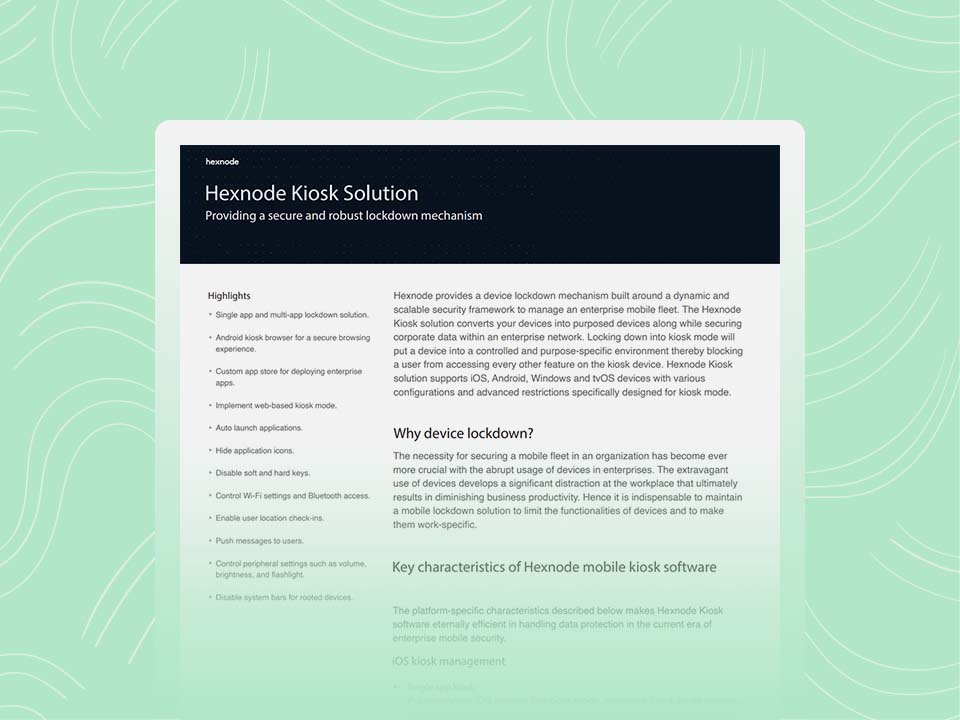
Hexnode Kiosk Solution
Secure and scale your enterprise fleet by transforming ChromeOS devices into purpose-built, locked-down kiosks with Hexnode’s Unified Endpoint Management.
What is the difference between a ChromeOS kiosk mode and a Managed Guest Session?
Kiosk mode locks a device to one or more approved apps and prevents users from accessing other system functions or settings. A Managed Guest Session, by contrast, provides a temporary, policy-controlled desktop environment that resets after each user session, making it suited for shared devices rather than single-purpose displays. Both are governed by Google’s ChromeOS policy framework and can be configured natively in Google Admin Console or, for organizations using Hexnode, through Hexnode’s ChromeOS kiosk and managed guest session policies applied to imported organizational units.
Do ChromeOS kiosk devices need a separate license from regular Chromebook management?
Yes, ChromeOS kiosk and signage deployments typically require an eligible ChromeOS management upgrade, such as the Kiosk & Signage Upgrade, beyond a standard device license. This licensing unlocks kiosk-specific policies, app deployment, and signage controls in Google Admin Console. Organizations should confirm licensing requirements before scaling kiosk deployments across multiple sites.
Can a UEM platform manage ChromeOS kiosks without Google Admin Console?
For ChromeOS kiosks managed through Hexnode, organizations integrate Google Workspace, configure the required Google Admin Console APIs and OAuth scopes, and assign a Kiosk & Signage Upgrade license to each kiosk device. A UEM platform like Hexnode or Scalefusion connects to imported Google organizational units to centralize kiosk app configuration, restrictions, and monitoring alongside other endpoints. This layered approach combines native ChromeOS controls with broader cross-platform oversight.
Conclusion
ChromeOS devices continue to power mission critical workflows across industries. As deployments scale, so do risks. The required management scope depends on whether an organization needs ChromeOS-only administration, signage content tools, or cross-platform endpoint management.
Enterprises should evaluate ChromeOS kiosk software based on the specific management, monitoring, application, and remote-support capabilities their deployments require:
Deep security enforcement
Centralized management
Scalable signage deployment
Remote troubleshooting
Unified endpoint oversight
Hexnode allows IT teams to configure ChromeOS kiosk apps, restrictions, alerts, reporting, and remote-access initiation alongside the organization’s other managed endpoints.
Centralized kiosk policies, monitoring, and remote troubleshooting can reduce configuration inconsistencies and the need for onsite support.
Take Control of Your Chrome OS Kiosk Deployments
Secure, manage, and scale ChromeOS kiosks with Hexnode.
Content writer at Hexnode. Fueled by good coffee and the occasional cat cuddle, I enjoy crafting content that informs, connects, and resonates. Nothing excites me more than knowing my words have been read, appreciated, and maybe even bookmarked.