Android remote access tools help IT teams troubleshoot smartphones, tablets, rugged devices, and kiosks without being physically present. However, remote viewing, interactive control, and unattended access vary across solutions.
Device manufacturers, Android versions, permissions, and enrollment configurations can also influence compatibility. Here are five Android remote access tools worth considering based on their capabilities and suitability for different IT support requirements.
Android remote access tools: At a glance
Tool
Primary positioning
Access capabilities
TeamViewer
Cross-platform remote support
QuickSupport (attended), Host (unattended)
AnyDesk
Cross-platform remote access
Incoming and outgoing sessions; unattended access, with manual screen-sharing approval potentially required on Android 10 and later
AirDroid Business
Android fleet management
Remote viewing, control, and unattended access
Splashtop
Remote support for mobile devices
Attended and plan-dependent unattended access
Hexnode UEM
Remote troubleshooting with UEM
Remote View, Remote Control, and eligible unattended access
1. TeamViewer for Android Remote Access
TeamViewer provides Android remote support through QuickSupport and Host. QuickSupport requires remote-user confirmation, while Host allows unattended access to assigned devices. Licensed remote connections to Android devices require the Mobile Device Support (MDS) add-on, available with Business, Premium, Corporate, and Tensor licenses.
Remote control depends on device compatibility and may require a manufacturer-specific add-on. TeamViewer Classic also offers a Universal Add-on for QuickSupport on compatible devices running Android 7 or later when a manufacturer-specific add-on is unavailable. However, this add-on is not available for Host.
TeamViewer’s current supported-operating-systems page lists Android 8 or later for Remote Control, QuickSupport, and Host. Its separate TeamViewer Classic Host documentation specifies Android 5.1 or later for that legacy application.
What to consider:
TeamViewer supports screen sharing, bidirectional file transfers, and device information monitoring, including CPU, RAM, battery, and storage details.
TeamViewer Host supports deployment through an MDM provider linked to Android Enterprise. The deployment workflow requires a Corporate or Tensor license and an AppConfig-compatible MDM service. Administrators must also enable the Host app in the Android Enterprise Play Store and provide a configuration ID for the custom Android Host module.
TeamViewer Classic does not officially support custom Android ROMs for remote control. However, some AOSP devices may be supported when the application is installed through TeamViewer’s website rather than Google Play. Therefore, administrators should verify manufacturer compatibility, licensing, and deployment requirements before introducing it across their fleet.
2. AnyDesk for Android Remote Access
AnyDesk supports incoming and outgoing remote sessions on Android devices, allowing them to function as either the controller or the remote endpoint. It also provides unattended access, file transfers, and clipboard synchronization.
Interactive remote control requires compatible control plugins and appropriate Android permissions. AnyDesk provides universal and manufacturer-specific plugins, although compatibility varies across devices.
What to consider:
AnyDesk has different minimum Android requirements:
Outgoing connections: Android 4.4 or later.
Incoming connections: Android 5.0 or later.
Remote control: Android 7.0 or later.
Some devices also require additional plugins or manually enabled Accessibility permissions. Additionally, organizations with eligible Standard, Advanced, or Ultimate-Cloud licenses can create customized Android clients through the my.anydesk II management portal.
Importantly, unattended access does not always eliminate physical interaction. On Android 10 and later, a system-level screen-sharing or recording prompt may still require someone at the device to approve a session.
Organizations should test AnyDesk on representative Android models before deployment, particularly when technicians need to troubleshoot devices without an end user present.
3. AirDroid Business
AirDroid Business combines Android device management with remote access and monitoring. Its capabilities include screen viewing, interactive control, unattended access, and remote camera access.
AirDroid Remote Support for Business is a separate offering for attended and unattended assistance. Its application requires at least 2 GB of RAM and Android 5.0 or later. Unattended access requires Android 7.0 or later on compatible devices and is subject to the account’s subscription plan and device limits.
What to consider:
AirDroid Business supports features such as keyboard input, screenshots, screen recording, and Black Screen Mode. However, available controls depend on the subscription and controller application.
In AirDroid Business, Black Screen Mode during Remote Control is available on Standard and Enterprise plans. In the separate AirDroid Remote Support for Business workflow, the feature is available on Standard plans or above and can only be enabled for devices enrolled as unattended devices.
AirDroid Business also supports Voice Call during Remote Camera, Remote View, and Remote Control sessions in Dynamic Mode. This feature is available on Standard and Enterprise plans, but not the Basic plan. It is supported through Desktop Client and compatible mobile controller workflows. PC-controlled sessions require the latest Biz Daemon on the controlled device and the latest AirDroid Business Desktop Client.
Organizations managing kiosks, digital signage, and dedicated Android endpoints may find its centralized management and unattended support useful. However, administrators should verify the relevant subscription and device requirements before deployment.
4. Splashtop
Splashtop offers Android remote support through selected product subscriptions. Also, Splashtop SOS provides attended access through a nine-digit session code, while SOS Enterprise, Remote Support Premium, and Splashtop Enterprise support unattended Android access.
Its capabilities include screen viewing, remote control on compatible devices, and file transfers.
What to consider:
Samsung Android 15 devices have additional Knox SDK restrictions. Starting with Android 15 (Knox SDK 3.11), Samsung restricts access to the RemoteDesktop and RemoteInjection APIs. Applications running as Device Owner on fully managed devices or Profile Owner on work-profile devices retain access. Other applications operating within these managed environments require explicit IT administrator authorization to use remote-control functionality.
Splashtop recommends configuring the Knox Service Plugin through OEMConfig for MDM-managed Samsung devices. However, Samsung’s deprecation of the Knox SDK Remote Control feature means unattended remote control may no longer work reliably.
Splashtop reports brief screen freezes and degraded frames following certain left-to-right slide animations. Performance generally recovers after a few seconds, but Kiosk mode may not recover automatically and could require a manual screen tap to restore the display.
For personally owned Samsung devices, Splashtop documents two attended-access alternatives: configure Accessibility and System screen capture in the Samsung Knox add-on, or uninstall the add-on so Streamer uses Android’s standard APIs. The latter method requires manual screen-sharing approval.
Splashtop’s October 2026 guidance states that Google Pixel devices running Android 14 or later require manual screen-sharing approval for each Streamer connection when a compatible Android control add-on is unavailable. Devices with a supported control add-on can continue using unattended access. For Android devices with a supported control add-on, unattended access remains available.
Splashtop is worth evaluating when organizations need attended mobile support and subscription-dependent unattended access. However, administrators should test Samsung and Google Pixel devices before deployment and verify that their subscriptions support the intended workflows.
5. Hexnode UEM
Hexnode UEM combines Android remote troubleshooting with unified endpoint management. Administrators can remotely view and control supported Android devices while managing their broader device fleet.
Hexnode provides separate Remote View and Remote Control capabilities. Remote View enables technicians to observe device screens, while Remote Control allows interaction with supported devices. Administrators can access these capabilities through the Hexnode UEM console, subject to the required UEM settings and technician permissions.
Hexnode UEM also supports attended Remote View and Remote Control for ChromeOS devices through a Google Remote Desktop workflow. This requires a managed Google account and user approval to share the screen.
What to consider:
Hexnode supports screenshots and screen recording during remote sessions. For Android and iOS devices, technicians can also rotate the remote screen and adjust its viewing quality. It also provides remote-session history, with recordings and screenshots available through the connected UEM portal.
Remote View and Remote Control support different Android devices and enrollment configurations. Android TV devices support Remote View, but Hexnode’s Android Remote Access Management policy for unattended access is not supported on Android TVs. Other supported devices may require Hexnode Assist or the relevant Remote View application.
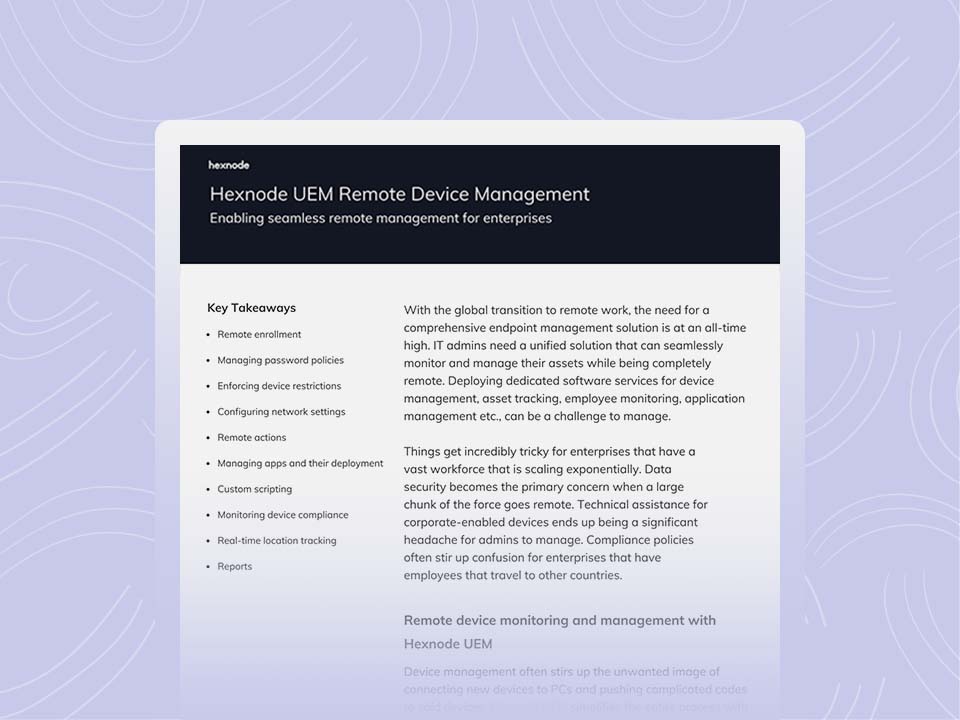
Featured resource
Simplify Remote Device Management with Hexnode UEM
Discover how Hexnode UEM helps IT teams remotely monitor, troubleshoot, and manage enterprise devices.
Yes. Hexnode provides unattended access through its Android Remote Access Management policy.
Eligibility depends on enrollment type and Android version:
Enrollment type
Documented eligibility
Non-Android Enterprise
Android 13 and earlier
Android Enterprise Device Owner
Android 9 and later
ROM-enrolled
Android 10 and later
Unattended access requires the latest Hexnode Assist application on eligible devices.
For Android Enterprise Device Owner devices, the policy can silently enable remote viewing and control. ROM-enrolled devices use a separate policy option to enforce the Accessibility permission required for unattended control.
Meanwhile, Device Admin-enrolled devices running Android 13 or earlier require initial user approval to enable Accessibility settings for Hexnode Assist.
Hexnode’s Android File Explorer lets administrators remotely browse device storage and move, copy, or delete files and folders. Administrators can also download individual files from the device. Policy settings can enable file access and downloads without end-user approval on eligible enrollment configurations.
Hexnode also supports concurrent remote sessions through its Multiple Remote Sessions add-on. Technicians can view multiple enrolled device screens side by side in a single view through the Hexnode UEM console. This can help IT teams monitor kiosks, POS systems, and other endpoints simultaneously during widespread troubleshooting.
See More in One Session: Multi-Device Remote Screen Viewing in Hexnode UEM
Discover how Hexnode Multi-Device Remote View lets IT technicians monitor multiple enrolled device screens.
Frequently Asked Questions
Can IT administrators remotely control any Android device?
No. Remote control depends on the Android version, manufacturer, hardware capabilities, and required permissions. Some solutions support screen sharing across more devices but restrict interactive control to compatible models.
What is the difference between attended and unattended Android remote access?
Attended access requires someone at the remote device to participate in or approve a support session. In contrast, unattended access generally allows technicians to connect to previously configured devices without approval for every session. However, operating-system restrictions can still require physical confirmation for screen sharing or recording.
What should organizations consider when selecting an Android remote access tool?
Organizations should evaluate device compatibility, required access modes, security controls, licensing, and integration with their existing IT management systems. Testing representative Android models before deployment can help identify compatibility limitations.
Bottomline
Choosing the right Android remote access tools depends on the devices an organization manages and the support workflows it needs to implement. While attended access may be sufficient for individual employee support, kiosks, POS systems, and frontline devices often require unattended access and centralized management.
Hexnode UEM brings Android remote troubleshooting together with broader endpoint management capabilities. Organizations can remotely view and control eligible devices while managing their endpoint fleet through a centralized platform.
Secure remote sessions with Hexnode UEM
Remotely access and control Android devices and resolve all those technical glitches on the go via a secure remote access tool.
I write at the intersection of technology, process, and people, focusing on explaining complex products with clarity. I break down tools, systems, and workflows without any noise, jargon, or the hype.