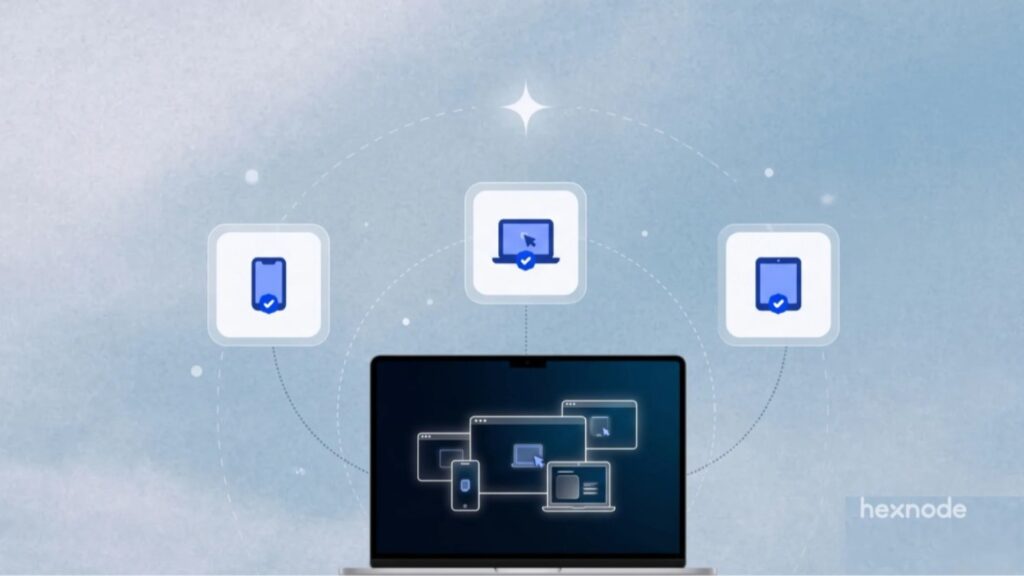
View Multiple Device Screens in One Remote View Session
Managing remote devices often requires technicians to open separate sessions for individual endpoints. This can make it difficult to monitor several devices or investigate similar issues across a fleet. Multi-Device Remote View in Hexnode UEM allows IT administrators to initiate concurrent Remote View sessions for multiple enrolled devices and view their screens side by side.
Technicians can initiate concurrent Remote View sessions for multiple devices and switch between active sessions from the Hexnode UEM console.
Multi-Device Remote View supports Android, iOS, Windows, macOS, and Linux devices, subject to the respective platform, OS version, and enrollment requirements. IT teams can initiate concurrent Remote View sessions across these supported platforms from a single Hexnode UEM console.
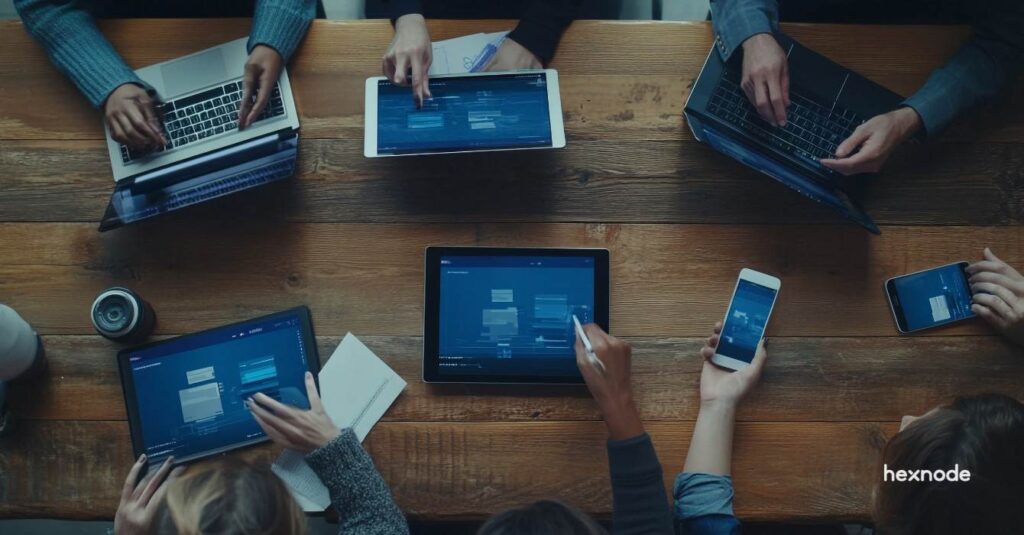
For example, technicians can initiate concurrent Remote View sessions for different supported endpoints, such as an iPad and a Windows laptop. Their individual remote sessions appear side by side on a single screen.
Simplify Oversight Across Distributed Device Fleets
Traditional one-to-one remote viewing requires technicians to connect to devices individually. Consequently, monitoring several endpoints can involve repeatedly starting, switching, or ending sessions. This becomes less convenient when teams need to observe multiple devices at the same time.
Multi-Device Remote View provides a consolidated approach by allowing technicians to initiate concurrent viewing sessions for selected devices and switch between active sessions.
The capability also supports group troubleshooting. For instance, when several employees encounter a similar setup issue, technicians can view their devices concurrently. This gives technicians a common view of the affected endpoints without requiring separate viewing sessions for each device.
Moreover, IT teams can view sessions from different supported operating systems side by side. This is useful when a fleet includes both mobile and desktop endpoints.
What IT Teams Can Achieve with Multi-Device Remote View
Multi-Device Remote View brings several practical advantages to remote device administration:
- Consolidated screen visibility: View multiple enrolled devices side by side on a single screen instead of switching between individual remote viewing sessions.
- Concurrent troubleshooting: Inspect several endpoints together when investigating similar issues or assisting users with a shared setup process.
- Cross-platform visibility: Initiate concurrent Remote View sessions across supported Android, iOS, Windows, macOS, and Linux devices, subject to platform-specific prerequisites.
- Simplified fleet oversight: View multiple selected endpoints simultaneously to monitor their screens and troubleshoot issues across devices.
- Fewer session switches: Move away from repeatedly opening individual remote viewing sessions when multiple devices need attention.
These capabilities give technicians a more organized way to observe multiple endpoints during routine monitoring and troubleshooting.
Enable Multi-Device Remote View in Hexnode UEM
Multi-Device Remote View is an add-on capability in Hexnode UEM that enables technicians to initiate and maintain concurrent remote sessions across multiple devices. Before using it, ensure your Hexnode portal meets the documented prerequisites:
- Plan availability: Remote View for mobile devices is included in the Enterprise plan, while Remote View for desktop devices is included in the Ultimate plan. Confirm OS-specific eligibility against the applicable licensing requirements.
- Add-on activation: Multiple Remote Sessions is available as an add-on for Hexnode UEM. Contact Hexnode to confirm its availability and activation for your portal.
Configure and Launch Multi-Device Remote View
Step 1: Configure Remote View and Remote Access Settings
- Navigate to Admin > General Settings > Remote View & Control Settings in the Hexnode portal.
- Enable Remote View.
- For unattended Android access, navigate to Policies > Android > Troubleshooting > Remote Access Management.
- Configure the required remote access settings and associate the policy with the target Android devices or groups.
- For unattended Android access, install the latest Hexnode Assist app and configure Accessibility permissions according to the device’s enrollment type. Device Owner enrollment supports silent enforcement, while other supported enrollment types may require additional permission configuration or user approval.
- Enable Remote Control separately when technicians need to interact with supported devices. Remote Control availability depends on the operating system and subscription plan.
Step 2: Start a Multi-Device Remote View Session
- Navigate to the Manage tab.
- Select the checkboxes next to the devices you want to monitor.
- Click Actions.
- Select Device Control.
- Select Multiple Remote Session to initiate concurrent sessions for the selected devices.
Explore Multi-Device Remote View in Hexnode UEM to bring multiple device screens into one remote viewing session.