Why is managing shared devices difficult in co-working spaces?
Shared device management is difficult because devices change hands frequently, serve different operational roles and often operate without dedicated IT staff on-site. Unlike individually assigned endpoints, these systems must remain secure and ready for the next user without retaining credentials, files or session data.
A single facility may include reception tablets, meeting-room displays, hot-desk computers, printing stations and member-facing kiosks. Each device type requires a different combination of applications, permissions, network access and usage restrictions.
The challenge grows when a co-working provider operates across multiple floors or locations. Manual configuration can leave devices running different app versions, security settings or Wi-Fi profiles. It also makes policy changes and troubleshooting dependent on physical access, increasing configuration drift and forcing small IT teams to repeatedly correct preventable issues.
What are the risks of leaving shared devices unmanaged?
Leaving shared devices unmanaged creates both a data-isolation risk and an operational reliability problem. Retained browser sessions, downloaded files, cached credentials or improperly closed user accounts can expose one member’s information and services to the next person using the device.
Uncontrolled endpoints may also accumulate unauthorized applications, inconsistent permissions and outdated software. As configurations drift across locations, devices become more prone to failed logins, application errors and security gaps. Resolving these issues often requires repeated support visits, increasing downtime and consuming limited IT resources.
Poor visibility creates a further governance problem. Without an accurate device inventory, action histories and compliance records, IT teams cannot easily determine what changed, who initiated an action or whether required controls were active. This complicates audits, slows incident investigations and makes it harder to assure customers that shared infrastructure is consistently managed.
What is shared device management?
Shared device management is the centralized provisioning, configuration, security and monitoring of endpoints used by multiple people. It gives IT a consistent way to prepare devices, control how they are used and maintain them throughout their operational lifecycle.
The approach combines UEM controls with configurations based on each device’s purpose. This can include limiting access to approved applications, managing user sessions, resetting data between users, enforcing security baselines and remotely deploying updates or resolving issues.
Shared corporate devices differ from both BYOD and individually assigned corporate endpoints. With BYOD, management must account for personal ownership and user privacy. Individually assigned devices maintain a persistent relationship with one employee. Shared devices instead require controls designed for changing users, shorter sessions and minimal data persistence between handovers.
How does shared-device security differ from one-user device security?
Shared-device security must reset trust between sessions. Possession of the endpoint cannot establish the current user’s identity or authorization because the same device may pass between employees, members, tenants and visitors throughout the day.
Controls must therefore address what happens during and after every session. Sessions should expire after a defined period, cached credentials should be removed and locally stored files should be deleted when they are no longer required. Browser history, cookies and active sign-ins may also need to be reset before the device returns to a ready state.
Access should follow the principle of least privilege, exposing only the applications, websites and settings required for the device’s purpose. This protects the endpoint from misuse while maintaining a clear security boundary between successive users and separate organizations sharing the facility.
Which shared-device model fits each co-working workflow?
The appropriate model depends on whether the device performs one fixed task, supports several approved tasks or must provide an isolated workspace for different users.
Shared-device model
Identity requirement
Data persistence
Permitted applications
Reset behavior
Suitable co-working use case
Dedicated single-purpose
Usually none
Minimal
One app or website
Returns to the same locked interface
Visitor check-in tablets, room-booking panels and digital signage
Restricted multi-app
Optional
Limited by policy
Curated application set
Retains application data unless separate session-reset or data-clearing controls are configured.
Printing stations and member-service kiosks
Temporary guest session
None or short-lived authentication
Removed after logout
Approved productivity and web tools
Deletes session data and restores defaults
Hot-desk computers for visitors or short-term members
Named multi-user
Individual authentication
Retained within separate profiles
Role-based application set
Signs out while preserving the authorized profile
Shared productivity devices used repeatedly by registered members
IT should select the least persistent model that still supports the required workflow.
Shared vs Dedicated Devices for Frontline Workforces
Compare shared and dedicated device models to choose the right setup for multi-user workplace workflows.
Note:
Kiosk restrictions and session cleanup are separate controls. Limiting users to approved apps does not automatically remove app data between sessions.
How should co-working spaces implement shared device management?
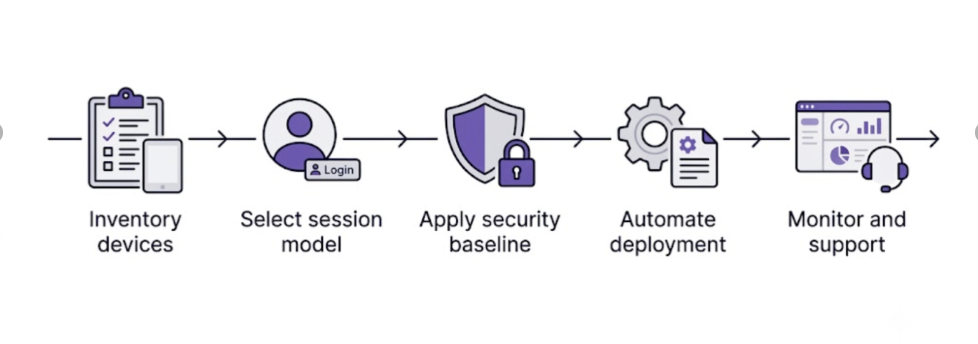
Co-working spaces should implement shared device management by classifying devices, selecting the appropriate session model, establishing security baselines, automating deployment and monitoring compliance continuously. This sequence connects technical controls to how each endpoint is used, who can access it and what data it may process.
Policies should follow device purpose and risk, rather than applying one configuration across the entire fleet. A public check-in tablet requires tighter application and interface restrictions than an authenticated hot-desk computer. Similarly, devices handling member data need stronger session-reset controls than digital signage with no access to internal resources.
Step 1: Inventory devices by purpose, location and ownership
Begin by creating an authoritative inventory of every shared endpoint. Record its platform, OS version, serial number, ownership status, physical location, assigned function and responsible team. Avoid relying solely on purchase records, which may not reflect devices that were relocated, repurposed or retired.
Next, group endpoints by operational role. Useful categories include reception tablets, meeting-room displays, hot-desk computers, printing stations, member-service kiosks and digital signage. These groups provide a practical basis for assigning configurations and evaluating compliance.
Risk should also influence classification. Flag devices that are publicly accessible, store member information, run privileged applications or operate outside staffed areas. This allows IT to apply stronger session, access and monitoring requirements where exposure is highest.
Step 2: Define identity, session and data-reset requirements
For each device group, decide whether the workflow requires anonymous guest access, authenticated temporary access, persistent user profiles or no interactive login. The choice should reflect the sensitivity of available resources and whether actions must be attributable to a specific person.
Document how sessions start, expire and return the device to a known state. Define inactivity timeouts, automatic logout, stale-account cleanup, browser-history and cookie removal, download restrictions and local-storage rules. Where files must be saved, specify an approved cloud or network location instead of leaving data on the endpoint.
Use named sessions when users access licensed applications, organization-specific resources or workflows requiring accountability. Use non-persistent sessions for short-term browsing and general productivity tasks where rapid turnover and privacy between users matter more than retaining preferences. Devices such as signage should permit no interactive login at all.
Pro tip:
Test every session type with dummy credentials, downloads, browser history and active sign-ins. Verify that the next user cannot recover them.
Step 3: Build a least-privilege device baseline
Once session requirements are defined, create a security baseline for each device group. Specify the approved applications, websites, peripherals and device settings required for its assigned function. Restrict account changes, software installation, removable storage and access to system controls unless the workflow explicitly depends on them.
Standardize foundational controls, including passcode requirements, encryption, certificates, Wi-Fi profiles, VPN configurations, browser settings and screen-lock behavior. The baseline should remain purpose-specific: a hot-desk computer may require authenticated access to several productivity tools, while a check-in tablet may need only one application and no general browser access.
Place member-facing endpoints on segmented networks. They should not freely communicate with administrative systems, building-management interfaces or resources belonging to unrelated tenants. Restrict traffic by destination, service and device role, and review exceptions before deployment.
Step 4: Automate provisioning, policy assignment and updates
Use zero-touch or bulk enrollment wherever the platform and procurement channel support it. Newly activated endpoints should automatically join groups based on their purpose, location, ownership or platform, allowing the correct configuration to apply without manual staging.
Centralized application deployment and OS-update policies help keep equivalent devices on a consistent configuration. IT can distribute approved software, remove unauthorized applications and schedule updates without visiting each workspace. This reduces configuration drift and limits technician handling as the fleet expands.
Before a broad rollout, run a controlled pilot with representative devices and workflows. Test user sign-in, automatic logout, session-data removal, policy recovery after connectivity loss, application updates and device re-enrollment. Record expected results and rollback steps so failed configurations can be corrected without disrupting member-facing services.
Step 5: Monitor compliance and plan remote support
Continuously monitor enrollment status, device inactivity, OS versions, application inventory, policy compliance and kiosk status. Failed management actions should generate follow-up tasks because an unprocessed configuration, update or security command can leave a shared endpoint operating outside its approved baseline.
Create documented procedures for remote diagnosis and recovery. Define when technicians should initiate remote troubleshooting, lock a device, wipe corporate data or activate the lost-device process. Include escalation criteria for cases requiring physical inspection, peripheral replacement or intervention by on-site staff.
Measure whether the program is reducing risk and operational effort. Useful KPIs include average deployment time, percentage of compliant devices, failed or abandoned sessions, support-ticket volume, mean recovery time and technician visits avoided. Review these metrics by device role and location to identify recurring configuration or infrastructure problems.
How does Hexnode support shared device management in co-working spaces?
Hexnode UEM provides a centralized console for applying purpose-specific policies to supported shared endpoints. IT teams can organize devices by function or location, deploy the required configurations and monitor their status without managing each endpoint separately.
Its relevant capabilities fall into three areas: kiosk lockdown for purpose-built devices, platform-native shared-session management for endpoints used by multiple people and remote fleet operations for monitoring, maintenance and troubleshooting.
Support varies by platform and configuration. During the pilot, verify the required OS version, device ownership, enrollment method, supervision or management mode, and Hexnode subscription tier for each planned capability.
Note:
Feature availability varies by OS version, device ownership, enrollment method, management mode and Hexnode subscription tier. Validate each workflow during the pilot.
Configure purpose-built devices with Hexnode Kiosk Lockdown
For Android endpoints, Hexnode provides Single App Kiosk, Multi App Kiosk and Website Kiosk Settings. Co-working IT teams can use these configurations to create dedicated check-in tablets, room-booking panels and restricted member-service stations.
android multi app kiosk limits a device to an approved set of applications while restricting access to other apps and system functions. Website Kiosk Settings can further limit browsing to authorized web resources, reducing the risk of users navigating beyond the intended service portal.
For shared Windows endpoints, windows multi-app kiosk mode provides access to a curated set of applications through a restricted interface. Administrators should confirm supported Windows editions, enrollment requirements and application compatibility before deployment.
Featured Resource
Build a secure kiosk management strategy
Learn how to deploy, secure and manage purpose-built devices without relying on manual configuration.
Select the appropriate Hexnode shared-session feature
For Apple deployments, Hexnode integrates shared iPad settings into the Automated Device Enrollment workflow. User Mode supports multiple identities with configurable user limits or per-user storage quotas. Guest Mode supports temporary access without a persistent account and removes session data when the user logs out, making it suitable for short-term hot-desk workflows.
On compatible Windows endpoints, administrators can use Hexnode’s Custom Configuration (OMA-URI/CSP) policy to deploy Microsoft’s windows shared PC mode settings, including account-model selection, inactivity thresholds and automatic profile cleanup. This can prevent inactive profiles from accumulating and consuming storage on frequently reused computers.
For Chromebooks, chromeOS managed guest session policies provide a non-persistent session environment. Through Hexnode, administrators can configure security and hardware restrictions, network access, content controls, printing, power management and user-experience settings for shared ChromeOS devices.
Group, monitor and troubleshoot the shared fleet remotely
dynamic device groups can organize endpoints using defined criteria such as platform, ownership or compliance state. As group membership changes, associated policies apply to qualifying devices and are removed from endpoints that no longer match the criteria.
Compliance Policies help identify devices that fall outside organizational requirements. Supported Remote View and Remote Control capabilities allow administrators to investigate issues without visiting the workspace. IT can also initiate actions such as device lock, wipe, scan, and kiosk enablement or disablement. Availability depends on the platform, OS version, enrollment mode and device manufacturer.
For operational oversight, Hexnode provides Action Reports, device reports and scheduled reports. These records support troubleshooting, periodic compliance reviews and verification of remote administrative activity.
Should co-working spaces use kiosk mode or guest sessions for shared devices?
Kiosk mode suits devices limited to one application, website or approved app set, such as check-in tablets and booking panels. Guest sessions are better for hot-desk devices that must support temporary user activity and remove session data after logout.
Can one security policy be applied to every shared device?
No, shared-device policies should reflect each endpoint’s purpose, users and risk level. A public kiosk requires different application, identity and data-retention controls from an authenticated shared computer.
What should IT teams test before deploying shared device management at scale?
IT teams should test enrollment, sign-in, session expiration, data removal, policy recovery, application updates and device re-enrollment. The pilot should also confirm platform requirements, remote-support behavior and rollback procedures.
How can co-working spaces prevent data from passing between device users?
Use session timeouts, automatic logout, credential removal and browser-data cleanup on supported platforms. Restrict local storage, direct saved files to approved cloud or network locations and use non-persistent sessions where user data does not need to remain on the device.
What should co-working spaces monitor on shared endpoints?
Monitor enrollment, inactivity, OS versions, installed applications, policy compliance, kiosk status and failed management actions. Action histories and device reports can also support troubleshooting, compliance reviews and administrative accountability.
Can shared devices be managed consistently across multiple co-working locations?
Yes, centralized UEM policies can standardize supported devices across locations while preserving role-specific configurations. Grouping endpoints by location and purpose helps IT assign appropriate policies, deploy updates and identify configuration drift remotely.
Standardize every shared endpoint with Hexnode UEM
Start with one representative workflow, such as reception tablets or hot-desk devices. Use the pilot to validate enrollment, access restrictions, session behavior, remote support and reporting before extending the configuration across locations.
Manage shared devices from one console
Pilot shared device management on a reception tablet, hot-desk computer or member-facing kiosk.
Associate Product Marketer at Hexnode focused on SaaS content marketing. I craft blogs that translate complex device management concepts into content rooted in real IT workflows and product realities.