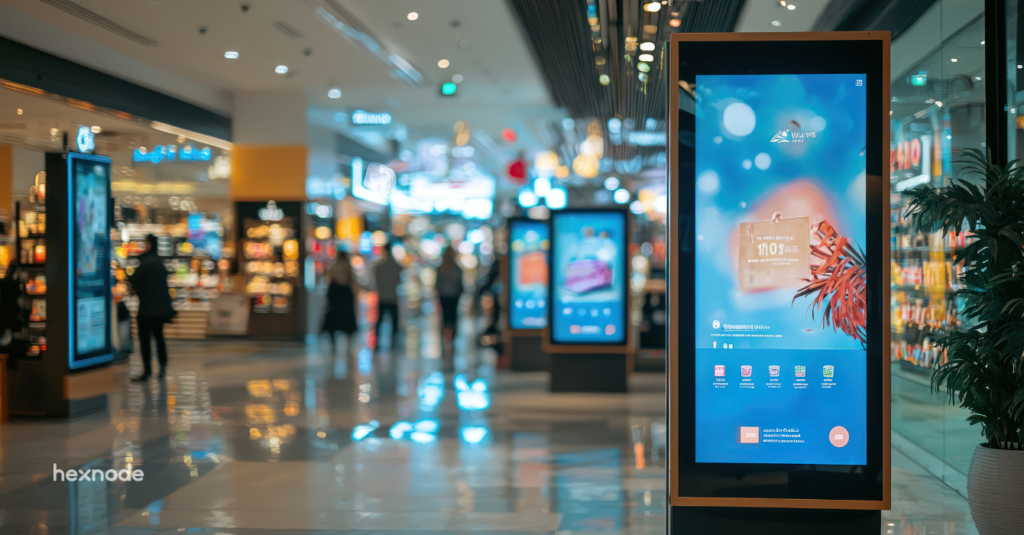
The best digital signage hardware is the configuration that matches your application, playback, management, recovery, and operating requirements, not simply the device with the strongest specifications.
Android, Windows, Linux, and Apple hardware suit different signage workloads, so IT must validate application compatibility, display requirements, and management capabilities for each platform.
Before purchasing, test representative hardware under realistic playback, outage, restart, and remote-recovery scenarios.
Hexnode UEM provides documented signage controls for supported Android, Windows, and Apple TV deployments that teams can validate during hardware pilots.
Why is choosing digital signage hardware difficult for IT teams?
Choosing the best digital signage hardware becomes difficult when display requirements, playback software and device management needs do not align. IT teams must evaluate how these components work together under actual operating conditions.
A player might support the required resolution but fail to run the chosen signage application. Different configurations can produce inconsistent playback across locations. Devices that need local intervention after every restart also complicate support, particularly when screens operate across geographically dispersed sites.
This guide compares Android, Windows, Linux and Apple platforms, distinguishing Apple TV, Mac mini and iPad by workload and operational requirements. The right choice depends on application compatibility, display needs, maintenance responsibilities, and recovery options. “Best” means suitability for your specific deployment and support model.
What happens when signage hardware does not meet operational requirements?
Unsuitable signage hardware can interrupt customer communications and increase support costs. Blank screens, outdated promotions and failed wayfinding displays disrupt services, require staff intervention and weaken confidence in the information displayed.
Consider a retail location where a player fails to resume playback after restarting. Employees must troubleshoot the screen while customers encounter missing offers or outdated pricing. Across multiple locations, these interruptions create recurring support work.
Unsupported software, accessible device settings, and inconsistent patching also create security exposure through unaddressed vulnerabilities and unauthorized configuration changes. Purchasing decisions must account for replacement equipment, technician travel and recovery effort alongside acquisition costs, especially where IT teams cannot restore playback remotely after failures.
10 essential tips for successful kiosk management
Discover practical kiosk management tips for reliable performance and easier device administration.
What hardware do you need for digital signage?
Digital signage hardware is the physical equipment that plays and displays content: a screen, an integrated or external player, network connectivity, power supplies, and mounting components.
Commercial displays provide the viewing surface, with operating specifications that vary by model. Displays with integrated computing combine the screen and playback hardware, simplifying installation and reducing external connections. External media players connect to separate screens, allowing IT teams to replace or upgrade the player independently.
Each layer has a distinct role:
Hardware processes media, connects peripherals, and produces the visual output.
Operating system provides the environment and drivers required to run applications.
Signage content management software organizes, schedules, and distributes content.
A player’s advertised output resolution describes only one capability. It does not establish application compatibility or sustained playback performance with your actual content, layouts and operating conditions across deployed screens.
Which digital signage hardware specifications matter most?
Workload compatibility, display suitability, sustained playback and recoverability matter more than processor specifications alone. Evaluate the complete configuration against the content it must run and the environment where it will operate.
Use this checklist when comparing shortlisted devices:
Playback: Verify resolution, frame rate and hardware decoding support for your actual codecs, content layouts and simultaneous media streams.
Memory and storage: Size RAM for the application workload. Check storage capacity, endurance and space for cached content and updates.
Display outputs: Confirm connector types and supported output combinations. Multiple independent outputs do not establish synchronized video-wall playback.
Connectivity: Evaluate Ethernet availability, Wi-Fi coverage, and network recovery after interruptions.
Installation and cooling: Check mounting compatibility, enclosure clearance, ventilation and operating temperatures.
Power recovery: Test restart behavior and whether playback resumes without local intervention.
For the screen, assess brightness against ambient lighting, rated operating hours, supported orientation, and environmental limits. Confirm that portrait installation falls within the manufacturer’s specifications.
Require model-specific manufacturer documentation and representative playback tests. Avoid universal brightness, RAM, or storage thresholds that ignore workload differences and site conditions.
What is the best digital signage hardware for each platform?
Android merits consideration for dedicated playback, Windows for Windows-dependent workloads, Linux for configurable deployments and Apple hardware for compatible Apple applications. The best digital signage hardware depends on how well the complete configuration meets your operational requirements.
Use these workload-based recommendations to build a shortlist:
These are starting points for evaluation. Sharing an operating system does not make devices equally manageable, and acquisition price alone cannot establish deployment value.
When should you choose Android signage players or integrated displays?
Commercial Android players and integrated displays suit menu boards, promotional loops and supported signage applications when their software and management capabilities match your requirements. Integrated displays reduce external connections; separate players allow independent replacement.
Verify the exact Android build, application distribution method, firmware support period, and management enrollment process. AOSP-based products and Android TV devices can differ in application availability and administrative controls. Confirm Android Enterprise eligibility and provisioning requirements for the specific device rather than assuming every Android product supports the same deployment methods.
Treat dedicated-device lockdown as a purchasing criterion. Android’s lock task mode requires application allowlisting through a device policy controller. Ordinary screen pinning lets users exit and does not provide equivalent enterprise lockdown. Test the intended configuration on representative hardware before approving it for fleet deployment.
When is a Windows mini PC the better signage choice?
A Windows mini PC merits consideration when signage depends on Windows-only software, specific peripheral drivers or demanding browser and application workloads. Industrial PCs may also suit installations requiring particular environmental ratings or physical interfaces.
Evaluate the exact processor, graphics capabilities, display-output combinations, and application requirements. Test representative content, including simultaneous video and browser elements, rather than selecting hardware solely by processor family.
Include OS licensing, maintenance windows, restart behavior and recovery access in the assessment. Confirm how administrators will restore playback after updates or application failures.
Windows editions and servicing channels have different support terms. Windows IoT Enterprise targets fixed-purpose devices, but its name alone does not establish the support period. Check the purchased release, servicing channel and lifecycle dates against your planned deployment duration before standardizing the hardware configuration.
Is Linux digital signage hardware suitable for enterprise deployments?
Linux hardware can support enterprise signage when the chosen application, operating system, and maintenance model align. Raspberry Pi 5 and Linux-capable industrial PCs are candidates for supported browser-based or purpose-built playback applications.
Compatibility depends on CPU architecture, distribution, graphics drivers, and application packaging. An application built for x86 hardware will not necessarily run natively on an Arm-based player. Assign responsibility for OS maintenance, application startup and remote recovery before selecting devices.
Raspberry Pi 5 illustrates why board specifications need deployment context. Its documented dual 4Kp60 HDMI output capability must be assessed alongside the actual playback workload. Include a suitable enclosure, cooling, power supply, storage and mounting provisions in the configuration. The board’s purchase price represents only part of deployment cost; integration, support and replacement arrangements also require budget and clearly assigned ownership.
Should you use Apple TV, Mac mini or iPad for signage?
Choose Apple TV for compatible tvOS signage applications, Mac mini for macOS desktop playback workloads and iPad for compact interactive displays. These devices serve different installation requirements and need separate compatibility checks.
Apple TV connects to an external display and requires a tvOS-compatible application. For managed deployments, plan supervision, and enrollment before installation. Apple documents supervised deployment and Single App Mode for keeping Apple TV focused on a designated application.
Mac mini provides a desktop computing environment for compatible macOS software. Confirm the selected model’s supported display count, resolutions, and connection combinations against the installation plan. Display capabilities vary by configuration.
iPad combines the screen, computing hardware and touch input for smaller interactive installations. Assess mounting, charging, and application orientation.
Across all three, validate application availability, display connections, orientation and management controls independently. A macOS application does not automatically run on tvOS, and a shared manufacturer does not establish identical deployment capabilities.
How should IT teams evaluate signage hardware before purchasing?
Define requirements, validate compatibility, pilot representative devices, and compare lifecycle costs. Your pilot should reproduce actual content, network conditions, and operating hours. Establish measurable acceptance criteria before testing, then use the results to determine which configurations meet operational needs and justify purchasing decisions across the planned deployment and support period.
Step 1: Define your signage workload and installation requirements
Document what each installation must deliver before comparing devices. Build a requirements checklist covering:
Content: Media types, resolution, screen count, orientation, audio and interactivity.
Delivery: Content update frequency and offline playback requirements.
Environment: Ambient lighting, heat, dust and available ventilation.
Installation: Network access, mounting space, power availability and maintenance access.
Translate these requirements into measurable acceptance criteria. Specify which approved content must play successfully, what should happen after a power interruption and the maximum acceptable restoration time.
Record differences between locations explicitly. A sheltered reception display and a dusty production area may require different configurations, even when both show identical content.
Step 2: Validate application, OS and management compatibility
Obtain written compatibility confirmation for the exact hardware model, OS version, CPU architecture, and signage application. Record any limitations affecting your intended configuration.
Validate the complete deployment workflow on a representative device:
Install the application and apply the required lockdown.
Check startup behavior, update controls and available remote support.
Identify enrollment or supervision prerequisites before preparing deployment instructions.
Confirm firmware and OS support dates, replacement availability and who owns patching responsibilities. Include application maintenance alongside operating system updates.
Reject combinations that fail mandatory requirements. An acceptable demonstration cannot compensate for missing management controls or unresolved compatibility dependencies during routine production use.
Step 3: Test playback, outages and remote recovery
Run representative media and web content through the planned operating cycle. Check playback stability, thermal behavior, orientation, and reconnection after disconnecting the display.
Introduce controlled failures and record the results:
Disconnect the network and verify cached playback where the software supports it.
Restart the player and confirm application startup.
Simulate application failure and test the configured recovery method.
Interrupt power and check whether the device and display resume correctly.
Measure recovery time, manual interventions, and content accuracy for each scenario. Record whether recovery required remote administration or someone physically accessing the installation.
Online status does not prove correct playback. Verify that the intended content actually appears on the screen after recovery.
Step 4: Compare lifetime costs and standardize the rollout
Compare total costs over the same evaluation period, including hardware, displays, licenses, mounts, cables, installation, electricity, support labor and spare devices.
Use pilot results to estimate provisioning time, recovery effort, and site visits. The lowest purchase price may require more administrative work or replacement spending.
Standardize approved hardware, OS, and application configurations. Document enrollment, setup and replacement procedures, including how technicians restore content and settings.
Expand deployment in stages with defined acceptance checks for playback, connectivity, and recovery. Resolve failures before approving the next group of locations for production use.
Featured Resource
The Ultimate Guide to Kiosk Management: Everything your business needs to know
Explore kiosk management strategies for secure deployment, centralized control, and optimized device performance.
How can Hexnode UEM help manage your selected signage hardware?
Management compatibility belongs in hardware selection. Hexnode UEM provides platform-specific signage controls that IT teams can validate during pilots before standardizing playback configurations.
On Android, Digital Signage Display includes Loops for repetition, Display duration for image timing and Screen orientation for portrait or landscape presentation. These settings support repeatable playback configurations across compatible devices. Hexnode recommends video dimensions no greater than 1920 × 1080 pixels, so a player’s advertised 4K output does not establish equivalent playback support within this feature.
On Windows, Digital Signage Display provides Add URL for websites, Add File for supported images and videos, and Loop Video for continuous video playback. Install the Kiosk Browser app for the designated kiosk account before applying the configuration.
Documented support covers Windows 10 Pro, Enterprise and Education, version 1803 onward, and Windows 11 Pro, Enterprise and Education. Validate OS lifecycle requirements separately from feature compatibility.
For supervised Apple TVs, Apple TV Kiosk Lockdown – Single App restricts usage to an installed signage application. Store apps obtained through Apple VPP and enterprise apps can be deployed to Apple TV using Hexnode. Ensure the selected application is installed before applying the Single App kiosk policy; already-installed store apps can also be added to the kiosk.
For Linux, macOS and iPadOS, validate the selected application, enrollment method and documented management controls individually. These Android, Windows, and tvOS capabilities should not be assumed to apply across other platforms.
FAQs
What hardware do you need for digital signage?
Digital signage typically requires a display, integrated or external media player, network connectivity, power and mounting components. The hardware must also work with the selected operating system, signage application, and endpoint-management approach.
What specifications matter most when choosing digital signage hardware?
IT teams should evaluate playback capability, memory, storage, display outputs, connectivity, cooling and power-recovery behavior. These specifications should be tested with the actual content, codecs, layouts, and operating conditions rather than judged from hardware specifications alone.
Should you choose Android, Windows, Linux or Apple hardware for digital signage?
The right platform depends on the signage workload and management requirements. Android suits many dedicated playback deployments, Windows supports Windows-dependent workloads, Linux offers configurable deployments, and Apple devices support distinct tvOS, macOS and iPadOS signage scenarios.
Validate your signage deployment with Hexnode UEM
Test shortlisted hardware with representative content and supported Hexnode UEM management policies before purchasing at scale. Confirm application compatibility, playback behavior and administrative requirements on the exact configurations you intend to deploy. Use those results to approve hardware that meets your operational needs across planned locations.
Choose Smarter Digital Signage Hardware
Match signage hardware, operating systems, and management needs with scalable device control from Hexnode UEM.
Content writer at Hexnode. Fueled by good coffee and the occasional cat cuddle, I enjoy crafting content that informs, connects, and resonates. Nothing excites me more than knowing my words have been read, appreciated, and maybe even bookmarked.