Windows digital signage turns standard PCs into secure, dedicated displays, but the real challenge is managing and locking them down at scale, not building them.
Windows Assigned Access can configure devices for single-app or restricted multi-app kiosk experiences and can be deployed at scale through UEM, although broader monitoring, remediation, and lifecycle management require additional management tooling.
A UEM handles the full lifecycle: enrollment, kiosk and signage lockdown, patching, content updates, and remote troubleshooting from one console.
Hexnode consolidates management and security, helping teams centrally manage Windows digital signage deployments at scale.
Digital signage for Windows turns standard PCs into dedicated displays for public information, retail advertising, and internal communication. Managed through a Unified Endpoint Management (UEM) platform, these screens gain enterprise-grade stability, security, and remote control. This guide covers why Windows suits signage, how to select hardware, how to deploy and lock down displays with Hexnode, and how to secure and manage a fleet at scale.
The shift from printed posters to dynamic screens is now a business standard, because displays update in real time without the recurring cost of reprinting and capture more attention in high-traffic areas. Windows remains a leading platform for these deployments due to its hardware range, application compatibility, and mature management tooling.
Why Windows Is a Leading Platform for Digital Signage
Windows suits signage because of its broad hardware support, application ecosystem, and granular administrative control through both native and UEM tooling.
High-Performance Media Rendering
Windows reliably handles 4K video playback and complex video-wall layouts using GPU hardware acceleration, which keeps transitions smooth. This matters for brands that need pixel-accurate image quality on large or multi-panel displays.
Application Compatibility
Windows runs UWP, Microsoft Store, and traditional Win32 (MSI, EXE) applications. Signage that depends on a specialized desktop app, a custom player, or an existing line-of-business tool is far easier to support on Windows than on mobile platforms.
Broad Hardware Compatibility
Windows supports processors and peripherals from a wide range of vendors, and drivers for specialized hardware such as scanners and printers are typically available first on Windows. This makes it adaptable for custom retail and interactive installations.
Multi-Screen Support
Windows manages multiple display outputs from a single media player and gives precise control over resolution and orientation, which suits video walls in malls, stadiums, and large lobbies.
Choosing the Right Management Approach
Windows provides native kiosk capabilities such as Assigned Access, which can be configured locally or deployed at scale through UEM; dedicated endpoint-management tooling is generally needed for broader monitoring and lifecycle operations. Understanding the options prevents a costly early mistake.
Assigned Access is a built-in Windows feature for creating a single-app kiosk or a restricted multi-app user experience. It can be configured locally or centrally deployed through UEM, although monitoring and remediation depend on the management platform used.
Dedicated kiosk or signage software adds content scheduling or lockdown but often leaves device security, patching, and troubleshooting unmanaged.
A UEM such as Hexnode covers the full lifecycle: enrollment, kiosk and signage lockdown, security policy, patching, content updates, and remote troubleshooting from one console. For any unattended, public-facing fleet, this consolidation is what keeps screens secure and always on.
Hardware choice depends on the environment and content complexity, and it determines reliability more than any other factor.
Mini PCs (Intel NUC and similar): The most common choice. They mount discreetly behind a screen, drive 4K content, and offer the ports needed for varied displays and wired networking.
Windows tablets and Surface devices: Suit interactive retail kiosks and lobby check-in, where a built-in touchscreen lets customers browse catalogs or complete forms.
All-in-One (AiO) systems: Combine PC and monitor in one unit, ideal for information desks and reception areas where cabling must stay hidden and a clean look matters.
PC sticks: Can provide a compact, low-cost signage platform, but their suitability for high-resolution video or interactive applications depends on the specific device’s processor, graphics capabilities, memory, thermal design, and workload.
Two hardware cautions apply regardless of form factor. For continuous signage, consider commercial displays rated for the intended duty cycle. Prolonged static content can cause temporary image retention or, on susceptible display technologies, permanent burn-in, so content rotation and appropriate panel selection are important. And confirm each device supports automatic power-on recovery after an outage, or screens stay dark until someone visits the site.
Versatile Use Cases
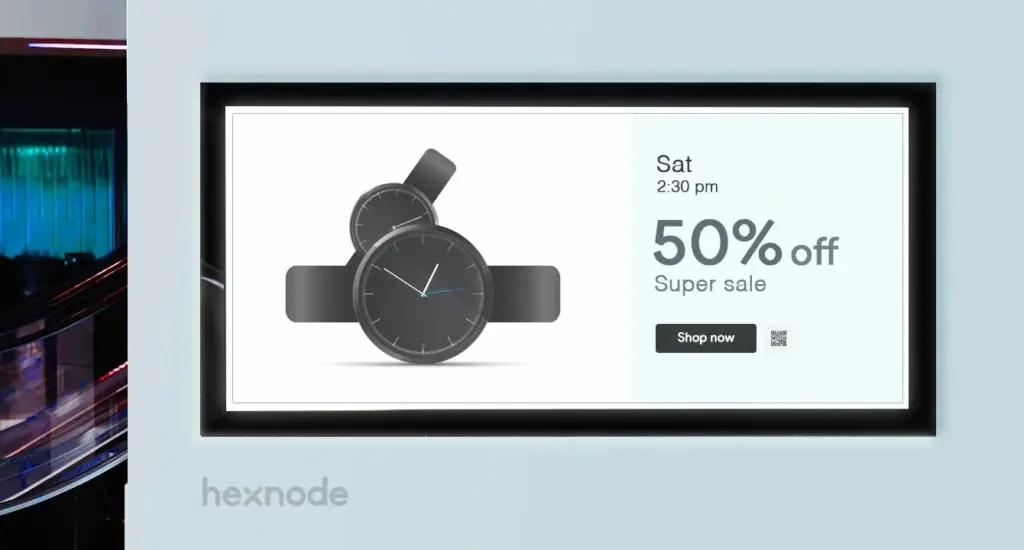
Retail and brand promotion. Stores run interactive catalogs and seasonal campaigns, and motion sensors can trigger specific content as customers approach. This bridges online and in-store experiences and lifts engagement at the shelf.
Corporate communication. Offices use screens for internal news, employee recognition, and wayfinding, and can switch instantly to evacuation routes and safety instructions during an emergency.
Restaurants and hospitality. Quick-service venues update prices and menu items centrally, and menus can change automatically by time of day or inventory, removing manual updates and reducing wait times.
Healthcare and public services. Waiting rooms display patient queues and health information, while transit hubs show live schedules. Windows reliability keeps these information hubs running around the clock.
Featured Resource
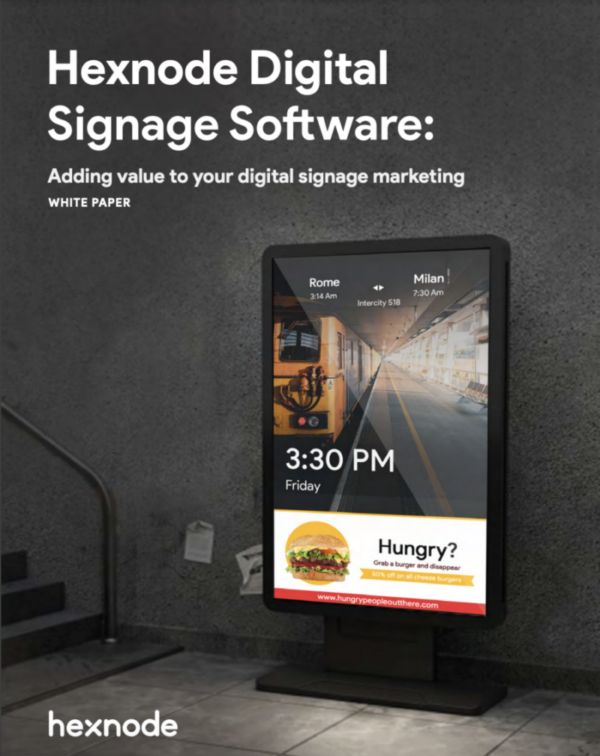
Hexnode digital signage software: Adding value to your digital signage marketing
Learn how Hexnode converts standard devices into managed digital signage displays while cutting hardware costs and simplifying deployment.
Deployment locks a device into a dedicated display mode so it boots straight into your content and blocks access to the desktop, settings, and unauthorized apps.
The Manual Route
Using Windows Configuration Designer, an administrator can create a provisioning package that configures a kiosk account and specifies the application to run in Assigned Access; supported configurations can also use automatic sign-in to launch the kiosk experience. Always test the package on one device before applying it to a fleet, so a configuration error does not affect every screen. This method is best for a small number of devices.
The Hexnode Route
Hexnode deploys and locks down many screens at once. It offers a dedicated Windows Digital Signage Display mode in addition to single- and multi-app kiosk, giving you the right tool for continuous media versus interactive use.
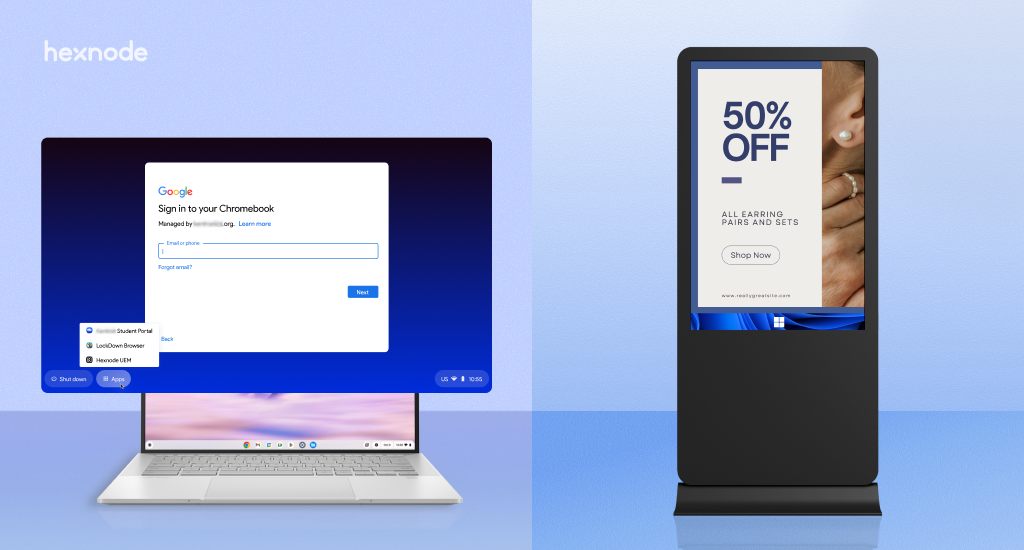
Enroll the devices in the Hexnode console. Hexnode supports Windows Digital Signage Display on Windows 10 Pro, Enterprise, and Education editions running version 1803 or later, and on Windows 11 Pro, Enterprise, and Education editions.
Create a kiosk policy under Policies, then Kiosk Lockdown, then Windows Kiosk Lockdown. Choose single-app, multi-app, or Digital Signage Display based on the use case.
Select the content source. For web-based deployments, configure a Windows website kiosk with the Kiosk Browser or Microsoft Edge; supported app-based kiosk configurations can use UWP and Windows desktop apps. Depending on the kiosk configuration, Hexnode supports local, Active Directory, and Microsoft Entra ID user accounts.
Configure the available digital signage options, such as Fit to Full-Screen and Loop Video.
Associate the Digital Signage Display policy with the required devices, device groups, users, user groups, or domains. Once the policy is successfully applied, the kiosk account enters digital signage mode.
How to setup a digital signage using Hexnode UEM?
Turn any Android, Windows, or Apple device into secure digital signage with Hexnode UEM. No costly hardware needed.
Content and Design Best Practices
Effective signage is a design discipline, not just a distribution task.
Readability at distance: use large type and high contrast so content is legible from where viewers actually stand.
Dwell time: match content length to how long people pause. Lobby screens carry longer segments; checkout and menu boards need short, clear loops.
Pacing: vary content so repeat viewers do not see the same loop every time.
Scheduling: serve breakfast menus, daytime promotions, and evening content automatically at the right hours.
Security for Windows Signage
Public-facing PCs are exposed endpoints, so layered controls matter. Hexnode enforces the following from one console.
Kiosk lockdown: restricts the device to approved apps or content and blocks the desktop, taskbar, and settings.
Patch management: keeps Windows and applications current against threats, with scheduling that avoids unexpected reboots during business hours.
BitLocker encryption: protects local data if a device is physically compromised.
Peripheral and network control: restrict USB and connectivity to reduce tampering and unauthorized access.
Remote Management and Troubleshooting
Hexnode manages the full device lifecycle from one dashboard, replacing on-site visits with remote actions.
Remote restart: reboot a frozen screen without traveling to it.
Policy and content updates: change signage URLs or media across every screen in one action.
Device status monitoring: use details such as Active status, Last Checked-in, Last Scanned, WNS registration status, and kiosk status to assess the state and connectivity of managed Windows devices.
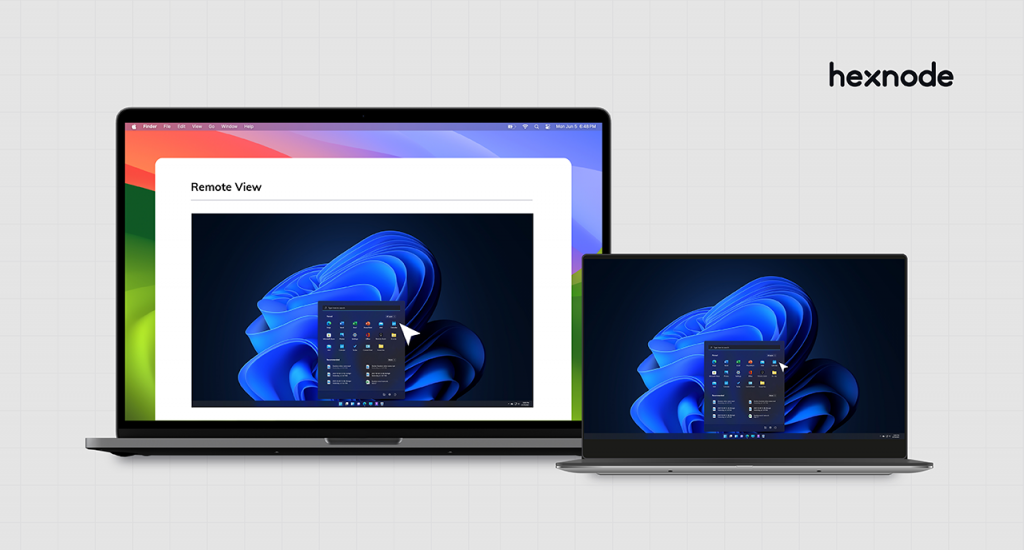
Remote view: confirm in real time that the correct content is playing.
For locally installed signage apps, the device continues to display content already stored on it through a network drop, so a brief outage does not blank the screen.
Frequently Asked Questions
Can you run digital signage on Windows 10 IoT Enterprise LTSC?
Yes. Windows IoT Enterprise LTSC is designed for fixed-purpose devices where functionality should remain stable for long periods. LTSC releases receive a 10-year support lifecycle and do not receive regular Windows feature updates through Windows Update. This allows supported Windows 10 IoT Enterprise LTSC releases to continue receiving servicing beyond the October 14, 2025 end-of-support date for Windows 10 version 22H2 and other non-LTSC editions.
How do you prevent Windows Update from rebooting a signage screen during business hours?
Configure active hours or a maintenance window through a UEM so updates install only during closed periods. Hexnode’s patch management lets administrators schedule Windows and application updates centrally, avoiding mid-day reboots that would blank a public display. This keeps screens live during trading hours while still applying security patches on time.
What happens to a Windows signage display if the PC loses power unexpectedly?
The device should return to signage automatically if its firmware supports power-on recovery, so the screen resumes without manual intervention. Confirm this setting in the BIOS or UEFI before deployment, since not all consumer hardware restores power state after an outage. Pairing it with an auto-launch kiosk policy ensures the content reloads on boot.
How many Windows signage screens can be managed with Hexnode?
Hexnode supports bulk management through policies and device groups, including large-scale deployments. The maximum number of devices that can be enrolled depends on the number of device licenses included in the Hexnode subscription.
Is a touchscreen required for Windows digital signage?
No, standard signage does not require a touchscreen — it passively displays looping media without user input. You only need touch hardware when the deployment is interactive, such as a wayfinding kiosk or self-service terminal. The same Windows device can run passive signage or an interactive app depending on the policy you apply.
Can Windows digital signage integrate with existing corporate infrastructure like Active Directory?
Yes, because Windows signage devices are standard managed endpoints, they can join a domain and follow existing directory, network, and security policies. This lets IT apply the same authentication, patching, and compliance controls used across the wider fleet. A UEM such as Hexnode adds device enrollment, kiosk lockdown, and remote management on top of that infrastructure.
Planning for the Future
Standard Windows 10 version 22H2 and several non-LTSC Windows 10 editions reached end of support on October 14, 2025. New deployments should run Windows 11 or an appropriately licensed and supported LTSC release where a fixed-purpose, long-term servicing model is required. A UEM protects that investment by letting you scale from a handful of screens to thousands, monitor hardware and connectivity remotely, and enforce consistent security as the fleet grows. Managed this way, Windows signage stays a secure, reliable, and adaptable channel for reaching both customers and employees.
Turn any Windows PC into secure digital signage
Enroll, lock down, and manage your entire signage fleet remotely with Hexnode UEM.
Content Writer at Hexnode, a curious mind with a knack for words, I dive into ideas worth unpacking and craft narratives worth sharing. I enjoy turning complex concepts into clear, engaging stories that connect with people and spark thought. From tech trends to everyday insights, I’m driven by curiosity, clarity, and creativity, always learning, always refining, and always looking for the next story that deserves to be told well.