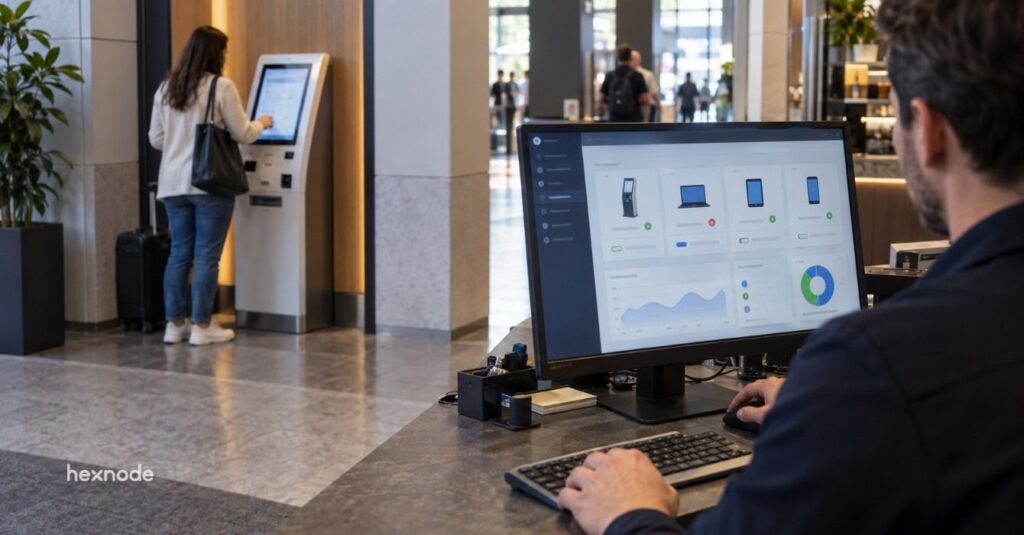
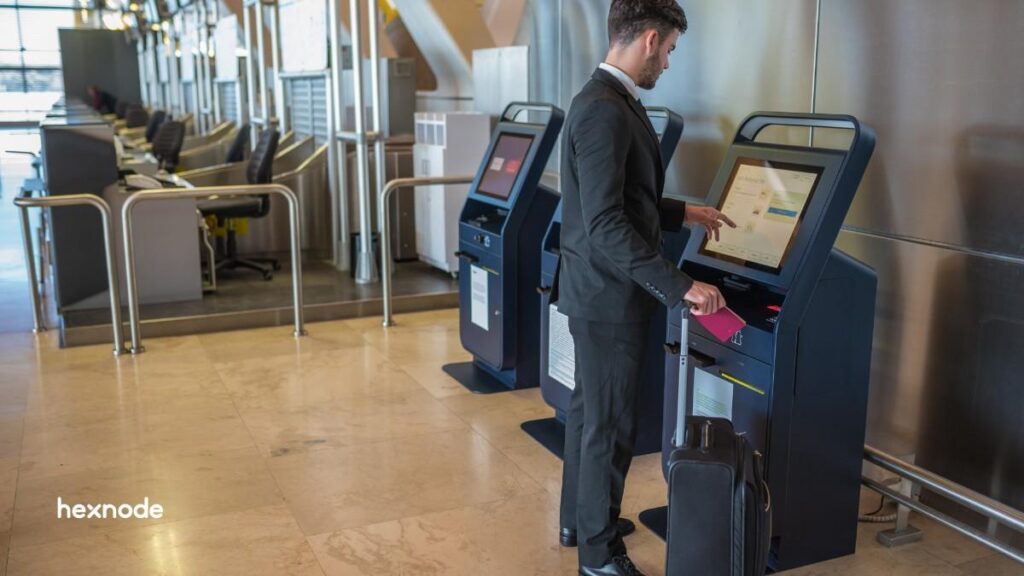
Successful kiosk hardware selection starts with the workflow, not the device, because application, peripheral, environmental, management, and lifecycle requirements determine whether hardware will remain reliable after deployment.
Evaluate workflow fit, environmental suitability, application compatibility, manageability, and supported service life before committing to a fleet.
Pilot the exact device, OS, enclosure, peripherals, and management configuration under realistic operating and recovery conditions.
Hexnode UEM can help validate kiosk modes, Android peripheral settings, and remote troubleshooting capabilities on shortlisted hardware before purchase.
Why do kiosk hardware purchases fail after deployment?
Kiosk hardware purchases fail when teams select devices before validating application, peripheral, environmental and management requirements. This kiosk hardware buying guide starts with those requirements because a successful demonstration does not establish suitability for daily operation.
Consider a tablet that runs an ordering application smoothly during evaluation. After deployment, administrators discover unreliable receipt printing, charging arrangements that cannot sustain operating hours, or remote troubleshooting that requires someone onsite. Across distributed locations, these gaps create recurring support tickets and inconsistent configurations.
Start with the workflow, then evaluate the device. Define the use case, assess the installation environment, choose a compatible operating system, establish hardware specifications and validate lifecycle requirements. Each decision shapes the next: the application determines peripheral needs, while deployment conditions influence power, enclosure and maintenance requirements throughout the planned service life.
What does choosing the wrong kiosk hardware cost?
Unsuitable kiosk hardware creates service interruptions, additional support work and premature replacement costs. The purchase price captures only part of that exposure; administrators also inherit the effort required to keep each installation available.
An unavailable check-in station may force staff to process visitors manually. Interrupted ordering can leave customers waiting while employees resolve device issues. If technicians repeatedly visit locations to reconnect peripherals or recover applications, routine support consumes time intended for other projects. Different failures across sites also produce inconsistent customer experiences.
Short support lifecycles can force earlier migrations to maintain security updates. Weak physical protection can leave devices, cables and ports exposed to interference, complicating maintenance. A realistic fleet budget therefore includes installation, management, repairs, spares and replacement planning alongside acquisition costs, with support assumptions assessed across the intended operating period.
Featured Resource
The Ultimate Guide to Kiosk Management: Everything your business needs to know
Explore kiosk management strategies for secure deployment, centralized control, and optimized device performance.
What should a kiosk hardware buying guide help you evaluate?
Kiosk hardware comprises the computing device, display, enclosure, mounting, power, connectivity and peripherals supporting a dedicated workflow. Evaluating these components together helps buyers identify operational gaps before committing to a fleet.
Hardware provides the physical foundation. Kiosk software delivers the restricted user experience, while device management supports configuration, maintenance and administrative control. Buyers must validate how all three work together on the proposed installation.
Five criteria should guide that assessment: workflow fit, environmental suitability, application compatibility, manageability and supported service life. Each criterion should translate into a documented purchasing requirement.
Which kiosk hardware fits each use case?
The right form factor depends on the task, required interactions and connected equipment. A secured tablet may suit visitor registration, while a workstation requiring several wired peripherals may justify an integrated terminal or industrial panel PC.
Use these candidates as starting points, then test them against the actual workflow.
Use case
Candidate form factor
Required peripherals
Critical acceptance test
Visitor check-in
Secured tablet or touchscreen terminal
Camera or scanner; badge printer if needed
Capture credentials and complete registration without leaving the kiosk application.
Receipt printer and payment terminal where required
Complete an order, payment and receipt using validated integrations.
Wayfinding
Mounted touchscreen or interactive terminal
Touch input; optional accessibility accessories
Read directions and operate controls at the installed height and viewing angle.
Digital signage
Display-and-player system
Display connection; audio if required
Play scheduled content continuously at the intended resolution.
Warehouse workstation
Industrial panel PC or secured rugged tablet
Scanner, keyboard or suitable touch input
Complete scanning and data entry using workplace gloves and actual labels.
Peripheral requirements vary by application. Confirm whether each accessory is mandatory, optional or already integrated before comparing device prices.
How should indoor, outdoor and industrial environments change your choice?
Deployment conditions determine requirements for display visibility, operating temperature, moisture protection, cleaning compatibility and physical security. An indoor reception kiosk and an exposed loading-bay workstation need different evidence of suitability.
Assess the installation against this checklist:
Glare and direct sunlight: Test readability and touch interaction under actual lighting throughout operating hours.
Dust, spills and condensation: Request manufacturer documentation covering relevant exposure conditions and protection ratings.
Temperature and ventilation: Check operating limits and airflow requirements with the device inside its enclosure.
Gloves and cleaning: Verify input accuracy and compatibility with the cleaning products and procedures used onsite.
Vibration and physical access: Assess mounting stability, cable retention, exposed ports and protection against interference.
Avoid applying one brightness target or ingress-protection rating to every location. Require evidence that the proposed configuration meets the specific exposure conditions.
Evaluate the complete installed assembly, including enclosure, connectors, mounting and power supply. Check accessible placement and technician access without dismantling unrelated components. During sustained operation, inspect thermal behavior with the intended application running, peripherals connected and enclosure closed. Record any conditions that cause throttling, charging interruptions or shutdowns.
Which operating system should you choose for a kiosk?
Choose the operating system according to application compatibility, peripheral support, lockdown requirements and update lifecycle. Familiarity alone does not establish whether a platform supports the intended kiosk workflow.
Supervision for Single App Mode, plus a deployment method that supports the required configuration.
ChromeOS
Application delivery and browser-based workflows
Exact kiosk application compatibility, management requirements and the device’s remaining automatic-update period.
Android’s dedicated-device guidance describes fully managed deployments. Microsoft lists Pro, Enterprise, Education and IoT Enterprise editions for Assigned Access, including applicable LTSC editions. Apple requires a supervised device for Single App Mode.
For 2026 purchases, validate remaining support before ordering. Standard Windows 10 version 22H2 support ended October 14, 2025. Assess the exact LTSC release or Extended Security Updates arrangement separately through Microsoft’s lifecycle guidance.
Check the exact ChromeOS model’s Auto Update Expiration date; purchasing a device does not restart its support period. Obtain documented support commitments for shortlisted Android and Apple devices, identifying any uncertainty.
Validate the exact OS version, enrollment method, and management configuration on a sample device. Confirm that application updates and peripheral operation remain compatible with the planned deployment.
10 essential tips for successful kiosk management
Discover practical kiosk management tips for secure deployment and easier device administration.
Which hardware specifications and peripherals matter most?
Prioritize workload-tested processor, memory and storage capacity. Benchmark the intended application with its actual browser workload, video content, and local caching requirements. Check available storage after application installation and updates, with headroom for expected operational data.
Evaluate the specifications that affect daily interaction:
Display and input: Screen size, touch accuracy, orientation, and accessible interaction at the installed position.
Connectivity: Required Ethernet, Wi-Fi or cellular access, tested where the kiosk will operate.
Ports and cabling: Enough connections for all accessories, secure cable retention and room for adapters.
Power: Continuous-power arrangements that support the device and connected equipment throughout operating hours.
Test scanners, printers, cameras, and payment terminals end to end within the kiosk application. Validate drivers, SDKs, adapters, and power requirements for the exact device and OS combination.
A matching connector does not establish application compatibility. Verify scanning, image capture, printing, and payment workflows with production-equivalent equipment. Include simultaneous peripheral use and reconnection after interruption; a device that recognizes an accessory may still fail to complete the required transaction reliably during normal operation.
How do you evaluate kiosk hardware before purchasing?
Document requirements, eliminate incompatible devices, compare lifecycle costs and pilot the complete installation before committing. Apply these checks to the proposed configuration, including its application, enclosure and peripherals.
The following four steps give IT, procurement, operations, and application owners a shared evaluation process. Together, these teams should produce an evidence-backed shortlist and purchase specification, with documented acceptance criteria, compatibility findings, support commitments, and pilot results that justify the final hardware selection.
Step 1: Build a use-case requirements sheet
Create one requirements sheet for each kiosk workflow. Record the user group, installation location, operating hours, expected transaction load, application type, and required peripherals. Identify who owns the application and who supports the installation.
Separate mandatory requirements from preferences before reviewing candidates. Include:
Management: Lockdown mode, enrollment method, and remote support requirements.
Data handling: What session data remains, where it resides, and when it must clear.
Resilience: Expected offline behavior and recovery after application, network or power failures.
Define measurable acceptance criteria for transaction completion, scanner reliability and recovery time. Use targets approved by operations and application owners, reflecting the workflow’s tolerance for disruption. Assign each mandatory requirement to a test method and responsible reviewer so purchasing decisions rest on recorded evidence.
Step 2: Validate the exact device, OS and management combination
Obtain a sample matching the proposed SKU, firmware, OS edition, enclosure and accessories. Check vendor documentation for application and peripheral compatibility, then verify the documented configuration through testing.
Enroll the device using the intended deployment method. Test application installation, kiosk restrictions, administrative recovery, and remote troubleshooting. Identify actions that require local consent, additional permissions, or device-specific components. Record these dependencies against the requirements sheet, particularly where kiosks will operate without onsite IT staff.
Ask suppliers for written commitments covering:
OS and firmware updates.
Warranty coverage and service terms.
Replacement availability and expected lead times.
Configuration consistency across future orders.
Confirm whether substitutions require your approval. Reject candidates that fail mandatory requirements before scoring preferences. Retain compatibility evidence and test results against the exact configuration evaluated, including any limitations requiring operational workarounds.
Step 3: Compare total cost over the planned service life
Compare every candidate over the same evaluation period, using the expected fleet size and operating schedule.
Build a cost checklist covering devices, enclosures, mounts, peripherals, licenses, connectivity, installation, energy, support, spares and disposal. Separate initial spending from recurring costs so procurement can assess both.
Compare serviceability and replacement lead times. Include battery maintenance where applicable and assess whether a failed component requires replacing an integrated unit or only the affected part.
Label downtime calculations as estimates based on your organization’s assumptions. Document expected incident frequency, recovery effort and business disruption rather than presenting projections as guaranteed costs. Apply consistent assumptions across candidates, noting where supplier commitments change the expected support burden.
Step 4: Pilot realistic conditions before fleet rollout
Run the complete workflow at representative locations using the proposed installation. Include peak demand, actual lighting, routine cleaning, and sustained operation inside the chosen enclosure. Have intended users perform their normal tasks rather than relying solely on administrator demonstrations.
Test recovery under controlled conditions:
Disconnect the network and verify expected offline behavior.
Interrupt power and confirm the kiosk returns to its intended state.
Simulate application crashes and perform planned updates.
Disconnect and reconnect required peripherals.
Where the workflow requires it, verify that session data clears between users, including after interruptions. Check that recovery restores kiosk restrictions without exposing administrative controls.
Record failures, support effort and acceptance-test results against the requirements sheet. Assign owners to unresolved issues and repeat affected tests after corrections. Approve rollout only after resolving critical issues and documenting a repeatable configuration, spare-device process and recovery procedure for support teams.
How can Hexnode UEM help validate and manage your kiosk hardware?
Management compatibility is a purchasing criterion. Hexnode UEM lets administrators evaluate kiosk restrictions, display settings and remote troubleshooting on shortlisted devices before deployment.
Use Single App Kiosk for dedicated transactions and Multi App Kiosk for workflows requiring several approved applications. Confirm support for the selected platform, OS version and enrollment mode against Hexnode’s kiosk documentation. Test the intended policy on the actual sample device.
On Android, Peripheral Settings provide specific controls for pilot checks:
Keep screen On: Evaluate display availability throughout the workflow.
Set brightness: Test screen visibility at the installed location.
Allow users to turn Bluetooth on/off: Validate permitted accessory pairing and access.
Apply documented prerequisites and check device-specific behavior, including brightness differences between models.
For Android troubleshooting, Remote View and Remote Control support screen inspection and remote interaction, respectively. Before procurement, validate device support, enrollment requirements, permissions and necessary components on the exact shortlisted hardware. Record whether support sessions require local participation and confirm that the resulting process meets staffing expectations at each location during normal operations and service interruptions.
FAQs
What should businesses consider before buying kiosk hardware?
Businesses should evaluate workflow requirements, deployment environment, application compatibility, device manageability and expected service life before purchasing kiosk hardware. The complete installation, including the device, enclosure, power arrangement, and peripherals, should meet documented requirements under realistic operating conditions.
How do you choose the right operating system for a kiosk?
Choose a kiosk operating system based on application compatibility, peripheral support, lockdown requirements and its remaining update lifecycle. Teams should validate the exact OS version, enrollment method and management configuration on representative hardware before rollout.
How should businesses test kiosk peripherals before purchasing hardware?
Test scanners, printers, cameras and payment terminals end to end with the actual kiosk application and production-equivalent equipment. Validate drivers, adapters, power requirements, simultaneous peripheral use and reconnection after interruptions because recognizing an accessory does not guarantee reliable workflow completion.
Ready to test your kiosk hardware shortlist with Hexnode?
Validate your chosen device, application and peripherals with Hexnode UEM before committing to a fleet purchase. Use your pilot to confirm kiosk behavior, accessory access and remote support against documented requirements for the intended deployment.
Explore Hexnode kiosk management.
Choose Kiosk Hardware With Confidence
Match kiosk hardware to your environment, workflows, and management requirements with Hexnode UEM.
Content writer at Hexnode. Fueled by good coffee and the occasional cat cuddle, I enjoy crafting content that informs, connects, and resonates. Nothing excites me more than knowing my words have been read, appreciated, and maybe even bookmarked.