TL;DR:
Selecting the right Windows kiosk device requires balancing performance, durability, connectivity, security and thermal management for reliable, continuous operation. Enterprises should match the hardware form factor and specifications to the intended interactive or self-service use case, then use a UEM solution such as Hexnode to automate enrollment, enforce kiosk lockdown, manage updates and troubleshoot devices remotely.
-
Why Choose Windows for Kiosks?
-
Selecting the Right Windows Kiosk Device
-
Buyer’s Checklist: 6 Critical Factors
-
Setup Strategies with Hexnode
-
Configuring Web Browser Kiosk Mode
-
Why Hexnode is the Leader for Windows Kiosks
-
FAQ How do I choose between a Mini PC, a Compute Stick, and an all-in-one kiosk PC? The best option depends on your deployment. Mini PCs are commonly used for demanding kiosk workloads when equipped with appropriate hardware, Compute Sticks are better suited for lightweight tasks, and all-in-one kiosk PCs are often preferred for interactive deployments. Can I use the same Windows kiosk hardware for both self-service and interactive kiosks? Sometimes, but not always. Self-service kiosks generally prioritize reliability and continuous uptime, while interactive kiosks require reliable touch input, responsive performance, and hardware designed for frequent user interaction. Why is thermal management important for a Windows kiosk device? Kiosk devices often operate continuously for long periods. Hardware with adequate cooling is less likely to overheat, Is Windows 10 still suitable for new kiosk deployments? A Windows 10 kiosk can still support many deployments, but organizations planning new installations should also consider future scalability and hardware compatibility. Choosing hardware that meets Windows 11 kiosk requirements can help simplify future upgrades. What are the biggest causes of Windows kiosk downtime? Common issues include unscheduled operating system updates, application crashes, driver problems, and network interruptions. Centralized management can help reduce downtime by scheduling updates, automatically relaunching apps, and remotely troubleshooting devices. What should I check before deploying Windows kiosks at scale? Before rollout, verify that the hardware meets your performance needs, supports the required peripherals, and includes appropriate security features such as TPM 2.0 where applicable. It’s also important to plan enrollment, kiosk policies, update schedules, and remote management to ensure consistent deployments across all devices. Simplify Windows Kiosk Management with HexnodeDeploy, lock down, and troubleshoot your entire Windows kiosk fleet remotely with Hexnode UEM. Sign Up
-
FAQ
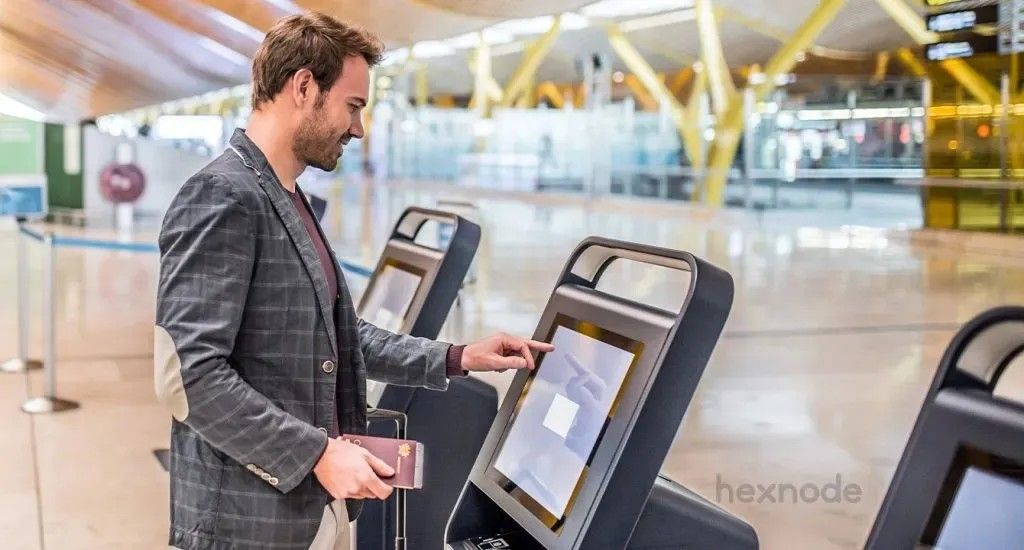
Windows kiosks utilize the Windows OS to power dedicated, single-purpose devices. They deliver self-service, interactive, and information access experiences in corporate spaces.
IT teams face a specific challenge. The task involves more than just locking down a device. Selecting the right hardware and securing it is critical. Windows kiosk devices are widely used in enterprise deployments because they offer broad hardware compatibility, extensive software support, and strong performance for many kiosk workloads. This guide to choosing a Windows kiosk device for enterprise covers hardware selection, Hexnode setup, and troubleshooting strategies.
Why Choose Windows for Kiosks?
Windows offers broad driver compatibility and supports demanding interactive workloads when paired with suitable hardware. Performance for responsive touch applications depends on the device specifications and application being used.
Proprietary kiosk platforms exist, but limitations are common. A PC for kiosk deployments running Windows 10 or Windows 11 offers distinct advantages for enterprise kiosks:
- Peripheral Support: Native support exists for varied touch screens, scanners, and printers.
- Performance: Modern Windows hardware can deliver smooth HTML5 rendering and responsive interaction when appropriately specified for the workload.
- Legacy Apps: Windows supports many legacy desktop applications that may not be available in browser-based kiosk solutions.
The Definitive Guide to Kiosk Management and Strategy (2026 Edition)
Selecting the Right Windows Kiosk Device
The ideal Windows kiosk device balances form factor and thermal management to help support reliable long-term operation.
Selecting the wrong hardware often causes kiosk failure. Options can be categorized as follows:
1. The Mini PC / NUC
Small form-factor PCs represent the top kiosk device choice. They hide easily behind screens or enclosures. They offer desktop-grade performance.
- Best for: Interactive dashboards and self-service terminals.
- Pros: Easy to repair. Strong active cooling systems.
2. The Compute Stick
These are dongle-sized devices. They plug directly into an HDMI port.
- Best for: Simple wayfinding or information lookup in small spaces.
- Pros: Extremely low profile and cost-effective.
- Cons: Poor heat management. Not suitable for demanding 24/7 interactive use.
3. All-in-One Touch Screen Kiosk PC
A touch screen kiosk PC combines the CPU and display. It functions as a single unit.
- Best for: Interactive maps and self-checkout.
- Pros: No messy cables. Industrial-grade durability.
4. Industrial Panel PCs & Tablets
These are rugged device options. They are built for factory floors or mobile use. A Windows tablet kiosk in this category suits staff who move between stations rather than a fixed mounting point.
- Best for: Manufacturing lines or mobile inventory management.
What is Windows kiosk mode?
Windows kiosk mode locks devices to one app or a set. Learn setup, limits, and how Hexnode scales it securely.
Buyer’s Checklist: 6 Critical Factors
Reviewing these factors before purchasing avoids costly replacements later.
- Connectivity: For deployments requiring maximum network stability, consider devices with Ethernet connectivity. Wi-Fi performance may be affected by building materials, interference, and network conditions.
- Durability: Public kiosks face abuse. IP65-rated devices are recommended for dust and water resistance.
- Battery Life: For a mobile Windows tablet kiosk, 10+ hours is the target. Swappable batteries are best for shift work.
- Service & Support: Check the warranty. Does the vendor offer next-business-day replacement?
- Scalability: Choose hardware that meets current Windows requirements and is expected to support future operating system updates throughout its planned lifecycle.
- Security Features: Look for TPM 2.0 chips. TPM 2.0 is required for supported Windows 11 devices and enables security features such as BitLocker Device Encryption, Windows Hello, and Secure Boot.
Hardware Specs Checklist
| Component |
Minimum Requirement |
Recommended for Interactive/Touch |
| OS |
Windows 10 IoT Enterprise |
Windows 11 IoT Enterprise |
| RAM |
4GB |
8GB or 16GB |
| Storage |
64GB SSD |
256GB NVMe SSD |
| Processor |
Intel Celeron/Atom |
Intel Core i5 / AMD Ryzen 5 |
Top 10 best kiosk software for Windows
Setup Strategies with Hexnode
Setting up a kiosk requires a Unified Endpoint Management solution. This tool enforces single-app mode and prevents user tampering.
Deploying thousands of endpoints reveals that relying on native Windows settings is risky. Manual setup is prone to human error. A robust Unified Endpoint Management (UEM) workflow includes:
Enrollment:
Windows devices can be enrolled with Hexnode using Windows Autopilot, allowing enrollment and policy deployment during device provisioning.
Kiosk Lockdown:
- Navigate to Policies > Kiosk Lockdown > Windows Kiosk Lockdown.
- Choose the Single App profile and click Configure. You can add either a UWP/Windows Store app or a Desktop app, then specify the kiosk account name.
Deployment:
After the policy is associated and the device is restarted (or the user signs out and signs back into the kiosk account, where applicable), the kiosk application launches automatically when the kiosk account signs in. The Start menu, taskbar, and desktop are completely suppressed.
Configuring Web Browser Kiosk Mode
Many enterprise kiosks run a single web application rather than a native app. On a Windows 10 kiosk or Windows 11 kiosk, you can lock the device directly to a browser session instead of the full OS.
In Hexnode, this is handled through Website Kiosk mode under Kiosk Lockdown > Windows Kiosk Lockdown > Website Kiosk. After configuring the kiosk account and browser settings, the device launches into the configured browser on sign-in. When using the Hexnode Kiosk Browser, you can configure URL allowlisting to restrict access to approved websites.
Hexnode’s Kiosk Browser adds controls that a standard browser does not expose for web browser kiosk mode:
- URL allowlisting to confine the session to approved sites.
- Browser timeout (configurable between 1 and 1440 minutes) that resets the session after a period of inactivity, so an abandoned kiosk returns to its home page.
- Optional navigation, home, and reset buttons, which you can enable or disable depending on how much control the end user should have.
Did You Know?
The global self-service kiosk market grew from $26.38 billion in 2024 to $28.39 billion in 2025 and is projected to reach $41.74 billion by 2029, expanding at a compound annual growth rate (CAGR) of 10.1%. Retail self-checkout and restaurant self-ordering remain among the most widely adopted self-service kiosk applications, driven by growing demand for faster transactions, contactless experiences, and operational efficiency across retail and food service industries.Source: The Business Research Company, Self-Service Kiosk Market Report
Why Hexnode is the Leader for Windows Kiosks
Hexnode provides Windows kiosk management features including kiosk lockdown, policy management, and Remote View for supported configurations.
Hexnode provides dedicated kiosk management capabilities for configuring and managing unattended Windows kiosk devices.
- Flexible Kiosk Modes: Configure Windows devices in Single App, Multi App, or Website Kiosk mode based on the deployment requirements.
- Centralized Policy Management: Apply, modify, and manage kiosk policies for individual devices or groups from a single management console.
- Windows Autopilot Support: Streamline device provisioning by enrolling Windows devices through Windows Autopilot and applying management policies during deployment.
- Remote Actions: Perform administrative actions such as restarting devices, initiating device scans, executing custom scripts, and other supported remote actions to reduce on-site maintenance.
- Windows Update Management: Configure Windows Update policies and maintenance windows to help minimize operational disruptions during business hours.
- Remote Management: Hexnode supports Remote View and Remote Control for Windows devices. During kiosk mode, Remote View is supported only in Multi App Kiosk after the documented prerequisites are configured.
Conclusion
Choosing the right Windows kiosk device isn’t about locking down any spare PC and hoping it survives. It’s about matching hardware to workload: a Mini PC for interactive terminals, a Compute Stick for lightweight wayfinding, an all-in-one for self-checkout, or a rugged panel PC for the factory floor. Getting the fundamentals right, meaning adequate specs, proper thermal management, reliable connectivity, and TPM 2.0 security, is what separates a kiosk that runs for years from one that fails within months.
But hardware is only half the equation. Even the best-specced device needs centralized management to stay locked down, updated, and running without on-site intervention. That’s where a UEM solution like Hexnode turns a collection of individual machines into a fleet you can deploy, secure, and troubleshoot from a single console, whether you’re managing one kiosk or thousands. Pair the right device with the right management strategy, and your Windows kiosks become dependable, self-sufficient endpoints that quietly do their job.
FAQ
How do I choose between a Mini PC, a Compute Stick, and an all-in-one kiosk PC?
The best option depends on your deployment. Mini PCs are commonly used for demanding kiosk workloads when equipped with appropriate hardware, Compute Sticks are better suited for lightweight tasks, and all-in-one kiosk PCs are often preferred for interactive deployments.
Can I use the same Windows kiosk hardware for both self-service and interactive kiosks?
Sometimes, but not always. Self-service kiosks generally prioritize reliability and continuous uptime, while interactive kiosks require reliable touch input, responsive performance, and hardware designed for frequent user interaction.
Why is thermal management important for a Windows kiosk device?
Kiosk devices often operate continuously for long periods. Hardware with adequate cooling is less likely to overheat,
Is Windows 10 still suitable for new kiosk deployments?
A Windows 10 kiosk can still support many deployments, but organizations planning new installations should also consider future scalability and hardware compatibility. Choosing hardware that meets Windows 11 kiosk requirements can help simplify future upgrades.
What are the biggest causes of Windows kiosk downtime?
Common issues include unscheduled operating system updates, application crashes, driver problems, and network interruptions. Centralized management can help reduce downtime by scheduling updates, automatically relaunching apps, and remotely troubleshooting devices.
What should I check before deploying Windows kiosks at scale?
Before rollout, verify that the hardware meets your performance needs, supports the required peripherals, and includes appropriate security features such as TPM 2.0 where applicable. It’s also important to plan enrollment, kiosk policies, update schedules, and remote management to ensure consistent deployments across all devices.
Simplify Windows Kiosk Management with Hexnode
Deploy, lock down, and troubleshoot your entire Windows kiosk fleet remotely with Hexnode UEM.
Sign Up