Hexnode Marks its Move into Endpoint Security with Hexnode XDR
Hexnode released Hexnode XDR, its extended detection and response platform. Read to know more.

Get fresh insights, pro tips, and thought starters–only the best of posts for you.

In the traditional Enterprise IT ledger, a device has two states: Active (in use) or Retired (disposed).
But there is a third, silent state that drains budgets and carbon credits alike: The Zombie State.
A “Zombie Device” is an endpoint that is technically powered on and connected to the network, yet provides zero business value. Common examples include:
Research indicates that up to 30% of enterprise servers and roughly 15% of end-user devices fit this description. For a fleet of 10,000 devices, that is 1,500 endpoints burning electricity, consuming software licenses, and expanding your attack surface for nothing. Effective Green IT Device Management starts with visibility into these forgotten assets.
In 2026, “Green IT” is no longer just a PR slogan; it is a CFO mandate. Energy costs are volatile, and ESG (Environmental, Social, and Governance) reporting is rigorous.
This guide explores how to repurpose Hexnode UEM from a management tool into a Sustainability Engine for green IT device management, using granular reporting to identify, isolate, and decommission zombie devices to reduce your carbon footprint.
Why worry about a few idle laptops? Because they are not truly idle.
Modern OS architectures (Windows 11, macOS, Android Enterprise) are chatty. Even when “sleeping,” they wake for network calls, patch checks, and background syncs.
You don’t need new hardware to fix this. You just need better telemetry.

The most obvious zombies are the ones that haven’t “phoned home” in weeks. However, we need to distinguish between a device that is turned off (in a drawer) and one that is turned on but ignored (the energy waster).
This report identifies devices that have stopped communicating with the Hexnode server.
How to Generate:
Actionable Step: Create a dynamic device group named “Audit – Potential Zombies”. Set an automated policy to send a push notification to these devices: “Please confirm device usage or return to IT”. This is an important step in Green IT Device Management, allowing you to automate outreach before a device becomes a total energy sink.
The more dangerous zombie is the one that is checking in. It sits on a desk, stays charged, and talks to the MDM, but no human is touching it. To find these, we look at Data Consumption.
A device used by a human generates a “Data Pattern” like spikes during work hours and lulls at night. A zombie generates a flatline.
How to Generate:
Connectivity without activity is just expensive electricity.
For mobile fleets (logistics, retail), the waste often comes from devices left on charging cradles 24/7. This doesn’t just waste electricity; it destroys the lithium-ion battery, forcing expensive premature hardware replacement.
We use Hexnode to identify devices that are constantly plugged in.
How to Generate:
The Fix: Configure a Smart Policy for these devices

Ten proven strategies to optimize the IT asset management system of your organization. Download the infographic to know the ITAM best practices.
DOWNLOADYour Chief Sustainability Officer (CSO) doesn’t care about “compliance.” They care about “efficiency.” You can build a custom view in Hexnode just for them.
Constructing the Dashboard:
Once you identify a Zombie Device, manual retrieval is too slow. You need an automated decommissioning workflow to stop the energy loss immediately.
Create a policy in Hexnode specifically for suspected zombies.
This isn’t just about saving $50 on electricity. It’s about the narrative you present to your board and your auditors.
By using Hexnode to actively manage the lifecycle of your hardware, you are generating the Data Artifacts required for:
In the past, “Green IT” was viewed as a compromise, sacrificing performance for the planet. Today, it is the opposite. A green fleet is a lean fleet.
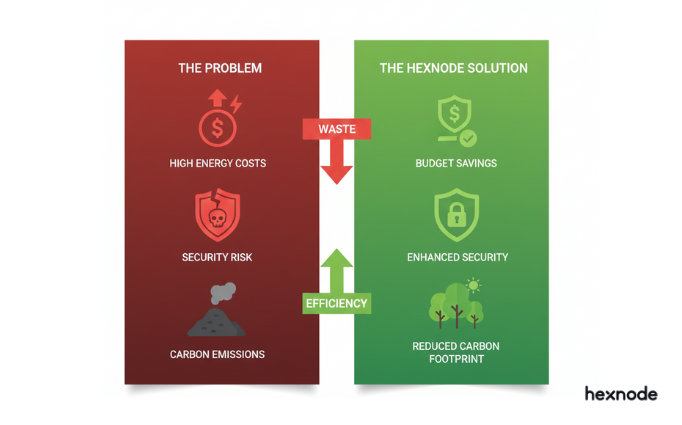
Every device you identify and decommission using Hexnode is a triple win: you reduce your attack surface (Security), you cut your electricity bill (Finance), and you lower your carbon footprint (ESG).
By adopting a rigorous approach to Green IT Device Management, you ensure that your infrastructure is as efficient as it is secure.
Stop paying for ghosts. Turn on the lights, find the zombies, and clean up your fleet.
Learn how to configure Inactive Device Reports and Battery Health Analytics in Hexnode today.
Sign Up TodayQ: What is a ‘Zombie Device’ in IT?
A: A “Zombie Device” is an IT asset (server, laptop, or tablet) that is powered on and connected to the network but provides no business value. These devices consume electricity, require cooling, and pose security risks (as they are often unpatched) without contributing to productivity.
Q: How can MDM help reduce IT energy costs?
A: MDM reduces energy costs by identifying idle devices via Inactivity Reports and Data Usage Analysis. IT admins can then remotely power down, wipe, or repurpose these devices. Additionally, MDM can enforce energy-saving policies, such as aggressive screen timeouts and “Eco-Mode” settings, across the entire fleet.
Q: Which Hexnode report helps identify unused devices?
A: The “Inactive Devices” report is the primary tool. However, for a deeper analysis, admins should use the “Network Data Usage” report to find devices with near-zero data traffic and the “Battery History” report to identify mobile devices that are perpetually charging, indicating they are not being used in the field.