Consistent corporate Wi-Fi configuration for Linux reduces repetitive setup, connectivity problems, and security inconsistencies across device fleets.
Standardize the SSID, security mode, EAP method, certificates, credentials, and connection behavior in one Wi-Fi profile.
Pilot the profile on representative Linux devices, verify authentication, and revalidate after certificate, credential, or authentication-server changes.
Use a repeatable deployment process to reduce per-device configuration work and maintain consistent network settings.
Why Does Manual Wi-Fi Setup Keep Eating IT Time on Linux?
Corporate Wi-Fi configuration for Linux becomes time-consuming when IT teams repeat the same setup steps on every device. For example, onboarding a batch of Linux laptops may require administrators to configure each machine individually. Each device needs the correct network name and security settings, plus any certificates and credentials its authentication method requires.
The SSID (Service Set Identifier) identifies a wireless network by its name. However, entering the correct SSID alone does not establish a secure corporate connection. Administrators must also configure the appropriate security mode, authentication method, and certificate requirements.
As the fleet grows, recurring setup tasks create several operational challenges:
New device onboarding: IT must configure network access before employees can connect.
Password or certificate changes: Administrators may need to update credentials or device profiles, depending on the authentication method and certificate trust configuration.
Network renames: Changes to the SSID can leave existing profiles pointing to an outdated network.
Troubleshooting: Incorrect credentials, mismatched security settings, or certificate errors can require device-level investigation.
Moreover, configuration differences can cause inconsistent connectivity across otherwise similar devices. Teams managing distributed endpoints must also coordinate network changes across locations and devices.
What Does Inconsistent Linux Wi-Fi Configuration Cost?
Inconsistent Linux Wi-Fi configuration can increase helpdesk workload, disrupt employee productivity, and create avoidable security gaps. Different distributions and manually configured profiles can also make connectivity problems harder to diagnose.
Three impacts deserve attention:
Lost productivity and helpdesk workload: Failed connections can prevent employees from accessing corporate resources. IT teams must investigate incorrect credentials, mismatched security settings, and certificate errors.
Security exposure: Shared pre-shared keys complicate credential management when employees or devices leave the organization. Additionally, outdated wireless security mechanisms can expose networks to known weaknesses. NIST SP 800-153 provides guidance on securing wireless local area networks and assessing their security.
Audit and compliance inconsistency: Devices may use different authentication methods, certificate settings, or security modes. Consequently, IT teams may struggle to demonstrate consistent enforcement of corporate wireless policies.
Standardized configuration and repeatable validation help address these operational and security challenges.
What Does Corporate Wi-Fi Configuration for Linux Require?
A consistent corporate Wi-Fi configuration for Linux defines the network name, security mode, authentication method, certificate requirements, credentials, and connection behavior for targeted devices.
As of 2026, WPA-Enterprise with IEEE 802.1X authentication remains a standard approach for corporate Wi-Fi. It supports user or device authentication through EAP, typically using a backend authentication server such as RADIUS.
A standardized Linux Wi-Fi policy should specify the following elements:
SSID: The exact name of the corporate wireless network.
Hidden-network handling: Whether devices should connect to a network that omits its SSID from beacon broadcasts. Hiding an SSID provides minimal security benefits and should not replace authentication or encryption controls.
Auto-join: Whether devices reconnect automatically when the network becomes available.
Security mode: The required enterprise Wi-Fi security mode, such as WPA2-Enterprise or WPA3-Enterprise.
Certificates: The trusted certificate authority (CA) certificate and any client certificates required by the chosen EAP method.
Credentials: The usernames, passwords, or certificate-based identities required by the selected method.
Why it matters: Defining a consistent profile reduces configuration drift and minimizes the need for users to configure network settings individually.
WPA-PSK vs WPA-Enterprise: Which Security Type Fits?
WPA-PSK uses a shared pre-shared key, supplied as either an ASCII passphrase or a 256-bit hexadecimal key. WPA-Enterprise uses IEEE 802.1X and EAP, typically with a RADIUS server for backend authentication.
WPA-Enterprise supports identity-based access control. Certificate-based authentication is available when the selected EAP method and authentication infrastructure support it.
Criteria
WPA-PSK
WPA-Enterprise
Credential model
Shared pre-shared key
Typically individual credentials or certificates, depending on the EAP method
Authentication
Devices present the shared PSK
Users or devices authenticate through EAP
Credential revocation
Changing the shared key affects all clients using it
Individual credential revocation depends on the identity and authentication infrastructure
PSK (pre-shared key) is a secret configured on both the wireless network and connecting clients.
IEEE 802.1X is a port-based network access control standard that regulates network access through authentication. RADIUS is a protocol that enables a network access service to communicate with an authentication server.
However, revoking an individual credential does not necessarily terminate an existing session. Active-session termination may require support from the network access server and a compatible session-disconnection mechanism.
Avoid WEP because it has serious security weaknesses. Use current IEEE 802.11 guidance when evaluating wireless security standards.
Which EAP Methods and Inner Settings Matter?
Extensible Authentication Protocol (EAP) provides the authentication framework for enterprise Wi-Fi. The appropriate method must match the organization’s authentication and identity infrastructure. It must also remain compatible with the Linux Wi-Fi client and available profile settings.
EAP method
Authentication basis
Typical prerequisites
TLS
Server-certificate authentication and typically client-certificate authentication
Trusted CA, server-name validation, and a client certificate with its private key when required
PEAP
Authentication inside a protected tunnel
Server certificate and a supported inner authentication method
TTLS
Authentication inside a TLS tunnel
Server certificate and a supported inner authentication method
FAST
Protected Access Credential (PAC)-based tunnel
Compatible server and PAC provisioning
LEAP
Legacy username/password authentication
Compatible infrastructure; generally avoid where possible
PWD
Password-based authentication
Compatible clients and authentication server
Phase 2 (inner) authentication identifies the authentication method used inside a protected tunnel, such as MSCHAPv2 or GTC.
An outer identity is presented during the initial EAP exchange. For supported tunneled methods, an anonymous or pseudonymous outer identity can help conceal the user’s real identity. However, the outer identity should not serve as proof of an authenticated identity.
A Tunnel PAC (Protected Access Credential) helps establish an EAP-FAST TLS tunnel. User authentication typically occurs during Phase 2, although some implementations may also use a PAC to authenticate the peer.
Before deployment, confirm supported EAP methods, inner settings, and certificate requirements with the network team.
Which Certificates and Credentials Must Be Ready?
Linux enterprise Wi-Fi requires the authentication material specified by the selected EAP method. Make the required certificates and credentials available when the authentication exchange needs them. Depending on the method, administrators may provision these materials beforehand or obtain credentials during connection setup.
Prepare the following prerequisites:
CA certificate: A trusted CA certificate enables certificate-chain validation. Clients should also verify the authentication server’s name against the expected identity in its certificate.
User or device certificate: EAP-TLS typically uses a client or device identity certificate with its corresponding private key, alongside server-certificate validation. Confirm the requirements of the organization’s EAP-TLS infrastructure.
Identity and password: Password-based EAP methods require the appropriate credentials.
PAC: EAP-FAST can use a Tunnel PAC to establish subsequent TLS tunnels. Administrators can provision the PAC beforehand or use a supported dynamic provisioning process to obtain it during an initial connection.
Deployment sequencing matters: Ensure the required certificates are available before the Wi-Fi profile attempts certificate-based authentication. Coordinate certificate and profile deployment to avoid authentication failures.
How Should IT Plan and Validate a Linux Wi-Fi Rollout?
IT teams should document network requirements, create a consistent Wi-Fi profile, test it on representative Linux devices, and expand deployment only after successful authentication. Revalidate the profile whenever certificates, credentials, or authentication-server settings change.
Linux Wi-Fi rollout checklist
Document network requirements: Agree on the SSID, security mode, EAP method, inner settings, and auto-join behavior with the network team.
Confirm prerequisites: Verify certificate availability, credential validity, and compatibility with the authentication infrastructure.
Build one profile: Define consistent settings for the intended devices.
Pilot representative devices: Test across the Linux distributions and device types in the fleet.
Validate connectivity: Confirm that each device saves the profile, joins the correct network, and authenticates successfully.
Expand deployment: Roll out the validated profile to the remaining targets.
Schedule revalidation: Test again after certificate renewal, password changes, or authentication configuration updates.
Linux Wi-Fi profile validation checks
Validation check
Expected result
Profile presence
The device saves the intended settings
Automatic connection
The device joins the network when available
Authentication
The authentication exchange succeeds, and the device receives network access according to the configured policy
Certificate renewal
The device authenticates with the renewed certificates
Hidden networks
The device connects according to the configured SSID behavior
How Can Organizations Secure a Growing Linux Device Fleet?
Explore practical ways to standardize Linux device onboarding and compliance monitoring across an expanding fleet.
How Does Hexnode UEM Configure Corporate Wi-Fi on Linux?
Hexnode UEM configures corporate Wi-Fi through Linux > Network > Wi-Fi settings in a policy. Administrators define network and authentication settings, then associate the policy with target devices or users.
General settings: Configure Service Set Identifier, Auto-join, and Hidden network.
Security mode: Choose None, WEP, WPA-PSK, Dynamic WEP (802.1x), or WPA-Enterprise. For applicable key fields, use 64 hexadecimal characters or 8–63 ASCII characters.
Enterprise authentication: Select TLS, LEAP, TTLS, FAST, PEAP, or PWD. Configure Identity, Password, CA certificate, and, for TLS, User certificate.
Additional settings: Configure Phase 2 authentication (MSCHAPv2 or GTC), Outer identity, and the PAC file for FAST. Automatic PAC provisioning supports disallow, anonymous, authenticated, or both.
Upload required certificates under Security > Certificates before configuring certificate-based authentication.
Associate the policy through Policy Targets or Manage > Associate Targets. Targets can include devices, device groups, users, user groups, or domains.
After successful policy association, the network appears under Settings > Wi-Fi > Saved Networks on the device. This confirms profile presence, not successful authentication or connection health.
Central configuration also means users do not need to know the Wi-Fi password.
Featured resource
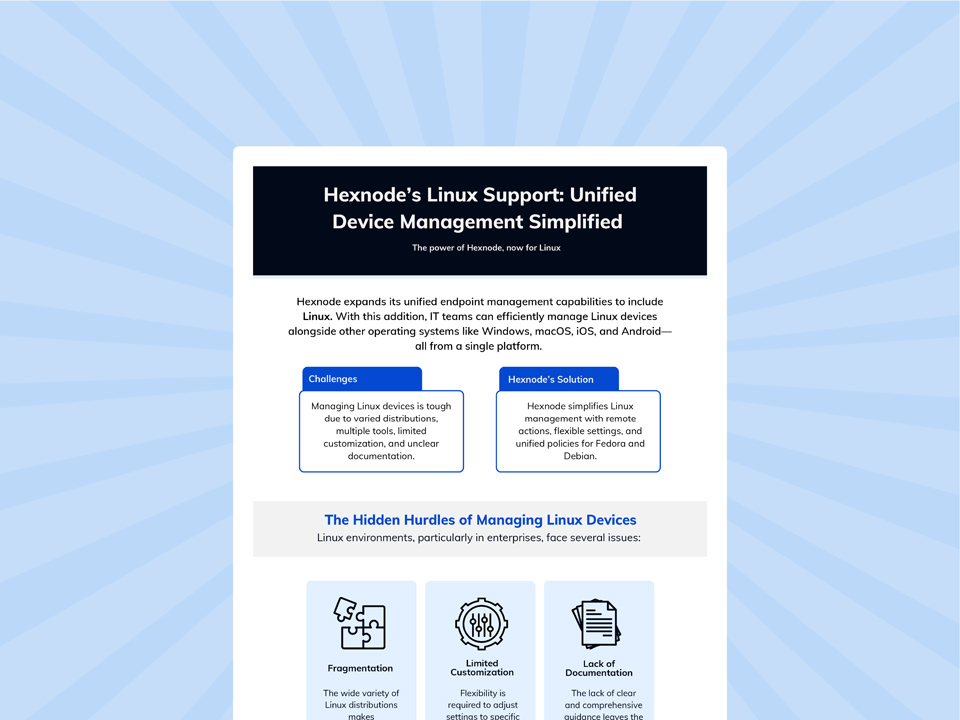
Hexnode’s Linux Support: Unified Device Management Simplified
Explore how Hexnode simplifies Linux device management with centralized policies, remote administration, compliance reporting, and configurable settings for Wi-Fi, VPN, and passwords.
How do you configure corporate Wi-Fi on Linux devices at scale?
Document the network requirements and define one consistent Wi-Fi profile for the target fleet. Pilot the profile, verify authentication, and expand deployment after successful testing.
What settings does a corporate Wi-Fi profile for Linux need?
A profile needs the SSID, enterprise Wi-Fi security mode, EAP method, any inner authentication settings, and the certificates or credentials required by that method. Auto-join and hidden-network handling should also match organizational requirements.
What is the difference between WPA-PSK and WPA-Enterprise?
WPA-PSK uses a shared pre-shared key, supplied as an ASCII passphrase or a 256-bit hexadecimal key. WPA-Enterprise uses 802.1X and EAP, typically with RADIUS for backend authentication, and supports identity-based access control.
Which EAP methods and certificates are used for enterprise Wi-Fi on Linux?
Enterprise deployments may use EAP-TLS, PEAP, TTLS, FAST, or PWD, depending on infrastructure compatibility. LEAP is a legacy method with known password-attack risks and should generally be avoided.
How can IT validate a Linux Wi-Fi profile before a full rollout?
Pilot the profile across representative devices and Linux distributions. Confirm that each device saves the profile, joins the correct network, and authenticates successfully; retest after certificate renewal or authentication changes.
See Corporate Wi-Fi Configuration for Linux in Action
Standardized policies can help IT teams move beyond configuring every Linux device by hand. Seeing a Linux Wi-Fi policy applied end to end helps IT teams confirm the required security mode, EAP method, and certificates.
A consistent corporate wi-fi configuration for linux approach helps teams reduce repetitive setup and maintain consistent network settings. Compare Hexnode UEM’s centralized workflow with your current manual setup process to identify where repeated configuration steps occur.
Standardize Linux Wi-Fi with Hexnode UEM
Configure Linux Wi-Fi settings centrally and associate policies with targeted devices, groups, users, or domains through the Hexnode UEM console.
I write at the intersection of technology, process, and people, focusing on explaining complex products with clarity. I break down tools, systems, and workflows without any noise, jargon, or the hype.