Remote laptops with overdue updates and repeated support tickets expose the limits of existing management workflows. IT teams reconsider legacy Windows MDM software when provisioning effort, fragmented patching, limited remote visibility, and disconnected workflows exceed what administrators can reliably maintain.
Here, “legacy” describes operational limitations rather than a product’s age. Warning signs include repeated manual setup, unreliable device inventory, and separate consoles that require administrators to reconcile update status. These limitations depend on the deployed system and its configuration.
Older MDM products may operate alongside Group Policy, imaging servers, and standalone patch tools. These components serve different purposes and should not be treated as interchangeable.
Modern Windows management still uses MDM. Windows includes a built-in management client that communicates with an MDM server to receive policies and updates. The evaluation therefore centers on which implementations and workflows need replacing, and which existing components still meet the organization’s evolving operational requirements.
What does outdated Windows management cost the business?
Outdated Windows management costs businesses through delayed remediation, interrupted employee work, and increased administrative effort. Missing patches prolong exposure to known vulnerabilities, while inconsistent configurations make it harder to produce reliable audit evidence. Manual provisioning also delays onboarding and access to essential applications.
Licensing captures only part of that cost. IT teams must also account for infrastructure maintenance, application packaging, script upkeep, technician time, duplicate tools, and downtime.
Establish an internal baseline before comparing replacements. Track provisioning time, overdue patches, failed deployments, support hours, and maintenance costs. These measurements help identify which workflows consume resources and whether a replacement improves them.
Windows lifecycle requirements add another constraint. Assess Extended Security Updates (ESU) participation separately, and check each LTSC/LTSB edition’s specific lifecycle. Changing management software does not extend OS support. Migration budgets must also cover required operating-system upgrades, application compatibility testing, and hardware replacements.
What should replace legacy Windows MDM software?
Replace legacy Windows MDM software with management that supports remote delivery, repeatable automation, verified device state, and your operating-system mix. The right choice depends on your fleet and operational requirements.
Modern Windows-focused management may suit a predominantly Windows estate. Unified endpoint management (UEM) offers a broader approach when IT needs to coordinate device lifecycles across multiple platforms and endpoint types.
What is the difference between Windows MDM and UEM?
Mobile device management (MDM) provides mechanisms for enrolling devices and applying management policies. UEM coordinates management across endpoint types and operating systems, bringing provisioning, configuration, application management, and maintenance into a broader operational approach.
Windows includes a built-in MDM client that communicates with a management server. Configuration service providers (CSPs) expose Windows settings that management software can read or configure. Available settings depend on the CSP, Windows edition, and version. Management agents can supplement native MDM for additional tasks.
Cloud hosting alone does not establish automation depth or policy coverage. Evaluate the tasks a platform can perform and verify. Disconnected environments or specialized applications may still require particular existing components, such as local deployment infrastructure or application-specific tooling.
Which capabilities should IT teams evaluate in a replacement?
Evaluate provisioning, patching, configuration enforcement, troubleshooting, and platform coverage against your actual fleet. Request demonstrations using the Windows editions, builds, and applications you operate.
Requirement
Limitation to check
Evidence to request
Remote provisioning
Manual setup or network dependencies
Enrollment demonstration covering remote connectivity, policy delivery, and failed-enrollment recovery
OS and application patching
Unsupported apps or weak deployment controls
Supported application catalog, patch schedules, restart controls, and failed-action handling
Configuration enforcement
Missing settings or unverified application
Edition-specific policy coverage, encryption-state reporting, and configuration results
Remote troubleshooting
Restricted access or insufficient diagnostics
Support-session demonstration, administrator permissions, and exportable audit records
Other operating systems
Uneven functionality across platforms
OS-specific capability matrix and demonstrations on representative devices
Treat integration effort, connectivity dependencies, licensing, data residency, and administrator training as evaluation criteria. Check whether required capabilities need additional agents, subscriptions, or infrastructure. For mixed fleets, identify feature differences between operating systems before designing shared workflows.
Assign responsibilities explicitly. Endpoint management applies configurations and reports device posture. Identity systems make access decisions using configured policies and available signals. Threat-detection tools investigate suspicious activity. Integration can connect these functions, but each needs an accountable owner and tested handoffs.
Feature Resource
Windows Platform Capability Statement
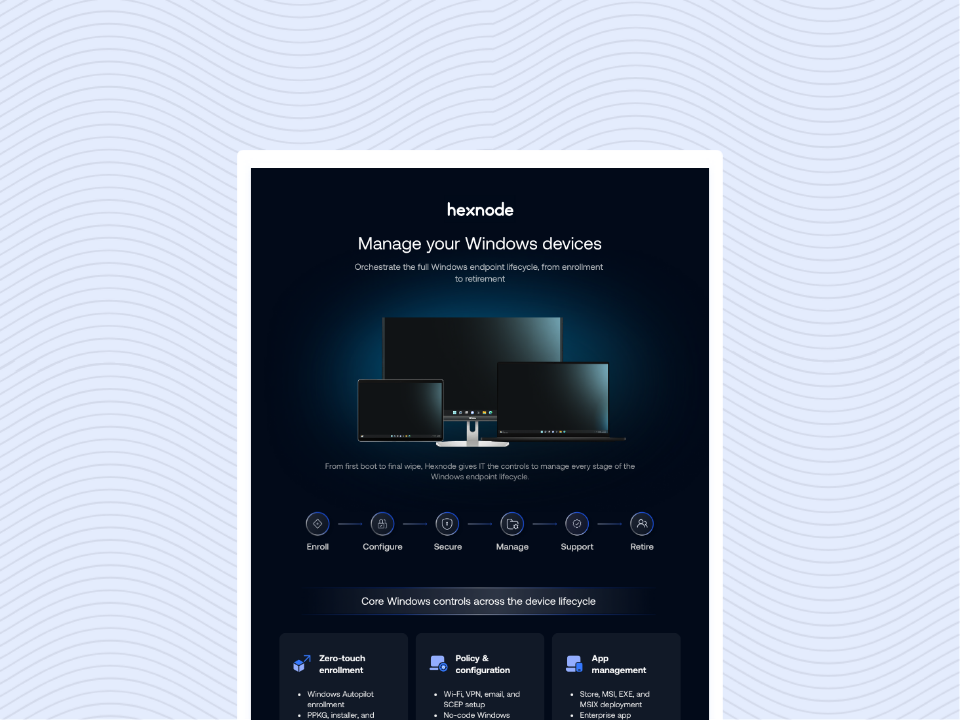
Download the infographic to explore how Hexnode simplifies Windows device management across every stage of the endpoint lifecycle.
How do you migrate Windows management without disrupting users?
Reduce disruption through four steps: audit the estate, map policies and dependencies, pilot representative devices, and migrate in controlled batches. Before approving each subsequent batch, verify enrollment, application availability, and security settings. Define acceptance criteria and recovery procedures upfront so failed migrations receive attention before the rollout expands further.
Step 1 — Audit devices, dependencies, and operating costs
Build an inventory that shows each device’s current state and migration requirements. Capture:
Device details: Windows edition and build, hardware readiness, ownership, location, and join state.
Management status: Existing enrollment, installed applications, and recent check-in history.
Operational role: Remote laptop, shared workstation, or critical endpoint requiring a specific migration window.
Document dependencies on Active Directory, Group Policy Objects (GPOs), certificates, VPNs, application distribution, recovery keys, and security agents. Assign an owner to every application and policy so someone can validate its behavior after migration.
Use the operating baseline established earlier to define measurable pilot acceptance criteria. Record provisioning time, patch compliance against an agreed deadline, failed deployments, support tickets, and technician hours. Include policy translation, application testing, user communication, and temporary support coverage in the migration cost comparison. Identify devices with stale inventory before selecting the pilot cohort.
Step 2 — Map policies and define management ownership
Classify existing settings as retain, replace, or retire. Map required GPO settings to available CSP policies or documented alternatives, checking support for each Windows edition and version.
Assign one responsible management mechanism to each setting or workload. Overlapping configurations can produce inconsistent results, particularly when scripts, Group Policy, and MDM target the same setting.
MDMWinsOverGP is not a universal precedence switch. It applies to relevant settings within Policy CSP, rather than every Windows configuration. Explicitly test overlapping policies and their resulting device state.
Before cutover, prepare certificates, enrollment permissions, application packages, recovery-key access, and required access-policy changes. Document what removing the old enrollment does to managed settings and installed applications; do not assume everything persists or disappears. Have application and policy owners validate these effects on representative devices before approving the migration sequence for production use.
Step 3 — Pilot enrollment, updates, and recovery
Select pilot devices across hardware models, user roles, connectivity conditions, and critical applications. Include remote and shared devices, rather than testing only well-connected IT workstations.
Validate provisioning, application deployment, encryption reporting, updates, restart behavior, and remote assistance. Confirm that users can perform their normal tasks after enrollment and after the first update cycle.
Windows supports one native MDM enrollment at a time. Plan the unenrollment and reenrollment sequence accordingly. Supported management-agent coexistence does not mean a device can maintain simultaneous native MDM enrollments.
Test recovery against specific failures:
An offline laptop misses the migration window.
Enrollment stops before configuration finishes.
A patch installation fails.
A business application becomes unavailable.
Document escalation contacts, recovery actions, and required user steps. Explain when users should contact support instead of retrying independently. Define the conditions that require reimaging or device replacement, and confirm that recovery procedures work before expanding the rollout.
Step 4 — Expand in batches and verify the results
Expand by department, location, or risk profile, using agreed maintenance windows and support coverage. Approve each subsequent batch only after the current batch passes its enrollment, application, and configuration checks.
Compare provisioning effort, update completion, configuration exceptions, ticket volume, and operating costs with the baseline. Investigate regressions before increasing the rollout size.
Verify device state, not just workflow status. A completed automation does not establish that a patch installed, an application works, or a security setting took effect. Check the resulting build, application version, or configuration, and account for devices that have not checked in.
Retire old infrastructure and licenses only after confirming that required workloads no longer depend on them. Preserve necessary configuration records and migration evidence. Document exceptions with owners and review dates, update operating procedures, and assign unresolved gaps to the teams responsible for correcting them after migration.
Modernizing Legacy Device Management with Hexnode
Modernize legacy device management with Hexnode scripts for printers, network drives, and registry policies.
How does Hexnode support modern Windows management?
Hexnode UEM addresses these requirements through Windows Autopilot Enrollment, Patches & Updates automation, and Dynamic Device Groups. These features reduce repeated provisioning work, automate failed-patch follow-up, and maintain device groups through defined rules. Evaluate each against your pilot criteria, including supported Windows editions, licensing prerequisites, agent requirements, and verified deployment results.
How does Windows Autopilot Enrollment simplify provisioning?
Windows Autopilot Enrollment in Hexnode enrolls configured devices and applies predefined policies during the out-of-box workflow, reducing hands-on setup for new hires and replacement laptops.
Preparation includes:
Assigning Microsoft Entra ID P1 licenses to enrolling users.
Checking the documented Windows 10/11 edition requirements, including supported Education, Enterprise, and specified Pro editions.
Registering device hardware IDs and assigning deployment profiles.
Enabling silent installation of the Hexnode Service App for agent-dependent remote actions.
The Autopilot setup guide details these prerequisites. Directory synchronization does not confirm completed enrollment; verify the device’s managed state and agent installation. Existing-device migrations still require the unenrollment, application, and policy checks described earlier.
How can IT automate Windows patching and failed-action follow-up?
Patches & Updates – Auto lets administrators define repeatable Windows patching rules using criteria such as CVE, KB number, severity, and update classification. These filters determine which updates qualify for automated deployment.
Hexnode supports configurable retries for failed patch automation actions and pre-install and post-install scripts for selected updates in the Windows manual-patch workflow.
Configure retries: Set retry counts and delays so failed actions receive another attempt without immediate manual intervention.
Pre-install and post-install scripts: Associate repository scripts with selected updates in the Windows manual-patch workflow. Use validated scripts for preparation tasks or post-update checks.
Administrators can also control whether devices restart after all installations, after each successful installation, or after selected updates. Test these choices against application dependencies and user schedules.
Workflow completion does not prove patch installation. Verify the resulting OS build or application version, inspect failures, and confirm that required restarts completed before treating the device as remediated. Keep unresolved failures assigned for investigation.
How do Dynamic Device Groups reduce manual targeting?
Dynamic Device Groups update membership during synchronization using defined conditions, exceptions, and nested AND/OR logic. Administrators can combine platform and OS-version filters to maintain Windows cohorts without repeatedly editing device lists.
Dynamic Device Groups support three policy-based filters:
Policy Name: Identify devices associated with a particular policy.
Policy Version: Group devices by the associated policy version.
Policy Mapping: Identify how the policy was assigned, such as directly or through a device group.
For example, combine a Windows platform condition with a policy-version filter to identify a rollout cohort. Review that group’s deployment status and investigate devices that have not reached the intended configuration.
Membership reflects the configured criteria and synchronized information. Policy assignment does not establish that every setting took effect; check device-level configuration results before approving the next rollout batch or closing an exception.
FAQs
Do we need to replace every endpoint tool when moving away from legacy Windows MDM software?
No, replacement should depend on each tool’s remaining responsibilities and dependencies. Retain components that support specialized applications or disconnected devices until the replacement can handle those requirements. Check for overlapping policy enforcement before running tools together.
Will switching Windows MDM providers remove installed applications or settings?
Switching providers can affect managed applications, certificates, and settings, depending on the enrollment method and removal process. Test unenrollment on representative devices and document what remains, what disappears, and what needs redeployment. Confirm recovery-key access and application availability before migrating production devices.
Can we keep using Group Policy after adopting modern Windows management?
Yes, Group Policy can remain where required, provided administrators define which management mechanism controls each setting. Check overlapping configurations because MDM does not automatically override every Group Policy setting. Validate the effective configuration on devices before expanding deployment.
How should we handle remote laptops that miss the migration window?
Treat laptops that miss the migration window as pending until they reconnect and complete verification. Check their enrollment, application availability, and security configuration before including them in migration-completion figures. Provide users with a rescheduled window and clear support instructions.
What should trigger a pause in a Windows MDM migration?
Pause the rollout when a batch fails its agreed enrollment, application, or security checks. Investigate problems such as inaccessible business applications, missing configurations, or increased support demand before adding more devices. Resume after testing the corrective action against the affected scenarios.
How can we compare replacement costs beyond the subscription price?
Compare total operating costs, including infrastructure, application packaging, script maintenance, technician effort, and duplicate tools. Add migration expenses such as policy translation, compatibility testing, training, and temporary support coverage. Use your existing provisioning times and support workload as the baseline for assessing improvements.
Ready to evaluate Hexnode for your Windows migration?
Evaluate Hexnode against a representative Windows cohort and the success criteria established earlier. Start with the provisioning, patching, and configuration workflows that consume the most administrator time.
Bring your Windows edition mix, critical applications, policy dependencies, and patching requirements to a focused demonstration of enrollment, patch automation, and dynamic targeting. Use those scenarios to validate suitability for your environment before planning a broader rollout.
Try Hexnode Free for 14 Days
Sign up for Hexnode to simplify Windows provisioning, automate patching, and manage device groups.
I’m a technical content writer at Hexnode who loves simplifying tech. I break down complex ideas, remove the fluff, and help readers clearly understand our product for what it actually is: simple, reliable, and built to solve real problems.