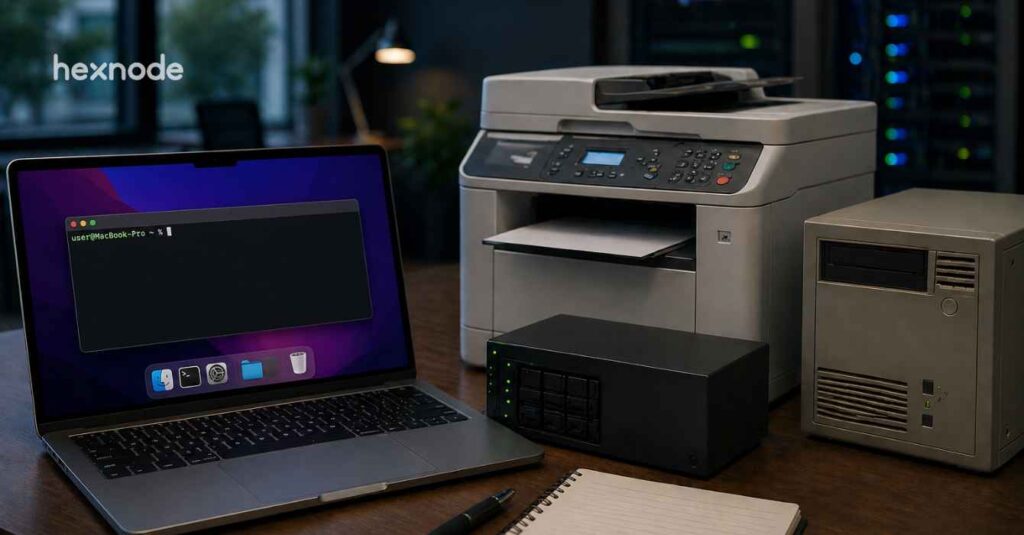
Although modern endpoint management favors cloud-native environments, most enterprises still rely on legacy infrastructure like network printers, mapped drives, and registry-based Group Policies. Hexnode UEM bridges this gap by enabling IT administrators to deploy custom scripts from the cloud to recreate these essential configurations. This flexible approach allows organizations to seamlessly maintain critical legacy workflows while transitioning to modern device management without disrupting daily operations.
In many industry conversations about endpoint management, the future is often described as fully cloud-native. Devices are Entra ID–joined, printing is often handled through cloud services like Universal Print, and traditional infrastructure such as on-prem servers or Group Policy is assumed to be fading away.
In reality, most enterprise environments are still hybrid. Organizations continue to rely on legacy printers, file servers, and Group Policy configurations that remain critical to day-to-day operations. Many business applications also depend on settings or configurations that modern MDM frameworks might not always support natively.
For IT administrators, modernizing legacy device management is rarely a simple “lift and shift” to the cloud. The real challenge is adopting modern management models without disrupting the infrastructure and workflows that organizations still depend on.
At Hexnode, we believe modernization should not require abandoning what already works. IT teams can combine modern endpoint management with scripting to manage legacy resources such as printers, network drives, and registry-based configurations. This allows organizations to gradually transition to modern management frameworks.
Modern endpoint management platforms are often designed around cloud-first identity and policy models. However, many enterprise environments still include infrastructure and workflows that were originally built around on-premises networks and Active Directory.
As organizations begin modernizing legacy device management, challenges often appear in scenarios such as:
Legacy Printer Deployment
Many organizations continue using network printers traditionally deployed through print servers or Group Policy. Moving these workflows into modern management models can require additional configuration or alternative deployment methods.
Network Drive Access
Shared folders on file servers are often mapped to drive letters (such as Z:) so they behave like local disks in Windows Explorer, simplifying file access for users and applications.
Application Policy Configuration
Many third-party applications rely on settings historically delivered through Group Policy Administrative Templates (ADMX), which define registry-based policy configurations. When translating these policies to modern endpoint management platforms, some templates, particularly those created for older or niche applications, may not map directly to supported policy settings. In such cases, administrators often recreate the same configuration by applying the underlying registry values through alternative methods such as scripts.
Hexnode’s Approach to Closing Legacy Management Gaps
Modern endpoint management platforms typically rely on predefined policies and configuration frameworks. However, some legacy workflows, such as printer deployment, drive mapping, or application-specific registry settings, may not have direct equivalents in standard MDM policies.
To address these scenarios, Hexnode allows administrators to extend device management through scripting. By deploying scripts from the management console, IT teams can recreate legacy configuration behavior while continuing to manage devices from the cloud.
Scenario 1: Mapping Legacy Network Printers (Without Active Directory)
In traditional Active Directory environments, network printers are often deployed through Group Policy or login scripts. When devices join the domain, the required printers are automatically mapped to user machines.
However, in modern environments where devices may not be domain-joined, this workflow is no longer available. Administrators must use alternative methods to deploy printers to managed devices.
One practical approach is to install the printer directly on the device using scripts. Windows provides built-in commands that allow administrators to install printer drivers, create TCP/IP printer ports, and add printer queues locally. These commands are part of the Windows Print Management subsystem and enable printer configuration without relying on Active Directory or Group Policy.
For example, the following is a sample script that demonstrates how a network printer can be added using its IP address:
1
2
3
4
5
6
7
# Sample script: install a network printer using its IP address
Add-Printer-Name$PrinterName-PortName"IP_$PrinterIP"-DriverName"Generic / Text Only"
This sample script creates a TCP/IP printer port and installs the printer locally so it becomes available to the user.
By deploying such scripts through Hexnode, administrators can configure printers across managed devices, even when those devices are not part of a traditional domain environment.
Hexnode Genie: The wizard of AI scripts
Learn more about how Hexnode Genie helps admins create, deploy, and manage scripts with ease.
Scenario 2: Persistent Network Drive Mapping in Modern Environments
Many enterprise environments rely on shared file servers that are mapped to drive letters such as Z: or H:. This allows users and applications to access shared folders on the network as if they were local disks in Windows Explorer.
As organizations transition to modern endpoint management models, devices that are no longer domain-joined may not receive traditional login scripts. In addition, changes in network connectivity can cause mapped drives to disconnect or fail to reconnect.
Another challenge arises from script execution context. Many endpoint management platforms run scripts using the system account by default. If a drive mapping script runs under the system account, the mapping is created for that account rather than for the logged-in user. As a result, the drive does not appear in File Explorer for the user even though the script executed successfully.
To ensure the mapping is visible and persistent for users, the configuration must run in the user context. Hexnode allows you to deploy scripts that execute in the logged-in user environment, enabling administrators to recreate traditional drive-mapping behavior.
For example, the following is a sample script that maps a shared folder to a drive letter:
1
2
3
4
5
6
# Sample script: map a network drive for the logged-in user
This approach allows organizations to maintain access to existing file servers while gradually modernizing their device management infrastructure.
Add network-aware targeting to reduce failures:
In addition to running the mapping script at user logon, you can tighten execution scope using Dynamic Device Groups. Hexnode supports grouping devices automatically based on network conditions or device attributes allowing you to target scripts only to devices that are currently on your corporate network. This helps avoid failed mappings and improves the end-user experience when employees are working remotely or connected to public Wi‑Fi.
Scenario 3: Recreating Registry-Based Policies with Scripts
Many Group Policy configurations, particularly those used to manage third-party or legacy applications, ultimately work by writing specific values to the Windows registry. Administrative Template policies (ADMX) define which registry keys and values should be created or modified when a policy is applied.
Common examples include configuring application behavior such as disabling automatic updates in software like Adobe Reader or enforcing configuration settings for legacy enterprise applications.
In traditional Active Directory environments, these settings are typically delivered through Group Policy Administrative Templates. The templates define the available policy settings, and when a policy is applied, the corresponding registry values are written to the target device.
During modernization efforts, replicating this behavior in cloud-managed environments can sometimes require additional work. While many modern device management platforms support ADMX-based policies, certain templates, particularly those designed for older or niche applications, may not always translate directly into supported cloud policy settings.
In these situations, administrators can recreate the same configuration by applying the required registry values through scripts. By modifying the same registry keys that the original Group Policy would have configured, IT teams can enforce the intended behavior while managing devices through modern endpoint management platforms.
For example, the following is a sample script that applies a registry-based configuration:
This sample script creates or updates a registry value to enforce the same configuration that a Group Policy setting would apply.
With Hexnode, administrators can deploy these scripts centrally, allowing legacy configuration behavior to be preserved even as device management transitions to the cloud.
Featured Resource
UEM Migration Handbook: An IT admin’s guide for effective migration
Download the whitepaper to learn how you can adopt the right UEM migration strategy for your business.
Modernizing legacy device management often means working with existing infrastructure while adopting newer management approaches. Many organizations still use shared printers, mapped network drives, and registry-based application settings in their day-to-day operations. With Hexnode, administrators can manage these legacy configurations through scripting. This allows tasks such as printer deployment, drive mapping, and registry configuration to be applied consistently across managed devices. This flexibility helps IT teams maintain existing workflows while gradually adopting modern endpoint management practices across their device environments.
Frequently Asked Questions (FAQs)
1. How are network drives typically mapped in Windows environments?
Network drives are usually mapped to shared folders on file servers (for example \\server\share) and assigned drive letters such as Z: or H:. This allows users and applications to access shared resources as if they were local disks in Windows Explorer.
2. What role do ADMX templates play in Group Policy?
ADMX templates define policy settings and the registry values associated with those settings. When a Group Policy is applied, Windows updates the registry keys defined in the template to enforce the configured policy.
3. Why do organizations still use hybrid device management environments?
Many organizations continue to use a combination of modern endpoint management and existing infrastructure such as file servers, printers, and legacy applications. Hybrid approaches allow IT teams to modernize management while maintaining compatibility with systems that remain part of daily operations.
Simplify GPO Migration with Hexnode
Manage legacy printers, drive mappings, and registry policies from the cloud—without breaking existing workflows.
Curious, constantly learning, and turning complex tech concepts into meaningful narratives through thoughtful storytelling. Here I write about endpoint security that are grounded in real IT use cases.