Concurrent remote support sessions help IT teams troubleshoot multiple endpoints without repeatedly disconnecting active sessions.
The challenge: Repeatedly ending and reopening remote sessions can add connection-management work when revisiting several devices. Meanwhile, ticket backlogs can grow when incoming demand exceeds resolution capacity, and waiting for troubleshooting can prolong downtime if an incident prevents work without an available workaround.
The solution: Concurrent remote viewing enables technicians to maintain multiple connections, switch between devices, compare issues, and prioritize incidents.
The Hexnode advantage: Hexnode’s Multi-Endpoint Concurrent Sessions supports unlimited simultaneous connections across compatible devices through a subscription add-on, improving troubleshooting flexibility and visibility.
Why does troubleshooting one endpoint at a time slow down IT support?
Troubleshooting one endpoint at a time slows IT support because technicians must finish or disconnect active remote sessions before addressing other devices, extending employee downtime and delaying incident resolution.
Consider an IT technician handling overlapping requests—several remote employees reporting the same application crash after a software update, alongside a macOS connectivity issue and a frontline mobile device failing to access corporate resources. When a remote support tool permits only one active session, each endpoint must be investigated sequentially, forcing the technician to repeat diagnostic steps before identifying whether the issues share a common cause.
As endpoint inventories expand across Windows, macOS, and mobile platforms, sequential troubleshooting becomes difficult to scale and creates several operational bottlenecks:
Growing helpdesk backlogs: New support requests accumulate while technicians work through active sessions one by one.
Repeated context switching: Disconnecting and reconnecting to devices interrupts troubleshooting workflows and increases technician workload.
Prolonged employee and frontline downtime: Users remain unable to access critical applications while awaiting support, stalling operations across remote offices, retail stores, or warehouses.
Limited device comparison: Technicians cannot immediately inspect multiple affected endpoints in parallel or compare a failing device against a functioning reference device.
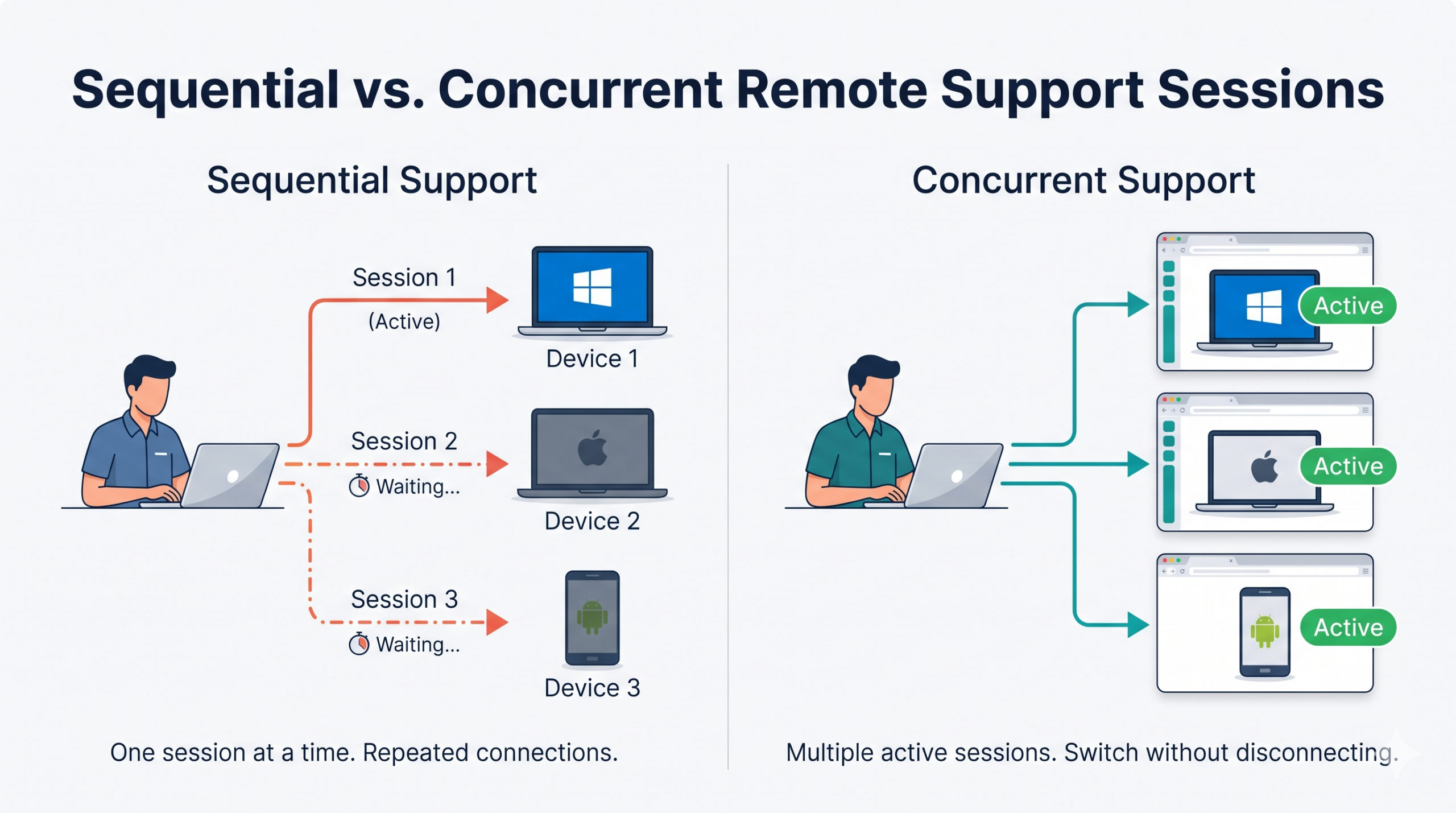
Concurrent remote support sessions address these limitations by allowing technicians to maintain multiple active connections, investigate issues in parallel, and prioritize business-critical incidents without terminating existing sessions. While simultaneous access does not guarantee instant fixes for complex underlying issues, it significantly improves diagnostic visibility and workflow flexibility.
What is concurrent remote viewing, and how does it work?
Concurrent remote viewing allows IT technicians to establish and maintain multiple remote screen-sharing sessions with different endpoints simultaneously. Instead of disconnecting from one device to access another, technicians can keep several sessions active, typically through separate browser tabs or session windows.
Each session establishes an authorized connection between the technician’s remote support interface and the target endpoint. Once connected, technicians can switch between live device screens to investigate application errors, observe system behavior, or compare configurations across affected endpoints.
For example, a technician investigating an application failure can maintain connections to three employee laptops, comparing error messages and application behavior without repeatedly initiating new sessions.
However, maintaining multiple active sessions does not mean interacting with every device simultaneously. Technicians typically switch between sessions to perform troubleshooting actions.
Sequential vs. concurrent remote support
Remote View vs. Remote Control vs. concurrent remote sessions
Although closely related, these capabilities serve different purposes:
Provides visibility into an endpoint’s screen without directly interacting with its interface.
Remote Control
Allows authorized technicians to interact with supported devices using remote input, such as mouse clicks and keyboard commands.
Concurrent remote sessions
Enables multiple remote connections to remain active, allowing technicians to switch between endpoints without terminating existing sessions.
Available functionality depends on the endpoint’s operating system, remote support permissions, and device configuration. Some platforms permit screen viewing but restrict remote input, while others require additional permissions or user authorization.
Understanding these distinctions helps IT teams evaluate whether their remote support infrastructure can accommodate simultaneous troubleshooting across mixed-device environments.
⚠️Important Note
Concurrent remote viewing allows technicians to maintain multiple active device connections, but it does not mean they can interact with every endpoint simultaneously. Remote-control availability depends on the device’s operating system, permissions, and supported capabilities.
When should IT teams use multiple remote support sessions?
IT teams should use concurrent remote support sessions when troubleshooting multiple endpoints, comparing device behavior, or supporting geographically distributed devices. Maintaining several active connections allows technicians to investigate separate incidents without repeatedly disconnecting and reconnecting.
Three enterprise scenarios demonstrate where this approach is particularly useful.
1. Parallel helpdesk troubleshooting
A technician may need to investigate a Windows application crash while another employee reports a macOS configuration issue.
With multiple active sessions, the technician can switch between devices, review error messages, and continue troubleshooting without closing existing connections. This reduces connection overhead and helps manage overlapping support requests.
2. Cross-device issue comparison
When an application behaves differently across endpoints, technicians can establish sessions with both an affected device and a functioning reference device.
Comparing application behavior, configuration settings, and visible error messages can help identify potential causes, such as inconsistent configurations or failed updates, without repeatedly reconnecting to either endpoint.
3. Distributed device support
Enterprises managing remote offices, retail locations, or frontline devices often encounter incidents that cannot be investigated physically.
Concurrent sessions allow technicians to maintain visibility into multiple remote endpoints while addressing problems across locations.
Incident prioritization remains essential. Technicians should focus on business-critical devices and high-impact failures while keeping lower-priority sessions accessible.
However, concurrent access improves troubleshooting flexibility rather than guaranteeing faster resolution. Network stability, technician availability, device permissions, and incident complexity still determine how effectively multiple sessions can be managed.
How to Troubleshoot Unresponsive Kiosks Using Remote Control Features?
Learn how IT teams diagnose frozen kiosks, apply remote fixes, and troubleshoot devices across distributed locations.
How can IT teams manage simultaneous remote support sessions efficiently?
Managing concurrent remote support sessions efficiently requires a structured workflow that maintains device visibility, minimizes session confusion, and enforces appropriate access controls.
IT teams can follow these five steps to troubleshoot multiple endpoints without unnecessarily interrupting active connections.
Step 1: Verify endpoint readiness
Before initiating remote connections, confirm that:
Devices are enrolled or registered in the remote management environment.
Endpoint operating systems support the required remote assistance capabilities.
Necessary remote support components are installed and functioning.
Devices have stable network connectivity.
Technicians have appropriate permissions to access the endpoints.
Step 2: Establish the first remote session
Select the affected endpoint and initiate an authorized remote connection.
Verify that the device screen is visible, the session is responsive, and any required user consent has been obtained before proceeding.
Step 3: Start additional remote sessions
Open separate browser tabs or session windows for additional endpoints without terminating the existing connection.
Clearly label or organize sessions using device identifiers, user details, or support ticket references to prevent confusion between endpoints.
Step 4: Investigate and prioritize incidents
Switch between active sessions to inspect errors, compare device behavior, and collect relevant diagnostic evidence.
Prioritize business-critical incidents while maintaining access to lower-priority sessions. Use remote control only when supported and explicitly authorized.
Step 5: Document findings and close sessions
Record troubleshooting observations, associate findings with the correct support tickets, and document any configuration changes or remediation actions.
Terminate remote sessions once investigations are complete to prevent unnecessary access.
Best practices for managing concurrent sessions
Monitor bandwidth: Multiple screen-sharing connections can increase network consumption and affect session responsiveness.
Optimize viewing quality: Adjust screen-sharing resolution or quality when network conditions deteriorate.
Enforce access controls: Respect user consent, technician permissions, and session visibility requirements.
Protect diagnostic evidence: Store screenshots and recordings securely according to organizational retention policies.
Before expanding deployment, administrators should verify concurrent session limits, licensing requirements, and platform-specific restrictions to ensure the remote support environment meets operational needs.
What should enterprises evaluate before adopting concurrent remote viewing?
Before adopting concurrent remote viewing, enterprises should evaluate session capacity, endpoint compatibility, connection reliability, and security controls. The objective is to ensure technicians can manage multiple devices without compromising troubleshooting effectiveness or access governance.
Key evaluation criteria
IT teams should assess the following capabilities:
Concurrent session limits: How many remote connections can remain active under the available licensing model?
Platform compatibility: Which Windows, macOS, Linux, ChromeOS, Android, and iOS/iPadOS versions are supported?
Remote access capabilities: Does each platform support screen viewing, remote control, or both?
Connection stability: Can sessions remain responsive during simultaneous access?
Session management: Can technicians switch between devices without disconnecting existing sessions?
Administrator usability: Are active sessions clearly identifiable and manageable?
Security and governance requirements
Organizations should also verify role-based technician access, attended versus unattended session permissions, and user consent requirements.
Session histories should support accountability, while screenshots and recordings must follow organizational retention and access policies. Additional safeguards may be necessary when technicians access screens displaying sensitive business information.
Validate capabilities through a controlled pilot
Test concurrent remote support sessions using two or three endpoints across supported operating systems.
Evaluate connection reliability, session switching, troubleshooting effectiveness, bandwidth consumption, and session record completeness.
Document platform-specific limitations and permission requirements before expanding access to additional technicians or endpoints.
Featured Resource
Build a Better Remote Support Strategy
Get practical RMM checklists, remote access guidance, and resources for improving enterprise IT support.
How does Hexnode Remote View support multiple endpoints simultaneously?
Hexnode UEM’s Multi-Endpoint Concurrent Sessions capability allows IT technicians to maintain multiple active Remote View sessions across supported endpoints using separate tabs within the same browser. Administrators can switch between connected devices without terminating existing sessions, making it easier to investigate overlapping support requests.
According to Hexnode’s official documentation, the capability supports unlimited concurrent sessions across supported platforms. However, it is offered as a subscription add-on, rather than a standard feature included in every plan.
Subscription Note
Hexnode’s Multi-Endpoint Concurrent Sessions capability is available as a subscription add-on. Administrators should confirm add-on availability and applicable platform requirements before enabling concurrent remote support workflows.
How to initiate concurrent Remote View sessions in Hexnode
Step 1: Enable Remote View
Navigate to Admin > General Settings > Remote View & Control Settings.
Select Enable Remote View and save the configuration. Enable Remote Control separately if technicians require interactive access on supported devices.
Step 2: Start the first remote session
Navigate to Manage > Devices.
Select an enrolled endpoint.
Open Device Summary > Remote View/Control.
Click Start Session and complete the platform-specific prompts. On Windows, select the Remote Assist execution level; for attended sessions, the user must approve access and accept the app’s EULA on first use.
Step 3: Connect additional endpoints
Open separate browser tabs and repeat the process for other devices. Technicians can maintain active connections and switch between sessions as troubleshooting priorities change.
Hexnode supports remote viewing across Windows, macOS, Linux, ChromeOS, Android, and iOS/iPadOS, with platform-specific requirements:
Windows: Remote View and Remote Control require a Windows 10/11 PC enrolled through the Hexnode installer, the latest Hexnode UEM and Hexnode Remote Assist apps, and the applicable permissions.
macOS: Remote View and Remote Control are supported on macOS 10.12 or later with the Hexnode UEM and Hexnode Remote Assist apps installed, along with the required remote session and Accessibility permissions.
Linux: Remote View and Remote Control are supported on compatible distributions (Debian, Fedora, and Mint-based distributions with Hexnode Agent 2.8.7 and above) that have an active GUI and user consent. Remote View works across all agent-supported distributions, whereas Remote Control requires the X11 display manager and is not supported on Wayland.
ChromeOS: Remote access is supported on managed ChromeOS devices through Google Remote Desktop integration. After an administrator initiates the session from the Hexnode portal and signs in with a managed Google account from the same domain, the user must accept the screen-sharing prompt on the Chromebook.
Android: Remote View and Remote Control require a supported device and enrollment mode, the applicable Hexnode support app, and required permissions. Android Enterprise Profile Owner devices are excluded.
iOS/iPadOS: Supports Remote View only. Users can initiate screen broadcasting through the Hexnode UEM app on supported versions. On iOS 11, users must initiate screen broadcasting through the Control Center after the administrator starts the session.
Additional troubleshooting capabilities
During remote sessions, technicians can use:
Screen Recording: Capture sessions for later review.
Screenshots: Document visible errors and application behavior.
Session History: Review previous remote support sessions.
Quality Adjustment: Switch between Low, Medium, High, and Advanced settings to balance screen clarity and bandwidth.
For example, an administrator can investigate a Windows application failure while maintaining visibility into an Android endpoint and comparing device behavior across sessions.
This provides continuous troubleshooting visibility without repeatedly disconnecting devices.
FAQs
Does Hexnode support concurrent remote viewing across different operating systems?
Yes, Hexnode supports concurrent remote viewing across compatible Windows, macOS, Linux, ChromeOS, Android, and iOS/iPadOS devices.
Do concurrent remote support sessions require additional bandwidth?
Yes, running multiple remote viewing sessions can increase bandwidth consumption because each connection transmits screen data. Network usage depends on screen activity, viewing quality, and connection conditions. Reducing screen-sharing quality can help maintain responsiveness when bandwidth is limited.
Can two IT technicians remotely access the same device simultaneously?
Access by multiple technicians to the same endpoint depends on whether the remote support solution supports collaborative or shared sessions. Concurrent remote support sessions generally refer to maintaining connections with multiple endpoints, not necessarily allowing multiple technicians to control one device. Hexnode separately describes Collaborative Remote Control as enabling multiple technicians to control the same device simultaneously. This is distinct from Multi-Endpoint Concurrent Sessions, which lets a technician maintain connections with multiple devices.
Ready to troubleshoot multiple devices without switching off active sessions?
Concurrent remote support sessions help IT teams move beyond sequential troubleshooting by maintaining visibility into multiple endpoints while investigating separate or related issues.
With Hexnode’s Multi-Endpoint Concurrent Sessions, administrators can evaluate simultaneous connections across representative Windows, macOS, Linux, ChromeOS, Android, and iOS/iPadOS devices.
Test session switching, supported remote-control capabilities, technician permissions, and session records before expanding deployment. Confirm the required subscription add-on and platform-specific limitations to ensure compatibility with your support workflows.
Troubleshoot Multiple Endpoints with Hexnode
Explore remote viewing, supported device control, and concurrent session workflows with Hexnode UEM.
Associate Product Marketer at Hexnode focused on SaaS content marketing. I craft blogs that translate complex device management concepts into content rooted in real IT workflows and product realities.