ChromeOS kiosk power management balances availability and energy use through idle actions, display timeouts, and power-source settings.
Aggressive timeouts can interrupt transactions, while continuously active displays waste energy and drain batteries.
Match settings to operating hours, AC or battery power, session continuity, and recovery requirements. Pilot changes before rollout.
Hexnode UEM centralizes these controls through Kiosk Settings and Organizational Unit targeting, including scheduled sleep and powered-off device alerts.
This split matters because plugged-in kiosks prioritize service continuity, while battery-powered kiosks must also preserve charge throughout operating hours.
How Should You Choose Power Settings for Your Kiosk Environment?
Choose ChromeOS kiosk power settings around operating hours, power source, session continuity, and recoverability.
Operating hours: When must the kiosk remain available?
Match the availability window to customer access, including opening preparation and late transactions. However, keeping screens active outside that window increases energy use. For example, distinguish a staffed reception desk from signage that visitors need throughout the night.
Power source: Does the kiosk use AC power or battery?
Choose AC vs battery power settings separately rather than copying identical timeouts. On battery, shorter display timeouts can preserve runtime; however, they can interrupt customers who pause between inputs. Test settings across a full operating shift.
Session continuity: What should happen to an unfinished task?
Choose a ChromeOS kiosk idle timeout that accommodates realistic pauses during checkout or check-in. However, a shorter timeout can interrupt unfinished tasks. Treat logout as a session-ending action; separately verify how the application clears customer data before the next user.
Recoverability: Who can restore service?
Before selecting suspend or shutdown, identify who can wake or power on the device. A staffed kiosk can rely on local assistance, while an unattended deployment needs a tested recovery path. Google’s Chrome Remote Desktop guidance requires devices to remain online for remote connections. Therefore, do not assume remote support can restore a powered-off kiosk.
Which ChromeOS Kiosk Power Settings Suit Which Environment?
Retail and signage kiosks generally need uninterrupted AC operation, while battery-powered and intermittently used kiosks favor shorter timeouts.
Suggested starting points: Validate these settings in a pilot group.
Environment
Availability requirement
AC settings direction
Battery settings direction
Idle action
Lid close action
Retail self-service or ordering kiosk
Throughout trading hours and active orders
Longer timeouts; dim between customers
Shorter screen timeouts; protect checkout pauses
Do nothing during service
Do nothing during service
Digital signage or wayfinding
Continuous visibility during access hours
Keep display on during service
Shorter timeouts only outside required visibility
Do nothing during display hours
Do nothing during service
Visitor check-in or lobby
Reception hours and arrivals
Longer idle timeout; dim between visitors
Shorter screen-off timeout between visits
Suspend after inactivity; verify reliable wake-up
Suspend if lid closure should pause service; otherwise, Do nothing
Battery-powered event or field kiosk
Full shift with limited charging
Longer timeouts on AC power
Shorter dim and screen-off timeouts
Suspend; shutdown only with recovery
Suspend
Shared library or lab kiosk
Opening hours and active sessions
Dim first; screen off between sessions
Shorter display timeouts
Logout after an appropriate inactivity window
Suspend
Lid-close recommendations apply only to clamshell devices. Also, Do nothing controls the idle action; separate timers still govern screen dimming and shutoff.
Before rollout, test transaction pauses, session cleanup, battery runtime, and recovery on representative hardware.
Log Out, Suspend, Shut Down, or Do Nothing: Which Idle Action Fits?
Choose Do nothing for continuous availability, Logout to end a kiosk session, and Sleep or Shutdown when recovery permits.
Action
Best for
Tradeoff
Risk
Log out (Logout)
Shared kiosks requiring session termination
Ends the current kiosk session
Interrupts unfinished tasks; verify application data cleanup separately
Suspend (Sleep)
Intermittent use with reliable wake-up
Reduces power use while requiring wake-up
Users may encounter a sleeping kiosk
Shut down (Shutdown)
Inactive periods with a tested power-on path
Stops operation until the device starts again
Unattended kiosks may remain unavailable
Do nothing
Always-on ordering, signage, and wayfinding
Preserves operation; screen timers remain separate
Active displays can waste energy outside service hours
Align planned shutdowns with monitoring expectations. If monitoring alerts whenever a device powers off, intentional idle shutdowns can trigger alerts during normal operation. Configure operating windows or maintenance exclusions where supported, then verify genuine outages still trigger notifications.
When in doubt, start always-on public kiosks with Do nothing during service hours. For attended kiosks, pilot Sleep only after staff confirm reliable wake-up.
How Should Screen Dim, Screen Off, and Idle Warning Timeouts Be Set?
Set screen dim before screen off, and configure an idle warning before Logout or Shutdown.
Dim: Start with a longer screen dim timeout during attended AC operation. However, use a shorter battery timeout to conserve charge without immediately blanking the display.
Warning: Set the warning threshold before the session-ending action, and verify users can see it before screen shutoff. Google measures this threshold from inactivity, not backward from logout. Sleep and Do nothing show no idle warning.
Off: Place screen off after dimming, allowing customers time to resume interaction. However, keep essential signage visible throughout service hours.
Action: Allow enough time after the warning for users to continue. Otherwise, short timeouts can terminate legitimate tasks despite the warning.
First, navigate to Policies > New Policy > Kiosk Lockdown > ChromeOS Kiosk Lockdown > Kiosk Settings > Configure.
Next, configure AC/Battery power settings separately: Idle timeout, Idle action, Idle warning timeout, Screen dim timeout, and Screen off timeout. Idle action offers Log out, Suspend, Shut down, or Do nothing. Also, Lid close action offers Shutdown, Suspend, or Do nothing.
Translate the environment comparison into settings:
Retail ordering: Set Idle action to Do nothing and configure Screen dim timeout and Screen off timeout.
Signage: Set Idle action to Do nothing and disable screen dimming and shutoff.
Visitor check-in: Use a longer AC Idle timeout with Suspend.
Event or field kiosks: Use shorter battery display timeouts with Suspend.
Library or lab kiosks: Select Log out when the workflow requires session termination.
For scheduled inactivity, find Scheduled Sleep under Accessibility Settings. This schedule does not establish time-of-day switching between AC and battery profiles.
Then, apply the policy through Policy Targets > Domains/OUs. ChromeOS policies reach devices only through Organizational Units (OUs); parent-OU policies also apply to child OUs.
Additionally, Device status alerts send email or SMS when devices power off. Reconcile these alerts with intentional shutdowns.
Featured resource
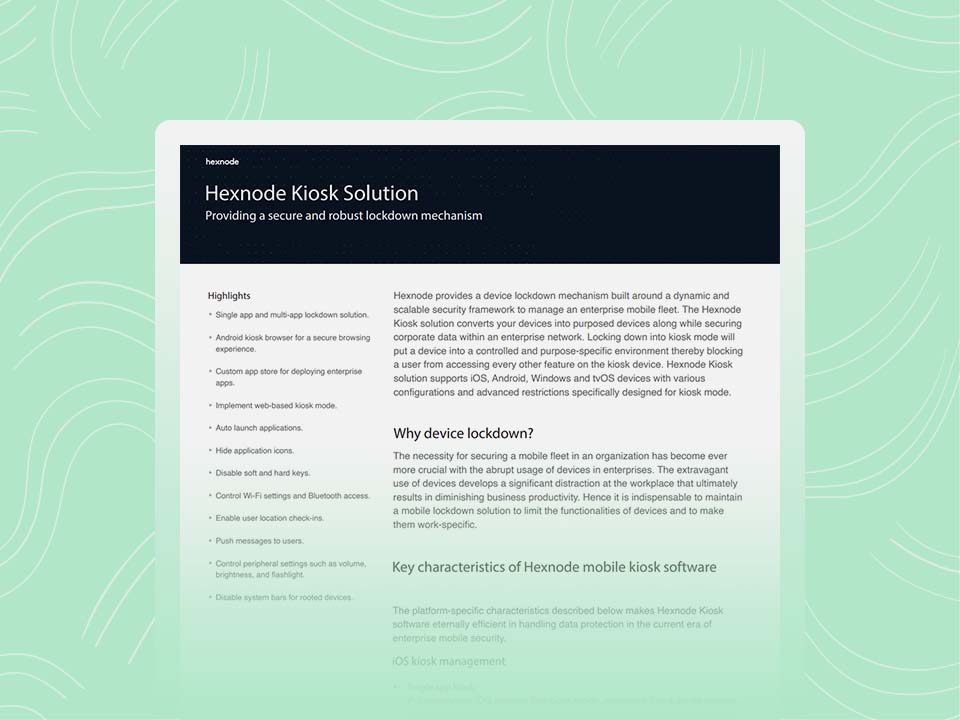
Hexnode’s Kiosk Solution
Download the datasheet for an overview of Hexnode’s kiosk lockdown capabilities and purpose-specific device deployments.
Why does my ChromeOS kiosk go to sleep or log out on its own?
The configured idle timeout and idle action can trigger sleep or logout after inactivity. Also, closing a clamshell device’s lid can trigger sleep or shutdown. Check scheduled sleep settings when interruptions follow a recurring schedule.
Is selecting “Do nothing” enough to keep a ChromeOS kiosk screen on?
No. Do nothing prevents the idle action, but separate timers still control screen dimming and shutoff. For always-on operation, Google also recommends disabling both display timeouts and enabling Allow App to Manage Power.
How do I configure ChromeOS kiosk power settings from a UEM?
In Hexnode UEM, configure Kiosk Settings under ChromeOS Kiosk Lockdown alongside Single/Multi App Kiosk Lockdown. Set the AC and battery power options separately. Then, apply the policy through Policy Targets > Domains/OUs.
What Is Chrome OS Enterprise Enrollment and How Does It Work?
Review enrollment prerequisites, deployment, and organizational structure before applying policies.
Put ChromeOS Kiosk Power Policies into Practice
Match ChromeOS kiosk power management settings to operating hours, power source, and the user journeys that must stay available. Audit your fleet to identify mismatched idle actions, display timeouts, and recovery assumptions.
Evaluate ChromeOS Kiosk Policies With Hexnode UEM
Request a walkthrough of Kiosk Settings, AC and battery power controls, and Organizational Unit targeting for your deployment.
I write at the intersection of technology, process, and people, focusing on explaining complex products with clarity. I break down tools, systems, and workflows without any noise, jargon, or the hype.