ChromeOS policy inheritance can extend configuration changes from parent organizational units to child OUs, making precise targeting and validation essential to prevent unintended disruptions.
Parent OU settings flow to descendants unless supported local overrides apply, potentially affecting multiple departments and workflows.
IT teams should map OU hierarchies, review existing policy associations, pilot changes within a limited scope, and verify effective settings before expansion.
Hexnode UEM supports OU-based policy targeting, Policy Summary reviews, and policy cloning, helping administrators manage ChromeOS configurations while validating their actual impact.
Why can one ChromeOS policy change affect multiple teams?
The organizational unit (OU) selected for a policy determines its reach through the organizational hierarchy. ChromeOS policy inheritance allows settings applied at a parent OU to reach its descendants, subject to applicable local overrides.
Consider an administrator changing a printing setting for the warehouse department. Warehouse, Finance, and Customer Support share a parent OU, but each team has different printing requirements. Selecting that parent could extend the change beyond the warehouse.
Before saving, the administrator needs to identify the intended branch and inspect the policy’s existing associations. A department-specific request does not establish a department-specific rollout. The selected OU’s name alone cannot confirm the complete scope.
Three questions guide that review:
Which OU should receive the change?
Which descendants fall within its reach?
What existing settings and associations require review?
What happens when policy targeting reaches the wrong OUs?
Incorrect policy targeting can disrupt workflows across teams and increase troubleshooting and recovery work.
In the printing scenario, a restriction intended for Warehouse could remove a color printing option that Customer Support needs. Employees may interrupt their work to report the issue, while support teams investigate why familiar printing controls have changed. Administrators then need to identify all affected OUs, restore the previously approved settings, and verify that every affected team can complete its tasks.
Undocumented exceptions make that investigation harder. One child OU may retain a locally applied setting while another inherits the change. Shared policy associations also complicate ownership: the administrator handling the request may need approval from other teams before changing or restoring a configuration they use.
How does ChromeOS policy inheritance work?
ChromeOS policy inheritance means child organizational units (OUs) inherit settings from their parent unless administrators configure a supported local override. An OU is a hierarchical administrative container for organizing users or devices and applying settings.
Three distinct elements determine how a change reaches an endpoint:
Targeted OU: The organizational unit selected when configuring or associating the policy.
Inheriting descendants: Child OUs beneath that target that receive inherited settings.
Effective value: The setting the endpoint actually applies after relevant overrides and policy precedence.
Identify the policy scope before interpreting recorded OU membership or assignments. Device settings apply to the managed device, while user settings apply to the managed user context. A device and its signed-in user are not interchangeable policy targets.
The complete guide to Chrome OS device management
Learn how to manage ChromeOS devices, apps, policies, security, and reporting across enterprise environments.
Parent settings flow down the selected OU branch
Settings flow downward through successive child OUs. Selecting a child branch does not extend that selection upward to its parent or across to sibling branches. The selected OU’s own members also fall within the setting’s scope.
Consider a simplified hierarchy: Operations contains Warehouse and Office, while Warehouse contains Warehouse Pilot. Assume the setting supports OU inheritance, all descendants inherit it, and no local overrides or competing configurations affect the result.
Selected OU
Descendant reach
Required checks
Operations
Warehouse, Office, and Warehouse Pilot
Confirm every branch needs the change and has operational approval.
Warehouse
Warehouse Pilot
Review both warehouse OUs and their membership.
Warehouse Pilot
None in this example
Confirm pilot membership and inherited baseline.
A Warehouse selection therefore covers Warehouse Pilot while leaving Office outside that selection. In production, inspect locally applied values before predicting endpoint behavior: a descendant’s effective setting can differ from the value configured at its parent.
Local overrides create exceptions for individual settings
Google Admin supports locally applied values for applicable settings, allowing a child OU to differ from its parent. Inherited identifies a setting that follows the parent; Locally applied identifies a value configured at the selected child OU.
For example, assume Operations allows color printing, while Warehouse requires monochrome printing. A supported local override at Warehouse changes that printing setting for its branch, subject to any further overrides below it. Other settings can continue to inherit from Operations.
Restoring inheritance removes that local exception and reconnects the setting to the parent’s value. Review and confirm the current parent value before making this change, because it may have changed since the exception was created.
Keep this setting-level behavior separate from an external management platform’s policy associations. Consult the platform’s documented conflict handling when multiple policies configure the same setting. Do not assume the newest policy or most restrictive value automatically takes precedence.
Group-based policy overrides
Group-based policies can change the effective setting even when an OU value is inherited or locally applied. Google supports group assignments for some ChromeOS user, device, and managed guest session settings. Where supported, a conflicting group policy takes precedence over the OU policy of the same type.
Group assignment is not available for every setting. In Google Admin, selecting Groups on the relevant settings page displays only settings that support group targeting.
Before attributing unexpected behavior to OU inheritance, check the relevant user’s or device’s group memberships and configured overrides. If multiple groups apply, review their priority: the highest-priority group determines which policies apply. Include these assignments in your rollout checks alongside OU membership and endpoint evidence.
How should administrators plan an OU-based policy rollout?
Map the OU hierarchy, review shared settings, select a limited pilot, and validate effective behavior before expanding. These four steps connect the intended audience to the configuration each endpoint actually receives.
The endpoint administrator owns targeting decisions, configuration records, and validation evidence. The affected team’s operational owner confirms that the change meets workflow requirements. Agree on those responsibilities before deployment so technical results and operational acceptance have clearly assigned reviewers.
Map OU membership and the intended rollout boundary
Start with the current full OU path for each intended recipient, distinguishing device membership from user membership where relevant. Record descendant branches and the workflows that depend on the setting you plan to change.
Choose the narrowest branch that covers the intended audience. Expand its hierarchy and review every descendant; an OU name or one visible device cannot establish the complete rollout boundary.
Maintain a targeting record with:
Selected OU: Full path and reason for choosing it.
Included descendants: Each child branch within the proposed scope.
Expected recipients: Relevant devices or users and their operational roles.
Unaffected branches: Sibling OUs whose approved behavior should remain unchanged.
For the warehouse example, list Warehouse Pilot separately from its parent and identify Office as an unaffected comparison branch. Before moving devices into a pilot OU, review the destination’s inherited settings and local exceptions. Record any resulting baseline differences before introducing the proposed change.
Review shared policy settings and associations before editing
Before editing a shared policy, review:
Associations: Selected OUs and affected descendants.
Existing values: Inherited settings, local exceptions, and approved baselines.
Proposed change: The exact setting, current and replacement values.
Bundled settings: Other configurations and dependent workflows.
Editing a policy changes its configuration; assigning it elsewhere changes its audience. Assess every affected branch before proceeding.
Record business owners, maintenance timing, acceptance criteria, and recovery steps, including what to restore and who verifies recovery.
For a separate pilot configuration, check its targets, inherited settings, and documented conflict handling. Creating another policy does not determine which value takes precedence.
Keep the pilot within the intended branch
Select a limited pilot OU that represents the devices, user contexts, and workflows affected by the change. Confirm whether it contains child OUs, then include those descendants in the targeting review.
Keep the production baseline stable during evaluation. Check that preparing the pilot does not modify a policy still associated with production OUs. Naming a branch “Pilot” does not isolate it from ancestor settings or shared policy edits.
Define acceptance criteria before deployment:
Expected recipients receive the intended setting value.
Representative workflows succeed with that value.
Sampled devices outside the pilot retain their approved behavior.
For the printing example, test the required output using representative accounts and devices. Identify which sibling branch will provide comparison evidence, and ask its operational owner to confirm the printing options that must remain available.
Verify ChromeOS policy inheritance before expanding
Verify ChromeOS policy inheritance through association records and endpoint checks. Open chrome://policy, select Reload policies, and inspect the setting’s value, Source, and Applies to fields alongside OU membership.
Test printing behavior in the targeted branch, its descendants, and an unaffected sibling branch. Record expected and observed results.
Investigate mismatches involving membership, overrides, competing configurations, or refresh requirements. Follow documented restart or sign-out instructions where required. Google notes that ChromeOS device settings can take up to 24 hours to apply for everyone. Resolve discrepancies before expanding.
Featured Resource
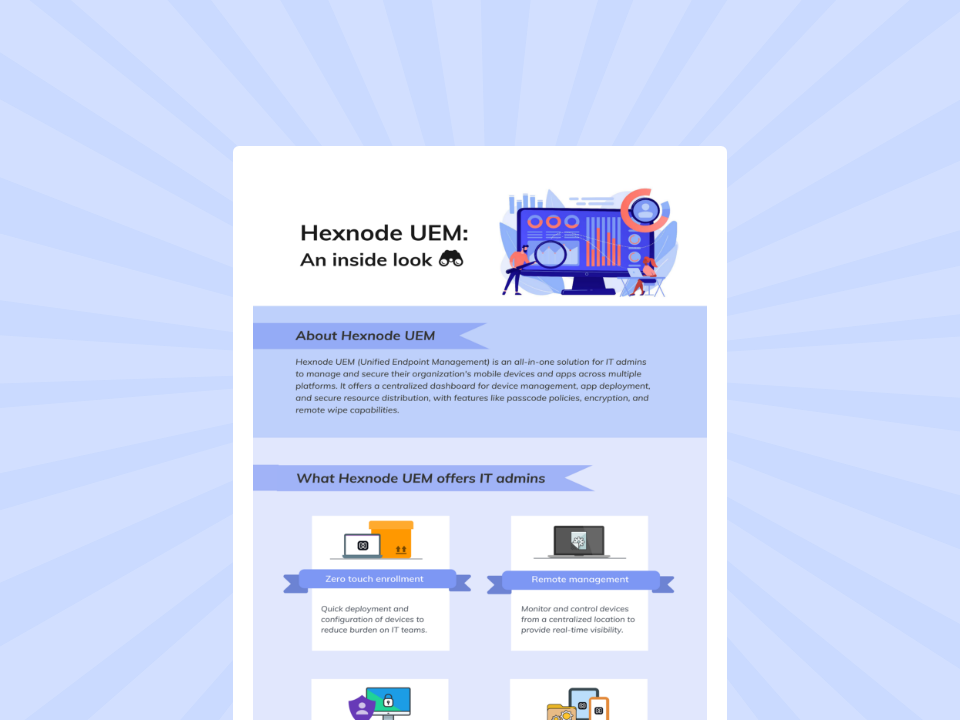
Hexnode UEM: An inside look
Explore Hexnode UEM capabilities for simplifying device management, security, app deployment, and administration.
How does Hexnode UEM support ChromeOS OU targeting?
Hexnode UEM targets ChromeOS devices through Policy Targets > Domains/OUs, not direct device associations.
Click +Add Domain/OUs.
Select the integrated Google Workspace account marked (Google).
Expand the hierarchy, select the required OUs, click OK, then Save.
Parent associations reach child OUs, so select Warehouse Pilot for a limited rollout. Confirm the parent’s descendant reach against your approved targeting record before saving any changes.
Under ChromeOS > Configurations > Printing, configure Allowed Print Color Modes as Monochrome printing only when approved. Validate printing on the intended branch.
Review Policy Summary for version, modification details, target count, and settings. Editing an existing policy affects all its targets.
Clone a Policy copies configurations without targets. Associate the copy with pilot OUs, then verify inherited settings and effective printing behavior before expanding.
FAQs
Does assigning a ChromeOS policy to a parent OU automatically affect its child OUs?
Yes. ChromeOS policy inheritance allows settings assigned to a parent organizational unit (OU) to reach its child OUs. However, supported local overrides and competing configurations can affect the values individual endpoints ultimately apply.
Can a child OU have different ChromeOS settings from its parent OU?
Yes. Administrators can configure locally applied values for supported settings within a child OU. These overrides allow the child branch to use different configurations while other settings continue to inherit from the parent.
Does targeting a child OU also apply the ChromeOS policy to its parent or sibling OUs?
No. Selecting a child OU targets that branch and its descendants, not its parent or sibling branches. Administrators should still review existing policy associations and inherited settings to confirm the effective configuration on each endpoint.
Evaluate your ChromeOS OU targeting with Hexnode
Bring your current OU hierarchy and one proposed printing-policy change to a Hexnode UEM demonstration. Use that scenario to review policy associations, prepare a limited pilot, and plan endpoint and workflow validation before broader deployment. Include the teams whose existing printing requirements must remain supported.
Simplify ChromeOS Policy Targeting
Manage parent and child OUs, enforce consistent policies, and streamline ChromeOS management with Hexnode UEM.
Content writer at Hexnode. Fueled by good coffee and the occasional cat cuddle, I enjoy crafting content that informs, connects, and resonates. Nothing excites me more than knowing my words have been read, appreciated, and maybe even bookmarked.