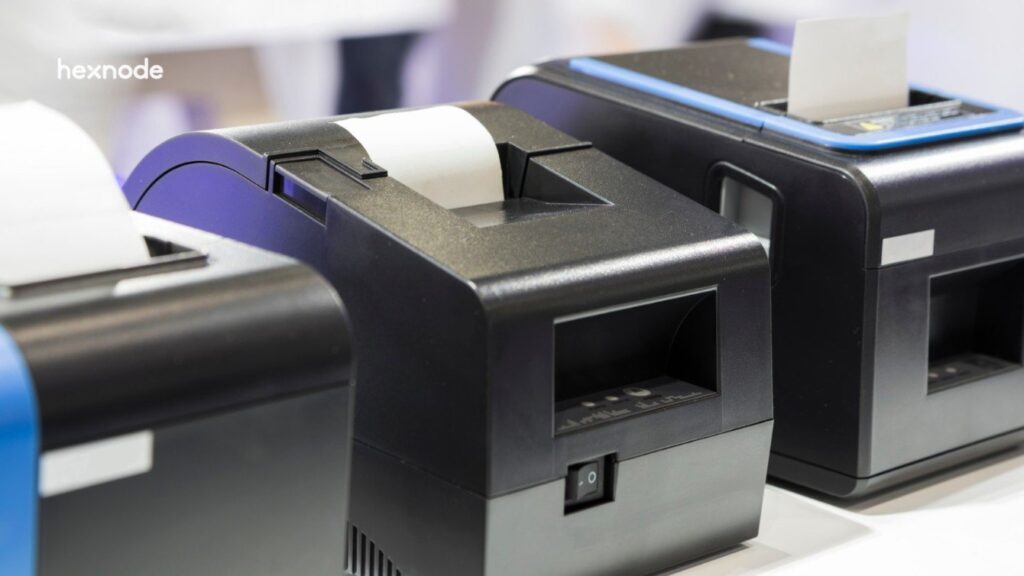
Zebra printer certificate deployment requires compatible credentials, correct policy targeting, and verified connections to preserve authentication and printing access.
Missing or mismatched certificates can interrupt network access, printing, and remote management.
Pilot changes first; verify installation, authentication, printing, and management connectivity. Validate TLS printing separately.
Hexnode UEM distributes certificates and configures supported enterprise Wi-Fi settings. IT and PKI teams manage validation, replacement, and revocation.
Why does Zebra printer certificate deployment need a coordinated approach?
Zebra printer certificate deployment requires coordination because each printer needs certificates that match its network’s authentication requirements and the services it uses. Across warehouses, retail locations, and distribution centers, administrators must account for different printer models, firmware versions, and connection settings.
Uploading a certificate completes only one part of the process. IT teams must confirm compatibility, assign the correct policy to the intended printers, and verify that each device can establish the required connection. A successful upload alone does not confirm installation, authentication, or continued printing.
Hexnode UEM’s certificate policies provide the central deployment workflow. Administrators can upload certificates, assign them to selected printers or device groups, and then validate deployment on the printer before testing network access and application printing.
How can certificate deployment errors affect printing operations?
Certificate deployment errors can block network authentication, interrupt printing, and complicate remote recovery. The operational impact depends on which connection fails:
Network access: Missing, expired, or mismatched certificates can prevent printers from joining networks that require certificate-based authentication.
Printing availability: Applications may lose access to disconnected printers, delaying barcode, shipping-label, or receipt jobs even when the hardware works correctly.
Remote management: Applying dependent network settings before certificates reach the printer can interrupt its management connection. Administrators may then need local intervention to restore access before they can deliver corrective policies.
Deployment planning must address two goals:
Maintain required authentication safeguards
Preserve operational connectivity.
During a controlled pilot, IT teams should verify network authentication, management communication, and printing from the intended application.
The complete guide to Zebra Link OS device management
Explore Zebra printer enrollment, configuration, and security with Hexnode UEM.
Where do certificates fit in Zebra printer connectivity?
Certificate deployment places digital certificates on a printer to support authentication or secure connections. The required certificates depend on the network service, authentication method, and printer configuration.
Each component serves a distinct purpose:
Certificate Authority certificates establish trust in certificate issuers, allowing the printer to validate a server’s certificate chain.
Client certificates identify the printer when a network requires certificate-based client authentication.
Private keys let the printer prove possession of the key associated with its certificate. Administrators must protect these keys, even when a file packages them with certificates.
Zebra’s PrintSecure Printer Administration Guide, under “Certificate Files,” describes separate certificate handling for WLAN, wired authentication, and TLS printing services. Administrators must match the certificate materials to the intended service.
Connection type
Certificate purpose
What IT must verify
Enterprise Wi-Fi authentication
Establish server trust and, for EAP-TLS, identify the printer.
EAP method, trust chain, client certificate, and matching private key.
Wired 802.1X authentication
Support certificate-based authentication where the network uses EAP-TLS.
Printer support, wired authentication settings, and required credentials.
TLS-based printing
Support printer authentication and encrypted transport.
Service-specific certificates, TLS configuration, and application trust validation.
Hexnode UEM’s Security > Certificates policy distributes certificates to targeted printers. Installation alone does not configure every secured service or encrypt all print traffic. Administrators must also configure and validate the intended connection, including TLS printing where required.
How do you deploy and validate Zebra printer certificates with Hexnode?
Check printer compatibility, prepare the certificate policy, assign pilot devices, and validate authentication and printing before expanding deployment. Use representative printers to test the configuration and establish a recovery method before changing certificates across production devices.
Step 1: Check compatibility and prerequisites
For Weblink connections, check the certificate algorithm before upgrading: Link-OS 7.2 removed support for Zebra-signed SHA-1 certificates, so applications that still rely on them may fail to connect.
Before deployment:
Verify that the printer can communicate with Hexnode.
Prepare a local recovery method if network changes interrupt management access.
Obtain the required certificate chain and identity materials from your PKI team. Check validity, intended use, and the matching private key where required.
Prefer a unique identity certificate for each printer.
Step 2: Create the certificate policy
In Hexnode, navigate to Policies > New Policy > Zebra Printer > Enterprise > Security > Certificates.
Select Configure > Add Certificate and upload the certificate.
Review Credential Name and expand Credential details to check the subject, issuer, and expiry date.
Add other certificates required for the deployment.
Hexnode’s dedicated deployment guide lists PEM and DER formats and supports multiple certificates within one policy. Uploading these materials distributes existing certificates; it does not issue new ones. Prepare private-key materials according to the authentication method and supported printer workflow.
Preparing client certificates and private keys for deployment
A client certificate alone does not provide the private key required for EAP-TLS authentication. Hexnode’s Zebra deployment guide explains certificate uploads but does not specify how the policy installs or associates private keys. Its platform comparison lists PKCS#12 support, while the dedicated guide lists PEM and DER. Confirm the supported workflow with Hexnode before relying on the policy to deliver both components.
Zebra provides two approaches to preparing printer identity credentials:
Generate the key on the printer: On supported printers, generate a certificate signing request (CSR), submit it to your CA, and return the signed certificate through Zebra’s place_cert workflow. The private key stays on the printer, and the printer checks that the certificate matches it.
Prepare credentials externally: Provision the certificate and matching private key using Zebra’s supported service-specific file workflow. For WLAN, Zebra identifies CERTCLN.NRD for the client certificate and PRIVKEY.NRD for the private key.
These procedures describe Zebra’s provisioning options. Confirm which steps Hexnode’s certificate policy performs and which require separate printer provisioning. Verify the matching credentials before enabling dependent authentication settings.
Step 3: Assign the policy to pilot printers
Under Policy Targets, select the intended pilot devices or device groups and save the policy. Shared CA certificates may suit group deployment, while printer-specific identity credentials require individual targeting.
Confirm certificate delivery before applying dependent network settings. For enterprise Wi-Fi, coordinate Network Settings > Wi-Fi with the required authentication method and certificate configuration.
Step 4: Validate installation and connectivity
Use appropriate printer commands through Zebra utilities to verify certificate installation.
Note: Policy assignment alone does not confirm installation or successful authentication.
Review the certificate policy’s status on the device in Hexnode, then confirm that the printer can authenticate to the required network or service.
Check that the printer:
Contains the expected certificate.
Authenticates successfully, with supporting authentication-server evidence where available.
Maintains communication with Hexnode.
Prints successfully from the intended application.
Reconnects after a planned restart.
If encrypted printing forms part of the requirement, verify the actual TLS printing connection separately. Successful network authentication does not establish that the application encrypts its print traffic.
Step 5: Troubleshoot failures and plan replacement
Identify the failure point before changing settings:
Policy delivery: Check targeting and management connectivity.
Certificate validation: Check certificate presence, validity, and the required trust chain.
Authentication: Compare printer settings with network requirements and review authentication-server logs.
Printing: Check application connectivity after network access succeeds.
Pause expansion if pilot printers fail authentication, lose management access, or cannot print. Restore connectivity through the approved recovery method before attempting remote corrections.
Assign an owner for expiry tracking and replacement testing. Validate replacement certificates before retiring working credentials, and handle CA revocation separately from certificate removal on the printer.
Deleting the corresponding Hexnode policy removes the deployed certificates. Before deletion, confirm that the printer no longer needs those certificates for its active connections.
Featured resource
Hexnode UEM Capability Statement
Explore Hexnode’s UEM capabilities for device provisioning, monitoring, and scalable management in this capability statement.
How does Hexnode UEM support a controlled certificate rollout?
Hexnode UEM combines certificate distribution, policy targeting, and enterprise Wi-Fi configuration to help administrators coordinate deployment across supported Zebra printers.
Distribute required certificates:Security > Certificates supports multiple certificates within a policy, allowing administrators to prepare the certificate materials required for a deployment.
Control deployment scope: Policy Targets lets administrators assign policies to selected printers or device groups. Teams can begin with representative devices and expand after validation, while keeping printer-specific identity credentials limited to their intended targets.
Configure enterprise Wi-Fi authentication:Network Settings > Wi-Fi includes TLS under Accepted EAP Types. The available authentication fields, including certificate and private-key password fields, depend on the selected security type and EAP method.
These controls support configuration for networks that require EAP-TLS, subject to the printer’s capabilities and the network’s authentication requirements.
The rollout still requires coordination across teams. Hexnode distributes supported policies, the PKI team manages certificate issuance and revocation, and administrators verify authentication, management connectivity, and application printing.
Printers need a working management connection to receive policies. Administrators must also confirm model, firmware, and service-specific compatibility before deployment; a successful Wi-Fi configuration does not establish that every printer service uses the required certificates or encryption.
FAQs
Can I use the same certificate on every Zebra printer?
Printers can share a CA certificate when they need to trust the same issuer. For client authentication, use a unique identity certificate and corresponding private key for each printer rather than sharing one identity across the fleet.
Can Hexnode deploy certificates to a Zebra printer that is offline?
A printer needs a working connection to Hexnode to receive a certificate policy. If authentication problems interrupt that connection, restore connectivity through an approved local recovery method before attempting remote deployment.
Does successful Wi-Fi authentication mean Zebra print traffic is encrypted?
Successful Wi-Fi authentication does not prove that the application uses an encrypted printing connection. If you require TLS-based printing, verify the printer service, application configuration, and certificate trust separately.
Test Zebra printer certificate deployment on your fleet
Evaluate Zebra printer certificate deployment with Hexnode UEM using representative printers, your organization’s certificates, and the intended network configuration. Include printers from different locations and usage patterns so the evaluation reflects the conditions your IT team manages each day.
Confirm certificate installation, successful authentication, and continued access to printing and remote management before expanding the rollout. Use the pilot to identify compatibility gaps and test recovery procedures against your operational requirements.
Manage Zebrap printer certificates with Hexnode.
Start your free trial and test your certificate rollout.
A storyteller for practical people. Breaks down complicated topics into steps, trade-offs, and clear next actions—without the buzzword fog. Known to replace fluff with facts, sharpen the message, and keep things readable—politely.