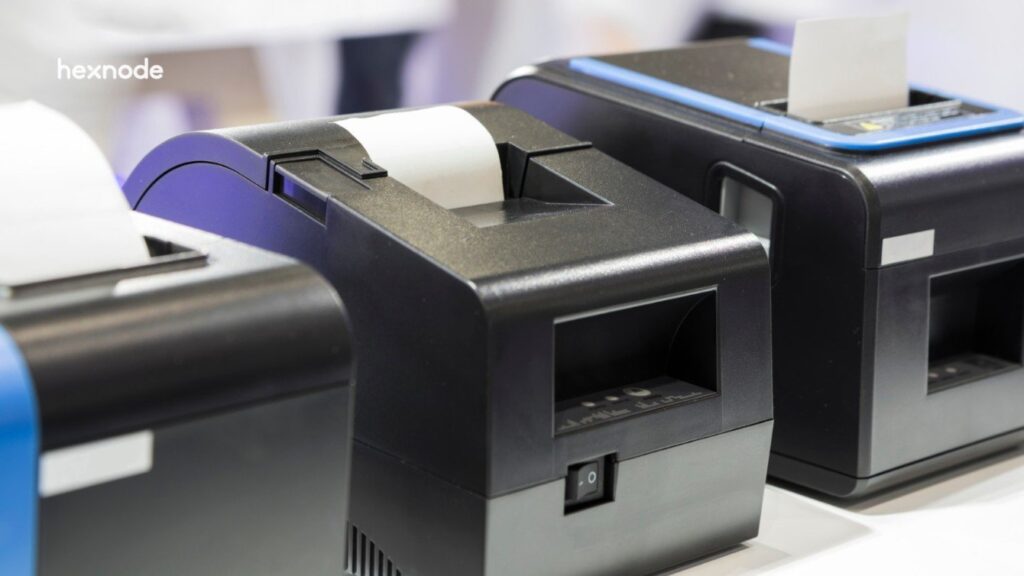
Zebra printer automation reduces technician-led maintenance by moving supported configuration, monitoring, remediation, and update workflows into centralized management.
Manual maintenance can disrupt throughput, consume technician time, and create inconsistent label configurations.
Link-OS provides remote-management interfaces that management platforms can use for configuration baselines, scheduled upkeep, scripted remediation, file deployment, and firmware workflows.
Hexnode UEM brings these workflows into one console through Zebra printer enrollment, Automate actions, and Action History.
Zebra printer automation can replace reactive maintenance with centralized workflows for supported printer tasks. Without this approach, organizations may depend on technicians to respond after an operational issue disrupts the workflow.
Consider a warehouse where six printers drop off Wi-Fi overnight. The morning shift starts with stalled print queues and technician visits. Likewise, a carrier label-format change can require teams to update 200 printers individually. Firmware creates another challenge when one site runs four releases without a clear inventory of each printer’s version.
This fragmented approach makes printer fleet maintenance difficult to standardize. More importantly, downtime carries a measurable operational cost. ABB’s 2023 global industrial survey covered 3,215 plant maintenance decision-makers. Respondents reported a median unplanned-downtime cost of $124,669 per hour.
A management gap emerges when printers sit outside both endpoint-management and dedicated printer-management workflows. In that case, they may lack centralized baselines, scheduled maintenance, and consistent health visibility.
That gap keeps routine printer maintenance dependent on manual intervention.
What manual printer maintenance costs an operation
A failed label printer can interrupt the physical workflow it supports. Goods may stop moving through shipping, receipts may stop printing, and specimens may lack required identification.
The operational impact extends beyond the printer itself:
Throughput loss: A stalled printer can constrain packing, receiving, shipping, and other label-dependent workflows.
Technician time: On-site troubleshooting consumes staff hours that remote maintenance can reduce for routine issues that support remote diagnosis or remediation.
Standards exposure: In workflows that use GS1 standards, inconsistent templates can encode incorrect lot, expiry, or other data. The GS1 General Specifications define the rules for using GS1 identification keys, data attributes, and data carriers in applicable business applications.
Consistency matters because labels often carry operationally significant data. For example, GS1 Application Identifiers can encode attributes such as lot numbers and expiration dates. A template inconsistency can therefore affect more than label appearance.
The alternative is to manage printers as endpoints with defined configuration baselines and scheduled or event-driven maintenance.
What is Zebra printer automation?
Zebra printer automation uses management software to orchestrate supported maintenance tasks across Zebra Link-OS printers. These tasks include configuration, device operations, file management, scripts, and firmware workflows.
Four Zebra technologies particularly relevant to the automation workflows in this article are Link-OS, ZPL, Set-Get-Do commands, and WebLink.
Link-OS: Zebra’s printer operating environment supports remote configuration, monitoring, and file operations. Its interfaces expose printer settings, firmware, formats, fonts, alerts, and device operations.
ZPL:Zebra Programming Language provides commands for label formatting, printing, and printer configuration.
Set-Get-Do (SGD): SGD commands let management software retrieve settings, change configuration values, and invoke supported printer operations.
WebLink: WebLink uses secure WebSocket connections between compatible Link-OS printers and configured server applications. The connection remains subject to applicable certificate and network requirements.
A management platform builds automation on top of these interfaces. A compatible management platform can use Link-OS capabilities to apply a defined configuration baseline during or after printer enrollment. Meanwhile, trigger-based workflows can run maintenance on a schedule or when defined conditions occur.
Version requirements depend on the selected management workflow and printer capabilities. Teams should verify the supported Link-OS version before designing enrollment, firmware, or remote-management workflows.
The Complete Guide to Zebra Link-OS Device Management
Explore how Link-OS, SGD, and remote actions support centralized Zebra printer fleet management.
Which Zebra printer maintenance tasks can be automated?
For this automation model, Zebra printer maintenance can be organized into six practical categories: device control, configuration, health monitoring, file deployment, scripted remediation, and firmware updates.
Depending on the management platform, supported Link-OS operations may run on schedules, during enrollment workflows, after defined events, or on demand.
Task category
Example action
Trigger type
Operational issue it can address
Device control
Run a scheduled restart where restart-based remediation has been validated
Scheduled
Recurring connectivity conditions with a validated restart-based remediation
Media-out and other supported printer-status conditions
Files
Push a new carrier template
On demand to a group
Delays caused by manual template deployment after format changes
Scripts
Run a validated calibration command for supported conditions
Event-driven
Technician visits for remotely remediable calibration conditions
Firmware
Deploy a compatible firmware release during a maintenance window
Scheduled
Issues or improvements addressed by the applicable firmware release
Each category addresses a different part of printer fleet maintenance. For example, centralized file deployment lets teams distribute ZPL label templates across a fleet instead of updating printers individually. Likewise, Set-Get-Do (SGD) commands and ZPL scripts can handle supported configuration and remediation tasks remotely.
Firmware should follow a controlled lifecycle that accounts for model compatibility, release guidance, maintenance windows, and post-update verification. Zebra publishes firmware downloads and supporting resources for individual printer models. Teams can therefore incorporate compatible firmware into planned maintenance windows instead of waiting for faults to force an update.
How to build a Zebra printer automation program in five steps
A Zebra printer automation program can follow five steps: enrollment, configuration baselining, recurring maintenance, event-driven remediation, and scheduled firmware management. These steps can reduce hands-on maintenance for tasks that support remote execution.
1. Enroll printers through WebLink
Configure each printer to connect with the management server through WebLink.
Use Zebra Setup Utilities to configure supported printers and prepare their connectivity settings.
Deploy an enrollment command file when the management platform uses command-based enrollment.
Configure the printer’s WebLink connection according to the authentication and enrollment requirements of the selected management platform.
What this reduces: Repeated technician-led configuration after printers have completed any required initial connectivity and provisioning steps.
2. Apply a configuration baseline at enrollment
Define validated print-speed and darkness baselines for printers with comparable models, media, ribbons, and print-quality requirements.
Add the required network and supported restriction settings.
Associate the baseline with enrollment so new printers start from a consistent configuration.
Create separate baselines when warehouses, stores, or operational workflows require different settings.
What this reduces: Repetitive manual configuration and unintended configuration drift across comparable printer groups.
3. Schedule recurring upkeep
Where recurring connectivity issues have a validated restart-based remediation, schedule that action during low-activity periods.
Run regular status checks to identify supported media conditions, such as paper-out and, on applicable models, ribbon-out states.
Where the management platform supports location or group-based triggers, update tracked asset attributes when printers move between defined operational zones.
Set maintenance intervals according to printer workload and operational criticality.
What this reduces: Routine status checks and reactive discovery of printer conditions that remote monitoring can detect.
4. Add event-driven remediation
Identify printer conditions that have a predictable technical response.
Map each qualifying condition to the appropriate ZPL or SGD command sequence.
Use validated commands for supported tasks such as recalibration or reset workflows.
Test every remediation script before fleet-wide deployment. Include representative printers for each relevant model, firmware version, and configuration.
What this reduces: Technician visits for repeatable configuration or calibration issues that have a validated remote command-based remediation.
5. Put firmware updates into maintenance windows
Identify the correct firmware for each printer model and current version.
Stage the required firmware package centrally before deployment.
Schedule firmware deployment during an appropriate maintenance window. Follow the power, connectivity, and update instructions for the specific printer and firmware package.
Verify deployment afterward by checking the printer’s reported firmware version and any other version field specified by the model-specific update guidance.
Before deployment, check the relevant model in Zebra’s printer support and firmware resources. Confirm firmware compatibility and review the applicable release information before updating the fleet.
What this reduces: Printer-by-printer firmware deployment and inconsistent update timing where the printer model and management workflow support remote updating.
How Hexnode UEM automates Zebra printer maintenance
Hexnode UEM manages supported Zebra Link-OS printers as enrolled endpoints and uses Automate to run scheduled or event-driven maintenance actions. IT teams can bring printer upkeep into the same management environment they use for other enterprise endpoints.
Hexnode Automate supports six categories of Zebra printer actions:
Device Control: Power Off, Restart Device, and Edit Device Attributes handle routine device operations without an on-site visit.
Policy: Associate Policy and Remove Policy let IT apply or remove configuration policies through automated workflows.
Scans: Scan Device refreshes printer information, including media alerts and connectivity status.
Files: Deploy Fonts and Deploy Templates distribute printer resources remotely. Deploy Templates supports .zpl, .nrd, .txt, .lbl, and .zbi files.
Scripts: Execute Custom Script runs ZPL, ZBI, or Set-Get-Do (SGD) commands for supported printer operations. Hexnode supports .zpl, .nrd, .txt, .lbl, and .zbi script files.
Updates: Update Firmware deploys compatible .zpl firmware files. This workflow requires Link-OS 5.0 or later.
For onboarding, Zebra printer enrollment supports open and authenticated modes, including pre-shared-key authentication. Action History then provides a record of management actions performed on enrolled printers.
IT teams can also use Mirror Configuration with an FTP or SFTP server to distribute configuration files, firmware, formats, and printer settings across Zebra printers.
Together, these capabilities bring printers, rugged handhelds, and PCs into a unified management workflow. Teams can use one console and automation framework instead of relying on printer-only utilities and repeated site visits.
Featured resource
Bring endpoint management under one console
Explore how Hexnode UEM centralizes endpoint onboarding, deployment, configuration, and management across diverse enterprise device fleets.
Before moving Zebra printers from technician-led maintenance to centralized Hexnode automation:
Inventory the fleet: Record printer models, locations, Link-OS versions, firmware versions, and existing configurations.
Confirm compatibility: Verify that each printer and planned workflow meets Hexnode’s Zebra management requirements.
Choose an enrollment method: Select open or authenticated enrollment based on deployment scale and access-control requirements.
Establish configuration baselines: Standardize appropriate print, network, and restriction settings across printers with comparable models and operational requirements.
Start with a pilot group: Test policies, templates, scans, scripts, and device actions on representative printers before expanding.
Validate scripts: Test ZPL and SGD commands on representative printers across each relevant model, firmware version, and configuration before wider deployment.
Define automation triggers: Schedule recurring scans and configure scheduled or event-driven actions, including restarts where a validated maintenance condition requires them.
Plan firmware windows: Schedule validated firmware packages during appropriate maintenance windows.
Verify execution: Review Action History and reported printer information after automated actions run.
Expand in phases: Roll validated workflows out by site, printer group, or operational zone.
FAQs
Can Zebra printer automation eliminate all on-site maintenance?
No. Automation can reduce visits for supported configuration, monitoring, scripting, and firmware workflows. Physical tasks such as media replacement, hardware repair, and some connectivity problems can still require local intervention.
What should IT teams check before automating Zebra printer firmware updates?
Confirm the printer model, current firmware version, and compatibility of the target firmware before deployment. Schedule updates during an appropriate maintenance window, follow the model-specific update instructions, and verify the reported firmware version afterward.
Can Hexnode automate Zebra printer scripts and configuration changes?
Yes. Hexnode Automate can execute supported ZPL or Set-Get-Do commands through Execute Custom Script. IT teams can also use Associate Policy and Remove Policy within automated workflows to manage printer configurations.
How can IT teams verify that automated Zebra printer actions completed?
Hexnode provides Action History for reviewing management actions performed on enrolled printers. Teams can review Action History for execution status and use workflow-specific checks, such as Show Output for scripts or OS Version after firmware updates.
From technician visits to self-maintaining printers
Zebra printer automation reduces reactive site visits by moving supported maintenance workflows into centralized management. Start by enrolling printers centrally and applying a defined configuration baseline. Then, schedule recurring upkeep, automate repeatable remediation, and move firmware updates into controlled maintenance windows.
This approach directly addresses the maintenance gaps that create avoidable site visits. For known connectivity conditions that respond to a restart, scheduled actions can reduce manual intervention before the next shift. Teams can deploy carrier template changes across the fleet instead of updating printers individually. Likewise, planned firmware updates keep version management consistent across sites.
With Hexnode UEM, these workflows can run alongside the management of other enterprise endpoints from a unified console.
Managing Zebra printers alongside rugged handhelds? Schedule a personalized demo to explore the workflow for your environment.
Automate Zebra printer maintenance with Hexnode
Bring supported Zebra printer configuration, maintenance actions, templates, scripts, and firmware workflows into centralized management with Hexnode.
I write at the intersection of technology, process, and people, focusing on explaining complex products with clarity. I break down tools, systems, and workflows without any noise, jargon, or the hype.