EXE and MSIX differ in structure, install behavior, and cleanup, requiring separate handling unless properly managed
Unmanaged EXE installs bypass approval workflows, creating shadow IT and audit gaps
Success Criteria such as App Identifier, Registry Path, or Install Path verify successful installation, while SHA-256 verifies package integrity during upload and distribution.
Hexnode UEM unifies EXE, MSI, and MSIX deployment into one console with consistent configuration and enforcement
Why IT admins struggle with .exe and .msix deployment
Enterprise EXE and MSIX deployment rarely follows one consistent process. Vendors ship raw .exe installers with vendor-specific silent-install switches, or modern .msix packages expecting a containerized install. IT teams end up supporting both formats through manual, device-by-device installs or messy conversions.
Native Windows tools were not built to close this gap. Group Policy handles MSI packages well, but has no native support for MSIX, and cannot deploy EXE installers directly since Group Policy Software Installation only supports MSI and ZAP packages.
Manual scripting can require package-specific logic for installation, detection, error handling, and reporting; centralized visibility depends on the deployment and management tooling used.
In an enterprise context, this means distributing executable or packaged app files to managed endpoints, configuring install parameters and verifying success, without physically touching each device.
What happens when app deployment is not standardized
Without a standardized process, .exe and .msix deployment across a fleet creates measurable operational and security risk. The impact compounds as endpoint count grows.
Operational impact
Inconsistent software versions across endpoints, since manual installs drift out of sync over time
Security gaps from unpatched or unauthorized installs that admins have no centralized visibility into
IT hours consumed by device-by-device manual installs across distributed or remote fleets
Compliance and governance risk
Unmanaged EXE installs are particularly risky from a governance standpoint. Because EXE files lack standardized packaging or a built-in approval mechanism, users or admins can install software entirely outside sanctioned workflows.
EXE installers do not inherently enforce an approval workflow, so organizations must use application control, endpoint management, or other governance mechanisms to restrict unauthorized executables.
Shadow IT risk increases when applications are installed outside sanctioned deployment workflows, even though endpoint-management and software-inventory tools may still detect those applications.
Audit gaps during compliance reviews, when installed software cannot be reliably traced back to an approved deployment record
The scale problem
For IT Directors, the real cost shows up in time-to-deploy. A process that takes minutes per device becomes days or weeks once it is applied across hundreds or thousands of endpoints, with no reliable way to confirm install success without manual follow-up.
EXE vs. MSIX: What is the real difference?
EXE files use the standardized Windows Portable Executable format, but EXE-based installers do not follow a standardized installation package schema or command-line convention comparable with MSI or MSIX.
MSIX is Microsoft’s modern Windows app package format, built around package identity, a standardized manifest, and a containerization model that provides file-system and registry virtualization; the level of application isolation depends on its trust level.
Aspect
EXE
MSIX
Packaging structure
Standardized PE executable structure, but installer packaging, commands, and installation logic vary by vendor.
Standardized manifest defining app, version, and permissions
Install behavior
Depends entirely on vendor-built installer logic
Uses MSIX containerization; isolation varies by trust level.
Uninstall process
Depends on the installer and its registered uninstall method.
Handled natively through the containerized runtime
Cleanup after removal
Inconsistent, leftover files or registry entries are common
Removes package-managed data cleanly; some user data may remain.
Version and app identifier
May include version metadata, but lacks standardized package identity.
Self-described in the package manifest
Isolation from system
Installs directly onto the system
Containerized, with stronger sandboxing only for AppContainer apps.
Adoption
Still widely used, especially by vendors avoiding MSIX packaging overhead
Growing, particularly for MSIX enterprise distribution scenarios
Install and uninstall behavior
EXE installers rely entirely on vendor-built logic:
Installation behavior varies package to package, since there is no enforced structure
Uninstallation depends on whatever the vendor built in, whether a separate uninstaller.exe or a registry entry under “Programs and Features”
Cleanup is inconsistent, and leftover files or registry entries are common after removal
MSIX takes a different approach
Apps install in an isolated, containerized environment, separate from the rest of the system
Uninstalls are clean by design, since the containerization prevents leftover files
The package manifest self-describes version and app identifier, reducing guesswork during MSIX enterprise distribution
Why EXE has not disappeared
Despite MSIX being the more modern standard, a substantial number of software publishers still choose not to package their applications as MSI or MSIX. Building a properly signed MSIX package takes additional development effort that not every vendor prioritizes, particularly for smaller utility tools or legacy enterprise software still maintained on older codebases.
This is why enterprises need infrastructure that supports EXE and MSIX deployment side by side, rather than standardizing on a single format and forcing conversions elsewhere.
Common formats IT admins encounter
IT admins typically encounter four formats across a Windows fleet:
EXE: Legacy or vendor-specific installers, most common with older enterprise tools and utility software
MSI: Microsoft’s original standardized installer, still widely used for structured enterprise packaging
MSIX: Microsoft’s modern packaging format, increasingly used for enterprise apps and Microsoft Store distribution
APPX: The predecessor to MSIX, originally built for UWP (Universal Windows Platform) apps
Windows enterprise-management platforms support multiple application and package types beyond EXE, MSI, MSIX, and APPX; supported formats and any conversion requirements depend on the deployment platform.
How to prepare .exe and .msix files before deployment
Preparing .exe and .msix deployment correctly starts before any file reaches a managed endpoint. Admins need to gather specific package information and define verification criteria upfront, since install behavior varies significantly across vendors and formats.
Identify silent-install parameters
EXE installers do not follow a standard silent-install convention, so this step requires per-package research.
Check vendor documentation for the correct silent-install switch, since parameters differ by package (common examples include /s, /silent, or /quiet, but none are guaranteed)
Test the install command on a single device before pushing to a wider rollout, since incorrect switches cause silent failures
Document uninstall command requirements separately, as many EXE packages need distinct parameters for removal versus installation
Gather app version information
Record the app version, publisher name, and installer file details before upload
Note the app identifier or product code where available, particularly for MSIX packages that expose this natively through the manifest
Define success criteria
Admins need a reliable way to confirm an install actually succeeded, rather than assuming success once a command executes.
An identifiable file path created by the install (for example, a specific executable or config file location)
An app identifier that a management tool can check against the device’s installed app inventory
Verify file integrity
Before mass rollout, generate a checksum (commonly SHA-256) for the package. Comparing this checksum during deployment confirms the file was not corrupted or tampered with in transit, which is a standard best practice regardless of the deployment tool used.
Featured resource
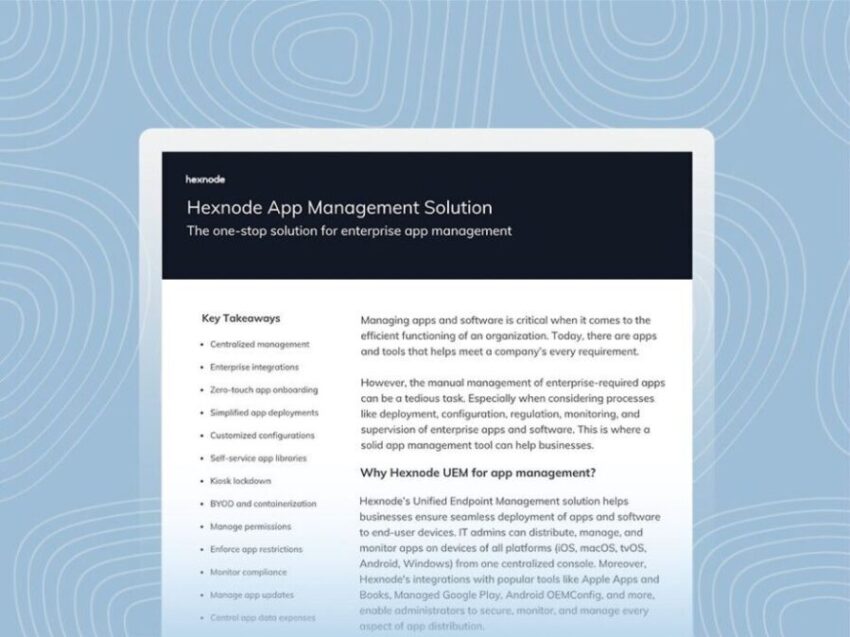
Hexnode App Management Solution
Learn how Hexnode's App Management datasheet simplifies enterprise app deployment, configuration, monitoring, and control across devices.
How Hexnode UEM simplifies EXE and MSIX deployment
Hexnode UEM addresses the preparation and verification challenges above through its Enterprise App Distribution capability, which supports EXE, MSI, and MSIX as the three deployable enterprise app types. Admins upload apps directly through Apps > +Add Apps > Enterprise Apps, selecting Windows as the platform and the relevant file type.
Configuring verification mechanics
Rather than leaving success verification to guesswork, Hexnode requires admins to configure specific parameters during upload:
Success Criteria is mandatory for MSIX and EXE apps during upload, with admins required to define at least one criterion using App Identifiers, Registry Path, or Install Path.
SHA-256 Checksum verification is available at upload to check file integrity before the package reaches any device, skipping this check if left blank
Silent install for EXE packages defaults to the “/s” command-line parameter, which Hexnode pre-configures automatically, though admins can override this if a vendor’s package uses a different flag
Installation Settings, now unified across app types
During deployment through the Required Apps policy or Install Application remote action, Hexnode provides Installation Settings whose available options vary by app type.
Restart, timeout, and success criteria are available for MSI, MSIX, and EXE, while silent installation and system-level installation controls are EXE-specific, and retry settings are available for MSI and EXE when using the Install Application remote action.
For EXE apps, admins can configure Install silently and Install app at system level to control installation behavior and user scope.
Force device restart after app installation, where required by the package
Installation timeout is available for MSI, MSIX, and EXE apps, while Add Installation commands is available for EXE apps.
Success Criteria can be selected from previously defined validation criteria: App exists, Path exists, or Registry exists.
When deploying MSI or EXE apps through the Install Application remote action, admins can enable Retry if the installation fails and configure a maximum of 1–5 retries.
Hexnode provides Installation Settings for MSI, MSIX, and EXE deployments, but the available controls vary depending on the app type.
App Catalog considerations
Hexnode also offers an App Catalog for Windows devices, letting admins curate a self-service app store for end users.
Hexnode App Catalog supports enterprise MSI, MSIX, and EXE apps. Admins can add supported apps to a Windows App Catalog and configure the applicable Installation Settings before deploying the catalog through an App Catalog policy.
Enforcement and one-off deployment
For fleet-wide enforcement, the Required Apps Policy mandates EXE/MSIX installation across targeted devices or groups. For single-device pushes, such as testing before a wider rollout, the Install Application remote action handles one-off deployment.
Deploying EXE and MSIX apps via Hexnode UEM
Navigate to Apps > +Add Apps > Enterprise Apps, select platform Windows, and choose the file type (EXE or MSIX).
Upload the package, specify the app version, define at least one Success Criterion using App Identifiers, Registry Path, or Install Path, and optionally provide a SHA-256 Checksum to verify file integrity.
Set the silent install command-line parameter (default “/s” for EXE, customizable per vendor) and configure uninstallation commands separately.
During deployment, open Installation Settings and configure the options available for the selected app type. Restart, timeout, and success criteria are available for EXE and MSIX, while silent installation and system-level installation are EXE-specific; retry settings are available for EXE when using the Install Application remote action.
Policy-based deployment: Add the app under Required Apps within a Windows policy, then assign to device or user group.
Common failure points to check
Incorrect silent-install switches, which cause the install action to fail outright since the wrong parameter does not trigger the installer correctly
Incorrect Success Criteria, or an installed app failing to meet the configured criterion, can prevent Hexnode from correctly validating the installation status.
Unstable connectivity on the device end during download, interrupting the app transfer mid-process
Corrupted or incomplete EXE packages, which the SHA-256 checksum check is specifically designed to catch before deployment
FAQs
Can Group Policy deploy MSIX apps to Windows devices?
No, Group Policy has no native support for installing MSIX applications, and it cannot deploy EXE installers with custom silent-install parameters either. A dedicated endpoint management tool is typically needed for consistent deployment of both formats.
How do you verify an EXE file has not been corrupted before deployment?
Generate a SHA-256 checksum for the package before uploading it, then compare it at install time. This confirms the file was not corrupted or altered in transit before mass rollout.
Can EXE and MSIX apps be added directly to a Windows App Catalog?
Yes. Hexnode’s Windows App Catalog supports enterprise MSI, MSIX, and EXE apps, and admins can add supported apps to the catalog and configure the applicable Installation Settings before deploying it through an App Catalog policy.
Simplify your Windows app deployment strategy today
Standardizing EXE and MSIX deployment does not require replacing your entire endpoint strategy, just a centralized way to configure success criteria, verify file integrity, and enforce installs consistently.
Hexnode UEM brings EXE, MSI, and MSIX management into a single console, replacing manual, per-device work with configuration you set once and apply across your fleet.
If your team currently manages Windows app deployment through scripts or manual installs, start a free trial to test Enterprise App Distribution against your own packages, or request a demo to walk through Success Criteria and Required Apps setup together.
Simplify EXE and MSIX app deployment with Hexnode
Start a free trial and deploy Windows apps without the manual overhead.
A storyteller for practical people. Breaks down complicated topics into steps, trade-offs, and clear next actions—without the buzzword fog. Known to replace fluff with facts, sharpen the message, and keep things readable—politely.