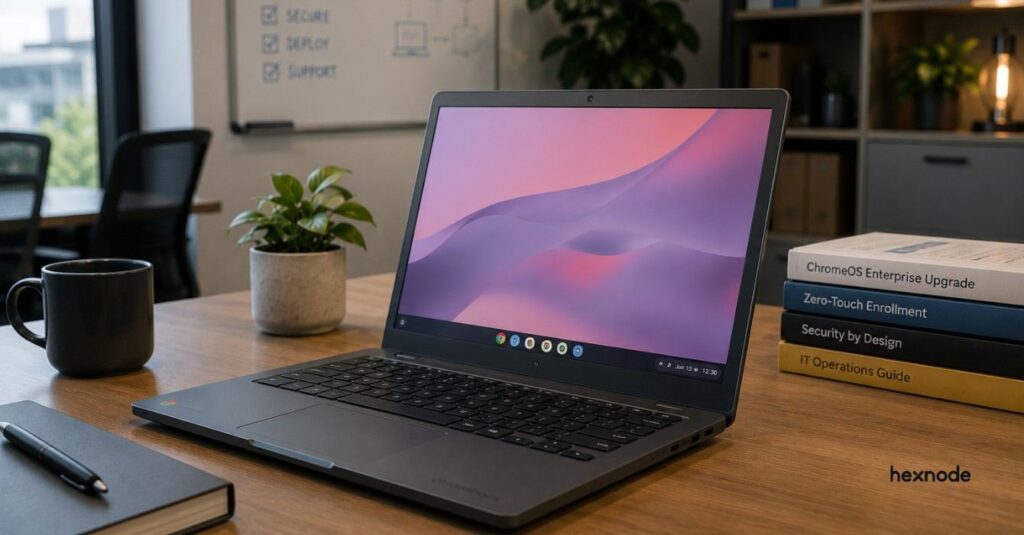
ChromeOS managed guest sessions give shared-device users temporary, controlled access without individual device sign-ins while clearing local user data when each session ends.
Effective deployments require appropriate ChromeOS licensing, organized OUs, task-based application and website access, and tested session controls.
Session-length limits, inactivity timeouts, and logout behavior help prevent abandoned sessions from exposing the previous user’s local activity.
Hexnode UEM supports managed guest session entry, web apps, browsing permissions, logout controls, inactivity settings, and OU-based policy targeting.
Why are shared ChromeOS devices difficult to manage consistently?
Shared ChromeOS devices must accommodate changing users while maintaining consistent access, privacy, and usability. ChromeOS managed guest sessions address this challenge, but administrators still need to define what visitors can access and how each session ends.
Consider an IT administrator responsible for library terminals and training-room computers. Visitors leave sessions open, browser settings differ between devices, and staff repeat setup tasks before each training session. A workstation that serves one user successfully may leave the next person facing unfamiliar settings or an active account.
Managing this environment requires more than keeping devices online. Administrators need predictable starting conditions, appropriate browsing controls, and clear session boundaries. The practical challenge is providing temporary, controlled access without creating individual device accounts for every visitor or requiring technicians to prepare each workstation between users.
The complete guide to Chrome OS device management
Learn how to manage ChromeOS devices, apps, policies, and security across enterprise environments.
What happens when shared-device sessions lack clear controls?
Poorly controlled sessions can expose a previous user’s active accounts, interrupt public services, and generate avoidable support requests. For IT teams, these failures create both privacy risks and recurring operational work.
An unattended browser session may let the next visitor view personal information or act through an account that remains signed in. An overly restrictive browsing policy can block a required authentication page, preventing users from completing applications or accessing services. Inconsistent configurations force technicians to investigate individual workstations instead of applying a repeatable fix.
IT directors should measure successful session turnover, configuration-related support tickets, and reliable access to approved services. Track whether each new user starts without access to the previous session, which settings repeatedly trigger tickets, and whether visitors can complete essential workflows across the shared device fleet.
What are ChromeOS managed guest sessions?
ChromeOS managed guest sessions are centrally configured sessions that let people share devices without signing into a Google account at the device level. Administrators define the session’s settings, while visitors browse multiple websites in separate windows.
Device access does not automatically grant access to protected websites. A visitor can enter the session without a Google account, then authenticate separately to an email service, training portal, or application. When the session ends, ChromeOS signs the user out and wipes local user data.
That cleanup has a boundary: it does not delete information users submitted to external services. Uploaded documents, submitted forms, and server-side records remain subject to those services’ retention practices. Managed sessions also do not guarantee anonymity or prevent administrators from monitoring activity.
How do managed guest sessions compare with guest browsing and kiosk mode?
Managed guest sessions provide controlled browsing across multiple resources without individual device sign-ins. Ordinary guest browsing lacks controls such as preconfigured applications and session-length limits, while kiosk mode focuses on a dedicated application experience.
Session type
Device sign-in
Administrative controls
Browsing flexibility
Suitable workloads
Ordinary guest browsing
No Google account required
Limited; lacks managed session policies
General browsing
Brief, informal access
Managed guest session
No Google account required
Configured apps, restrictions, session limits
Multiple websites and windows
Public research, shared training
Kiosk mode
No user account required
Dedicated app and device policies
Within the configured app experience
Check-in stations, signage
Managed signed-in session
Managed account required
User policies and managed applications
Personalized browsing within organizational restrictions
Ongoing employee work
Google distinguishes kiosk’s locked-down application experience from the broader browser access available in managed guest and signed-in sessions.
Choose the session model around the task. Public research terminals favor managed guest sessions because visitors need several resources. A dedicated check-in interface favors kiosk mode. Employees who need persistent, personalized work environments favor signed-in sessions. Website authentication remains a separate requirement wherever an application requests credentials.
How do you deploy managed guest sessions on shared devices?
Deploy managed guest sessions by validating prerequisites, organizing devices, enabling sessions, configuring access, defining session endings, and piloting the experience. Follow that sequence to establish predictable behavior before expanding deployment.
The following steps describe configuration through the Google Admin console. Assign an administrator to own policy changes and document approval responsibilities. Before configuring the pilot, define acceptance criteria for approved service access, session cleanup, accessibility, and reliable startup. Use those criteria to decide whether devices can enter production.
Step 1: What enrollment and licensing requirements must you meet?
Each device must enroll in your organization’s ChromeOS management environment and have a ChromeOS Enterprise Upgrade or ChromeOS Education Upgrade, either standalone or bundled with eligible hardware. Kiosk & Signage Upgrade does not support managed guest sessions.
Before configuring sessions, verify these prerequisites:
Administrator access: Confirm that the administrator has the required Mobile Device Management privilege for managed guest session settings.
Network connectivity: Check that devices can reach management services, required websites, and authentication endpoints.
Device support: Review each model’s update support and confirm that its ChromeOS version supports your selected policies.
Workflow dependencies: Inventory websites, extensions, printers, and authentication flows before choosing restrictions.
Private apps and extensions that restrict availability to users within a domain cannot install in managed guest sessions because the session does not require a signed-in user.
Test required applications against this limitation early. Record blockers alongside their operational owners so incompatible dependencies do not surface during public deployment or training.
Step 2: How should you organize devices and enable sessions?
Create a pilot organizational unit (OU) for one shared use case, such as library browsing or visitor services. Move only the test devices into that OU to contain the initial rollout.
Select Allow managed guest sessions for manual entry or Auto-launch managed guest session for automatic entry.
Configure the session name where applicable and save.
Choose manual entry when visitors should deliberately start their session. Choose automatic launch when the workstation should present the service immediately.
Document inherited settings before overriding them. Identify the team responsible for each policy and maintain one change record to prevent competing configurations across administrative workflows during deployment and ongoing maintenance.
Step 3: How do you configure websites, applications, and permissions?
Build a task-based access list that includes the primary service, authentication redirects, and supporting domains. Configure startup destinations, then test the complete workflow before tightening URL restrictions. A homepage loading successfully does not prove that authentication, form submission, or document retrieval works.
In Google Admin, open Devices > Chrome > Apps & extensions > Managed guest sessions and select the target OU. Add each required application or extension, assess its installation policy, and review its requested permissions. Force-install only items that the service requires.
Configure website permissions around specific tasks:
Allow camera or microphone access where the service requires capture or communication.
Permit necessary pop-ups for authentication, printing, or document viewing.
Set cookie rules that preserve required login and application behavior.
Review other permissions against the approved workflow.
Blanket blocking can interrupt legitimate services. Test restrictions incrementally, including redirects between domains and any external identity provider. Record each exception with its purpose and owner so later administrators can distinguish a required dependency from an outdated allowance during scheduled policy reviews and troubleshooting.
Step 4: How do you end sessions safely between users?
Configure maximum session duration to cap total session time and an inactivity timeout to address abandoned devices. Choose values that accommodate normal tasks, including lengthy forms, without leaving unattended sessions accessible indefinitely.
Set the idle action to exit the session where appropriate. Screen dimming and sleep do not necessarily sign users out. Closing a browser window also does not guarantee logout; review the confirmation behavior when the last window closes.
Validate the boundary with a two-user acceptance test:
Have the first tester sign into a test service and download a harmless sample file.
End the managed guest session.
Start a fresh session as the second tester.
Check for access to the first account and its local downloaded file.
Repeat the test using configured automatic session endings. Confirm that neither residual account access nor local files carry into the next session.
Step 5: How do you test usability before a wider rollout?
Test the complete visitor journey on representative devices before expanding deployment. Include session entry, website authentication, forms, permitted downloads, printing, accessibility, and sign-out. Ask a tester unfamiliar with the configuration to follow the workflow without administrator assistance.
Use a compact acceptance checklist:
Check
Pass criterion
Service access
Users complete approved tasks without blocked dependencies
Session turnover
The next user cannot access prior local data or accounts
Accessibility
Required assistive features support the complete workflow
Startup and peripherals
Reboot restores the intended entry experience; required peripherals work
Connectivity and policies
Devices recover after network interruptions and receive intended settings
Mark each check pass or fail and record the device, policy version, and reproduction steps for failures.
Where relevant, repeat tests on mains and battery power. Expand in batches only after the pilot meets access, privacy, and usability requirements. Resolve failures before adding more devices.
Step 6: What should you check when a session does not work?
Check the failing layer before changing the wider configuration.
Symptom
Checks
Missing session option
Enrollment, upgrade license, target OU
Unavailable application
Installation scope, application compatibility
Failed website login
Redirects, cookies, website permissions
Session remains active
Timeout actions, logout behavior
Inconsistent settings
Policy inheritance, effective policy values
Compare an affected device with a working pilot device and record the difference before applying a fix. Avoid changing several unrelated settings simultaneously.
Assign ongoing owners for application changes, device updates, periodic session-turnover tests, and configuration-related support tickets. Require those owners to update the troubleshooting record whenever a change alters the shared-device workflow.
Featured Resource
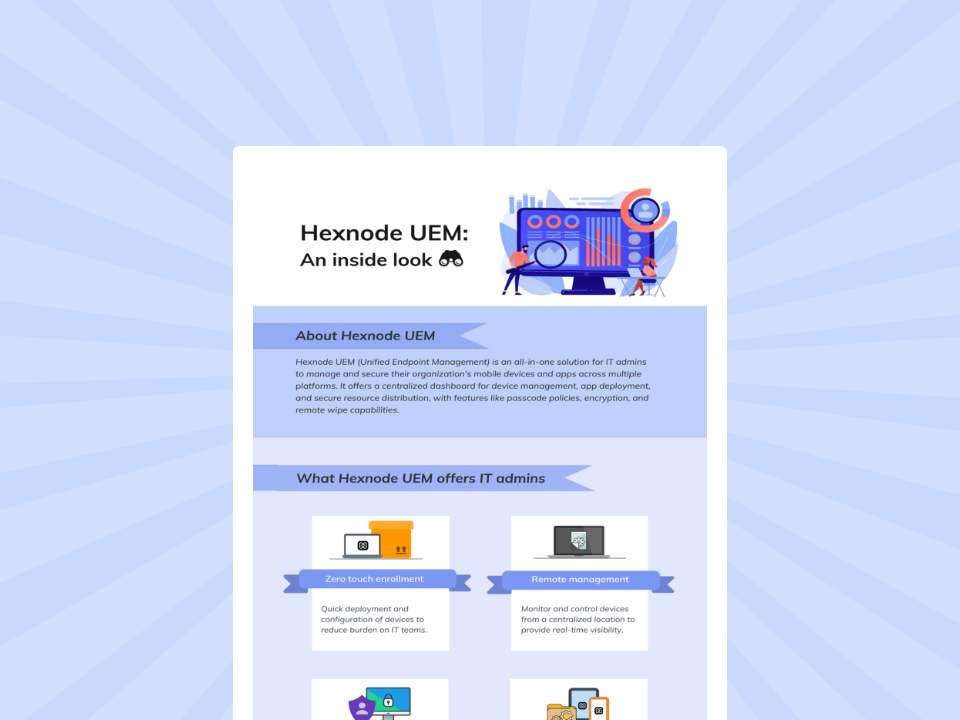
Hexnode UEM: An inside look
Explore Hexnode’s key capabilities for simplifying endpoint management, security, and enterprise device administration.
How does Hexnode UEM manage ChromeOS shared-session policies?
Hexnode UEM lets administrators configure session entry, application access, logout behavior, and browsing permissions for shared ChromeOS devices.
Create a consistent entry experience: Under ChromeOS > Managed Guest Session > Basic, set Display name to identify the session. Enable Auto launch managed guest session and configure Auto-launch delay to determine when the session starts.
Provide required web applications: Through Add App, select Web Apps from the app inventory. Choose an installation option, such as Forced install, and specify whether each application opens in a new tab or window.
Apply policies to the appropriate devices: Open Policy Targets > Domains/OUs, select the integrated Google Workspace account, and choose the organizational units that contain your shared devices.
Make session endings predictable: Use Session length limit to cap elapsed session time. Enable Show logout button for visible sign-out access and Logout confirmation dialogue to prompt users when they close the last window.
End unattended sessions: Under Power Management > Idle device management, configure Idle timeout and select Log the user out under Idle device settings. Configure AC and battery settings separately. Unlike the session-length limit, these controls respond to inactivity.
Control browsing permissions and data retention: Use Managed Guest Session > Content to manage cookies, pop-ups, camera, and microphone access. Configure Security & Hardware > Browsing data lifetime to clear selected browser-data categories after retention periods of at least one hour. This controls retention during sessions; ChromeOS separately clears local user data when sessions end.
Check policy-specific ChromeOS requirements and validate these settings on pilot devices before expanding deployment.
FAQs
What are ChromeOS managed guest sessions used for?
ChromeOS managed guest sessions provide centrally configured access to shared devices without requiring visitors to sign into a Google account at the device level. They suit workflows such as public research terminals and shared training devices where users need controlled access to multiple websites and applications.
What is the difference between ChromeOS managed guest sessions and kiosk mode?
Managed guest sessions support controlled browsing across multiple websites and windows, while kiosk mode focuses on a dedicated application experience. The appropriate option depends on whether users need access to several resources or a tightly restricted single-purpose workflow.
Do ChromeOS managed guest sessions delete user data after logout?
ChromeOS wipes local user data when a managed guest session ends. However, information submitted to external services, such as uploaded documents or completed forms, remains subject to those services’ retention practices.
Ready to pilot shared ChromeOS access with Hexnode UEM?
Evaluate Hexnode UEM on a small group of shared ChromeOS devices using the acceptance checklist above. Select one service workflow and confirm that visitors can access approved applications, complete their tasks, and leave no accessible local data after logout.
Validate automatic session endings and consistent policy application across the pilot. Record failures, adjust the relevant settings, and repeat affected checks before expanding deployment to additional devices or locations with similar requirements.
Simplify Shared ChromeOS Device Management
Configure secure guest sessions, control app access, and manage shared ChromeOS devices with Hexnode UEM.
Content writer at Hexnode. Fueled by good coffee and the occasional cat cuddle, I enjoy crafting content that informs, connects, and resonates. Nothing excites me more than knowing my words have been read, appreciated, and maybe even bookmarked.