Automated Windows device management replaces repetitive endpoint administration with controlled, measurable workflows across the device lifecycle.
Manual processes increase configuration inconsistencies, patch delays, deployment failures and administrative overhead as Windows fleets grow.
Safe automation requires defined targets, approvals, staged rollouts, validation, failure handling and ongoing performance monitoring.
Hexnode combines provisioning, dynamic targeting, application distribution, scripting, patch automation and reporting to reduce manual work while maintaining deployment visibility.
Why does manual Windows device management fail at scale?
Manual Windows device management fails at scale because provisioning, configuration, patching and troubleshooting become disconnected, repetitive processes. IT teams must repeatedly verify device settings, install applications, deploy updates and resolve failures across individual endpoints. As the fleet grows, these tasks consume more time while producing inconsistent results.
Remote and hybrid work amplify the problem. Devices operate across different networks, time zones and connectivity conditions, while variations in hardware models, Windows versions and configuration states make standardized administration harder. A procedure that succeeds on one endpoint may fail on another because of missing dependencies, pending restarts or outdated system components.
Automation should handle predictable, rules-based tasks such as application installation, configuration enforcement and update deployment. Administrators can then focus on exceptions requiring investigation, approval or business context while retaining control over sensitive or high-impact actions.
What are the risks of leaving Windows management tasks manual?
Manual Windows management increases security exposure, operational inconsistency and administrative overhead. Delayed patches leave known vulnerabilities unaddressed, while inconsistent security configurations and missed software deployments extend the period during which devices remain non-compliant or inadequately protected.
Repetitive administration also consumes capacity that IT teams could direct toward incident response, architecture and complex support cases. As task volume grows, so does the likelihood of incorrect settings, overlooked endpoints, failed installations and poorly timed restarts. These errors can interrupt employee workflows and generate additional remediation work.
Limited deployment visibility compounds the risk. Without centralized status tracking, administrators cannot readily confirm which devices received a required update, configuration or application. They must reconcile data from separate tools or inspect endpoints individually, delaying the identification of failures and weakening the evidence available for security reviews and compliance audits.
What is automated Windows device management?
Automated Windows device management uses predefined policies, triggers and workflows to execute recurring endpoint tasks with limited manual intervention. It enables IT teams to manage large device fleets consistently without processing every configuration, deployment or remediation individually.
Policy-based management periodically evaluates and applies required settings when Windows endpoints synchronize with the management service. Scheduled automation runs tasks at defined times, while event-triggered workflows respond to changes such as enrollment or non-compliance. Administrators can also initiate approved actions on demand when immediate intervention is necessary.
These methods support the complete device lifecycle—from enrollment, configuration and application provisioning to patching, maintenance, security remediation and eventual offboarding or retirement.
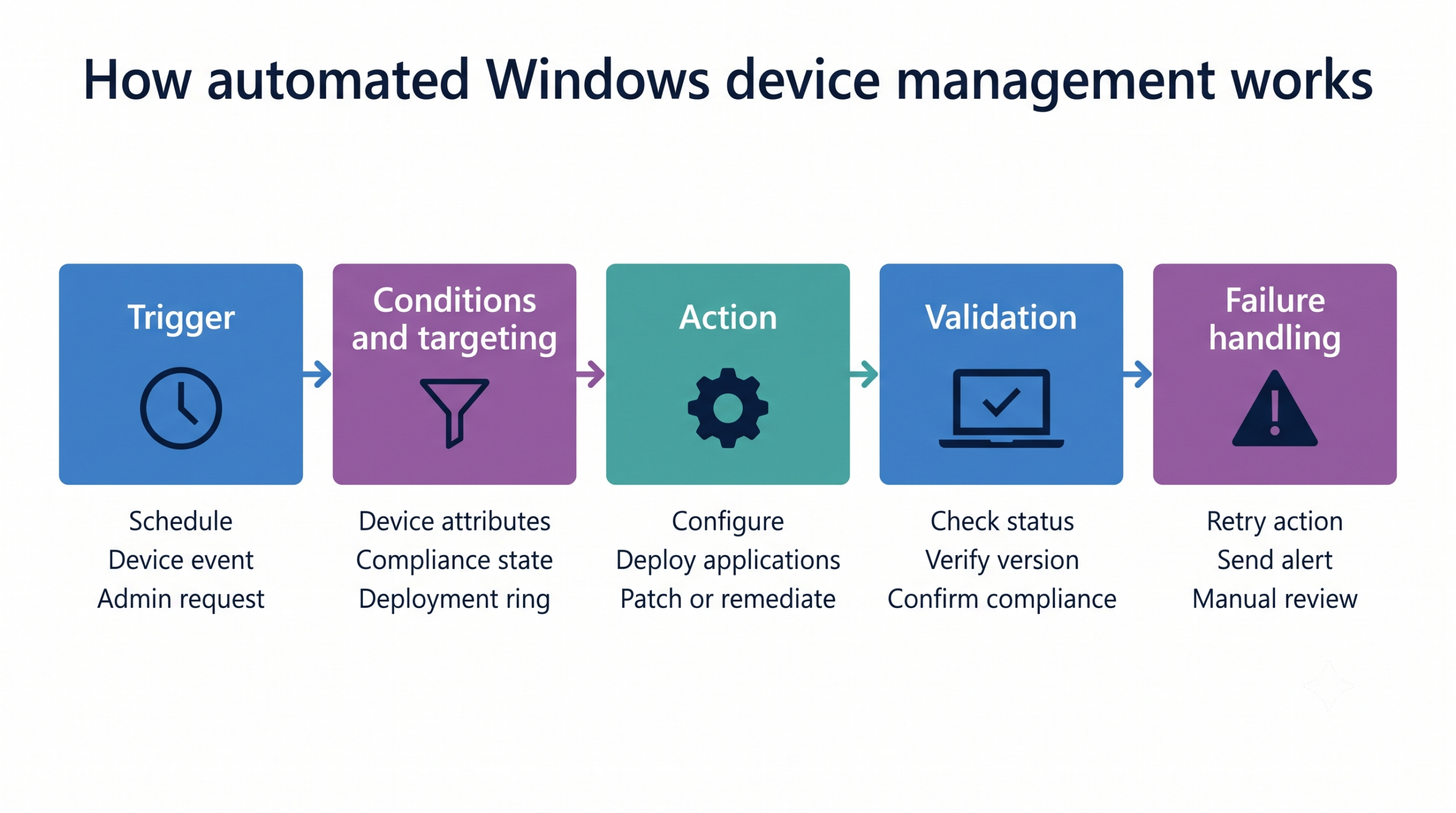
How automated Windows device management works
Which Windows management tasks should IT automate?
IT should automate tasks that occur frequently, follow consistent rules and produce measurable outcomes. Common candidates span the Windows device lifecycle:
Provisioning: Enrolling devices, assigning configurations and preparing endpoints for users.
Security configuration: Enforcing password, firewall, encryption and access requirements.
Application deployment: Installing, updating and removing approved software.
Patching: Deploying Windows and third-party application updates according to defined schedules.
Inventory collection: Recording device, OS, hardware, application and compliance information.
Remediation: Correcting known configuration drift or responding to predefined compliance failures.
Offboarding: Removing corporate applications, configurations, accounts and access when devices are retired.
High-volume tasks provide the greatest benefit because automation reduces repeated effort and creates consistent execution records. However, not every action should run without oversight. High-impact or context-dependent operations—including device wipes, emergency restarts and changes that could disrupt business-critical applications—may require administrator approval, additional validation or deliberate manual initiation.
How do triggers, conditions and device targeting work?
A trigger starts an automated workflow, while conditions determine whether the action should run and which Windows devices should receive it. The trigger may be a defined schedule, an endpoint event—such as enrollment or a compliance change—or an on-demand request from an authorized administrator.
Targeting rules narrow the workflow to relevant devices. IT teams can use criteria such as hardware attributes, ownership, Windows version, compliance state, department, location or deployment ring. For example, a patch workflow might initially target pilot devices running a specific OS build before expanding to production groups.
Dynamic targeting reevaluates devices against defined criteria during synchronization or background processing, depending on the management platform. When an endpoint begins or stops meeting the conditions, it enters or leaves the target group automatically. This keeps automation aligned with current device states without requiring administrators to review and update static device lists manually.
What safeguards does Windows automation require?
Windows automation requires controls that limit access, reduce deployment risk and preserve recoverability. Apply least-privilege administration so technicians can create, approve or run only the workflows relevant to their roles. Require approvals for sensitive actions, use staged deployment rings, respect maintenance windows and document rollback or recovery procedures.
Before broad deployment, validate scripts and installers on representative endpoints. Confirm execution context, dependencies, command-line parameters, exit codes, timeout handling and restart behavior. Testing should also identify conflicts with existing policies, applications and security controls.
Automation must remain observable. Audit logs should record who configured or initiated each workflow, while deployment status should distinguish successful, pending and failed actions. Failure alerts and exception reports allow administrators to investigate affected endpoints promptly instead of assuming that every automated action completed successfully.
How can IT automate Windows device management safely?
Start with a measurable workflow, define its targets and safeguards, pilot it on representative Windows devices, and expand only after validating the results. This approach limits disruption while showing whether the automation produces the intended operational or security outcome.
Implementation should follow a controlled improvement cycle, not a one-time configuration exercise. IT teams must establish a baseline, define targeting criteria, build the workflow, test it through deployment rings and monitor exceptions. Results should then inform adjustments to conditions, schedules and recovery procedures before broader rollout.
Step 1: Audit repetitive tasks and establish a baseline
Begin by documenting recurring Windows management tasks across provisioning, configuration, application management, patching, remediation and offboarding. For each task, record its frequency, current owner, average completion time, failure rate and impact on security, compliance or employee productivity.
Prioritize processes that are high-volume, rules-based and consistently measurable. Strong candidates include tasks that generate repeated support requests, require technicians to follow the same sequence or leave security gaps when execution is delayed. Exclude processes that depend heavily on case-specific judgment until appropriate approval controls are available.
Establish baseline metrics before introducing automation. Track indicators such as device provisioning time, patch latency, application deployment success rate, failed actions and manual interventions per device. These measurements provide an objective reference for evaluating whether the automated workflow reduces administrative effort and improves execution consistency.
Step 2: Segment devices and define automation conditions
Use current inventory data to segment Windows endpoints according to how they are configured, used and supported. Relevant criteria may include department, device purpose, OS build, hardware model, location, ownership and risk level. Segmentation ensures that each workflow targets devices with compatible technical and operational requirements.
Define the eligibility conditions an endpoint must satisfy before an action runs. Document exclusions for unsupported builds, incompatible hardware, business-critical systems or devices already assigned to another workflow. Establish precedence rules where automations overlap—for example, specifying which configuration applies when a device qualifies for both a departmental group and a security-remediation group.
Separate devices into pilot, production and exception groups. Pilot groups provide representative test coverage, while production groups support phased expansion after validation. Exception groups isolate endpoints requiring alternative configurations, delayed deployment or manual investigation without weakening the controls applied to the wider fleet.
Pro tip
Create a permanent exception group before activating the workflow. This gives IT a controlled way to exclude business-critical or incompatible endpoints without modifying the primary targeting rules.
Step 3: Build the workflow and its failure path
Document the complete workflow before deploying it. Specify the trigger, target criteria, exclusions, action sequence, technical dependencies, execution context, timeout behavior and expected result. For scripts or installers, define required privileges, supported Windows versions, return codes and restart requirements.
Structure the workflow around four stages:
Pre-deployment checks: Verify connectivity, disk space, OS compatibility, dependencies and conflicting processes.
Execution: Run the required installation, configuration or remediation actions in the correct sequence.
Post-deployment validation: Confirm the intended state through version checks, configuration queries or service status.
Failure handling: Retry eligible actions, collect diagnostic information or route the device for manual remediation.
Assign clear ownership for reviewing failures and approving sensitive operations. Workflow owners should also reassess scripts, dependencies and targeting logic whenever Windows versions, application requirements or business policies change.
Note
A completed command does not always mean the intended configuration was applied. Use exit codes with post-deployment checks, such as application version, service status or configuration state, to validate the actual outcome.
Step 4: Pilot, validate and expand deployment gradually
Run the workflow against a small pilot group that represents the wider Windows fleet. Include different OS builds, hardware models, network conditions, device purposes and user configurations. A uniform test group may conceal compatibility problems that appear only during broader deployment.
Validate more than technical completion. Check application compatibility, restart behavior, execution time, user disruption and conflicts with existing policies or security controls. Test rollback and recovery procedures to confirm that administrators can restore service when an action produces an unexpected result.
Define go/no-go criteria before moving to the next deployment ring. These may include a minimum success rate, an acceptable number of support tickets, no critical application failures and resolution of identified high-severity issues. Pause expansion when results fall outside those limits. Increase coverage in controlled stages, reviewing outcomes after each ring instead of moving directly from a pilot to fleet-wide deployment.
Pro tip
Build the pilot group for coverage, not convenience. Include representative OS builds, hardware models, network conditions and user configurations before expanding the workflow.
Step 5: Monitor automation performance and exceptions
Track execution status, deployment failures, patch latency and compliance changes after rollout. Identify devices that repeatedly miss scheduled actions because of connectivity problems, insufficient resources, configuration conflicts or extended inactivity. Persistent exceptions should enter a defined investigation or remediation process.
Compare these results with the baseline established before automation. Measure changes in provisioning time, deployment success, manual interventions and the duration devices remain unpatched or non-compliant. This shows whether the workflow is reducing administrative effort and security exposure.
Periodically review exclusions, scripts, schedules, dependencies and targeting logic. Retire or revise workflows that no longer reflect supported Windows versions, application requirements or business policies. Otherwise, outdated automation can reinforce configuration drift instead of preventing it.
Automated patch management: Save hours and secure endpoints
Learn how to automate patch selection, approvals, maintenance windows and endpoint update deployment.
How does Hexnode automate Windows device management?
Hexnode Automations enables IT teams to execute scheduled or event-triggered operations across managed Windows endpoints. Administrators can configure workflows to run at a specified time or in response to device activity, reducing the need to initiate recurring tasks manually.
These automations can deploy scripts, files, certificates and restrictions to eligible devices. They complement persistent policy-based management: policies maintain the required endpoint configuration, while Automations execute operational tasks when defined timing, event and targeting conditions are met.
Automate Windows provisioning and device targeting
Windows Autopilot provisioning can enroll corporate Windows devices in Hexnode during their initial setup. When users power on registered devices and connect them to a network, the assigned setup process reduces the hands-on staging required from IT.
Windows Enrollment Profiles define how devices enter the management environment. Administrators can configure enrollment settings such as the authentication method, device naming convention and group assignment, creating a more consistent starting state for subsequent management.
Dynamic Device Groups then support ongoing targeting. Hexnode reevaluates device membership against defined rules during each sync. As attributes or compliance states change, qualifying devices can enter or leave the relevant group automatically, allowing associated policies and operational workflows to follow the endpoint’s current state without manual list maintenance.
Featured Resource
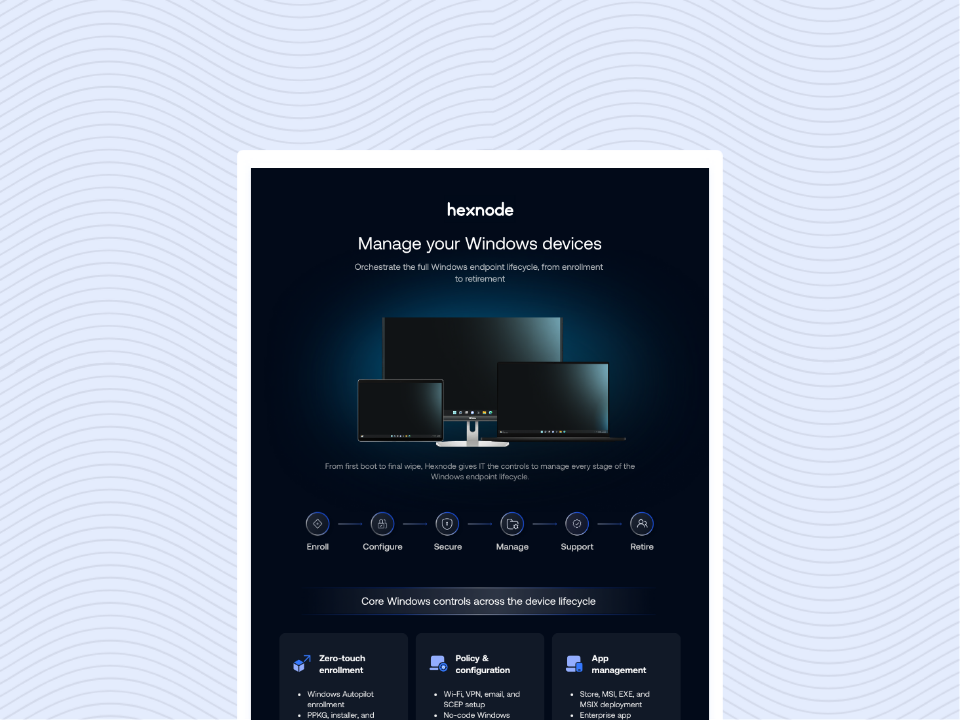
Explore Windows device management with Hexnode
See how Hexnode manages Windows provisioning, apps, security, patching and support across the device lifecycle.
Automate applications, scripts and Windows patching
Hexnode’s App Distribution for Windows supports controlled deployment of store and enterprise applications, with success criteria, return-code handling, retries and remediation actions. Separately, the Required Apps policy supports Pre-install, Post-install and Audit scripts for enterprise apps to check prerequisites, apply post-install configurations and verify installation.
Automated Patches & Updates can filter eligible Windows updates by criteria such as CVE, KB number, severity, classification, product and release date. Application updates can also be selected for automated deployment. IT teams can require update approval, apply maintenance windows and notify designated technicians by email when installations fail.
Patch and Update Reports provide visibility into update status, device-level deployment results, vulnerability information and patch automation activity. Administrators can filter and export report data or schedule reports for recurring delivery, supporting operational reviews and compliance evidence collection.
How should IT teams measure the success of Windows management automation?
Track changes in provisioning time, patch latency, deployment success rates, failed actions and manual interventions per device. Compare these results with the pre-automation baseline to determine whether workflows are reducing administrative effort and security exposure.
What happens when a Windows device is offline during a scheduled automation?
The action may remain pending or fail, depending on the management platform and workflow configuration. IT teams should monitor missed actions and define retry, alerting or manual-remediation procedures for devices with prolonged connectivity issues.
Should every Windows management task be fully automated?
No, high-impact actions such as device wipes, emergency restarts and disruptive configuration changes may require approval or manual initiation. Automation is best suited to repeatable tasks with clear conditions, predictable outcomes and measurable success criteria.
How large should a Windows automation pilot group be?
The pilot should be large enough to represent the fleet’s Windows builds, hardware models, network conditions and user configurations. Coverage matters more than a fixed device count because an unrepresentative pilot can miss compatibility and deployment issues.
How often should Windows automation workflows be reviewed?
Review workflows whenever Windows versions, application dependencies, security requirements or business policies change. Periodic reviews should also identify outdated scripts, targeting rules, exclusions and schedules that could introduce configuration drift.
What is the difference between a Windows policy and an automation workflow?
A policy defines and maintains the required configuration for managed endpoints. An automation workflow executes an operational task when a schedule, event, administrator request or targeting condition initiates it.
Reduce repetitive Windows administration with Hexnode
Hexnode connects automated provisioning, dynamic device targeting, application distribution, scripting and patch management within a unified workflow. IT teams can reduce repetitive administration while retaining visibility into deployments, failures and exceptions across managed Windows endpoints.
Automate Windows management with Hexnode
Test automated provisioning, application deployment and patching on a pilot Windows device group.
Associate Product Marketer at Hexnode focused on SaaS content marketing. I craft blogs that translate complex device management concepts into content rooted in real IT workflows and product realities.