Why macOS security needs more than built-in protection
Macs have a reputation for strong security. However, that reputation can create a dangerous assumption: Apple devices are immune to malware and cyberattacks. In reality, macOS security depends on more than the operating system’s built-in protections. It also requires secure configurations, timely updates, controlled access, and responsible user behavior.
Apple builds several layers of security into macOS. Gatekeeper helps restrict untrusted software, notarization checks software distributed outside the App Store, and XProtect detects and blocks known malware. These controls reduce risk, but they cannot eliminate every threat.
For businesses, the challenge extends beyond protecting an individual Mac. IT teams must apply consistent policies across devices, protect corporate data, and maintain visibility into security settings.
So, how can organizations strengthen macOS security without making everyday work unnecessarily complicated?
Why is macOS security important for businesses?
Macs increasingly serve as everyday work devices for developers, designers, executives, and distributed teams. They may access corporate applications, customer information, source code, and other sensitive resources. A compromised Mac can therefore create risks beyond the endpoint itself.
Consider three common security challenges.
Credential theft and unauthorized access: Malware or phishing attacks can expose passwords, session information, and other sensitive data. Attackers may then attempt to access corporate applications or move further into the organization.
Unpatched vulnerabilities: Outdated operating systems and applications may contain security flaws that attackers can exploit. A device can remain exposed when updates are delayed or applied inconsistently.
Inconsistent security configurations: One Mac may have FileVault enabled and current software, while another lacks encryption or runs an outdated application. These inconsistencies make fleet-wide security harder to maintain.
The objective is not to assume that Macs are inherently unsafe. Instead, organizations should recognize that strong platform security needs to be reinforced with consistent endpoint controls, monitoring, and incident response.
How does macOS protect against malware?
Before adding more security controls, it helps to understand what macOS already provides.
Apple organizes its malware defenses into three layers: preventing malware from launching, blocking malware from running, and remediating malware that has executed.
1. Preventing malware from launching
The first layer helps prevent untrusted or malicious software from reaching execution.
Mac App Store: Provides a distribution channel for applications subject to Apple’s review and platform requirements.
Gatekeeper: Checks downloaded software and enforces macOS policies governing which applications can run.
Notarization: Allows Apple to scan software distributed outside the App Store for known malicious content before issuing a notarization ticket.
Together, these controls help reduce the likelihood of users accidentally launching malicious applications. However, notarization does not guarantee that software is completely safe.
2. Blocking known malware
Macs include XProtect, Apple’s built-in antivirus technology. It uses regularly updated detection signatures to identify and block known malware, and it also includes behavioral analysis to help detect certain previously unknown threats. XProtect can additionally remediate some malware infections.
XProtect works alongside Gatekeeper and notarization. These mechanisms help prevent known threats from executing, including when security information changes after software has been downloaded.
Nevertheless, detection effectiveness depends on the threat and available detection information. Organizations may need additional endpoint detection and response capabilities to investigate suspicious behavior and respond to incidents.
3. Remediating detected malware
XProtect can also remediate certain malware that has executed. That provides another layer of defense when prevention mechanisms do not stop a threat initially.
Other macOS security features serve different purposes. System Integrity Protection restricts changes to protected system locations. The built-in firewall controls incoming network connections. FileVault encrypts data on the startup disk.
These protections complement malware defenses, but they are not interchangeable. FileVault, for example, does not remove malware, and disk encryption alone does not prevent credential theft or malicious application execution.
Leveraging Apple's Built-in Tools for a Solid Mac Security
Explore Apple's built-in Mac security tools along with ways organizations can strengthen protection for corporate Macs.
How can you strengthen macOS security?
Built-in protections provide a strong foundation. IT teams can strengthen that foundation by following a consistent set of security practices.
Enable appropriate automatic-update settings where practical. For managed fleets, define a software-update process that specifies deployment windows, pilot groups, restart expectations, and exceptions for critical workflows.
Also, distinguish operating system updates from application patching. Both matter, but they may require separate deployment and verification processes.
2. Enable FileVault encryption
FileVault requires appropriate credentials to unlock the encrypted startup disk, helping protect stored data when a Mac is lost or stolen. Although Macs with Apple silicon or the Apple T2 Security Chip encrypt data automatically, enabling FileVault adds an additional layer of protection by controlling access to the encrypted data. It does not protect data from access through an already-unlocked user session.
For business devices, IT teams should verify that encryption is enabled rather than relying on a policy assignment alone. They should also manage recovery keys securely and confirm that recovery procedures work.
This distinction matters because encryption is most useful when organizations can verify its status and recover access when necessary.
3. Configure strong authentication
Require strong passwords or passcodes in line with organizational policy. Where appropriate, use multifactor authentication for Apple Accounts and corporate applications.
IT teams should also review account privileges. Employees generally should not need administrator access for routine work. Limiting administrative privileges reduces opportunities for unauthorized system changes.
Authentication requirements should be paired with account lifecycle controls so that access is updated when employees change roles or leave the organization.
4. Configure the macOS firewall
The built-in firewall helps control incoming network connections. Enable it according to your organization’s security requirements, and review application-specific exceptions rather than allowing unnecessary connections.
For remote workers, firewall configuration should complement secure Wi-Fi, VPN, and identity controls. A firewall is one component of a broader network defense strategy, not a substitute for malware protection or secure access management.
5. Review application permissions
Applications may request access to sensitive resources, such as files, the camera, the microphone, accessibility features, or screen recording.
Review these permissions and grant access only when an application’s function requires it. Organizations should also establish a process for evaluating new applications before deploying them to corporate devices.
For additional control, consider using a supported endpoint security product where required by the organization’s threat model.
6. Protect devices from unsafe downloads and phishing
Users should download applications from trusted sources and verify that software is legitimate before installation. They should also treat unexpected attachments, links, and requests for credentials with caution.
Security awareness training helps, but it should not be the only defense. Combine it with technical controls, application governance, and a clear process for reporting suspicious activity.
7. Secure Wi-Fi and remote access
Corporate Macs should use approved network configurations and secure authentication methods. Configure Wi-Fi and VPN settings to match organizational requirements, especially for employees who access internal applications from outside the office.
Review remote login and file-sharing services as well. Disable services that are not required, and restrict necessary services to authorized users and networks.
8. Maintain reliable backups
Backups help organizations recover data after accidental deletion, hardware failure, or a ransomware incident. However, backup availability does not prevent an attack.
Use an established backup strategy with appropriate access restrictions, retention policies, and recovery testing. Keep backup administration separate from ordinary endpoint permissions where possible.
9. Prepare for lost or stolen Macs
Physical loss can expose corporate data and disrupt operations. Require screen locking, apply encryption policies, and maintain a documented response process for missing devices.
For eligible Macs, remote locking or erasing can help limit exposure after a device is lost or stolen. Availability depends on the device’s configuration and the method used.
Apple’s Find My workflow requires prior setup, and the Mac must be powered on and connected to the internet to receive a remote lock or erase command. Erasing the Mac deletes its data and prevents further location tracking through Find My. Test response and recovery procedures in advance.
How does Hexnode UEM help strengthen macOS security?
Individual security settings are useful, but enforcing them consistently across a large Mac fleet is difficult when every device requires manual attention.
Hexnode UEM helps IT teams centrally configure and manage supported macOS security settings through policies and remote management actions. This approach makes it easier to standardize configurations, deploy updates, and manage devices throughout their lifecycle.
Enforce password and access policies
Hexnode UEM supports macOS passcode policies for configuring supported password requirements, including length, complexity, expiry, and failed login attempts. These policies do not govern network user accounts, whose password requirements are managed by the directory.
IT teams should align the settings with corporate authentication requirements and use separate controls for corporate application access where needed.
Featured resource
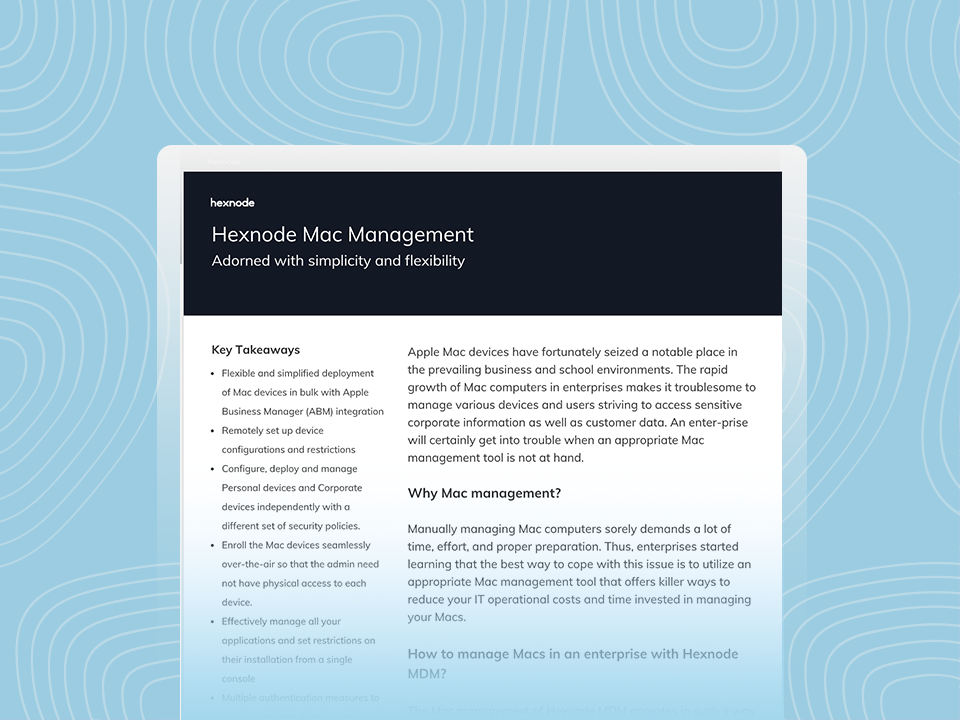
Secure and Manage Your Mac Fleet with Hexnode
Explore Hexnode's Mac Management datasheet to learn how centralized device management supports Mac deployment, security configuration, and ongoing fleet management.
Activation Lock helps prevent unauthorized reactivation of eligible Apple devices after they are erased or reset.
Hexnode UEM supports clearing or bypassing Activation Lock on eligible Macs that are managed by Hexnode UEM, signed in to iCloud with Find My enabled, and running macOS 10.15 or later with an Apple T2 Security Chip or enrolled through Apple Business Manager or Apple School Manager.
Remote clearing requires an internet connection. Bypass codes are supported only on Automated Device Enrollment (ADE) devices, and availability depends on the device’s enrollment history and Activation Lock configuration.
Configure secure network settings
Hexnode UEM supports centralized Wi-Fi and VPN configuration for managed Macs. Its standard macOS web content filtering policy can restrict access to specified websites in Safari. For broader browser and network-traffic filtering, administrators can configure supported third-party content-filter plugins, subject to their compatibility requirements.
These capabilities help organizations apply consistent network-access settings without asking every employee to configure each device manually. They should complement, rather than replace, dedicated network security and endpoint detection tools.
Manage macOS updates
A consistent update process reduces the likelihood that devices remain on outdated software indefinitely.
Hexnode UEM supports macOS OS update deployment and app-update management for supported workflows. Administrators can schedule or automate OS updates and manage app updates for supported VPP apps. Available actions and the need for user intervention depend on the deployment method and device eligibility.
Update policies should still account for compatibility testing, deployment timing, and the need to verify that updates have been applied successfully.
Enforce FileVault and manage recovery keys
Hexnode UEM supports centralized FileVault configuration, recovery-key escrow and retrieval, and supported restrictions that prevent users from disabling FileVault. Recovery-key retrieval depends on the device’s encryption and enrollment history and the configured escrow policy. A key created before enrollment or before the appropriate policy was applied may not be retrievable from the Hexnode console.
This provides an important operational advantage: IT teams can establish a consistent encryption standard and manage recovery requirements centrally.
Extend protection with endpoint security tools
UEM and endpoint security serve complementary purposes. UEM focuses on device configuration, policy enforcement, application management, and updates. Dedicated endpoint security tools provide additional malware detection, investigation, and response capabilities.
Hexnode documents deployment guidance for supported endpoint security products on macOS, including Bitdefender, CrowdStrike Falcon, and SentinelOne. Actual capabilities depend on the chosen product, licensing, platform compatibility, and configuration.
For organizations with more demanding security requirements, combining centralized device management with a suitable endpoint security solution can create a more comprehensive defense strategy.
macOS includes multiple security controls, including Gatekeeper, notarization, XProtect, and system protections. Business security still depends on updates, secure authentication, encryption, application governance, and the organization’s threat model.
Does a Mac need antivirus software?
macOS includes XProtect, which detects and blocks known malware. Additional endpoint security software may be appropriate when an organization needs broader detection, investigation, and response capabilities. The decision should depend on its risk assessment and security requirements.
Does FileVault protect a Mac against malware?
No. FileVault encrypts stored data on the startup disk. It does not prevent malware from executing or eliminate threats that have already compromised a system.
How can IT administrators manage macOS security across multiple devices?
IT administrators can use a UEM platform to centralize supported security policies, configure network settings, manage FileVault, and coordinate software updates. These controls reduce manual work and help standardize configurations across managed devices.
Take control of macOS security across your fleet
Strong macOS security starts with Apple’s built-in protections, but enterprise environments require consistent configuration, timely updates, data protection, and a plan for responding to incidents.
Hexnode UEM helps IT teams manage supported security settings across their Mac fleet, reducing manual configuration and making device-management workflows easier to standardize. Combined with appropriate endpoint security and identity controls, centralized management can help organizations maintain a stronger security posture as their Apple environment grows.
Strengthen macOS Security Across Your Fleet
Explore how Hexnode UEM can help your IT team standardize supported Mac security settings, manage FileVault, coordinate updates, and configure network policies from a centralized console.
I write at the intersection of technology, process, and people, focusing on explaining complex products with clarity. I break down tools, systems, and workflows without any noise, jargon, or the hype.