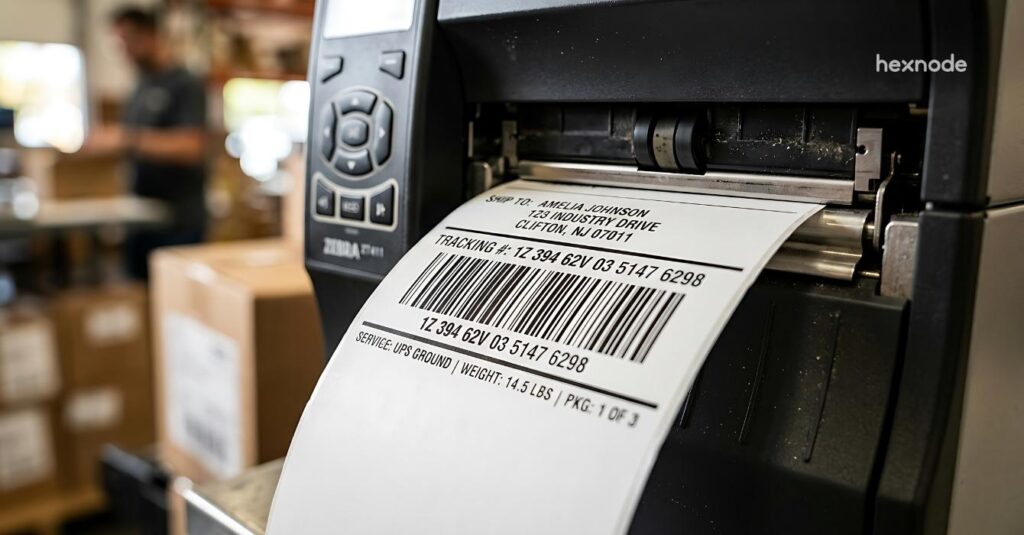
Zebra printer label template updates require controlled deployment and printed-output validation to prevent labeling errors, operational delays, and inconsistent configurations across printer fleets.
Incorrect templates can cause barcode mismatches, layout errors, reprints, and disruptions across warehouse and shipping workflows.
IT teams should pilot approved templates, verify deployment results, test printed labels and barcode accuracy, and resolve exceptions before expanding distribution.
Hexnode UEM supports Zebra printer template deployment through Deploy Templates, with Action History providing Success/Failure results for tracking and verifying file distribution.
Why do Zebra Printer label template changes need controlled deployment?
Zebra Printer label template changes require deployment confirmation and printed-output validation before broader distribution. Administrators need evidence that the intended file reached each target printer and that the printing workflow produces the approved label.
Sending the file addresses only part of the task: operators still need to produce labels with accurate content and usable layouts.
The administrator must answer three questions:
Which file should reach which printers? Identify the approved revision and its intended devices.
Did deployment succeed? Review the recorded result for each targeted printer.
Does the updated label print correctly? Check samples through the actual shipping workflow.
A controlled pilot gives IT and warehouse operators a defined scope for collecting this evidence.
What happens when an incorrect label template reaches multiple locations?
Incorrect label templates can trigger reprints, processing delays, manual corrections, and support requests across locations. A clipped destination address or incorrect shipment barcode may force operators to pause shipments, check source records, and reprint labels. A readable barcode does not guarantee accurate content.
Different template revisions also complicate troubleshooting. IT must confirm which file each printer received and which revision each workflow used. Without this evidence, teams may duplicate investigations and struggle to identify affected printers, coordinate corrections, and determine which locations can safely resume their normal shipping operations after validation.
How to setup Zebra device management using Hexnode MDM
Learn how Hexnode simplifies Zebra device management with enrollment, policies, apps, and remote controls.
What should administrators understand before changing a Zebra printer label template?
A label template is a reusable layout that specifies the positioning and characteristics of text, barcodes, graphics, and spacing. It defines how the printer arranges label content.
Editing the layout creates a revised template. Transferring that file places it on the target printer. Confirming workflow use establishes whether the printing process actually references the intended revision.
A completed transfer does not confirm workflow use or label accuracy. Validate each step separately:
Validation question
Evidence to collect
Was the file deployed?
Deployment result linked to the printer, file, and attempt.
Did the workflow use it?
Workflow template reference matching the intended revision.
Did the label meet requirements?
Printed sample matching the approved layout, with field and barcode values verified against source records.
Keep these records linked by printer and template revision so reviewers can trace an output issue to the corresponding deployment and printing workflow.
How should you validate a template update before wider distribution?
Prepare the approved file, select pilot printers, deploy, inspect action results, validate test labels, and approve expansion. Assign IT responsibility for deployment evidence and an operational reviewer responsibility for label acceptance.
Use the following administrator-managed checklist to define what each step must demonstrate. Establish approval criteria before testing begins, so deployment completion and operational acceptance remain separate, documented decisions. Each printer group should meet those criteria before receiving broader approval.
Prepare Zebra printer label template changes for deployment
Verify compatibility against relevant documentation. Review changed fields, barcode content, margins, and positioning. Test long values and populated or empty optional fields.
Preserve the previous approved template and document its print-job references. Decide whether to retain the filename or change the reference.
Test a recovery procedure that restores the previous template and workflow reference. Assign a recovery owner and define how operators will validate restored labels.
Select representative printers for the pilot
Select a limited pilot covering relevant printer models, resolutions, label stock, locations, and workflows. One printer may not represent the fleet.
Confirm target devices, availability, operators, and testing schedules. Specify the template revision and test records.
Define acceptance criteria:
Deployment: Each printer reports a successful action.
Template selection: The workflow uses the intended revision.
Printed content: Samples match the approved design and source records.
Scanning: The operational reader captures the expected barcode value.
Assign a reviewer to approve samples and record exceptions. Exclude configurations from expansion until deployment and output checks pass.
Review deployment results for each target printer
Associate each deployment action with the target printer, attempt, and intended file. Maintain an evidence log containing:
Printer identifier and location.
Template revision and filename.
Attempt date and result.
Outstanding issue and follow-up owner.
Investigate failed or unresolved actions before label testing. Check connectivity, target selection, and file compatibility. Record retries separately while preserving earlier results.
A successful deployment result allows output testing but does not confirm layout accuracy, correct barcode data, or production use of the revision. Verify these separately through the actual printing workflow before approving wider distribution.
Inspect printed labels through the operational workflow
Generate test labels through the actual business workflow, confirming it uses the updated template. Include long values and populated or empty optional fields.
Compare samples with the approved design and source records:
Content: Verify identifiers, addresses, and required fields.
Layout: Check alignment, clipping, orientation, and graphics.
Barcodes: Scan with the operational reader and verify decoded values.
Record the printer, revision, test data, defects, and reviewer decision. Retain accepted samples.
Successful scanning does not establish a barcode quality grade. Where grading is required, use a verifier and follow the applicable specification.
Approve expansion against documented acceptance criteria
Approve wider distribution only when deployment results are resolved, test labels are accepted, and workflow use is verified. Identify the operational sign-off owner and record approval for the specific configurations tested.
Use a decision table to make the next action explicit:
Evidence
Rollout decision
Successful deployment, verified workflow use, and accepted output
Approve staged expansion to comparable configurations.
Failed or unresolved deployment
Investigate and resolve the action before proceeding.
Incorrect layout, content, or scanned value
Correct the issue and repeat the relevant deployment and output checks.
Unverified template reference
Confirm workflow use and regenerate test labels.
Expand by comparable printer or workflow groups. Repeat action-result reviews and representative output checks for each wave, keeping configurations with unresolved issues outside the approved scope.
Retain the approved file, deployment records, test evidence, and recovery instructions throughout the rollout. Link each wave to its template revision and reviewer decision.
If a later wave exposes a defect, pause affected expansion, document its scope, and validate the correction before resuming. Preserve the evidence needed to distinguish earlier accepted configurations from newly affected ones.
Featured Resource
Hexnode UEM: An inside look
Explore Hexnode UEM capabilities for simplifying device management, security, app deployment, and administration.
Pause the affected rollout wave when defects compromise shipment accuracy or interrupt processing. Identify affected printers, locations, and jobs. Ask operational owners to hold affected labels and shipments for review.
If the new revision caused the defect, restore the previous approved template and workflow reference using the tested recovery procedure. Validate a sample before resuming printing.
Restart expansion only after IT confirms deployment of the corrected template and an operational reviewer accepts test labels through the actual workflow. Record approval, validated configurations, and locations still on hold.
How can Hexnode support controlled Zebra printer template updates?
Hexnode UEM supports Zebra printer template updates through Deploy Templates and Action History.
Navigate to Manage > Devices, select pilot printers, then choose Actions > Deployments > Deploy Templates. Requirements include LinkOS 5.0 and above and supported files: .zpl, .nrd, .txt, .lbl, and .zbi.
Select the approved template using:
Upload file: Choose a local file.
Hexnode repository: Choose a file previously uploaded to Content.
Review File Name, which determines the stored filename. Enabling Delete existing files from device removes an existing file with the exact same name and format before replacement. Click Done.
Check Success/Failure in Action History and confirm template availability before printing test labels. Record results against the printer and revision.
Deployment success does not establish label acceptance. Verify workflow use, inspect samples, and compare scanned values with source records before approving each expansion wave. Retain deployment evidence and recovery instructions throughout the rollout.
FAQs
Which Zebra printer models support template deployment through Hexnode UEM?
Hexnode UEM supports Zebra printer template deployment on compatible printers running LinkOS 5.0 or later. Administrators should verify the printer model, firmware compatibility, and supported file format before deployment.
What file formats can administrators deploy to Zebra printers using Hexnode UEM?
Hexnode UEM supports .zpl, .nrd, .txt, .lbl, and .zbi files through its Deploy Templates action. Administrators can upload a file directly or select an existing file from the Hexnode repository.
Does deploying a new Zebra printer label template automatically replace the existing version?
Not necessarily. Administrators can enable Delete existing files from device to remove an existing file with the exact same name and format before deploying the replacement. They should verify the filename and preserve the previous approved template for recovery.
Ready to assess your Zebra printer template deployment workflow with Hexnode?
Evaluate deployment using an approved template, representative printers, and documented acceptance criteria. Bring your printer models, file requirements, and validation checklist to a Hexnode demonstration focused on Deploy Templates and Action History.
Use the discussion to assess how your team will gather deployment evidence, assign label reviewers, and validate output before broader distribution. Keep pilot acceptance and expansion approval explicit throughout the evaluation.
Simplify Zebra Label Template Deployment
Deploy label templates, verify deployment results, and manage Zebra printers efficiently with Hexnode UEM.
Content writer at Hexnode. Fueled by good coffee and the occasional cat cuddle, I enjoy crafting content that informs, connects, and resonates. Nothing excites me more than knowing my words have been read, appreciated, and maybe even bookmarked.