Vision Pro app distribution requires compatible applications, prepared deployment materials, and verified usability before rollout expands.
Enterprise apps require valid signing materials; VPP apps require licenses acquired through Apps and Books.
Pilot deployments should confirm installation, authentication, business-service access, and successful task completion.
Hexnode’s Required Apps policy supports enterprise and VPP app deployment on visionOS 1.1 or later, while administrators remain responsible for sourcing, compatibility checks, and functional testing.
What makes Vision Pro app distribution challenging?
Vision Pro app distribution requires IT to align application compatibility, distribution sources, deployment prerequisites, and device assignments. An approved work app may be available to the organization, but that alone does not establish whether it can be installed and used successfully on the intended headsets.
Before deployment, administrators need to resolve four questions:
Application compatibility: Does the app support Apple Vision Pro and the visionOS versions in use?
Distribution source: Will IT deliver an in-house enterprise app or an app acquired through volume purchasing?
Deployment readiness: Are the necessary licenses, signing materials, management connections, and network access in place?
Target devices: Which enrolled headsets need the application, and which should receive it during the pilot?
These decisions connect application sourcing to operational readiness. Even after installation succeeds, users may still encounter authentication failures or unavailable business services that prevent them from completing the intended task.
How can app deployment gaps disrupt Vision Pro workflows?
App deployment gaps can delay training, collaboration, and other scheduled work by leaving headsets without usable applications. Incompatible builds, insufficient licenses, or incomplete preparation can affect individual devices or hold up an entire rollout.
IT must distinguish two failure points:
Installation failure: The app does not install, preventing users from starting their work.
Access failure: The app installs but cannot authenticate users or connect to required business services.
Both require troubleshooting, but an installation status alone will not reveal every obstacle. Before expanding the rollout, verify that approved apps reach the intended headsets and that pilot users can complete the required business task.
visionOS Device Management: An IT Guide to Apple Vision Pro
Explore Vision Pro enrollment, security, applications, and device reassignment workflows.
What is the difference between enterprise and VPP apps on Vision Pro?
Enterprise apps are proprietary applications distributed internally, while Volume Purchase Program (VPP) apps are acquired through Apple’s volume-purchasing service. These describe distribution routes, not compatibility. Apple Vision Pro supports visionOS apps and compatible iPhone and iPad apps, but IT must verify support for each application.
Enterprise apps for internal workflows
The Apple Developer Enterprise Program allows eligible organizations to distribute proprietary apps for internal employee use. This route supports applications built for organization-specific workflows without publishing them on the public App Store.
The organization remains responsible for:
Providing a build compatible with the target headsets.
Maintaining valid distribution certificates and provisioning profiles.
Preparing updates and testing continued functionality.
When an enterprise app is installed through MDM, developer trust is established automatically. Users do not need to manually trust the developer, but IT must still validate application launch, authentication, and access to required services.
VPP apps acquired through Apps and Books
VPP refers to volume purchasing through Apple’s Apps and Books service. Organizations acquire licenses for compatible App Store apps and private Custom Apps, then distribute them through their management platform. Custom Apps use Apple’s distribution infrastructure and differ from enterprise-signed in-house apps.
Distribution route
Application source
Preparation responsibility
In-house enterprise distribution
Proprietary internal application
Prepare a compatible build and maintain signing certificates and provisioning profiles.
Volume purchasing: public apps
Apps and Books catalog
Verify compatibility, acquire sufficient licenses, and synchronize them with the management platform.
Volume purchasing: Custom Apps
Private availability through Apps and Books
Coordinate organizational availability with the developer, acquire licenses, and verify compatibility.
How should IT prepare and validate a Vision Pro app rollout?
Pilot app deployment before expanding it. Success requires both confirmed installation and completion of the intended business task.
Confirm compatibility and deployment prerequisites
Record each app’s source, bundle identifier, intended version, minimum OS requirements, and Vision Pro compatibility.
Verify device enrollment, management connectivity, available storage, and access to download locations and business services. Check enrollment and supervision settings before assuming installation requires no user interaction.
Prepare licenses and enterprise distribution materials
Volume-purchased apps: Connect the Apps and Books content token under Admin > Apple Business/School Manager > Apple VPP. After acquiring the required app licenses, click Sync for the corresponding account. Open Apps, filter LicenseType by VPP, and review purchased and used license counts to confirm sufficient licenses for the pilot.
In-house apps: Confirm the approved build, valid signing certificate and provisioning profile, and availability through the chosen delivery method.
Assign owners for license management, token renewal, and enterprise app maintenance.
Assign apps to a representative pilot group
Select headsets representing the planned OS versions, enrollment configurations, networks, and workflows. Record the apps expected on each device and review assignment scope.
Define acceptance criteria and a troubleshooting owner before deployment. Expand only after pilot users can install, access, and use the required applications successfully.
Verify installation and application usability
Open the pilot device’s details in Hexnode. Review Action History for the deployment action’s status and timestamps, then inspect Applications for the app’s reported version, identifier, and status.
Record these results alongside the following on-device checks:
Installation: Expected app and approved version are present.
Launch: App opens without errors.
Authentication: Intended work account can sign in.
Service access: Required business systems are reachable.
Usability: User completes the intended task.
Investigate compatibility, licensing, signing, connectivity, or application failures. Repeat affected checks after corrections before expanding the rollout.
Featured resource
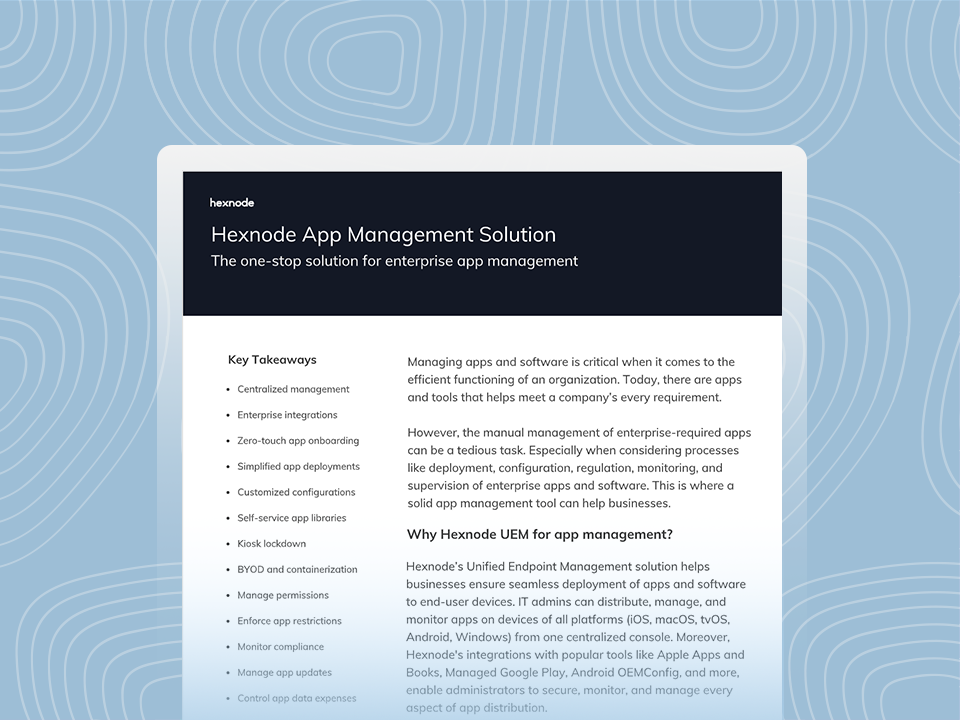
Hexnode App Management Solution
Discover Hexnode’s app management capabilities for deploying, configuring, and monitoring enterprise applications across managed devices.
How does Hexnode support enterprise and VPP app deployment on Vision Pro?
Hexnode UEM’s Required Apps policy lets administrators enforce installation of enterprise and VPP applications on devices running visionOS 1.1 or later. Administrators select apps or app groups, then associate the policy with the intended targets.
Configure the Required Apps policy
In the Hexnode portal, navigate to Policies > New Policy. Enter a policy name and description.
Open visionOS > App Management > Required Apps and click Configure.
Click +Add, then choose Add App to select individual applications or Add Group to select app groups.
Select the required items and click Done.
Associate the policy with pilot devices
For an unsaved policy, open Policy Targets > +Add Devices, select the pilot headsets, click Ok, and then Save. To target a device group, select the corresponding option in the Policy Targets pane.
For an existing policy, select it under Policies, choose Manage > Associate Targets, select the devices or device groups, and click Associate. Hexnode also documents associations with users, user groups, and domains.
Keep initial assignments limited to the pilot. Administrators remain responsible for sourcing applications, preparing licenses or enterprise signing materials, and checking compatibility. After association, verify installation and test the required workflow on the headset before adding further targets.
Frequently Asked Questions
Can I use an existing Hexnode policy to deploy apps to additional Vision Pro devices?
Yes, select the saved policy under Policies, then choose Manage > Associate Targets to associate additional devices or device groups. Verify the selected apps are suitable for those headsets before expanding the assignment.
Does assigning a Required Apps policy confirm that an app is ready to use?
No, policy association alone does not confirm successful installation or application usability. Verify that the app is installed, users can authenticate, and the required business workflow functions on the headset.
Does configuring Required Apps also provide app licenses or enterprise signing materials?
No, administrators must prepare the necessary licenses or enterprise signing materials separately. The Required Apps policy selects applications for deployment and associates them with the intended targets.
How can you get started with a Vision Pro app deployment pilot?
Begin with representative headsets and the enterprise or VPP apps your teams need. Evaluate Vision Pro app distribution through a limited Hexnode Required Apps policy, using clear acceptance criteria for installation, authentication, and task completion.
Expand assignments once the pilot confirms that applications install successfully and support the intended workflows. Use the findings to resolve preparation gaps before involving more devices and users.
Deploy apps efficiently across your Vision Pro fleet.
Pilot enterprise and VPP apps with Hexnode. Start your free trial.
A storyteller for practical people. Breaks down complicated topics into steps, trade-offs, and clear next actions—without the buzzword fog. Known to replace fluff with facts, sharpen the message, and keep things readable—politely.