TL; DR
Hexnode UEM has revamped technician management with Technician Profiles, making it easier to standardize onboarding and reuse security, role, scope, and password settings. The update also introduces a streamlined technician creation flow, the Read Only Technician role for view-only access, and granular Automate permissions, helping IT teams simplify administration while ensuring technicians receive the right level of access from day one.
Why technician access needs more than one-size-fits-all admin control
Managing technicians in a UEM console is not just about creating user accounts. Admins also need to control:
- How technicians sign in
- What areas of the portal they can access
- Which actions they can perform
- How much visibility they should have across configurations
For teams with multiple technicians, this can quickly become repetitive. Every time a new technician is added, admins may need to configure their roles, scope, login settings, security requirements, and access permissions manually.
This slows down onboarding and can make it harder to maintain consistent access controls across the portal.
There are also situations where full admin access is not necessary.
- A technician handling Patch Management workflows may only need access to automation-related actions.
- An auditor, executive, or stakeholder may only need to view configurations without modifying anything.
In such cases, giving broader access than required can create unnecessary risk.
To solve this, Hexnode UEM has overhauled the Technicians and Roles section under the Admin tab. This update brings together Technician Profiles in Hexnode UEM, a revamped login experience, the Read Only Technician role, and granular permissions for the Automate tab.
Introducing the revamped Technicians and Roles experience
The latest update to the Technicians and Roles section brings four connected improvements to Hexnode UEM:
- Technician Profiles
- Technician Profile and Login Revamp
- Read Only Technician role
- Granular permissions for the Automate tab and the Initiate Automation action
Technician Profiles
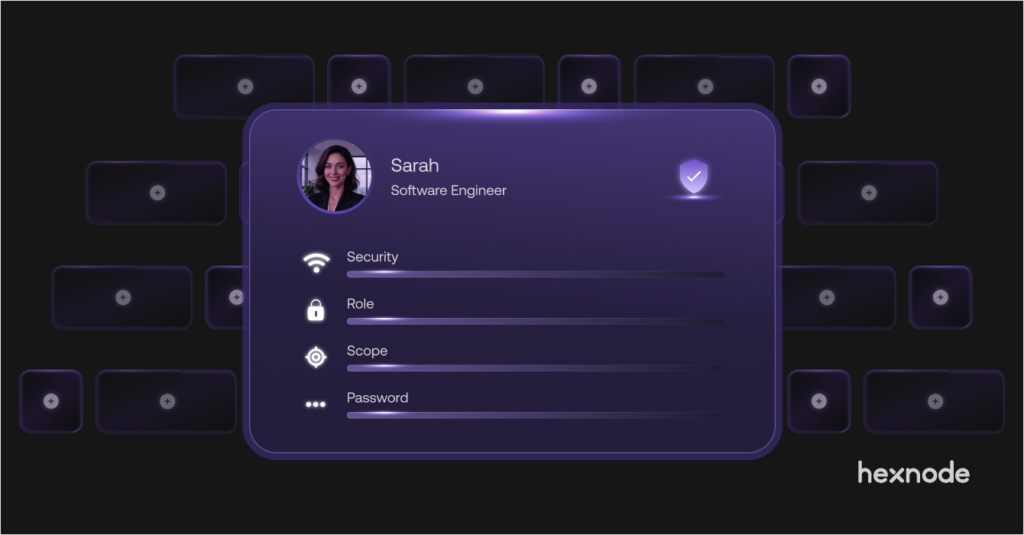
A profile acts as a reusable template where admins can define access rules, security requirements, roles, scopes, and password policies once. This profile can then be assigned to multiple technicians, eliminating the need to configure the same settings repeatedly.
Each profile includes four key sections:
- Sign-in & Security
- Role
- Scope
- Password Policy
Technician Profile and Login Revamp
Since the major access and security settings are now handled inside profiles, adding a technician becomes faster. Admins only need to enter the core account details, choose the login identity, and assign the right profile.
Read Only Technician role
Hexnode now supports accounts with read-only permissions, allowing restricted access to the console without the ability to modify configurations.
Granular Automate permissions
Along with these changes, custom roles now include granular permission controls for the Automate tab and the Initiate Automation action. This ensures technicians with custom roles can trigger eligible automation workflows without full admin privileges.
Smarter technician access with Profiles, login controls, and role-based permissions
This update helps admins simplify technician management while improving access control across the Hexnode UEM console.
With Technician Profiles in Hexnode UEM, admins can avoid repetitive setup. Instead of configuring security settings and access permissions every time a technician is created, they can build a profile once and assign it whenever needed.
This makes technician onboarding faster and more consistent.
Sign-in & Security
The Sign-in & Security section gives admins more control over how technicians access the portal.
Login settings now allow admins to configure:
- Local logins
- Google
- Microsoft
- Okta
Admins can also enable CAPTCHA after a specified number of failed login attempts.
Two-factor authentication
Two-factor authentication has also been expanded. Admins can:
- Enable Hexnode-managed 2FA
- Send verification codes through email or text message
- Ask users to set up a third-party authenticator
- Bypass OTP verification for trusted IPs
- Set the validity of the verification code to 3, 5, or 10 minutes
- Bypass OTP for subsequent logins from trusted browsers
- Skip 2FA for specific actions
IP Restrictions and Browser Settings
The update also introduces IP Restrictions and Browser Settings.
Admins can:
- Define allowed IPs or IP ranges
- Decide which browsers can be used to access the portal
- Allow Microsoft Edge, Google Chrome, Safari, Mozilla Firefox, or all browsers
- Configure session expiry settings to automatically log technicians out after a period of inactivity
Role and Scope
The Role and Scope sections make access assignment more streamlined. Admins can define the level of access and set boundaries based on:
- Devices
- Users
- User groups
- Device groups
- Domains
- OUs
Password Policy
The Password Policy section gives admins more control over local login security. They can configure:
- Minimum password length
- Password complexity
- Character limits
- Password age
- Password history
UPN support
UPN support also makes technician creation more flexible. Admins are no longer restricted to using only an email address as the login identity. They can choose either Email or UPN.
If UPN is selected, a communication email can be added so account-related notifications and system alerts still reach the technician.
Read Only Technician
Read-only access provides a safer way to offer visibility. Auditors, executives, or stakeholders can view configurations without the ability to make changes.
Granular Automate permissions
For automation workflows, expanded custom permissions allow admins to grant access to the Automate tab and the Initiate Automation action through custom roles.
How this helps IT teams manage technicians at scale
Consider an organization with different types of users accessing the Hexnode UEM console.
- The main IT admin team may need full access to manage devices, users, policies, reports, apps, and automation workflows.
- A separate technician team may only need access to Patch Management workflows through the Automate tab.
- Auditors or stakeholders may need to view console configurations but should not be allowed to modify anything.
With this update, the Super Admin can create separate Technician Profiles for each group.
- One profile can include broader admin access.
- Another can include custom permissions for the Automate tab and Initiate Automation action.
- Another can be configured with read-only access.
When a new technician is added, the admin only needs to enter the technician’s account details, choose Email or UPN as the login identity, and assign the appropriate profile.
The technician then inherits the role, scope, security settings, and password policy attached to that profile.
This reduces manual setup, avoids unnecessary full admin access, and helps ensure each technician gets the right level of access from the start.
Setting up Technician Profiles in Hexnode UEM and custom role access
To explore these updates, go to the Admin tab in Hexnode UEM and open the revamped Technicians and Roles section.
- Create a Technician Profile
- Configure the required Sign-in & Security settings.
- Assign the appropriate Role.
- Define the Scope.
- Set the Password Policy.
- Add a Technician
- Go to the Technicians tab and click Add Technician.
- Enter the technician’s core account information.
- Choose the login identity as Email or UPN.
- If UPN is selected, add a communication email.
- Assign the profile you created.
- Configure role-based access
- Go to the Roles tab.
- Create or manage role templates.
- Assign the Read Only Technician role.
- Grant custom permissions for the Automate tab and Initiate Automation action.
Build cleaner, safer technician access in Hexnode UEM
The revamped Technicians and Roles section in Hexnode UEM helps admins manage access with more control and less repetitive setup.
With Technician Profiles, improved login controls, UPN support, read-only access, and granular Automate tab permissions, IT teams can onboard technicians faster while keeping access aligned with each user’s responsibilities.
Head to the Admin tab in Hexnode UEM to explore the updated Technicians and Roles experience and simplify how your team manages technician access.
Try the new technician management experience
Simplify technician onboarding with reusable Technician Profiles, granular role-based permissions, and secure login controls.
Sign Up Now