Smart card authentication strengthens Mac access with possession-based, certificate-backed credentials, but only suits organizations equipped to manage its operational complexity.
It best fits centrally managed, higher-risk workforces with standardized cards and readers, mature certificate operations, and dependable support and recovery processes.
IT should pilot pairing, login, FileVault, offline access, revocation checks, card loss, blocked PINs, and hardware failures before phased enforcement.
Hexnode UEM configures native macOS pairing, unlocking, certificate-trust verification, card limits, removal behavior, and policy targeting, while passwords may remain necessary for some workflows.
Is smart card authentication right for your Mac workforce?
Smart card authentication suits Mac workforces that require possession-based, certificate-backed access and can support the necessary cards or tokens, readers, certificate infrastructure and recovery processes. It combines something the employee has with a PIN they know, increasing assurance for device sign-in and protected actions.
The decision should reflect the organization’s security requirements, employee workflows and operational readiness. Smart cards are not a universal password replacement: onboarding, first sign-in, FileVault, administration or recovery may still involve password-based steps depending on the deployment model.
IT should therefore ask whether the added assurance justifies local-account pairing, reader distribution, certificate issuance and renewal, lost-card recovery and additional help-desk demand. For mobile or lightly managed teams, that overhead may outweigh the security benefit.
What are the risks of choosing the wrong authentication model?
Choosing the wrong authentication model leaves access underprotected or introduces controls the organization cannot operate. Password-based credentials that fall below the workforce’s risk profile can increase exposure when passwords are phished, reused, compromised or shared.
The opposite problem arises when IT deploys smart cards without preparing the processes. Failed pairing, unavailable readers, blocked PINs, expired certificates or unreachable validation services can prevent sign-in, interrupt work, generate support tickets and concentrate recovery requests in an unprepared help desk.
Authentication design must therefore protect operational continuity as well as strengthen access governance. IT needs a documented fallback process that defines identity verification, emergency access, credential revocation and card replacement when a card, reader or certificate is lost, damaged, blocked, expired or unavailable.
How does smart card authentication work on a Mac?
A smart card stores certificate-based credentials, while the user presents the physical card and enters its PIN during authentication. macOS then uses the card’s cryptographic identity to authenticate the user rather than relying only on a typed account password.
Under Apple’s native local-account pairing model, the user inserts a compatible PIV smart card or hardware token into the Mac or connected reader. macOS displays a pairing prompt; the user approves it, provides administrator account credentials and enters the card PIN. After logging out, the user can insert the paired card, select the local account and enter the PIN thttps://support.apple.com/en-gb/guide/deployment/depc705651a9/web?utm_source=hexnode_blog&utm_medium=referral&utm_campaign=smart_card_authentication_on_mac rel=o sign in. If the user declines pairing, the card may still support other certificate-based functions, but it cannot authenticate that local account.
These steps represent separate controls. Card possession proves the user holds the assigned credential, while PIN knowledge unlocks its private-key operation. Certificate validation separately checks issuer trust, validity period and revocation status according to the configured policy.
What does the employee experience look like?
For employees, the routine begins by connecting the reader, inserting the assigned card or token and entering its PIN to sign in. The paired credential can authorize protected actions and unlock the screen after inactivity, depending on the configured policy.
Onboarding requires more preparation than issuing a password. A new card may trigger a pairing prompt, and local-account pairing requires administrator credentials before the employee can use the card for sign-in. IT can configure macOS to start the screen saver when the employee removes the card, but immediate authentication after the screen saver begins must be enabled to protect the session.
Daily friction arises when employees forget their cards, block their PINs, face expired certificates or reader failures. Help-desk instructions should clearly cover diagnosis, identity verification, temporary access, credential replacement and escalation.
When does smart card authentication make sense for a workforce?
Smart card authentication makes sense when an organization must meet strong-authentication mandates, already uses certificate-based access, manages corporate Macs centrally or protects roles with access to sensitive systems and data. It is strongest where IT controls device configuration, card issuance, readers, certificate trust and recovery.
It is a weaker fit for highly mobile teams without dependable readers, unmanaged personal Macs or organizations that lack mature certificate issuance, renewal, revocation and account-recovery processes. IT leaders can assess readiness using these criteria:
Factor
Strong fit
Weaker fit
Assurance
Possession-based authentication is required
Password-based controls meet the risk profile
Mobility
Users work at equipped locations
Users frequently move without reliable readers
Hardware
Compatible cards and readers are standardized
Hardware varies or is unavailable
Certificates
Issuance, renewal and revocation are established
Certificate operations are manual or immature
Support
Help desk can recover access promptly
Recovery ownership or capacity is unclear
Friction
Additional login steps are acceptable
Rapid, low-friction access is essential
A critical weakness in certificate recovery or hardware access can outweigh several favorable factors.
Feature Resource
macOS Platform Capability Statement
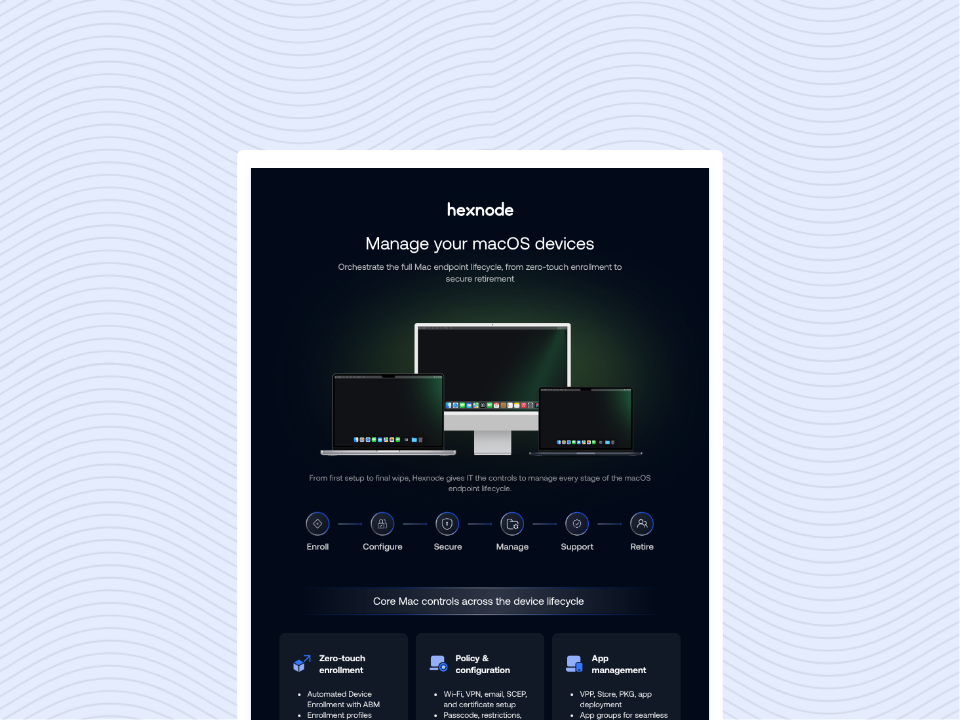
Download the infographic to explore how Hexnode simplifies macOS device management across every stage of the endpoint lifecycle.
What prerequisites should IT assess before deployment?
Before deployment, IT should validate hardware compatibility, PKI readiness and every authentication and recovery path that could affect Mac access. Confirm the following against current Apple and management-platform documentation before publication:
Hardware and software
Inventory PIV-compatible cards or hardware tokens, CCID-compatible readers, Mac models and macOS versions. Test each deployed combination. Apple documents native smart-card login from macOS 10.12.4. FileVault behavior differs by hardware: Apple silicon Macs with macOS 11 or later support compatible smart-card authentication for FileVault, whereas T2-based Macs may require a password to unlock FileVault before smart-card login.
Certificate operations
Map issuance, trusted issuers, validity periods, renewal and revocation. Disabled trust checking favors availability but does not require certificate trust. Basic checking validates the certificate period and trust chain without revocation checks. Soft checking consults CRL/OCSP but can accept a certificate when responders are unreachable; hard checking requires a positive status, strengthening revocation enforcement while making login dependent on responder reachability.
Account and recovery design
Document local, mobile and directory account behavior; pairing permissions; administrator access; offline use; and lost-card, blocked-PIN and expired-certificate recovery. Test first login and recovery separately because some account-creation and FileVault scenarios still require a password.
How UEM Enables macOS Lifecycle Management
Learn how UEM supports macOS lifecycle management, from zero-touch deployment to secure retirement.
How should IT pilot and roll out the native Mac policy?
IT should pilot the native Mac smart card policy with a small, representative group before enforcing it across the workforce. Include different Mac models, macOS versions, local or directory account configurations, office and restricted network conditions, job roles and remote employees who may have limited access to readers or support.
Structure the rollout around three controls:
Validate the complete workflow. Test device enrollment, local-account pairing, login, authorization prompts, screen unlocking and the configured response to card removal. Confirm that each supported card, token and reader combination behaves consistently.
Exercise failure and recovery paths. Simulate certificate expiration and revocation, unavailable CRL/OCSP responders, offline access, blocked PINs, lost cards and reader failure. Verify identity checks, temporary access, card replacement, emergency administrator access and policy rollback before enforcement.
Set measurable release criteria. Track authentication success rates, pairing failures, support-ticket volume, recovery time and training completion. Assign named owners for user training, card inventory and replacement, certificate issuance and renewal, help-desk escalation, emergency access and rollback approval.
Expand the policy in controlled phases only after the pilot meets those thresholds across office-based and remote scenarios.
How Hexnode UEM configures Smart Card Authentication for macOS
Hexnode UEM configures native Mac smart-card behavior through its macOS Smart Card Authentication policy at Policies > macOS > Security > Smart Card Authentication. Hexnode’s current documentation lists the feature for macOS 10.12.4 and later; confirm availability and version requirements in the official guide again at publication.
The policy exposes these documented controls:
Show user pairing dialog lets users see new pairing prompts; disabling it does not remove existing pairings.
Unlock via Smart Card permits smart-card login, authorization and screen-saver unlocking. A Mac restart is required after this setting changes.
Verify Certificate Trust offers four levels: trust checking off; certificate validity and issuer trust; those checks with soft CRL/OCSP revocation checking; or hard revocation checking that requires a positive response.
Allow one smart card per user restricts new pairing to one card but does not invalidate existing pairings.
Enable Screensaver on Smart Card removal starts the screen saver after token removal and applies to macOS 10.13.4 and later.
After configuring the policy, administrators can associate it through Policy Targets with devices, device groups, users, user groups or domains. The Hexnode configuration guide should remain the source of truth for labels, prerequisites and deployment steps.
FAQs
Does smart card authentication eliminate passwords on Macs?
No. Passwords may still be required for local-account pairing, onboarding, administrator approval, recovery, first sign-in, or certain FileVault workflows, depending on the deployment model.
How does certificate revocation checking affect offline Mac sign-in?
Soft revocation checking can accept a certificate when CRL or OCSP responders are unavailable, while hard checking requires a positive status response. Hard checking strengthens revocation enforcement but can prevent authentication when the Mac cannot reach the validation service.
What happens when an employee loses or blocks their smart card?
The employee may be unable to sign in until IT verifies their identity and provides temporary access or a replacement credential. Organizations should document card revocation, PIN recovery, emergency administrator access, replacement, and escalation procedures before enforcing smart card authentication.
Can Macs with Apple silicon and the T2 chip use smart cards for FileVault authentication?
Apple silicon Macs running macOS 11 or later support compatible smart-card authentication for FileVault. On T2-equipped Macs, smart cards cannot unlock FileVault. Users unlock FileVault with a password, then authenticate with a smart card at the macOS login window when IT has disabled automatic FileVault login.
Can Hexnode restrict each Mac user to one smart card?
Hexnode’s macOS Smart Card Authentication policy can restrict new pairing to one smart card per user. Enabling this control does not invalidate cards that were already paired, so administrators should review existing pairings separately.
Evaluate smart card readiness across your managed Macs
Before enabling the policy, assess your Mac estate, supported card and reader hardware, certificate infrastructure, employee sign-in workflows and recovery readiness. Confirm that IT can issue, renew and revoke credentials while restoring access when cards are lost or blocked. Teams that meet these requirements can start a Hexnode trial or request a demonstration of the macOS Smart Card Authentication policy.
Test smart card authentication on managed Macs
Apply the macOS Smart Card Authentication policy to a pilot group and evaluate pairing, certificate trust, screen unlocking and card-removal behavior.
I’m a technical content writer at Hexnode who loves simplifying tech. I break down complex ideas, remove the fluff, and help readers clearly understand our product for what it actually is: simple, reliable, and built to solve real problems.