Effective kiosk troubleshooting requires isolating the underlying application, policy, connectivity, OS, hardware, or peripheral failure—not merely restarting the device.
Unresolved issues disrupt business workflows, increase support costs, and may encourage risky security exceptions.
Preserve evidence, determine the incident scope, test one technical layer at a time, apply the least disruptive fix, and validate the complete workflow.
Hexnode UEM provides remote visibility, device information, activity history, supported recovery actions, and controlled kiosk access to help IT support distributed deployments.
Kiosk devices usually fail because of problems with the application, policy configuration, network connection, operating system, hardware, or attached peripherals—not because the lockdown mechanism itself has stopped working. A frozen screen, missing app, or unresponsive scanner is therefore a symptom, not a root cause.
Diagnosis becomes harder when kiosks operate unattended. Users may be unable to open settings, collect logs, approve remote-support sessions, or describe what happened before the failure. Administrators are often left with limited telemetry and a device that cannot complete its assigned workflow.
This kiosk troubleshooting guide explains how to identify common symptoms, isolate the affected technical layer, restore service with the least disruptive action, and prevent the same incident from recurring across the fleet.
What happens when kiosk problems go unresolved?
Unresolved kiosk problems disrupt the business workflow assigned to the device. Depending on the deployment, an unavailable endpoint can halt customer check-in, ordering, payment processing, inventory scanning, field-service tasks, healthcare operations, or digital-signage delivery.
As downtime continues, failed transactions accumulate, customer experience deteriorates, and support teams risk missing service-level targets. Issues that cannot be diagnosed remotely may also require technician travel, increasing resolution time and operational costs—especially across distributed kiosk fleets.
Urgent recovery attempts can introduce security risks. Temporarily disabling kiosk restrictions or granting local users excessive access may expose system settings, corporate data, network configurations, or unauthorized applications. Troubleshooting must therefore restore service without weakening the device’s security baseline.
What should IT check when troubleshooting a kiosk?
IT should examine eight diagnostic layers: physical condition, power, network access, management connectivity, policy state, application health, OS compatibility, and peripheral dependencies. Checking these layers in order helps narrow the failure without making unnecessary configuration changes.
Administrators must also separate visible symptoms from their underlying causes. A blank screen, for example, could indicate an application crash, failed content download, incorrect kiosk policy, display fault, or lost network connection. Restarting the device may temporarily hide the issue without resolving it.
The following categories organize common kiosk symptoms by their likely causes, required checks, and appropriate recovery actions.
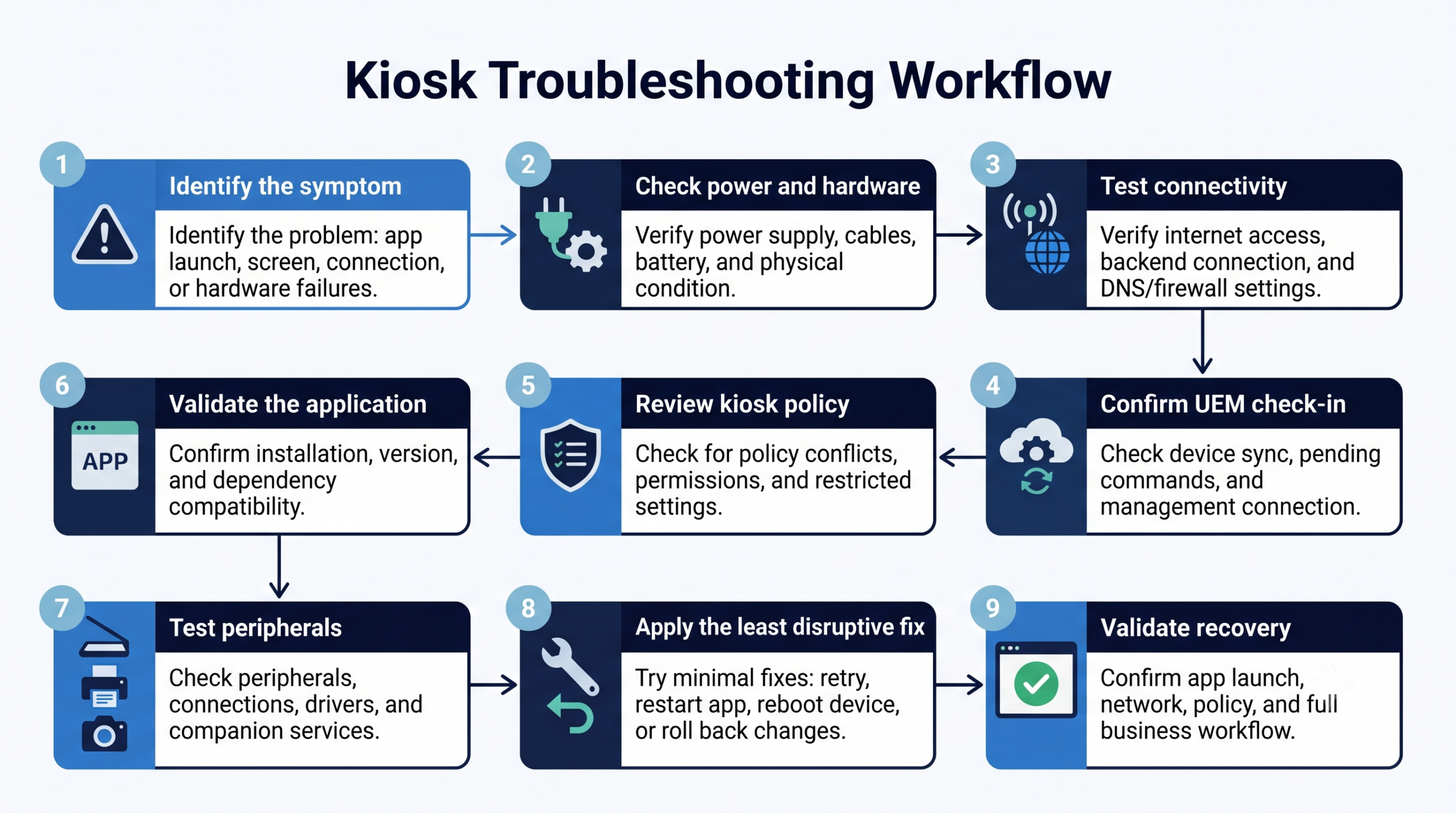
Kiosk Troubleshooting Workflow
Why will the kiosk application not launch or stay open?
A kiosk application may fail to launch because it is missing, incompletely installed, incompatible with the OS, incorrectly identified in the policy, or unable to access a required permission or dependency. Expired licenses, corrupted application data, failed background services, and repeated crashes can produce similar symptoms.
Verify the following before modifying the kiosk configuration:
The application is fully installed and assigned to the device.
Its package name or bundle identifier matches the policy entry.
The installed and assigned versions are compatible.
Required permissions, licenses, background services, and companion applications are available.
The application supports the device model and current OS version.
Test the same application outside kiosk lockdown on a controlled device. The result can help determine whether the issue is application-specific or related to the kiosk configuration, although policy, account, dependency, and runtime differences may require additional investigation.
Why is the device stuck in kiosk mode—or leaving it unexpectedly?
A device may remain locked down when a policy-removal command is pending, management connectivity is unavailable, synchronization is delayed, or the administrator uses incorrect exit credentials. Unexpected exits can result from conflicting policies, incomplete enrollment, misconfigured escape controls, or unauthorized local paths that expose system settings.
Before resetting the device, confirm that it is checking in with the management platform and identify the kiosk policy currently applied. Review pending commands, policy precedence, enrollment status, exit credentials, and any permitted hardware-button combinations or system interfaces.
Avoid using a factory reset as the first response. It can erase logs and other diagnostic evidence, remove local data, and create additional enrollment and provisioning work without resolving the original configuration problem.
Why has the kiosk lost network or management connectivity?
Connectivity can fail because of expired Wi-Fi credentials or certificates, captive portals, weak cellular coverage, incorrect APN settings, DNS errors, proxy restrictions, firewall rules, or blocked management traffic. A connected network icon does not confirm that every required service is reachable.
Test three paths separately:
General internet access.
The kiosk application’s backend.
UEM check-in.
Each path may use different domains, ports, certificates, or authentication controls and can fail independently.
Review signal strength, device timestamps, certificate validity, DNS resolution, proxy configuration, and allowed ports. Confirm that required servers are reachable and compare the device’s last successful synchronization time with the incident timeline. This establishes whether connectivity loss caused the kiosk failure or followed it.
Why are kiosk applications, policies, or content not updating?
Updates may remain pending when a kiosk is offline, lacks storage, misses a management check-in, or cannot complete a download. Other causes include incompatible releases, app-store restrictions, pending OS updates, policy conflicts, and precedence rules that override the intended configuration.
Compare the assigned state with the device’s actual state. Check the installed application version, applied policy, available storage, OS build, download status, and last successful check-in. Review whether the affected device meets the update’s platform, licensing, network, and dependency requirements.
Before fleet-wide distribution, deploy each update to a representative pilot group. Validate application launch, content delivery, policy enforcement, and peripheral behavior, then test a documented rollback path in case the release disrupts kiosk operations.
Why are scanners, printers, cameras, or other peripherals not working?
Kiosk peripherals can fail because of disconnected hardware, damaged cables, unsupported drivers, outdated firmware, denied USB or Bluetooth access, or missing companion services. Lockdown restrictions may also block the permissions, background processes, or settings required by the accessory.
Test each layer separately. Confirm that the peripheral works, verify the wired or wireless connection, inspect its driver or service, and then test communication with the kiosk application. This sequence reveals whether the fault belongs to the hardware, connection, operating system, or business application.
Always verify compatibility across the device model, OS version, peripheral firmware, driver, and OEM implementation. Support on one kiosk model does not guarantee identical behavior on another.
Why is the kiosk frozen, blank, slow, or repeatedly restarting?
These symptoms can result from memory pressure, exhausted storage, application memory leaks, OS errors, overheating, battery degradation, display faults, or unstable power. Restart loops may also follow a failed update, recurring application crash, or incompatible configuration.
Check device uptime, available storage, memory and processor usage, crash records, temperature, battery condition, and recent application, policy, or OS changes. Inspect the power supply and display separately. This evidence helps distinguish a software fault from failing hardware.
Collect logs, timestamps, screenshots, and configuration details before rebooting because a restart may clear useful evidence. Then perform a controlled restart and confirm that the kiosk application launches, receives its policy, reconnects to required services, and remains stable.
Pro Tip
Collect evidence before restarting the kiosk. Capture timestamps, screenshots, crash records, connectivity status, recent configuration changes, and the last UEM check-in. A reboot may clear transient evidence needed for root-cause analysis.
Remote Kiosk Management: Ensure 24/7 Uptime with Hexnode Tools
Learn how centralized monitoring and remote management help IT teams maintain distributed kiosk fleets.
What is the best step-by-step kiosk troubleshooting process?
The most reliable process is to verify the incident scope, preserve diagnostic evidence, test one technical layer at a time, apply the least disruptive recovery action, and confirm complete service restoration. This sequence reduces unnecessary resets, configuration changes, and security exceptions.
Use the same documented workflow across devices and locations. A standardized process enables support teams to compare incidents, collect consistent evidence, escalate issues efficiently, and avoid improvised fixes that may introduce new problems.
The workflow has four operational stages: triage the incident, isolate the failing layer, recover the kiosk, and prevent recurrence across the fleet.
Step 1: Triage the incident and determine its scope
Start by recording the affected device, location, user-visible symptom, estimated start time, business impact, and current connectivity state. Capture recent changes to the kiosk application, policy, operating system, network, certificates, hardware, or connected peripherals.
Next, establish the incident boundary. Determine whether the same problem affects:
A single device.
One hardware model or OS version.
A specific location or network.
One application release or policy group.
The entire kiosk fleet.
Assign severity based on the number of affected devices, disruption to business operations, potential security exposure, and availability of a fallback workflow. Multi-site payment kiosk outages demand immediate escalation over isolated digital signage failures with fallback content.
Step 2: Isolate the failing layer
Test each layer in a fixed order: power and hardware, network access, management check-in, policy application, kiosk app health, backend availability, and peripherals. This sequence separates foundational failures from application-level symptoms. For example, troubleshooting an app configuration is unproductive if the device cannot reach its backend.
Compare the affected kiosk with a known-good device using the same hardware model, OS build, app version, kiosk policy, and network. Any difference can help narrow the fault domain.
Change only one variable at a time, then record the action and result. Simultaneous changes can temporarily restore service while masking the original cause, making the incident difficult to reproduce or prevent.
Step 3: Recover the kiosk with the least disruptive action
Begin with the lowest-impact recovery option. Refresh management data, retry the failed command, restore network connectivity, restart the kiosk application, and then reboot the device if necessary. If the incident followed a recent application, policy, or OS change, use the approved rollback procedure. Temporarily exit kiosk mode only when diagnosis requires access to restricted settings.
Preserve lockdown controls, encryption, authentication, and data protections wherever possible. Avoid broad security exceptions for a localized failure.
After recovery, verify application launch, network and backend access, peripheral operation, policy enforcement, and management communication. Finally, complete the kiosk’s full business transaction to confirm functional—not merely technical—recovery.
Important
A successful reboot does not confirm complete recovery. Verify the kiosk application, network and backend access, peripherals, policy enforcement, management connectivity, and the full business transaction before closing the incident.
Step 4: Prevent the issue from recurring across the fleet
Document the confirmed root cause, affected configurations, recovery actions, and validation results. Tag similar incidents and maintain known-error records, approved configuration baselines, staged-update procedures, spare-device processes, and tested rollback plans.
Track operational indicators such as missed device check-ins, application crashes, low storage, battery degradation, update failures, and repeated incidents. Group this data by hardware model, location, network, OS build, policy, and application version to identify patterns before they affect the wider fleet.
Convert repeatable fixes into standard support runbooks. Define the evidence required for escalation and establish clear ownership boundaries among application, network, hardware, security, and UEM teams.
Featured Resource
The Ultimate Guide to Kiosk Management
Learn how to secure, manage and scale kiosk deployments with a practical three-step management strategy.
How does Hexnode help IT teams troubleshoot kiosk devices remotely?
Hexnode UEM gives IT teams remote visibility, device context, and controlled recovery options for supported kiosk endpoints. Remote View and Control for Android allows technicians to observe the device screen and, on compatible devices, interact with it from the Hexnode console. This helps reproduce user-visible failures without requiring unrestricted local access.
For eligible Android deployments, Unattended Remote Access Management can allow a remote session without requiring someone at the kiosk to approve it. Availability depends on the Android version, enrollment mode, Hexnode Assist app version, required Accessibility permission, and Remote Access Management policy configuration.
Within the device record, administrators can use:
The device details page—including its Device Summary and Network Info tabs—to review hardware, OS, network, enrollment, and management information.
Activity Feed to inspect device events and the history surrounding a failure.
Applicable Remote Actions to refresh device information or perform supported recovery operations.
Enable/Disable Kiosk Mode to temporarily suspend and restore lockdown on supported Android and iOS devices during controlled diagnosis.
For Android kiosks, Peripheral Settings can expose selected network, display, and other approved controls without broadly opening system settings. This gives on-site personnel limited troubleshooting access while preserving the wider lockdown configuration.
Hexnode also maintains dedicated troubleshooting documentation for Android, iOS, and Windows kiosk deployments. Kiosk controls, remote support, and diagnostics vary across operating systems and deployment models. Administrators must consult platform-specific documentation for precise execution guidance.
FAQs
What diagnostic data should IT collect before restarting a kiosk?
Collect timestamps, screenshots, crash records, recent policy or application changes, connectivity status, resource usage, and the device’s last management check-in. A restart can clear transient evidence, so preserve relevant logs and configuration details first.
When should an IT team factory-reset a kiosk device?
A factory reset should be a last-resort recovery action after connectivity, application, policy, OS, and hardware checks fail. Resetting can remove diagnostic evidence and creates additional enrollment, configuration, and application-provisioning work.
How can IT tell whether a kiosk failure is caused by the app or the kiosk policy?
Test the application on a controlled device outside kiosk mode, then compare its version, permissions, dependencies, and runtime behavior with the affected device. The result narrows the fault domain, but account, policy, OS, and environmental differences may still require investigation.
What should a kiosk support runbook include?
A kiosk support runbook should include triage fields, diagnostic checks, approved recovery actions, validation steps, escalation criteria, and rollback procedures. It should also define ownership across application, network, hardware, security, and UEM teams.
How should businesses test kiosk updates before full deployment?
Deploy updates to a representative pilot group covering relevant hardware models, OS versions, applications, policies, networks, and peripherals. Validate the complete business workflow and confirm that a tested rollback path is available before expanding deployment.
How can IT troubleshoot kiosks without weakening device security?
Use remote visibility and the least disruptive recovery action while retaining lockdown, encryption, authentication, and data protections. If kiosk restrictions must be suspended, limit the scope and duration, complete the diagnosis, and verify that the security baseline is restored afterward.
Reduce kiosk downtime with a repeatable support workflow
Reliable kiosk support depends on a repeatable process: verify scope, preserve evidence, isolate the failing layer, recover the device without weakening weakening security, and monitor for recurrence. Combined with remote visibility and controlled recovery actions, this approach helps IT teams reduce downtime and support distributed deployments consistently.
Troubleshoot kiosk issues remotely
Test Hexnode’s remote troubleshooting, controlled recovery, and kiosk management on a pilot device group.
Associate Product Marketer at Hexnode focused on SaaS content marketing. I craft blogs that translate complex device management concepts into content rooted in real IT workflows and product realities.