Why is deploying mobile threat defense across Android devices challenging?
Bitdefender GravityZone MTD Android deployment can be challenging when managing corporate-owned and BYOD devices. Different enrollment methods, device configurations, and permission requirements make consistent deployment and activation difficult across an Android fleet.
Manual installations add complexity, increasing the risk of failed deployments, incomplete activations, and inconsistent protection. IT administrators must ensure that each device receives the application, completes registration, and has the required permissions enabled.
A standardized deployment process covering application installation, activation, and verification helps IT teams reduce manual effort and confirm that MTD protection is functioning correctly across managed devices.
What happens when Android MTD deployment is incomplete?
Incomplete Android MTD deployment creates security gaps when devices lack active threat protection. Even if the application is installed, failed activation or missing permissions can prevent security services from functioning as intended.
These gaps can lead to several risks:
Increased threat exposure: Unprotected devices may remain vulnerable to malicious applications, phishing attempts, and network-based threats.
Inconsistent security coverage: Some devices receive active protection while others remain partially configured or unprotected.
Limited security visibility: IT teams may lack reliable threat and device-status information for devices that have not registered successfully.
Higher administrative workload: Failed installations and incomplete activations require repeated troubleshooting and manual intervention.
Successful installation does not guarantee active protection. Administrators must verify device registration, activation status, and required security permissions to confirm that MTD services are functioning as expected.
What is Bitdefender GravityZone MTD, and how does it work on Android?
Bitdefender GravityZone Mobile Threat Defense (MTD) detects malicious apps, phishing attempts, and network threats on Android devices. Its management console provides centralized security visibility, while Unified Endpoint Management (UEM) supports device enrollment, app deployment, and configuration.
How does Bitdefender GravityZone MTD activation work?
Bitdefender GravityZone MTD supports activation links, QR codes, and domain-based onboarding to connect Android devices to the appropriate Mobile Security environment. This links the installed application to the organization’s security management system.
The deployment process involves five stages:
Prepare the environment: Configure the GravityZone Mobile Security environment and device groups.
Obtain activation information: Generate the activation link for the intended device group.
Install the application: Distribute the GravityZone MTD app to target Android devices.
Activate protection: Use the activation information to register the application and complete required configurations.
Verify registration: Confirm that the device appears in the management console and its protection services are operational.
Installation, activation, and protection verification are separate stages. Completing one does not automatically confirm the others.
What are the prerequisites for deploying Bitdefender GravityZone MTD on Android?
Before deploying Bitdefender GravityZone MTD, IT teams must ensure that the management environment, Android devices, and activation settings are ready.
Key prerequisites include:
GravityZone environment: A configured Bitdefender GravityZone Mobile Security environment with appropriate licensing.
Device compatibility: Supported Android devices with reliable network connectivity.
Enrollment requirements: Compatible Android Enterprise enrollment modes and management permissions for application deployment.
Activation details: Prepared device groups and activation links for registering devices.
Application permissions: Required Android permissions identified for enabling MTD protection.
Mobile Threat Defense: What It Is and How It Fits Into Your UEM Strategy
Explore how mobile threat defense complements UEM to strengthen security.
How do you deploy Bitdefender GravityZone MTD on Android devices?
Bitdefender GravityZone MTD deployment involves generating an activation link, preparing and configuring the application, installing it on Android devices, and verifying protection. The deployment method depends on the device’s Android Enterprise management mode. Test the process on a small pilot group before a fleet-wide rollout.
1: Create a device group and obtain the Bitdefender activation link
Sign in to the Bitdefender GravityZone Mobile Security console.
Create a device group for the target Android devices.
Generate or retrieve the activation link associated with the group.
Securely store the link for use during application configuration.
Organize groups by department, device ownership, or deployment phase for easier management.
2: Prepare the GravityZone MTD application for deployment
Locate the official Bitdefender GravityZone MTD Android application.
Add it to the organization’s supported application distribution platform.
Confirm device compatibility, network connectivity, and installation requirements.
Determine whether devices support managed installation or require user-assisted installation.
3: Configure activation information and required permissions
Open the managed application configuration settings in the enterprise mobility management platform.
Enter the activation link to associate devices with the appropriate Bitdefender group.
Provide the supported device identifier required for MDM-based automatic activation and configure additional tracking identifiers where available.
Review required Android permissions and identify any settings requiring user approval.
4: Install and activate GravityZone MTD on Android devices
Assign the application to the selected Android devices.
Initiate installation through the management platform or supported user-assisted method.
Confirm successful installation on each device.
Apply the activation configuration and complete any required permission prompts.
Verify that the application registers with the intended Bitdefender device group.
5: Verify deployment and confirm MTD protection
Open the Devices section in the Bitdefender GravityZone console.
Confirm that the deployed Android devices appear in the appropriate group.
Check registration status, available security information, and vulnerability visibility.
Verify that the required MTD protection services are active.
Record each device’s deployment status:
Validated: Registration and protection checks completed successfully.
Needs remediation: Installation, activation, or protection issues detected.
Pending verification: Deployment completed, but protection status has not been confirmed.
How can IT teams troubleshoot Bitdefender GravityZone MTD deployment issues?
IT teams should identify whether the issue occurs during installation, activation, or verification before attempting remediation.
Issue
Possible cause
Recommended action
Installation failure
Device incompatibility or deployment restrictions
Check device compatibility and app deployment status.
Activation failure
Invalid or incorrect activation link
Verify the activation link and assigned device group.
Inactive protection
Missing Android permissions
Review and enable required permissions.
Connectivity failure
Network restrictions
Check internet access and required service connectivity.
Device missing from console
Incomplete registration
Verify activation and refresh the device status.
Troubleshoot installation and activation separately before reinstalling the application or restarting deployment.
How does Hexnode UEM simplify Bitdefender GravityZone MTD deployment on Android?
Hexnode UEM simplifies Bitdefender GravityZone MTD deployment by centralizing application distribution and activation configuration across managed Android devices. IT administrators can deploy the application, configure registration details, and manage installation through policies.
1. Distribute the GravityZone MTD application
Navigate to Apps > +Add Apps > Store App and add Bitdefender GravityZone MTD.
Use the Android Required Apps policy to distribute the application to target devices.
Enable silent installation on eligible Android Enterprise Device Owner and Samsung Knox devices.
Activation Link: Associates the application with the appropriate Bitdefender device group.
Tracking ID 1 and Tracking ID 2: Provide optional device-identification information.
Associate the policy with the intended Android devices.
3. Verify deployment and manage the application lifecycle
Open the Devices section in Bitdefender GravityZone to confirm successful registration.
Select a device to review its security information and detected vulnerabilities.
In Hexnode’s Required Apps policy, enable Remove apps from the device on policy removal if automatic removal is required during supported lifecycle workflows.
Featured resource
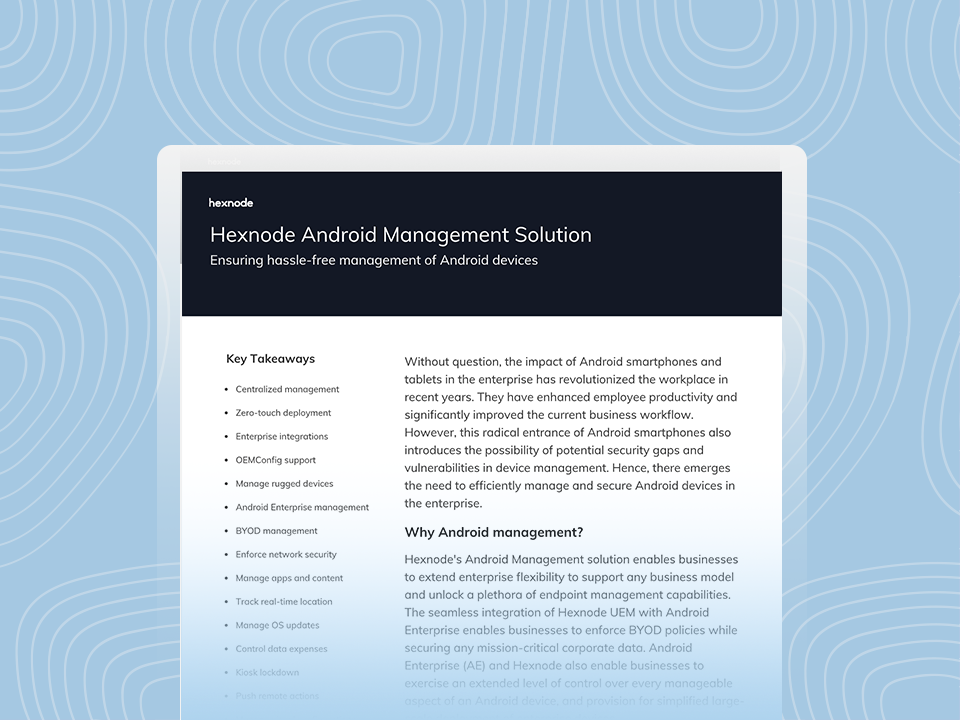
Hexnode Android Management Solution
Explore Hexnode’s Android Management solution for seamless device deployment, configuration, monitoring, security, and centralized management.
Can Bitdefender GravityZone MTD be deployed silently on Android devices?
Yes, Bitdefender GravityZone MTD supports silent installation through Hexnode UEM on eligible Android Enterprise Device Owner and Samsung Knox devices. However, certain permissions or security configurations may still require user interaction.
Can Hexnode UEM display Bitdefender GravityZone MTD threat alerts?
Hexnode UEM supports Bitdefender GravityZone MTD application deployment and activation configuration, but the documented workflow does not establish native threat-alert integration. Administrators should use the Bitdefender GravityZone console to review detected threats, vulnerabilities, and security information.
What happens if a managed Android device loses connectivity after MTD activation?
Network connectivity is required for communication with the Bitdefender management environment, but supported on-device threat detection can continue while the device is offline. Connectivity interruptions may delay security-status updates and reporting to the GravityZone console. Administrators should restore connectivity and verify the device’s protection status.
Simplify Android MTD deployment with Hexnode UEM
Deploying Bitdefender GravityZone MTD across Android devices becomes easier with centralized application distribution, managed configurations, and consistent deployment policies. Hexnode UEM helps IT teams reduce manual effort by streamlining app installation and activation across eligible Android devices.
Simplify Android security application deployment while maintaining consistent management across your fleet.
Simplify Bitdefender GravityZone MTD deployment with Hexnode UEM.
Simplify Bitdefender GravityZone MTD deployment with centralized app distribution and activation configuration.
A storyteller for practical people. Breaks down complicated topics into steps, trade-offs, and clear next actions—without the buzzword fog. Known to replace fluff with facts, sharpen the message, and keep things readable—politely.