App Catalogs and App Groups simplify application distribution in Hexnode UEM by separating employee self-service, reusable application collections, and mandatory deployment.
App Catalogs let employees discover and install approved applications, while App Groups organize reusable application sets for departments or roles.
Required Apps policies enforce mandatory installations, with deployment behavior depending on the platform and application type.
Hexnode UEM supports combining App Groups within App Catalogs, targeted policy assignments, and Windows installation validation through Success Criteria.
Why does app distribution become difficult as device fleets grow?
The app catalog vs app group distinction helps IT teams separate application discovery from application organization. As device fleets grow, overlapping requirements make it harder to decide which apps belong together, how employees receive them, and who needs them. A clear distribution structure lets administrators reuse application sets while distinguishing mandatory installations from optional tools.
App distribution becomes difficult when IT teams manage overlapping application requirements without separating app organization, deployment behavior, and target audiences. Administrators must determine which apps belong together, how installation should happen, and who needs them.
Consider an administrator selecting applications for new hires, adjusting software after department transfers, and handling optional installation requests. Across Windows, macOS, Android, and iOS, these tasks involve different application packages and installation requirements. Rebuilding similar selections for each request creates repetitive work and makes omissions easier.
The app catalog vs app group discussion starts with a practical question: how should IT organize reusable application sets while giving employees appropriate installation options? Answering it requires distinguishing the applications employees must have from those they can choose.
What happens when app distribution lacks a clear structure?
Poorly structured app distribution can leave employees without essential applications, install software they do not need, and require repeated IT intervention. Inconsistent application selections can delay onboarding or department transitions while administrators identify and correct missing tools.
These inconsistencies also complicate troubleshooting. Employees performing similar roles may have different applications installed, forcing support teams to establish each device’s software baseline before investigating the reported issue.
Publishing an approved application does not confirm installation, license assignment, or access to its service. An employee might see an application in a catalog but still lack the installation or account permissions needed to use it. Deployment verification must check these outcomes separately; otherwise, IT risks treating application availability as evidence that employees can work.
App management 101: A comprehensive guide
Learn app management basics for streamlined enterprise application administration.
What is the difference between app catalogs and app groups?
An app catalog presents applications for users to discover and obtain; an app group organizes applications into a reusable administrative collection. The distinction in app catalog vs app group concerns their purpose: user discovery versus application organization.
These concepts can complement each other. A collection defines which applications belong together, while the deployment method determines how users receive them. Terminology and supported behavior vary between management platforms, so administrators should verify how their chosen platform handles collections, assignments, and installation.
App catalogs support discovery, while app groups organize applications
A catalog gives employees a place to find applications that IT approves for their work. For optional tools, this can reduce the need to submit a separate software request for every installation, provided the organization permits self-service access. Employees choose from the applications available to them, subject to applicable licensing and installation requirements.
An app group serves an administrative purpose. IT collects applications around a department, job function, or device purpose, then reuses that collection in supported management workflows. For example, administrators might maintain a sales application set instead of repeatedly selecting its individual applications for each deployment.
App groups describe application membership; device groups and user groups describe deployment audiences. A sales app group identifies the software collection. A sales user group identifies the people who need it. Keeping these objects distinct helps administrators review application selections and recipients independently.
Distribution requirements determine when to use each approach
Choose an approach based on whether the immediate requirement involves employee choice, reusable application selection, or mandatory installation.
Comparison
App catalog
App group
Purpose
Present applications for discovery and installation
Organize applications for administrative reuse
Primary user
Employees browsing available applications
Administrators managing application collections
Contents
Application listings, potentially organized into collections
Applications grouped by a shared requirement
Installation trigger
Typically a user action; implementation varies
Determined by the associated deployment mechanism
Suitable scenarios
Optional productivity tools
Recurring departmental application sets
Optional productivity tools suit catalog access because employees can select what they need. A recurring departmental application set suits grouping because administrators can reuse its membership. Mandatory onboarding applications require an enforced deployment workflow; neither publishing a catalog nor creating a group alone establishes that requirement.
Can app catalogs and app groups work together? Yes, conceptually: a reusable collection can supply applications to a user-facing catalog where the platform supports that relationship. Administrators still need to define the audience and installation method separately. Group membership itself does not determine whether installation requires employee action or proceeds through an enforced policy.
How should IT teams structure app distribution?
IT teams should classify applications by business need, build maintainable collections, select the appropriate delivery method, and validate outcomes with a pilot. Keep application membership, installation requirements, and audience selection separate throughout planning. The following three steps establish a repeatable process for deciding which apps belong together, how employees receive them, and what IT must verify before expanding the deployment.
Classify applications by role and installation requirement
Create an application matrix before building collections or assigning deployments. Record these details for each application:
Business owner: Who approves its use and maintains its requirements.
Operating system and app source: Which platform and distribution source apply.
Intended audience: Which roles, departments, or device functions need it.
Licensing prerequisites: Which entitlements or license assignments it requires.
Installation requirement: Whether it is mandatory or optional for that audience.
Separate organization-wide essentials from role-specific requirements and optional tools. Classify requirements by audience: a design application might be mandatory for designers but optional for marketing employees who occasionally review creative assets.
Before deployment, check supported OS versions, enrollment conditions, package compatibility, available licenses, and required user accounts. Record unresolved prerequisites alongside the application rather than treating them as installation failures later. This matrix gives administrators a consistent reference when selecting applications and defining deployment targets.
Build reusable collections and define delivery rules
Name collections by function and platform, such as “Sales Essentials: Windows,” and document an owner and purpose. A clear name should help another administrator understand the collection without inspecting every application.
Map mandatory applications to managed installation workflows that enforce the requirement. Make optional applications available through supported self-service workflows. Keep audience assignments separate: the collection identifies the software, while targeting identifies the users or devices that should receive it.
Limit overlap by identifying shared essentials before creating departmental collections. Where applications appear in multiple collections, document why and review affected assignments before changing membership. Avoid creating a collection for each device unless a distinct operational requirement justifies it.
Use the application matrix to check proposed edits against platform, licensing, and audience requirements. Review shared applications carefully so a change intended for one department does not inadvertently alter another department’s deployment.
Pilot deployment and establish lifecycle checks
Pilot the design with representative devices and users across relevant operating systems, enrollment conditions, and app sources. Verify four outcomes separately:
Catalog visibility: Can intended users find the applications?
Installation initiation: Can the user or management workflow start installation?
Installation completion: Does the application install successfully?
Application usability: Can employees launch it and access the required service?
Include cases with missing prerequisites, unavailable licenses, and required user interaction. Test updates and removals independently; do not assume that removing an application from a collection uninstalls it from devices.
Track installation success rate, elapsed time until required applications become usable, and app-related support requests. Define the measurement window and count failed attempts consistently so results remain comparable.
Assign owners to review collection membership and target audiences periodically, including after department changes. Record exceptions and resolve recurring failures before extending deployment to additional devices.
Featured Resource
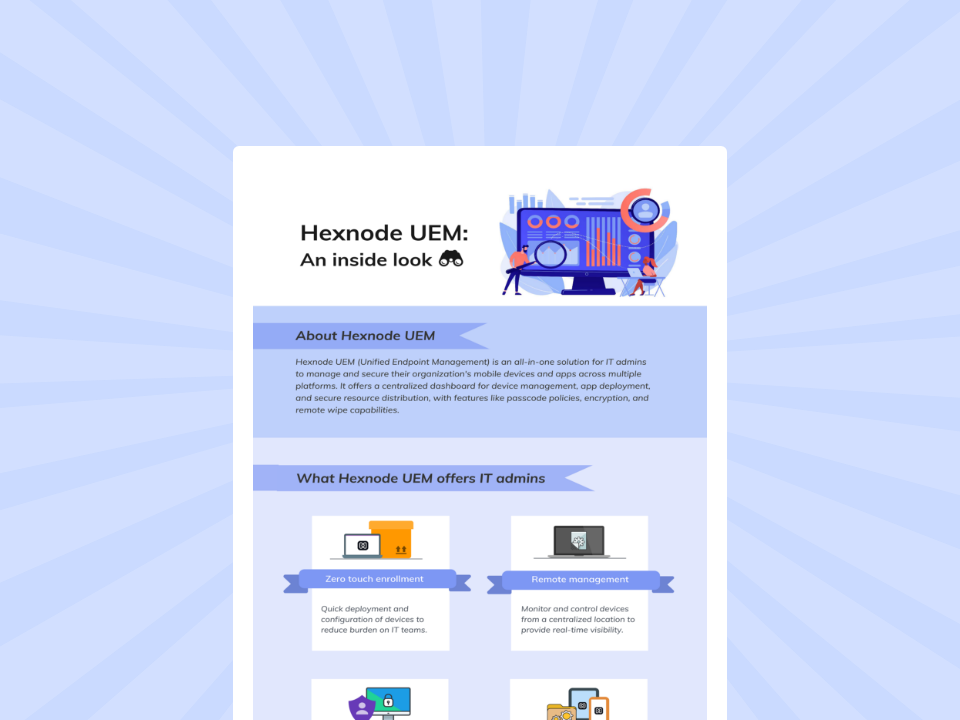
Hexnode UEM: An inside look
Explore how Hexnode UEM simplifies device management, security, app deployment, and cross-platform administration.
How do App Catalogs and App Groups work together in Hexnode UEM?
In Hexnode UEM, App Groups organize application sets, while App Catalogs make supported individual applications and app groups available through the device’s Hexnode app. For Windows catalogs, add enterprise EXE and MSIX applications individually; Hexnode documents that these applications do not appear in the catalog interface when added through App Groups. Administrators can therefore reuse a departmental collection within a catalog instead of selecting every application individually.
Required Apps provides the separate policy mechanism for deploying required application sets. Creating an app group alone does not make its applications mandatory. Administrators must associate the collection with the appropriate policy and targets, keeping application membership separate from installation requirements and audience selection.
Create App Groups for reusable departmental application sets
To create a departmental collection, navigate to Apps > App groups > Add group. Enter a descriptive name, such as “Sales Essentials: Windows,” and explain its purpose in the description. Select applications through + Add more, confirm the selection, and click Save group. Administrators can subsequently add or remove applications as departmental requirements change.
To deploy the collection as required applications:
Click Configure, then +Add, and select the app group.
Use Policy Targets to associate the policy with the intended audience, then save.
Installation behavior depends on the platform and application type. On Windows, the next scheduled device scan identifies missing required applications, marks the device as non-compliant, and reinitiates installation. This enforcement comes from the Required Apps policy, rather than from app group membership alone.
Publish App Catalogs containing individual apps and App Groups
Navigate to Apps > App catalogs > + New and give the catalog a descriptive name. Use Apps > +Add Apps for individual applications and App Groups > +Add App Groups for existing collections, then select Save Catalog. For example, a sales catalog could combine a departmental app group with optional individual productivity tools.
To assign it, open a policy and select the relevant platform’s App Management > App Catalog settings. Click Configure > +Add Catalogs, choose the catalog, and use Policy Targets to select recipients. This workflow supports Android, iOS, macOS, and Windows through their respective policy sections.
Publishing a catalog does not force immediate installation. Users select applications through the device’s Hexnode app. Ordinary store-app entries redirect them to the native app store to complete installation. Enterprise applications use a user-initiated installation path through the catalog, with subsequent interaction depending on the platform. Verify both paths during the pilot, particularly where account requirements or user prompts could interrupt installation.
Validate Windows catalog installations with Success Criteria
For enterprise MSIX and EXE applications in Windows App Catalogs, Installation Settings > Success Criteria lets administrators select an installation validation check:
App exists: Checks the configured application identifiers.
Path exists: Checks the configured installation path.
Registry exists: Checks the configured registry path.
Select criteria established in the app inventory. Administrators cannot create new baseline criteria directly within catalog settings; configure those parameters in the application’s inventory entry.
Validation starts after the user initiates installation. Inspect the result in the device’s Action History to distinguish catalog availability from installation success. Add this check to the pilot checklist for these Windows package types, then separately confirm that employees can launch the application and access its required service with their assigned user accounts.
FAQs
Can an App Group in Hexnode UEM automatically install applications?
No. Creating an App Group organizes applications into a reusable collection but does not automatically install them. Administrators must add the group to a Required Apps policy and assign it to the appropriate devices or users to enforce installation.
What is the difference between App Catalogs and Required Apps in Hexnode UEM?
App Catalogs provide employees with approved applications they can choose to install through the Hexnode app. Required Apps policies designate mandatory applications for targeted devices, with installation behavior depending on the platform and application type.
Can administrators add the same App Group to multiple App Catalogs?
Hexnode UEM allows administrators to select existing App Groups when creating App Catalogs. This supports reusing departmental application collections across catalog configurations without rebuilding the application selection each time.
Ready to structure app distribution in Hexnode UEM?
Pilot one departmental App Group, publish optional tools through an App Catalog, and assign essential applications through Required Apps. Choose a representative device set and evaluate catalog access alongside required-installation outcomes.
Check whether employees can find, install, and use the applications intended for their roles. Use those results to refine collection membership, audience targeting, and installation requirements before expanding deployment across additional departments.
Simplify App Distribution With Hexnode
Organize applications, streamline deployment, and manage app availability across enterprise devices with Hexnode UEM.
Content writer at Hexnode. Fueled by good coffee and the occasional cat cuddle, I enjoy crafting content that informs, connects, and resonates. Nothing excites me more than knowing my words have been read, appreciated, and maybe even bookmarked.