Why Do Bidirectional Sharing Controls Break BYOD and COPE Workflows on iOS?
Blocking both sharing directions can interrupt personal-to-work imports; iOS lets administrators configure each direction independently. When IT administrators enforce symmetrical iOS managed document sharing restrictions, they prevent corporate data leaks but simultaneously block employees from importing necessary personal files into enterprise apps.
For Endpoint Admins, locking down both directions creates immediate operational friction across hybrid device fleets. Employees routinely capture field photos in the native Camera app, save travel receipts to Apple Files, or download signed PDFs locally before uploading them to managed expense, CRM, or ERP platforms. Blanket lockdown policies sever both directions at once, trapping legitimate local files outside the corporate container.
Relying on symmetrical access rules forces IT teams into an untenable trade-off:
Unrestricted sharing leaves sensitive corporate repositories exposed to unmanaged consumer messaging apps and personal cloud storage.
Blanket restrictions break routine daily workflows, generating recurring helpdesk tickets and forcing admins to issue risky, manual policy exceptions.
What Happens When iOS Document Boundaries Are Either Too Open or Completely Locked?
Misconfigured iOS managed document sharing boundaries expose organizations to two opposing business risks: silent corporate data exfiltration when controls are too permissive, and widespread shadow IT when restrictions are overly rigid. Getting the directional balance wrong turns endpoint security into either a compliance liability or an operational bottleneck.
When outbound sharing from managed apps remains unrestricted, sensitive attachments can move seamlessly from corporate email or CRM tools into personal cloud drives, consumer messaging apps, or unmonitored generative AI platforms. Once corporate data leaves the managed container, IT loses direct administrative control over it. Where regulations like GDPR apply, unauthorized disclosure of personal data can create security and breach-notification obligations depending on the circumstances and risk.
Conversely, locking down inbound file transfers creates steep operational drag:
Shadow IT proliferation: Overly restrictive inbound blocks create an operational risk where employees may look for unapproved workarounds—such as emailing files to personal accounts or using consumer transfer tools—if an approved import workflow is not available.
Eroded endpoint visibility: Visibility into document transfers depends on the audit capabilities of the applications and services handling the data, making transfers through unmanaged apps harder to track.
Administrative overhead: IT teams waste hours troubleshooting broken workflows and provisioning one-off policy exceptions.
Featured Resource
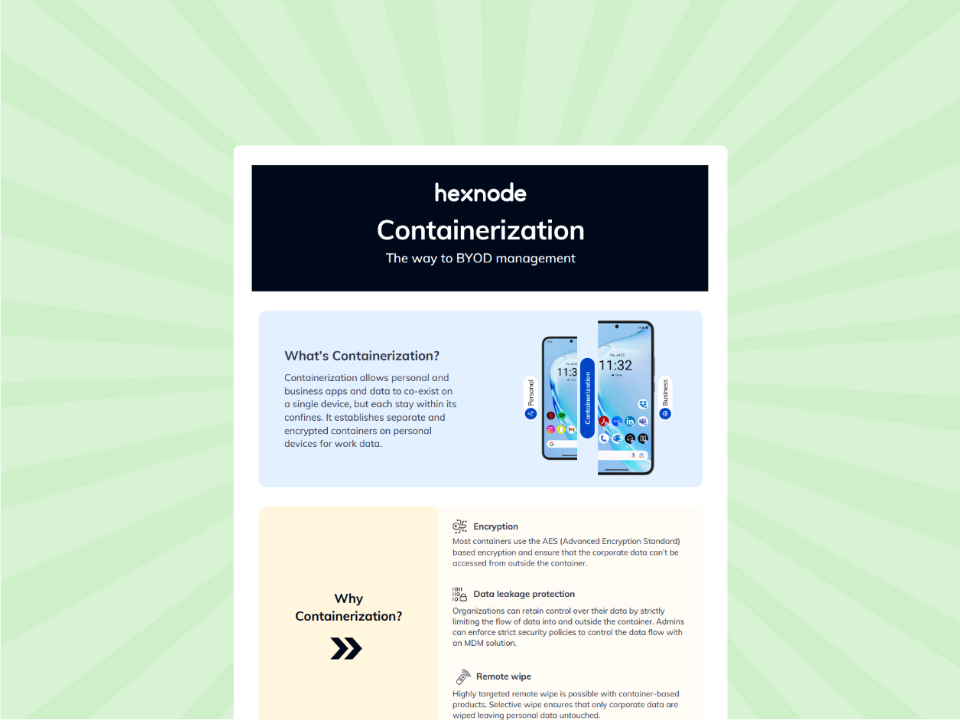
Containerization: Smarter BYOD Management for Enterprises
Explore how OS-level containerization isolates corporate apps and enforces DLP on BYOD devices without friction.
How Does One-Way Document Sharing Work Between Managed and Unmanaged iOS Apps?
One-way iOS managed document sharing is an asymmetric data loss prevention (DLP) architecture built on Apple’s Managed Open In framework. It permits unmanaged personal files to enter managed corporate applications while strictly blocking corporate files from opening in unmanaged destinations, creating a directional security boundary without disrupting daily user workflows.
Unlike legacy containerization tools that rely on dual-persona wrappers or separate hardware partitions, iOS and iPadOS enforce this boundary natively at the operating system level. The OS tracks data provenance by tagging the origin of every file across three distinct entry points: managed apps deployed via MDM, managed accounts (such as corporate email profiles), and managed web domains.
When a user initiates a file transfer, iOS evaluates the document’s origin metadata against active MDM restriction payloads, dynamically enforcing directional boundaries between corporate sources and user-installed App Store applications.
Apple Managed Open In: Everything You Need to Know
Understand how Apple's Managed Open In restricts cross-app document sharing on BYOD and COPE iOS devices.
Which iOS Configuration Keys Control Directional Data Flow?
Directional file movement on managed Apple endpoints hinges on two primary iOS restriction keys deployed within the MDM payload. To design an asymmetric one-way boundary, administrators must configure these keys precisely:
allowOpenFromManagedToUnmanaged (Set to false): This enforces outbound DLP by strictly prohibiting documents from managed sources (such as a corporate mail client) from opening in unmanaged personal destinations (like consumer Dropbox).
allowOpenFromUnmanagedToManaged (Set to true): This preserves inbound productivity by allowing users to push personal files (such as local photos or PDFs) into managed corporate apps.
Once this one-way policy is active, the iOS Share Sheet (the “Open In” menu) adapts dynamically. If a user attempts to share a file from a managed application, the operating system filters the Share Sheet on the fly, rendering unmanaged personal apps invisible. Conversely, when users share from personal storage locations—such as the Photos app or a personal folder in Apple Files—corporate destinations remain accessible for inbound uploads.
How Do You Configure One-Way Document Sharing on iOS Devices?
To configure one-way iOS managed document sharing, complete three sequential steps in your UEM console:
Classify corporate sources as managed apps, accounts, and web domains.
Enforce asymmetric sharing keys to block outbound leaks while allowing inbound imports.
Lock down side channels including the clipboard, AirDrop, and contacts.
Before deployment, account for enrollment architecture differences. Supervised Device Enrollment grants full administrative control over app conversion and restriction payloads, whereas BYOD User Enrollment isolates corporate data in a separate cryptographic volume with stricter privacy limits on personal apps. Always validate these policies on a pilot device group before broad production rollout.
Step 1: Classify Corporate Apps, Accounts, and Web Domains as Managed Sources
iOS directional sharing rules govern supported transfers across the managed–unmanaged boundary in both directions. To enforce that boundary accurately, administrators must explicitly tag three corporate entry points:
Managed Applications: Deploy Apps and Books–licensed apps or uploaded enterprise .ipa apps through Hexnode, or use Manage App to convert eligible user-installed apps on supervised devices.
Managed Accounts: Provision corporate Exchange or IMAP email accounts via MDM configuration profiles rather than manual user setup.
Managed Web Domains: Configure corporate domains using the Domains payload; in Hexnode, use Policies > iOS > Security > Managed Domain so matching Safari downloads are treated as managed documents.
Step 2: Restrict Outbound Sharing While Permitting Inbound Document Imports
Within your UEM device restrictions profile, apply the asymmetric data-flow rule: disable Allow Open From Managed to Unmanaged while keeping Allow Open From Unmanaged to Managed explicitly enabled. Pushing this payload enforces one-way iOS managed document sharing across all tagged corporate apps, accounts, and domains.
Before broad deployment, verify the directional boundaries on a test device:
Inbound test: Files can expose both personal and managed storage locations, so open a local receipt from a personal location in Apple Files, tap Share, and confirm your managed expense app appears and accepts the upload.
Outbound test: Open a corporate PDF inside managed email or storage, tap Share, and verify that personal messaging and consumer cloud apps are absent from the Share Sheet.
Step 3: Lock Down Secondary Exfiltration Channels (Clipboard, AirDrop, and Contacts)
Restricting Managed Open In alone leaves critical side-channel gaps that allow users to bypass file boundaries. To enforce complete iOS managed document sharing containment, harden these three adjacent leak vectors:
Clipboard (Managed Pasteboard): Enable requireManagedPasteboard (iOS 15+) so copy-and-paste actions follow your exact Managed Open In rules, blocking text copied from corporate apps from pasting into personal destinations.
AirDrop: Enable forceAirDropUnmanaged to classify AirDrop as an unmanaged destination, preventing users from wirelessly beaming managed files to nearby personal devices.
Contacts: Restrict unmanaged apps from accessing managed corporate contact accounts to prevent directory scraping and metadata exposure.
How Does Hexnode UEM Enforce One-Way Document Sharing on iOS?
Hexnode Business Container centralizes Apple’s Managed Open In and DLP controls into a single granular policy, allowing admins to enforce one-way iOS managed document sharing without manual .mobileconfig XML scripting.
Navigate to Policies > iOS > Hexnode Business Container > Business Container to configure directional rules. Uncheck Open documents from managed apps in unmanaged apps to block outbound leaks while keeping Open documents from unmanaged apps in managed apps enabled for seamless inbound uploads.
To seal adjacent leak vectors, configure these companion Hexnode controls:
Side-channel locks: Enable Manage Copy/Paste between managed/unmanaged apps and Block Sharing Managed Document using AirDrop within the same Business Container policy.
Source tagging: Tag corporate URLs via Managed Domain (Policies > iOS > Security > Managed Domain) and convert user-installed apps on supervised devices into managed apps using the Manage App action.
Open Policy Targets, select the pilot devices or user groups, and click Save. Run the inbound and outbound tests on those devices before expanding the assignment.
FAQs
How does one-way document sharing affect the iOS Share Sheet?
The operating system dynamically filters the iOS Share Sheet to hide unmanaged personal applications when users attempt to share files from corporate apps, while keeping managed destinations visible for inbound personal uploads.
Does iOS managed document sharing automatically block copy and paste between apps?
No, IT administrators must explicitly enable the Managed Pasteboard restriction alongside document sharing rules to ensure that text copied from a managed corporate app cannot be pasted into an unmanaged personal destination.
Can you apply one-way document sharing rules only to specific enterprise apps?
No, these restrictions apply globally across the managed–unmanaged boundary on targeted devices; they do not define separate sharing rules for individual managed apps.
Ready to Enforce Granular iOS App Containerization Without Slowing Down Users?
Asymmetric iOS managed document sharing gives IT Directors and Endpoint Admins zero-trust data protection across BYOD and COPE iPhones and iPads without disrupting everyday employee workflows. Corporate repositories stay isolated from unmanaged apps, while legitimate inbound uploads remain frictionless.
See how Hexnode Business Container simplifies directional DLP in your environment. Start a 14-day free trial of Hexnode UEM or schedule a personalized demo to test granular iOS containerization policies firsthand.
Enforce Granular iOS App Containerization with Hexnode UEM
Configure directional Managed Open In, clipboard, and AirDrop controls from a single console—free for 14 days.
Associate Product Marketer at Hexnode focused on SaaS content marketing. I craft blogs that translate complex device management concepts into content rooted in real IT workflows and product realities.