Why Are Unmanaged Apple OS Updates Disrupting Your Business?
IT administrators constantly battle a fundamental conflict: ensuring immediate security patching without destroying user productivity. Without centralized management, update behavior depends on the device’s automatic-update settings and user choices. This lack of centralized control creates a chaotic and unpredictable environment for enterprise endpoint management.
Allowing users to dictate their own update schedules often results in unexpected midday reboots and significant device downtime. When multiple employees randomly trigger heavy OS downloads during peak working hours, it quickly leads to severe bandwidth congestion. This localized network strain disrupts broader corporate operations and degrades the performance of critical cloud-based applications.
Furthermore, this hands-off approach generates constant friction between departments. End-users naturally prioritize their immediate workflows and will perpetually delay essential updates to avoid interruptions. Meanwhile, IT and security teams are tasked with urgently pushing for zero-day vulnerability closures to maintain network integrity. This misalignment leaves endpoints exposed for extended periods, turning routine patch management into a daily operational bottleneck. Establishing strict Apple DDM update preferences is essential to resolve this conflict, bridging the gap between mandatory security baselines and seamless employee workflows.
What Are the Risks of Ignoring Apple Endpoint Patch Management?
The most critical risk of ignoring Apple endpoint patch management is exposing the organization to severe security breaches stemming from unpatched vulnerabilities, specifically zero-day exploits. When IT teams neglect endpoint updates, attackers easily weaponize outdated firmware to bypass network defenses. Defining strict Apple DDM update preferences closes these security gaps before threat actors actively target them in the wild.
Beyond cyber threats, failing to maintain updated OS baselines triggers serious compliance ramifications. SOC 2 examinations evaluate controls relevant to the applicable Trust Services Criteria. Allowing devices to run obsolete operating systems directly violates these requirements, exposing the business to failed audits and heavy financial fines.
Additionally, relying on manual enforcement creates massive operational inefficiencies. The cascading impacts on IT workflows include:
Wasted IT Hours: Administrators are forced into a reactive cycle, continuously wasting time manually chasing down non-compliant endpoints to enforce updates.
Increased Troubleshooting: Support teams waste significant effort diagnosing devices running outdated, unsupported firmware that inevitably breaks compatibility with modern enterprise applications.
Operational Difficulties: The lack of automation turns patch management into a daily liability.
Without an automated deployment strategy, OS updates remain a constant drain on enterprise IT resources rather than a routine security measure.
Apple DDM Update Preferences: What Is the Difference Between Download and Install?
Apple Declarative Device Management (DDM) allows IT administrators to dictate autonomous, precise update states on devices. Unlike legacy protocols that rely heavily on constant server polling, DDM empowers the endpoint to proactively enforce policies locally. Establishing these exact Apple DDM update preferences is critical for securing hardware fleets without disrupting end-user workflows.
To master these configurations, administrators must clearly distinguish between the two primary phases of the deployment lifecycle: securing the payload and executing the update.
Automatic Download: This configuration forces the device to fetch the update payload silently in the background. By pre-staging the OS files on the local drive asynchronously, administrators successfully save network bandwidth during peak hours. This prevents the severe network congestion that occurs when hundreds of devices attempt simultaneous gigabyte-level retrievals.
Automatic Install: This setting triggers the actual application of the payload and the subsequent device reboot. Downloading can occur in the background, while OS installation may require a restart and interrupt device use. Precisely controlling this setting ensures that critical security baselines are met without causing unexpected downtime during business hours.
When designing these deployment workflows, IT teams must account for strict architectural rules. The most critical dependency dictates that Automatic Install requires administrators to explicitly enable Automatic Download first. An endpoint cannot execute an autonomous software installation if its configuration restricts it from fetching the prerequisite files. Individual controls have platform and enrollment requirements; the automatic-download control is unavailable on tvOS.
Finally, administrators must recognize that standard configurations do not govern every piece of Apple software. Excluded or separate update types intentionally bypass standard settings to serve specialized functions:
Beta Updates: Beta controls govern enrollment; configure beta enrollment as disabled where production devices must not participate.
Rapid Security Responses (RSR): Apple issues RSRs to deliver urgent, lightweight security patches between standard, full-version OS releases. Because they address immediate vulnerabilities, these responses operate outside normal download and install queues, ensuring zero-day threats are mitigated instantly.
Feature Resource
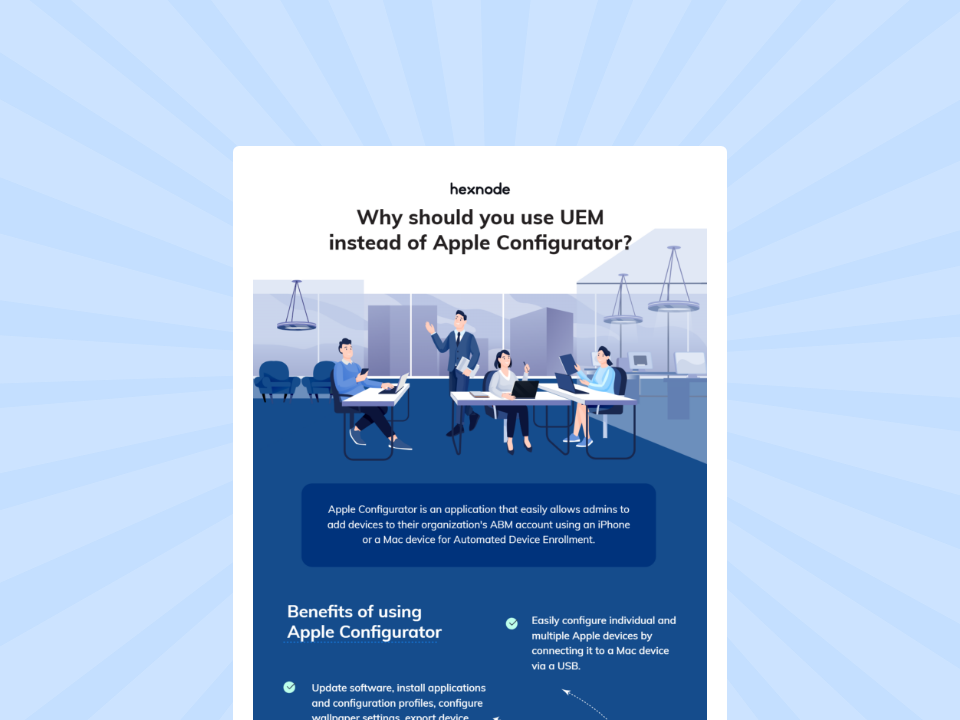
Why should you use UEM instead of Apple Configurator?
Download the infographic to know why a UEM is better than Apple Configurator.
How to Configure Apple Automatic Update and Installation Settings
Configuring Apple DDM update preferences effectively requires a phased, vendor-neutral strategy that balances mandatory security compliance with continuous user productivity. By deliberately decoupling the background download phase from the disruptive installation phase, IT administrators can build an OS deployment pipeline that definitively minimizes user friction.
To achieve this balance, organizations should implement the following step-by-step configuration strategy to govern their endpoints:
Enforce “Always On” for Automatic Downloads: The foundation of a seamless update process relies on having the operating system files staged locally. Administrators should universally enforce the “Always On” state for automatic downloads. This configuration commands the endpoint to fetch large OS payloads silently in the background. Securing the payload asynchronously ensures the files are fully staged and ready for execution, eliminating bandwidth bottlenecks and delays during the actual deployment window.
Set Minor Installations to “User Can Configure”: Set Minor Installations to “User Can Configure”: For routine, non-critical version increments, end-user flexibility actively prevents helpdesk tickets. Setting the installation policies to “User Can Configure” for minor updates lets users choose whether automatic installation is enabled. It does not define an exact restart time.
Establish Automated Maintenance Windows: While user delegation is highly effective for minor patches, end-users cannot indefinitely postpone critical security baselines. Organizations must establish strict, dedicated maintenance windows for autonomous execution. By scheduling mandatory installations during predictable off-hours, IT ensures the system applies pre-downloaded payloads system-wide without impacting the daily operational rhythm.
Utilize Granular Deferral Strategies: Deploying day-one software releases across a production fleet introduces a high risk of application incompatibility and system crashes. Administrators must heavily utilize deferral strategies to temporarily quarantine new software releases. By intentionally delaying major OS upgrades (e.g., deferring a new macOS release for 30 to 90 days), IT departments secure the critical operational runway needed to rigorously test enterprise compatibility before widespread deployment. Simultaneously, we must configure this architecture to bypass deferrals for urgent threat mitigation, allowing critical security patches to deploy instantly to neutralize zero-day vulnerabilities.
Automate Apple Updates with Hexnode’s DDM Software Update Policies
To operationalize Apple DDM update preferences at an enterprise scale, organizations require a Unified Endpoint Management (UEM) solution capable of translating complex declarative logic into automated workflows. Hexnode directly addresses this requirement through its dedicated Configure DDM Software Updates policy. This specialized configuration allows IT administrators to remotely enforce both “Automatic patch download” and “Automatic patch installation” across a diverse hardware fleet, fully supporting iOS, macOS, tvOS, and visionOS environments.
Beyond basic deployment, Hexnode equips administrators with advanced Patch Deferral Settings to safeguard corporate productivity. IT teams can strategically delay major upgrades, minor patches, or non-OS software updates for a period of 1 to 90 days to ensure robust compatibility testing before widespread rollout. This guaranteed deferral window enables security personnel to validate mission-critical enterprise applications against new firmware before pushing it to production endpoints.
Furthermore, Hexnode provides granular controls specifically designed for Apple’s specialized deployment mechanisms. Administrators can seamlessly govern Rapid Security Responses and manage access to Beta Updates directly from the centralized console. By consolidating these disparate update channels, IT can autonomously secure devices against zero-day threats instantly without sacrificing centralized endpoint management.
Apple Device Management Platform: Unified Management for the Hybrid Fleet
Standalone Apple management is obsolete. Unify your macOS fleet in one console to cut costs and simplify IT.
FAQs
Can I automate the OS download but let users choose when to install the update?
Yes, Apple DDM allows IT administrators to completely separate the download and installation phases. You can configure devices to automatically fetch the update payload silently in the background. The actual installation can then be deferred or configured for user initiation, preventing disruptive midday reboots.
Does forcing Apple OS updates impact corporate network bandwidth?
Forcing simultaneous OS downloads across an entire unmanaged fleet will quickly lead to severe bandwidth congestion. However, establishing strict DDM update preferences solves this by caching payloads asynchronously. This allows IT to stage the heavy OS files locally on the device without straining cloud-based applications during peak hours.
Will out-of-date Apple endpoints cause us to fail compliance audits like SOC 2?
Yes, failing to maintain updated operating system baselines directly violates the continuous vulnerability management requirements mandated by frameworks like SOC 2 and HIPAA. Allowing devices to run obsolete firmware exposes the network to zero-day exploits and results in failed security audits. Enforcing automated patch management guarantees verified, compliant endpoint security states.
Leaving Apple endpoint security up to end-users is a vulnerability your enterprise cannot afford. IT Directors and Endpoint Admins must stop manually chasing non-compliant devices. Instead, it is time to proactively automate patch management. Enforcing strict Apple DDM update preferences lets you seamlessly deploy zero-day patches. You can secure your entire hardware fleet without bottlenecking daily enterprise productivity.
Take Control of Apple Updates
Deploy strict Apple DDM update preferences to close security gaps and eliminate IT inefficiencies.
I’m a technical content writer at Hexnode who loves simplifying tech. I break down complex ideas, remove the fluff, and help readers clearly understand our product for what it actually is: simple, reliable, and built to solve real problems.