How can IT admins manage devices without physical access?
IT teams must support and secure devices across offices, remote workplaces, and field locations, often without physical access. Hexnode admin remote actions let administrators perform specific management tasks through an endpoint management console, reducing dependence on on-site support.
An unresponsive laptop can interrupt an employee’s work. A missing corporate phone requires prompt attention, while a departing employee’s device needs offboarding. Handling these situations through on-site visits or user-led troubleshooting requires coordination with employees, local staff, and support technicians, which can delay resolution.
Remote actions provide commands for tasks such as refreshing device information, restarting endpoints, and restricting access. Understanding what each action does, when it applies, and which execution requirements it carries helps administrators incorporate these capabilities into their daily endpoint support workflows.
How do delays in device management affect business operations?
Delays in device management can extend downtime, interrupt employee work, and leave security tasks incomplete. An unresolved laptop issue can prevent an employee from completing tasks. A missing corporate phone needs prompt protection, while delayed offboarding can leave managed work content on a former employee’s device.
How do these delays increase IT workload?
Repeated follow-ups with users and on-site technicians add coordination work to each support request. Technicians spend time arranging access, repeating instructions, and checking progress. Remote actions can reduce some of this effort, but connectivity problems, hardware faults, and platform limitations can still require local assistance.
Top UEM remote actions for frontline workforce management
Explore essential UEM remote actions for managing frontline workforce devices.
What are Admin Remote Actions?
Admin remote actions are commands that authorized administrators send through an endpoint management platform to request information or perform specific tasks on managed devices.
The platform provides defined actions, while device support and management configuration determine which commands administrators can use. Their purposes include:
Visibility: Refresh device and application information.
Troubleshooting: Restart devices or address application issues.
What do common Remote Actions do, and when are they useful?
Remote actions let administrators perform specific tasks without handling the device directly. The table below explains common actions and their uses. Availability and behavior depend on the operating system, enrollment mode, and management platform.
Remote action
What it does
When to use it
Device scan
Requests updated information, such as battery level, storage, and installed apps.
Refresh inventory or check device details before troubleshooting.
Restart
Reboots the operating system without intentionally removing stored apps or files.
Complete an update that requires a reboot or investigate a temporary system issue.
App installation
Sends an installation request for a selected application.
Provide a work application that an employee needs.
App removal
Uninstalls a supported application within the platform’s management scope.
Remove an obsolete or unnecessary work app.
App-data clearing
Removes an app’s local data and settings while keeping the app installed.
Restore an app’s initial local state when troubleshooting.
Remote lock
Locks the device or user session.
Restrict access when a device leaves the user’s possession.
Lost mode
Restricts device use and may offer recovery messages or location capabilities.
Help protect and recover a missing device.
Wipe
Erases data within the scope of the command and enrollment mode.
Carry out authorized data removal during loss response, retirement, or reassignment.
A restart does not factory-reset a device, although it can discard unsaved work. Clearing app data does not uninstall the app, but it can remove local settings, sessions, and unsynced content. Before a wipe, confirm whether the command affects the entire device or only its managed work profile.
How do Remote Actions differ from policies and Remote Control?
Remote actions perform specific tasks, policies establish ongoing settings, and remote control supports interactive troubleshooting.
For example:
A restart command reboots a device.
A password policy sets requirements that the device must enforce.
A remote-control session lets a technician interact with the device to investigate a problem.
These capabilities complement one another. A policy maintains the required configuration, while a scan refreshes the device information available to IT. If an employee still reports an issue, an interactive session lets the technician examine what happens on the screen and investigate further.
What determines whether a Remote Action can run?
A remote action needs device support, sufficient permissions, and a working communication path.
Check:
OS version: The device must support the command.
Enrollment and supervision: The management mode must permit the operation.
Permissions: The administrator and management agent need the required access.
Connectivity: The device must communicate with the management service.
Commands that require this communication must wait until an offline device can receive them. Queue behavior varies by platform.
Sending a command does not confirm completion. Action statuses, such as pending, successful, or failed, help administrators track execution and identify requests that need attention.
What should IT teams evaluate in Remote Action capabilities?
Evaluate platform coverage, administrative permissions, bulk execution, and reporting against your fleet’s requirements. Check how each capability works on the devices and enrollment types you actually manage.
Coverage across your device fleet
Confirm support for essential actions, such as scans, restarts, locking, and data removal, across your operating systems.
Check OS versions, enrollment requirements, and required permissions.
Confirm whether actions require user interaction.
For personal devices, verify the scope of corporate-content removal.
Control over administrative access
Check whether permissions match each technician’s responsibilities.
Restrict sensitive commands, such as wipe, to authorized staff.
Limit technicians to their assigned devices or departments.
Verify that records identify who initiated each action.
Bulk execution and scheduling
Assess whether the platform supports your maintenance workload.
Confirm how admins select and review target devices.
Check scheduling options for recurring tasks.
Review individual results within bulk requests and how the platform handles offline devices.
Action status and reporting
Look for execution status, timestamps, and useful error details. Technicians should be able to identify pending or failed requests and investigate them without checking every endpoint manually.
During evaluation, run a supported action on a test device and compare the reported status with the actual result.
Featured resource
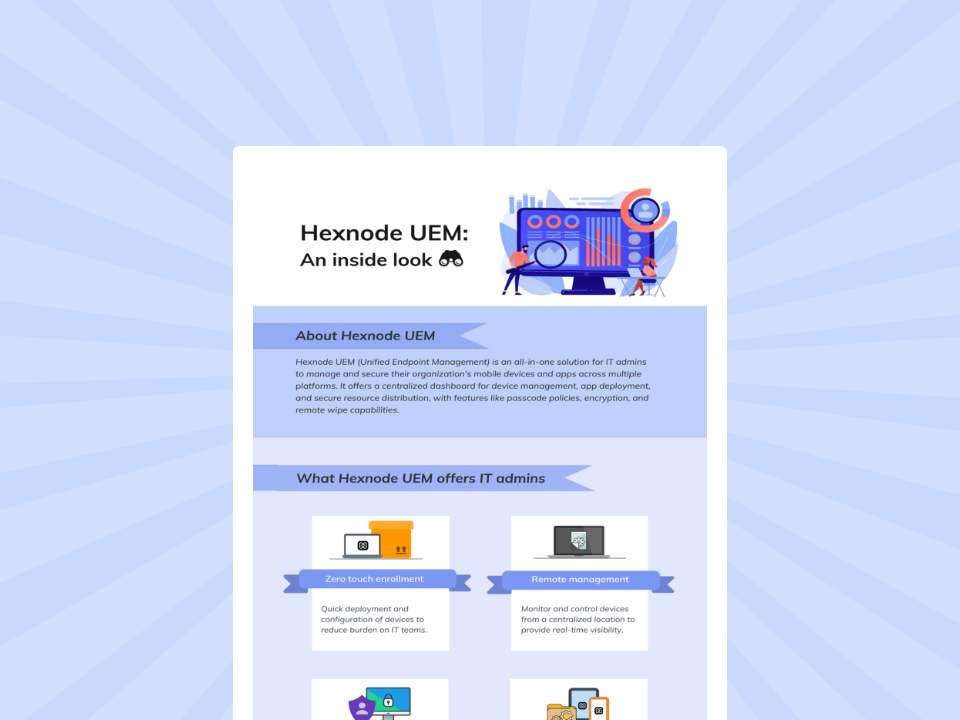
Hexnode UEM: An inside look
Explore how Hexnode UEM helps IT admins manage apps, enforce policies and secure corporate devices.
What can Admins do with Hexnode Admin Remote actions?
Hexnode admin remote actions help IT teams monitor devices, troubleshoot issues, restrict access, and manage offboarding. Commands such as Scan Device, Restart Device, Clear App Data, Lock Device, and Wipe Device address specific operational tasks. Available actions depend on the operating system, enrollment mode, and device configuration, so administrators should check support for their endpoints.
Which Hexnode actions support monitoring and troubleshooting?
Hexnode provides commands to refresh device information, reboot supported endpoints, and reset application data.
Scan Device
Refresh information such as battery levels, storage, and installed applications before investigating an issue. For recurring inventory updates, configure Scheduled device scan under Admin > General Settings, with daily or weekly scan settings.
Restart Device
Reboot endpoints to troubleshoot temporary issues or complete updates requiring a restart. Supported devices include supervised iOS 10.3+ devices and Android Enterprise Device Owner devices running Android 7.0+. Other platform requirements vary. Notify users beforehand: the command provides no prompt to save work, so they may lose unsaved changes.
Clear App Data
Remove an application’s stored data and configurations while keeping the app installed. Hexnode supports this action on eligible Samsung Knox and Android Enterprise devices; Android Enterprise requires Android 9.0 or later. Check for unsynced data before execution, as users may need to sign in and configure the app again.
Which Hexnode actions support device security and offboarding?
Hexnode supports access restrictions for missing devices and data-removal workflows for loss response, offboarding, and retirement.
Lock Device and Enable Lost Mode
Lock Device locks supported endpoints to restrict access. Enable Lost Mode provides a dedicated missing-device workflow, with recovery and location capabilities that vary by platform. On iOS, Lost Mode requires a supervised device running iOS 9.3 or later.
Wipe Device
Use this command when an authorized workflow requires data erasure. Confirm its scope for the device’s platform and enrollment. For example, on Android Enterprise devices with Profile Owner enrollment, the action removes work-profile apps and data rather than erasing the entire device.
Disenroll Device and Corporate Data Wipe
Corporate Data Wipe removes managed content during offboarding. App removal depends on settings such as Remove apps from the device on policy removal or Remove on disenroll. Complete remote tasks before Disenroll Device ends Hexnode management. Files outside management scope may remain.
How does Hexnode help admins track Remote Actions?
Action History shows execution statuses, including Pending, In progress, Success, and Failed, alongside initiation and completion times. Administrators can use these details to identify unfinished commands and investigate failures.
For broader reviews, Hexnode’s audit reports include Scan Actions, Device Control Actions, and Security Actions. These records help teams review administrative activity and investigate unexpected device changes.
Pair the reported status with an operational check: confirm that inventory refreshed, the device reconnected, or the intended restriction took effect.
Why is a remote action available on some devices but missing on others?
Action availability depends on the device’s operating system, enrollment mode, supervision, and management configuration. Compare these details with the command’s documented requirements and check administrator permissions.
Should I resend a remote action if it stays pending?
Check device connectivity, recent communication, and action details before resending the command. A pending request may still await delivery, so submitting it again can create duplicate requests.
Does a successful remote action mean the device issue is fixed?
A successful status confirms the reported command outcome, but it does not necessarily confirm that the underlying problem has disappeared. Verify the result directly, such as checking whether the application works after a restart.
Bring remote actions into your endpoint support workflow
Remote actions help IT teams monitor devices, troubleshoot issues, and carry out security tasks without physical access for every operation. Explore Hexnode admin remote actions to see which commands support your device platforms, enrollment types, and management requirements, from routine inventory checks to offboarding.
Request a Hexnode demo to see these actions in your endpoint workflows.
Run remote actions with Hexnode.
Start your 14-day free trial to explore Hexnode remote actions.
A storyteller for practical people. Breaks down complicated topics into steps, trade-offs, and clear next actions—without the buzzword fog. Known to replace fluff with facts, sharpen the message, and keep things readable—politely.