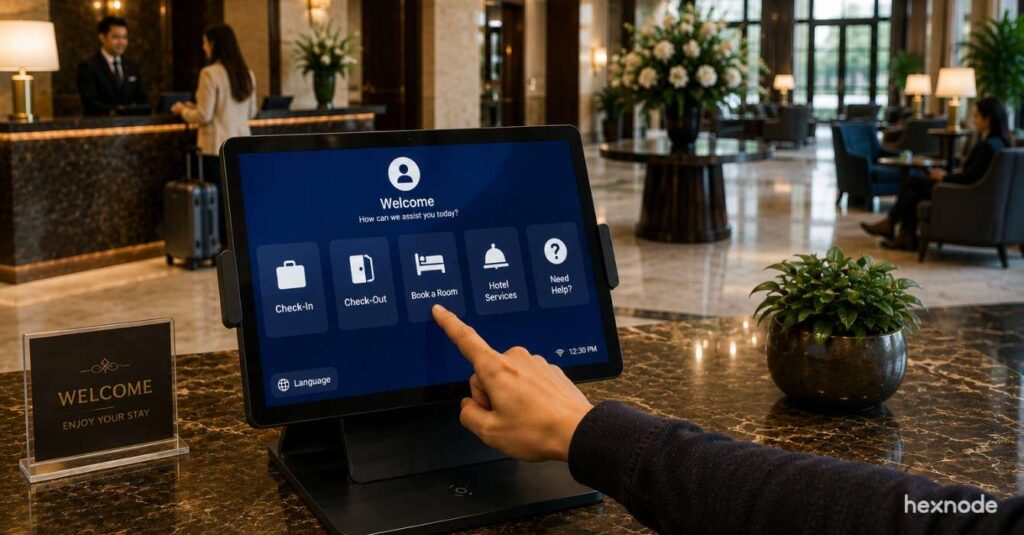
Organizations deploy ChromeOS kiosk mode to convert ChromeOS devices into purpose-built systems that support focused tasks such as customer self-service, digital signage, or visitor check-ins. Instead of providing access to the full operating system, kiosk devices run only the applications required for the intended workflow.
However, these devices often operate in environments where users should not access system settings, install applications, or browse the internet freely. Without proper configuration, shared devices can expose organizational systems to device misuse or unauthorized access.
A secure ChromeOS kiosk deployment restricts application access, controls browsing behavior, and enforces device-level security policies. This ChromeOS kiosk security guide explains how organizations can lock down ChromeOS devices, manage kiosk applications, and maintain secure deployments across multiple locations.
Before deploying kiosk devices, administrators must understand how ChromeOS kiosk mode transforms standard ChromeOS devices into controlled endpoints. The kiosk environment restricts device access and limits user interaction to approved applications.
On ChromeOS devices, the kiosk launcher automatically starts predefined applications and restricts users from accessing the broader operating system interface.
Common kiosk deployments include:
Retail self-service terminals
Healthcare registration kiosks
Digital signage displays
Public information stations
School examinations environments
How ChromeOS kiosk mode restricts device access
The core function of ChromeOS kiosk mode is to remove unnecessary system access and create a controlled interface for users. This ensures the device performs only the intended function.
Preventing the installation of additional software
Restricting user navigation outside the kiosk interface
These restrictions convert the device from a general-purpose computer into a dedicated operational endpoint.
Types of ChromeOS kiosk deployments
Organizations deploy kiosk environments using different models depending on the device’s role and operational requirements. Each model controls how users interact with applications on the device.
The two most common deployment approaches include single-application kiosks and multi-application environments that allow access to a limited set of approved ChromeOS kiosk applications.
Deployment Type
Description
Typical Use Case
Single-App Kiosk
The device runs one application automatically at startup
Digital signage, ticket kiosks
Multi-App Kiosk
The device allows access to several approved applications
Kiosk devices typically operate in environments where many different users interact with the same device throughout the day. These conditions create security risks that require strict policy enforcement and device restrictions.
Organizations must implement structured controls to ensure kiosk devices cannot be misused or altered by unauthorized users.
Common security risks in ChromeOS kiosk environments
Shared kiosk deployments introduce several operational risks that administrators must address through device management policies and security controls.
Common risks include:
Unauthorized application usage
Attempts to exit kiosk environments
Access to device configuration settings
Exposure of user session data
Unrestricted browsing activity
Without proper restrictions, kiosk devices can become entry points for unauthorized system access.
How to lock down devices using ChromeOS kiosk mode on Hexnode UEM
Organizations configure ChromeOS kiosk mode through device management policies that control application access, device behavior, and session management. Proper configuration ensures users interact only with approved workflows.
Administrators typically configure kiosk environments using centralized management platforms such as Hexnode UEM, which allow teams to apply consistent kiosk policies, deploy applications, and manage ChromeOS devices across multiple locations from a single console.
Step 1: Create a kiosk lockdown policy in Hexnode
The first step in securing ChromeOS devices is creating a kiosk policy that defines how the device operates. This policy controls applications, device behavior, and security restrictions.
To configure a kiosk policy:
Log in to the Hexnode UEM portal
Navigate to Policies
Select New Policy
Open Kiosk Lockdown → ChromeOS Kiosk Lockdown
This configuration area allows administrators to define the kiosk environment for ChromeOS devices.
Step 2: Choose the kiosk deployment mode
After creating the policy, administrators must determine how the device will function in the kiosk environment. The deployment model affects how users interact with applications.
Two options are available:
Single-app kiosk mode
Multi-app kiosk mode
Single-app environments restrict the device to one application, while multi-app environments allow several approved applications within a controlled interface.
Step 3: Add ChromeOS kiosk applications
Once the kiosk deployment model is selected, administrators must define which applications will run on the device. Only approved ChromeOS kiosk applications should be added to the kiosk environment.
Applications can be added by:
Selecting Add Application in the kiosk configuration panel
Entering the application ID or configuration details
Selecting apps sourced from the Chrome Web Store or managed web applications
Restricting application access ensures the device runs only trusted software required for the intended workflow.
Step 4: Configure kiosk application settings
After selecting the applications, administrators should configure additional settings that control device behavior and how the kiosk environment operates during daily usage.
Common configuration settings include:
Automatic application launch at startup
Power management configuration
Virtual keyboard availability
Plugin settings for kiosk applications
Function key configuration
These settings ensure consistent device behavior across kiosk deployments.
Administrators can further strengthen kiosk environments by enabling device monitoring and operational controls that improve visibility into device behavior.
In ChromeOS kiosk deployments, administrators manage web access using URL allowlisting or blocklisting policies, ensuring devices can access only approved websites.
Additional kiosk configuration options include:
Device health monitoring
Notifications when the device powers off
Alert settings for administrators
System log collection for troubleshooting
These monitoring capabilities help administrators quickly detect operational issues.
Step 6: Assign the kiosk policy to organizational units
Once the kiosk configuration is complete, administrators must assign the policy to the devices that should operate in kiosk mode. ChromeOS policies are typically applied through organizational units.
Devices within the selected OU automatically receive the configured kiosk policy and begin operating in the defined kiosk environment.
Featured resource
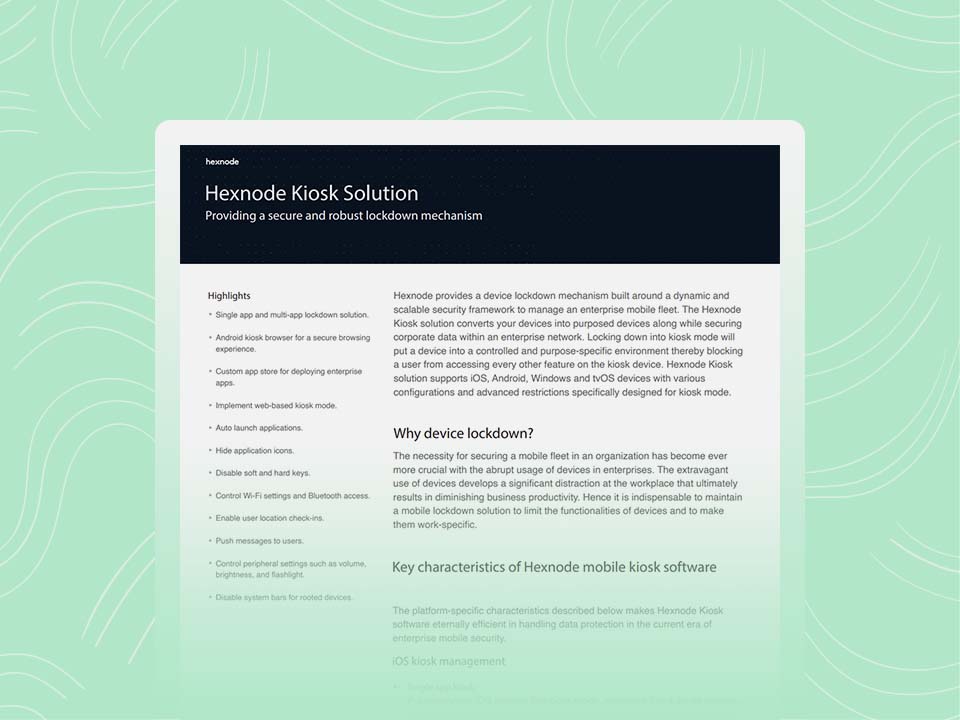
Hexnode Kiosk Solution
Streamline kiosk deployment with Hexnode, enabling secure, purpose-built environments and centralized device management across enterprise fleets
Device security controls for ChromeOS kiosk deployments
Enabling kiosk mode restricts application access, but administrators must also configure the available kiosk settings to ensure devices operate securely and consistently. ChromeOS kiosk deployments rely on controlled application access, device behavior settings, and monitoring features to maintain stability in shared environments.
Administrators typically configure these controls within the kiosk policy to ensure devices launch the correct applications, maintain a controlled interface, and remain operational across multiple deployments.
Security Controls
Purpose
Kiosk Application Configuration
Restricts the device to approved kiosk applications
Auto-Launch Application
Automatically launches the kiosk app when the device starts
Kiosk App Settings
Configures how the kiosk application behaves during operation
Device Monitoring
Tracks device health and operational status
Centralized Policy Deployment
Applies kiosk policies across multiple devices through organizational units
These configuration controls ensure that ChromeOS devices run only the required applications and operate consistently across kiosk environments.
Configuring kiosk application behavior
Administrators define how kiosk applications behave by configuring settings within the kiosk policy. These settings determine how the application launches and how users interact with the device.
Available configuration options include:
Auto-launch applications, which start automatically when the device boots
Plugin configuration for kiosk applications that require additional functionality
Function key configuration to control keyboard behavior within the kiosk environment
Virtual keyboard support, allowing interaction on devices without physical keyboards
These settings help maintain a controlled application environment while ensuring the device remains usable for the intended workflow.
Monitoring kiosk device health
Operational visibility is important for kiosk deployments, especially when devices operate across multiple locations. Administrators can configure monitoring settings that provide insight into device behavior and help detect potential issues.
Monitoring capabilities include:
Device status alerts when the kiosk device powers off
Notification options for administrators
System log collection, which helps troubleshoot application or device issues
These monitoring features allow administrators to track kiosk device health and respond quickly to operational problems.
Maintaining consistent kiosk configurations
Large kiosk deployments often include many devices distributed across different locations. Applying consistent policies ensures every device follows the same configuration and operational rules.
ChromeOS kiosk policies are typically deployed through organizational units, allowing administrators to assign the kiosk configuration to multiple devices at once.
This centralized approach helps ensure that kiosk applications, settings, and monitoring configurations remain consistent across the entire deployment.
Protecting user sessions on shared kiosk devices
Kiosk devices are often used by many individuals throughout the day. Proper configuration ensures that each interaction remains isolated within the kiosk application and does not expose previous activity.
By restricting the device to kiosk applications and automatically launching the application at startup, administrators ensure users interact only with the designated workflow. This approach helps maintain a controlled and predictable user experience across shared devices.
Managing ChromeOS kiosk devices at scale
As kiosk deployments expand across multiple locations, administrators must manage hundreds or thousands of devices efficiently. Centralized management platforms simplify policy enforcement and operational monitoring.
Manual device configuration becomes difficult to maintain in large deployments, making centralized device management essential.
Centralized kiosk policy enforcement
Centralized management platforms allow administrators to apply consistent kiosk configurations across all devices in the organization.
Key benefits include:
Remote kiosk policy deployment
Application configuration management
Automated policy updates
Consistent security enforcement
Platforms such as Hexnode UEM for ChromeOS device management allow administrators to manage kiosk policies from a single console.
These monitoring capabilities help ensure kiosk services remain available.
ChromeOS kiosk security best practices
Organizations should follow structured operational practices to maintain stable and secure kiosk environments. These practices reduce configuration errors and ensure devices remain compliant with security policies.
Recommended practices include:
Deploy single-app kiosks for public-facing devices
Single-app kiosk deployments are ideal for public environments where users interact with a device for a specific purpose. Running only one application reduces complexity and prevents users from navigating outside the intended workflow.
Restrict applications to trusted Chrome kiosk applications
Administrators should allow only approved ChromeOS kiosk applications in kiosk policies. Limiting applications ensures the device runs only trusted software that supports the kiosk workflow and prevents unauthorized applications from being launched.
Configure controlled browsing environments when using web apps
When kiosk deployments rely on web applications, administrators should configure browser behavior to ensure users access only the intended service or portal. Restricting navigation helps maintain a consistent kiosk experience.
Use consistent kiosk policies across devices
Applying standardized kiosk policies helps maintain consistent behavior across all devices in the deployment. Centralized policy management ensures every device launches the correct applications and follows the same configuration settings.
Enable automatic application launch at device startup
Auto-launching the kiosk application ensures the device immediately enters the kiosk environment when powered on. This prevents users from interacting with the operating system interface before the kiosk application loads.
Monitor kiosk device status regularly
Administrators should monitor kiosk device status to detect operational issues quickly. Device alerts and system logs help identify application failures, connectivity problems, or unexpected device shutdowns.
Use centralized device management for large deployments
Centralized device management simplifies kiosk administration across multiple locations. Administrators can configure kiosk policies, deploy applications, and monitor device health from a single management platform.
Conclusion
ChromeOS devices provide a flexible platform for deploying secure kiosk environments across many industries. However, successful deployments require more than simply enabling kiosk mode.
Organizations must combine application restrictions, device security controls, browser management, and centralized policy enforcement to maintain secure deployments.
By implementing structured policies and properly configuring ChromeOS kiosk mode, administrators can deploy reliable kiosk devices that remain secure, scalable, and easy to manage.
Simplify ChromeOS kiosk security with Hexnode UEM
Start your free trial and simplify ChromeOS kiosk device management.
A storyteller for practical people. Breaks down complicated topics into steps, trade-offs, and clear next actions—without the buzzword fog. Known to replace fluff with facts, sharpen the message, and keep things readable—politely.