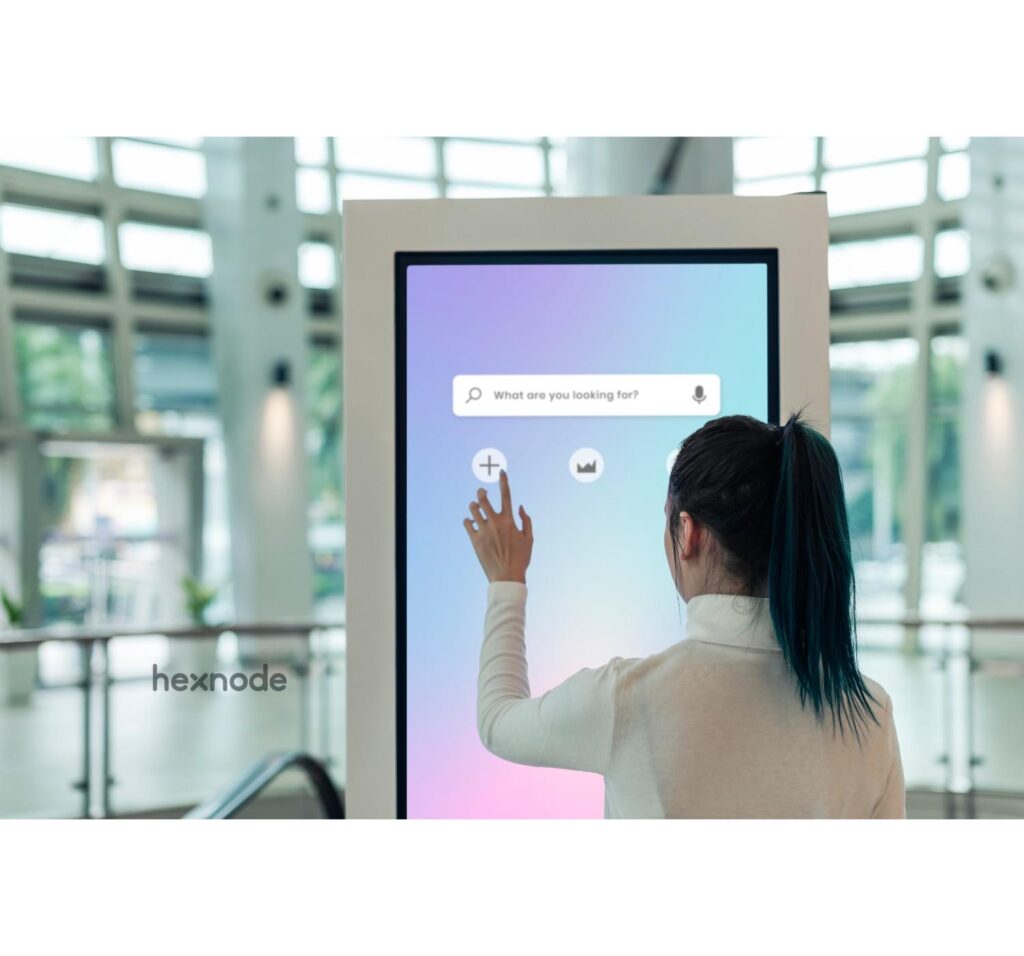
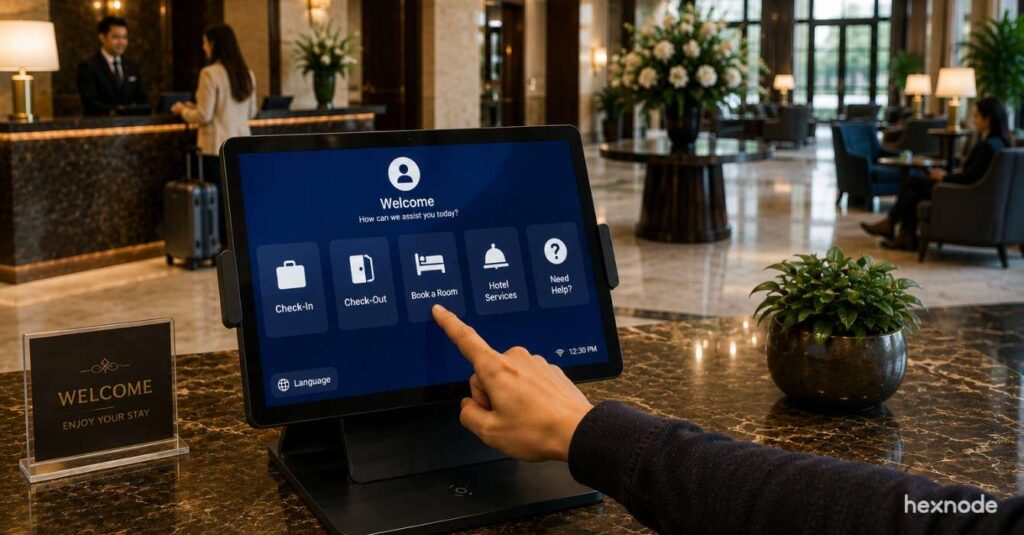
Ever walked into a store and seen a tablet dedicated to product lookup or a screen at a train station showing only departure times? That, my friend, is the magic of kiosk mode.
In a nutshell, Chrome OS Kiosk Mode is a specialized, locked-down mode that transforms a Chromebook into a single-purpose device. Instead of being a full-fledged laptop you can use for browsing, emailing, and gaming (all at once!), it becomes a dedicated tool running just one application or website. It’s like putting your Chromebook on a strict, one-app-at-a-time diet, but for its own good. This mode bypasses the standard login screen and automatically launches a specific app in full screen, preventing users from accessing anything else on the device.
Master Chrome OS kiosk with Hexnode
The “Why” Behind the Lockdown
So, why would you want to lock down a perfectly good Chromebook? It all comes down to security, focus, and efficiency.
- Security: Kiosk mode prevents users from tampering with device settings, installing unwanted apps, or accessing sensitive company data. For unattended devices in public spaces, this is a non-negotiable security measure. You don’t want someone using your digital signage to accidentally check their personal email or browse social media, do you?
- Focus: By limiting the device to a single application, you ensure the user’s experience is streamlined and distraction-free. This is perfect for self-service check-ins, educational testing, or displaying a digital catalog.
- Efficiency: Kiosk devices are purpose-built. They boot up and immediately launch the required application, which saves time and reduces the need for user training. It’s the ultimate “do one thing and do it well” approach to computing.
Did You Know? – The name “Chromebook” is a registered trademark of Google. While Chrome OS runs on laptops, tablets, and even desktop computers, only devices that meet Google’s strict hardware and security standards can be officially branded as a Chromebook, Chromebox, or Chromebase. This ensures a consistent and high-quality user experience across all Chrome OS devices.
Common Use Cases for Kiosk Mode
The applications for Chrome OS Kiosk Mode are everywhere you look.
- Retail: Use Chromebooks as interactive product catalogs, point-of-sale (POS) systems, or customer feedback stations.
- Education: Lock down devices for standardized testing, ensuring students can’t access other applications or the internet during exams.
- Hospitality: Create self-service check-in kiosks for hotels or order-taking stations in restaurants.
- Healthcare: Use kiosks for patient check-in or to provide access to medical information in waiting rooms.
- Corporate: Deploy digital signage in lobbies, conference room booking displays, or employee information terminals.
Kiosk mode for frontline worker devices
Choosing the Right Hardware: It’s Not Just Laptops
When people hear “Chrome OS,” they usually think of laptops. But for a business kiosk strategy, you have more robust options. Choosing the right form factor is crucial for your deployment’s success.
- Chromebox: These are compact, screen-less desktop counterparts (mini PCs). They are the industry standard for digital signage because they can be easily mounted behind any large-format display or TV, keeping the hardware hidden while powering 4K visuals.
- Chromebase: An all-in-one device where the computer is built directly into the touchscreen monitor. These are perfect for self-service kiosks, check-in counters, and POS systems because they are sturdy, cable-free, and inviting to touch.
- Chromebook: Best for temporary setups or mobile workforces, such as feedback stations at events or educational testing where the device needs to be stored away later.
Chrome OS Kiosk Mode vs. Other Kiosk Modes
While many operating systems offer a form of kiosk mode, Chrome OS has some distinct advantages, primarily due to its lightweight nature and cloud-based management. Unlike a full-blown desktop OS like Windows or macOS, Chrome OS is built for simplicity and security from the ground up. Its managed ecosystem, especially when paired with a powerful solution, makes deployment and management a breeze.
Here is how Chrome OS stacks up against the competition:
| Feature |
Chrome OS Kiosk |
Windows Kiosk |
iPad (iOS) Kiosk |
| Setup Difficulty |
Easy (Cloud-based) |
Hard (Complex imaging) |
Medium (Apple Business Manager) |
| Security |
High (Sandboxed OS) |
Medium (Target for malware) |
High (Locked ecosystem) |
| Maintenance |
Minimal (Auto-updates) |
High (Frequent patching) |
Low (OS updates) |
| Best Use Case |
Signage & Web Apps |
Legacy & Powerful Apps |
Premium Touch Interfaces |
Hexnode: Kiosk Management Made Easy (and Awesome!)
Managing a few kiosks might be easy, but what about a fleet of 50, 100, or even 1000 devices? That’s where a Unified Endpoint Management (UEM) solution like Hexnode comes in. It takes the built-in functionality of Chrome OS and supercharges it with enterprise-grade features. With Hexnode, you can:
- Remotely Configure and Deploy: Set up kiosk mode on a large number of devices from a single, centralized dashboard. No need to manually configure each Chromebook—it’s all done over the air.
- Single-App Kiosk Mode: Lock devices down to a single kiosk-supported application. This app can be sourced from the Chrome Web Store or added as a web app through Hexnode’s app inventory.
- Multi-App Kiosk Mode: Need more flexibility? Hexnode allows you to restrict devices to a selected group of kiosk-supported applications. This can include apps from the Chrome Web Store as well as web apps uploaded to the Hexnode app inventory. This ensures a controlled environment while still offering users a limited set of tools.
Hexnode Extends Support for ChromeOS Kiosk Lockdown and Windows Digital Signage
Hexnode expands Kiosk Management to include ChromeOS lockdown and Windows digital signage.
- Granular Control: Beyond just locking down a single app, you can configure settings like automatic app launch, power management, screen rotation, and even control external plugins.
- Troubleshoot Remotely: Monitor the health of your kiosks, access system logs for diagnostics, and get real-time alerts if an app crashes. This means you can fix problems before they become big headaches, all without leaving your desk.
- Secure Your Kiosks: With features like URL whitelisting and blacklisting, you can ensure that users can only access approved websites within your kiosk mode, adding another layer of security and control.
How does Kiosk mode work?
Setting Up Chrome OS Kiosk Mode: A Quick Overview
While you can set up kiosk mode manually through the Google Admin Console, using a UEM solution like Hexnode makes the process far more efficient for businesses. Here’s a look at how it works:
- Enroll Your Device: First, your Chromebook needs to be enrolled in your organization’s Google Admin Console.
- Add Your Apps: From the Hexnode portal, you can upload web apps directly to the app inventory or select kiosk-supported apps from the Chrome Web Store. This is your central hub for all kiosk applications.
- Create a Kiosk Policy: Navigate to Policies in the Hexnode dashboard. Here, you’ll create a new policy and specify which apps will run in kiosk mode—whether it’s a single app or a selection of them for a multi-app kiosk.
- Configure Additional Settings: Within the same policy, you can fine-tune the kiosk experience. Set an app to auto-launch on startup, control power management settings, or manage screen rotation.
- Target and Deploy: Once your policy is configured, simply associate it with the devices or groups you want to lock down. Hexnode will then push the policy to your Chromebooks over the air.
And just like that, the next time the Chromebook starts, it will bypass the standard login screen and launch directly into your designated kiosk application(s). It’s a seamless, secure, and scalable way to manage your devices.
Troubleshooting Your Kiosks: When Things Go Wrong
Even the best systems have hiccups. Here is how to handle common Chrome OS kiosk issues without panic.
- The “Reboot Loop”: If your kiosk app keeps crashing and restarting, it’s usually because the app is trying to update or cannot reach a specific URL. Check your network whitelists to ensure the app can “phone home.”
- Remote View: Need to see what the user sees? In the Hexnode dashboard, you can request a Remote View session to see the screen in real-time. This is a lifesaver for diagnosing error messages on devices located miles away.
- System Logs: If an app behaves strangely, you don’t need to physically inspect the device. You can request remote system logs through your UEM console to analyze crash reports and network activity.
Ready to take your Chromebooks from multi-purpose devices to single-purpose powerhouses? Start your journey with the robust kiosk management features that Hexnode provides.
People Also Ask: Chrome OS Kiosk Mode FAQs
Here are the answers to the most common questions people ask about locking down Chromebooks.
Q- How do I enable Kiosk Mode on Chrome OS?
A- To enable Kiosk Mode for business or education, you typically need to enroll the device in the Google Admin Console. Once enrolled, you can configure Kiosk settings under Devices > Chrome > Apps & extensions > Kiosks. For easier deployment across many devices, using a UEM like Hexnode is recommended to push these configurations remotely.
Q- Can you use Chromebook Kiosk Mode without a license?
A- For managed Kiosk Mode (the kind used by businesses for security), you generally need a Chrome Enterprise Upgrade or a Kiosk & Signage Upgrade license. While you can manually run some kiosk apps on personal devices as a developer, secure, scalable deployment requires a license and a management console.
Q- How do I exit Kiosk Mode on a Chromebook?
A- Since Kiosk Mode is designed to be difficult to leave, there is no “close” button. To exit, you typically need to reboot the device. If the device is managed by an organization, it will simply reload the Kiosk app upon reboot unless the policy is changed by the administrator in the management portal.
Q- What is the difference between single-app and multi-app kiosk mode?
A- Single-app mode launches one specific application automatically on startup, ideal for digital signage. Multi-app mode allows the user to access a limited set of approved apps from a custom start screen, which is better for shared workstations or libraries.
Think of it this way: Chrome OS gives you the car, and Hexnode provides the GPS, a mechanic on call, and a dashboard full of controls to make sure it runs smoothly, safely, and exactly where you want it to go.
Effortless Chrome OS Kiosk Management via Hexnode
Turn Chromebooks into dedicated kiosks. Hexnode UEM makes Chrome OS Kiosk Mode setup secure and simple.
Sign Up Now