Windows local account management helps IT teams control account access, maintain consistent privileges, and simplify employee offboarding across managed devices.
Manual account administration can delay provisioning, increase inconsistent permissions, and leave unnecessary accounts after employee offboarding.
Hexnode UEM lets admins synchronize local accounts, create users, change roles and passwords, unlock or disable accounts, and delete users remotely.
The Local Accounts tab and consolidated reporting help IT teams review account details and manage account access from one console.
Windows local account management is the process of creating, configuring, securing, and removing user accounts stored directly on individual Windows devices.
On shared workstations and kiosk-style devices, manual account administration can create inconsistent privileges and leave orphaned accounts after employee offboarding. With Windows unified endpoint management (UEM), IT admins can manage local accounts remotely across multiple devices instead of configuring each device individually.
A local account is defined on an individual Windows device, which acts as its security authority. A domain account normally authenticates against an organizational directory service and may have permissions to access local and domain resources.
Windows can allow offline sign-in when a domain controller is unavailable. This requires valid cached domain credentials and enabled credential caching. However, users cannot access network resources that require domain validation until the domain controller becomes available.
An administrator account can perform privileged system tasks, change settings, and manage other users. In contrast, a standard account supports routine activities with fewer privileges, reducing unnecessary administrative access.
Manual account management can create recurring operational challenges:
Task
Potential operational challenge
Create account
Repeating account setup across devices can delay provisioning and increase the risk of inconsistent permissions.
Reset password
Resolving local access issues can require individual intervention, potentially disrupting users and increasing IT workload.
Delete account
Missed removals during offboarding can leave unnecessary accounts on company devices.
Centralized Windows local account management helps IT teams apply consistent account controls without relying on repeated, device-by-device administration.
What Do You Need Before Managing Local Account with Hexnode UEM?
Before managing Windows local users with Hexnode UEM, verify OS compatibility, agent software, and password policy settings. These prerequisites help prevent account-creation failures and password-related access issues.
Requirement
What to verify
Agent Software
Install the latest Hexnode UEM app on each managed device.
OS Compatibility
Use Windows 10 or Windows 11 Pro, Enterprise, or Education editions.
Password Policy
Check existing Windows password policies before configuring options such as Password never expires or User cannot change password. Conflicting settings can prevent account access.
Restricted Characters
When creating or changing passwords through Hexnode UEM, follow the applicable Windows password policy and Hexnode’s guidance to avoid special characters such as ¡, ™, £, ¢, ∞, §, ¶, •, ª, º, –, ≠, «, ‘, “, æ, …, ÷, ≥, and ≤.
Next, enroll Windows devices in Hexnode UEM before proceeding with remote local-account administration. Follow the Windows device enrollment guide to prepare your devices.
How to Manage Windows Local User Accounts Remotely with Hexnode UEM
Hexnode UEM lets IT admins manage Windows local user accounts through the Hexnode UEM console. Follow these six account-management steps using the device’s Local Accounts tab and the corresponding actions.
Sync Local Accounts: Retrieve existing account details.
Create User Account: Add a local user.
Change User Role and Change Password: Adjust privileges and credentials.
Unlock User Account: Restore access to a locked account.
Disable User or Enable User: Restrict or restore account access.
Delete User: Remove local user accounts during employee offboarding.
Step 1: Sync Local Accounts to Hexnode UEM
The Sync Local Accounts action retrieves local account information from a Windows device into Hexnode UEM. This gives IT admins a centralized view of existing accounts, their roles, and their login status.
Follow these steps:
Log in to the Hexnode UEM console.
Open Manage and select the target Windows device.
Select Actions > Sync Local Accounts.
Open the Local Accounts tab to review the synchronized accounts.
The tab lists active accounts and displays each account’s name, role, account type, and status. To review inactive or deleted accounts, select Show Inactive/Deleted Users at the bottom of the list. You can also select an account to inspect its additional details.
Step 2: Create a Local User Account
To create a local user account, open Manage > Devices in the Hexnode UEM console and select the Windows device. Open its Local Accounts tab, then select the Create User Account icon or choose Actions > Create User Account. Next, choose an existing Hexnode user or enter details for a new user.
Choose user from Hexnode: Select the domain and user from the available options. This path supports existing Hexnode users and users from integrated directory services. Hexnode automatically populates the account name and full name.
Create a new user: Enter the Account Name and Full Name manually. Use a unique account name for Windows sign-in.
Configure account settings: Enter a Description, select the account role, and set and verify the password. Configure options such as User must change password at next login, Password never expires, and User cannot change password, as required.
Create the account: Review the settings and select Create. Hexnode UEM provisions the account remotely and lists it under the device’s Local Accounts tab.
Security tip: Assign the Standard role for routine work, and reserve Administrator privileges for users who require elevated access.
Important: Password settings must align with the device’s Windows password policy. Conflicting settings can prevent users from changing passwords or accessing their accounts.
For shared workstations and kiosk-style devices, create separate accounts when employees require distinct sign-in identities.
Step 3: Modify Account Roles and Password Settings
Hexnode UEM lets admins change local account roles and reset passwords remotely through the Local Accounts tab. These controls help align privileges with job responsibilities and maintain least-privilege access.
Log in to the Hexnode UEM console and select Manage > Devices.
Select the target Windows device and open the Local Accounts tab.
Select the user account, then choose Actions > Change User Role.
Review the assigned role and choose whether to apply a temporary change. For a temporary change, select a duration of 30 minutes, 1 hour, 2 hours, 4 hours, or 12 hours.
Select Proceed, then Confirm. The role change takes effect at the user’s subsequent login.
To reset a password, select the account and choose Actions > Change Password.
Enter and verify the new password, provide a password hint, and configure the applicable password options. Select Proceed, then Confirm.
Security guidance: NIST SP 800-53 Rev. 5, control AC-6, defines least privilege as limiting user and process access to what is necessary for assigned organizational tasks. Reserve administrator access for authorized users.
Step 4: Unlock or Disable an Account
Windows can lock an account after the configured number of failed sign-in attempts when the Account lockout threshold policy specifies a positive threshold. Whether the built-in Administrator account is subject to this policy depends on the Windows version and the Allow Administrator account lockout setting.
Administrators can then unlock the account or disable it when investigating suspected misuse. Both actions run remotely through the Local Accounts tab.
To unlock an account:
Open the Hexnode UEM console, select the Windows device, and open Local Accounts tab.
Select the locked user and choose Actions > Unlock User Account.
Select Proceed, then Confirm.
To disable an account:
Open the device’s Local Accounts tab and select the target user.
Choose Actions > Disable User.
Select Proceed, then Confirm.
For example, unlock an employee’s account after repeated failed sign-in attempts. If an account appears compromised, disable it to block new sign-ins while investigating. Separately terminate existing sessions when necessary.
Step 5: Delete Local Accounts at Offboarding
To remove a local account during employee offboarding, use Delete User in the Hexnode UEM console.
Navigate to Manage > Devices and select the Windows device.
Open the Local Accounts tab and select the target user.
Choose Actions > Delete User.
Select Proceed, then Confirm.
Important: The user must be logged out before deletion.
Offboarding checklist:
Sync local accounts.
Disable the departing employee’s account.
Delete the account and verify its removal.
Step 6: Verify Results and Report
After running a remote account action, verify the result in Hexnode UEM and on the Windows device. Use this checklist:
Console: Open the device’s Local Accounts tab and review the account status.
Device: Check Settings > Accounts to confirm the account appears as expected.
Audit report: Navigate to Reports > Device Reports > Local Accounts to review account activity, synchronization dates, and session details.
Windows LAPS: Eliminating the Lateral Movement Threat
Learn how Windows LAPS uses unique, rotating local administrator passwords to reduce credential reuse risks.
Why Use Hexnode UEM for Windows Local Account Management?
Hexnode UEM brings Windows local account administration into one console, reducing the need to configure every device individually.
The Local Accounts tab gives administrators a centralized view of account details and access to account-management actions. Meanwhile, consolidated local-account reporting helps IT teams review account information across enrolled devices.
These capabilities support consistent account administration, privilege reviews, and employee offboarding across managed Windows environments.
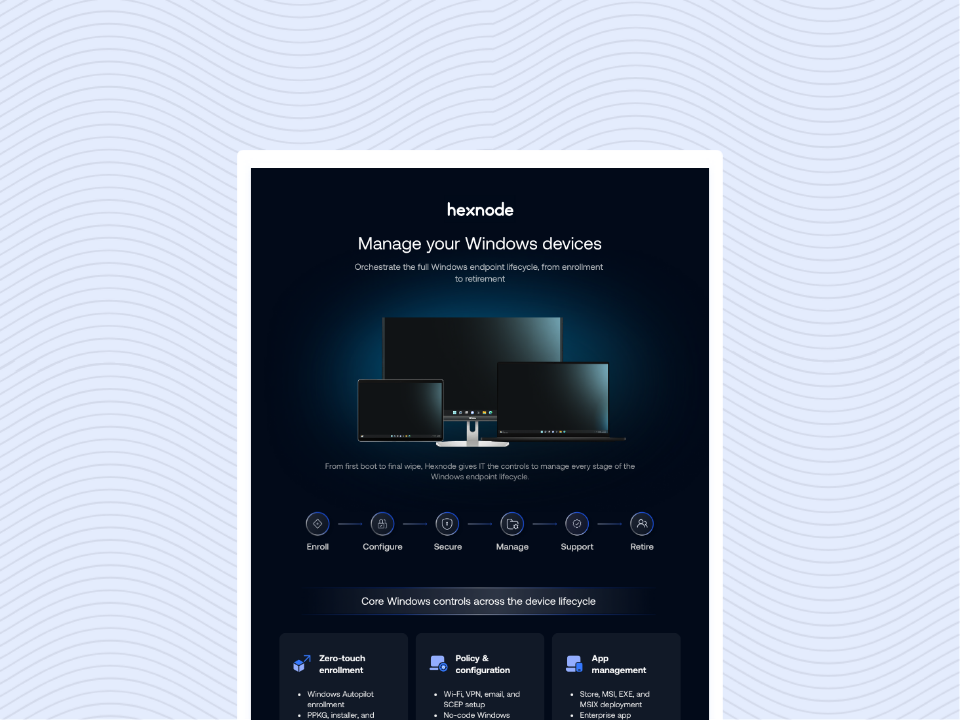
Discover how Hexnode UEM helps IT teams manage Windows devices throughout their lifecycle, including enrollment, security policies, patching, automation, and remote support.
How do you create a local user account on Windows 10 and 11 using Hexnode UEM?
In the Hexnode UEM console, open Manage > Devices, select the Windows device, and open its Local Accounts tab. Choose Create User Account, select an existing Hexnode user or enter new user details, configure the account settings, and select Create.
How do you unlock or reset a local user account remotely?
To unlock a locked account, select the user under the Local Accounts tab and choose Actions > Unlock User Account. To reset the password, select the account, choose Actions > Change Password, enter the new password, and confirm the action.
Can you delete local user accounts on multiple Windows devices during employee offboarding?
Hexnode UEM documents local account deletion through each device’s Local Accounts tab, using Actions > Delete User. No verified built-in multi-device bulk-delete action was found in the documented workflow, so admins should plan to process the relevant devices individually.
How do you secure local administrator accounts on Windows?
Grant administrator privileges only to users who need elevated access for their assigned tasks. Use standard accounts for routine work and review local account access regularly.
Conclusion: Simplify Windows Local Account Management
Effective Windows local account management helps IT teams maintain consistent access controls across shared workstations, employee devices, and kiosks. With Hexnode UEM, administrators can create accounts, adjust privileges, reset passwords, and remove accounts remotely. Combined with routine account reviews and least-privilege practices, these workflows help align local account access with employee responsibilities.
Simplify Windows Local User Management
Create accounts, manage user privileges, reset passwords, and handle offboarding remotely with Hexnode UEM.
I write at the intersection of technology, process, and people, focusing on explaining complex products with clarity. I break down tools, systems, and workflows without any noise, jargon, or the hype.