Kiosk Analytics: Tracking Usage and Performance with Hexnode
Learn how to turn raw device data into actionable insights across your entire kiosk fleet.

Get fresh insights, pro tips, and thought starters–only the best of posts for you.
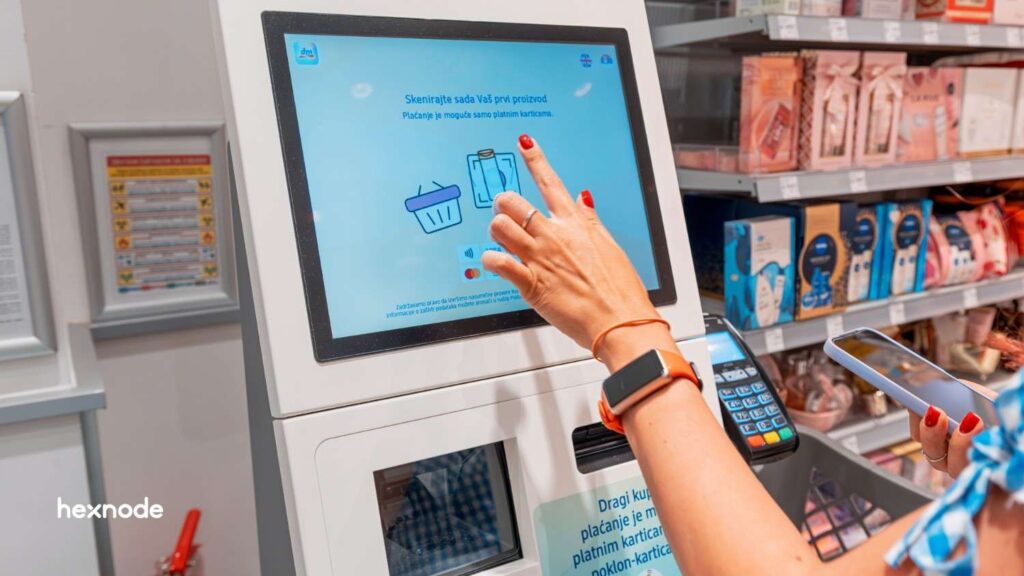
In today’s fast-paced enterprise landscape, off-the-shelf devices rarely fit the specific mold of a high-performance business terminal. Whether it’s a self-service retail station, a clinical healthcare monitor, or a rugged industrial interface, the need for custom OS kiosk management has never been higher.
Standard operating systems are designed for general-purpose use, filled with bloatware and vulnerabilities. To truly secure and streamline your operations, you need a way to transform a custom operating system into a dedicated, unshakeable kiosk.
This guide explores how Hexnode empowers IT administrators to master custom OS system deployments with precision.
Custom OS kiosk management is the process of provisioning and locking down specialized devices. It involves updating and supporting hardware that runs a custom operating system. These devices do not use a standard consumer setup. In practice, this often means an Android custom operating system or a custom ROM. It also applies to other purpose-built Android or AOSP deployments.
Standard operating systems include services (like Google Play Services or Windows News Feeds) that consume data, drain battery, and create security vulnerabilities. A custom OS system removes these distractions, but requires a UEM to:
A custom OS system gives organizations more control over the device experience. It offers more flexibility than a stock operating system. This control is vital when a device has a single purpose. Examples include self-check-in, digital signage, and warehouse scanning. It is also used for bedside registration or exam delivery.
A custom build reduces unnecessary user-facing features. It simplifies the interface and supports OEM-specific hardware workflows. This makes the device easier to standardize across a fleet. The goal is not customization for its own sake but to create a focused and predictable device. This makes the hardware much harder for users to misuse.
For custom Android environments, ROM enrollment is the strongest fit. Hexnode provides a specialized ROM-based enrollment process. This allows you to flash a custom ROM with the Hexnode UEM app pre-installed.
When installed as a system or privileged app, the device auto-enrolls the first time it powers on. Hexnode offers several key benefits for custom ROM devices:
For broader fleet rollouts, Hexnode supports standard automated deployment tools. These include Android Zero-touch, Samsung Knox Mobile Enrollment, Apple ADE, and Windows Autopilot. This support makes it easy to scale. You can combine custom Android kiosk devices with other managed endpoints in a single environment.
Hexnode supports three primary kiosk modes: single-app, multi-app, and web-app. This support extends across Android, iOS/iPadOS, Windows, and Apple TV. On Android, you can set a default kiosk app. This app auto-launches when the device enters kiosk mode or when the device stays idle.
For web-based workflows, Hexnode offers two specialized browsers:
The platform supports advanced website kiosk settings. These include:
Hexnode also supports digital signage in Android kiosk mode. This is ideal for dual-purpose devices that need to stay productive. Admins can configure a kiosk screensaver to trigger after a period of inactivity.
A kiosk is only as strong as its device restrictions. Hexnode provides Android controls for hardware buttons. This includes restrictions on power and volume keys. Some controls vary by device family, such as Samsung Knox.
Hexnode also supports a broad range of connectivity restrictions through Android policies:
Hexnode’s kiosk settings also describe peripheral controls for Android. These settings offer management over:
These controls are vital for any custom operating system deployment. The device must stay in a tightly controlled state. Accidental access to settings or radios could break the workflow. Blocking file transfer paths also prevent security breaches.
Custom kiosk fleets need more than lockdown. They also need a predictable way to install, update, and maintain apps.
Hexnode provides silent installation of enterprise apps in Android kiosk mode (on supported device types). Hexnode also allows you to update enterprise kiosk apps seamlessly. You do not need to take the device out of kiosk mode to push updates.
The platform supports several remote actions and automations for Android:
For custom ROM devices, Hexnode uses a system-app model. This model unlocks stronger silent app behavior. It is more powerful than standard enrollment methods.
Hexnode’s Remote View and Remote Control features let admins troubleshoot Android devices remotely. This is especially valuable for kiosk fleets. These are often deployed in stores, clinics, factories, and field locations. Physical presence of a technician is not required to fix issues.
Hexnode also supports geofencing. This feature dynamically associates or disassociates policies based on device location. Additionally, Hexnode supports SCEP-based certificate deployment. This is used for:
On the compliance side, Hexnode allows admins to create specific policies. Devices are marked non-compliant for several conditions:
If you are building an Android custom operating system, plan ahead. You should design the firmware and management model together.
Hexnode’s ROM enrollment model is built for specialized deployments. These include OEM-backed or custom firmware projects. In this model, the UEM agent is embedded at the system level.
For Android kiosk projects, selecting the strongest enrollment mode is critical for deep system-level control. To achieve this, you should use Device Owner or system-app/ROM-based models.
Hexnode enforces a key requirement for modern deployments: Android Enterprise kiosk activation is only available on Device Owner devices.
Unlike the limited Profile Owner mode, Device Owner status grants Hexnode the elevated privileges necessary to lock down the entire hardware interface and manage the device without user intervention.
If your kiosk is web-based, use the browser controls. Clear cookies and cache regularly. You should also clear web storage and browsing history.
Protect user privacy by clearing form data where appropriate. Finally, set the kiosk to reset. It should return to its safe home page after a period of inactivity.
A locked-down device still needs an admin-friendly exit path. Hexnode supports several methods to exit kiosk mode:
If your custom kiosk connects to internal Wi-Fi or VPN resources, do not rely only on passwords. Use SCEP (Simple Certificate Enrollment Protocol). This allows for certificate-based authentication.
Benefits of this approach include:
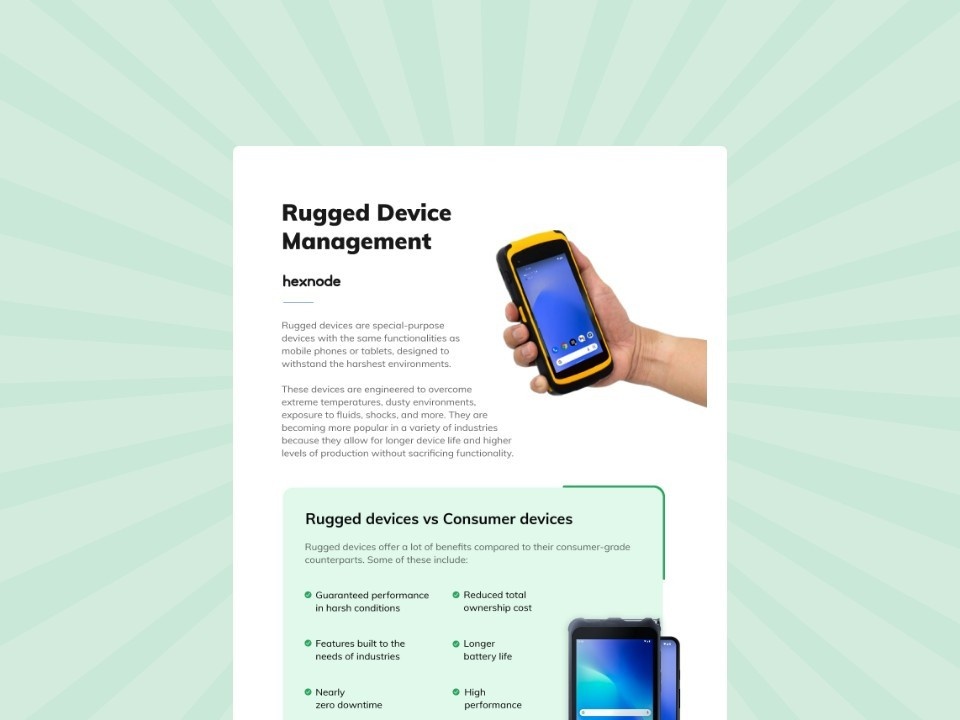
A visual breakdown of how to automate security, deployment, and lifecycle management for your enterprise rugged device fleet.
Download the infographicRetail: A custom OS system can power self-service terminals and catalog stations. It is also ideal for signage screens. You can use single-app or multi-app lockdown modes. Browser-based lockdown is also an option. Hexnode offers specialized digital signage and browser kiosk features. These tools are especially useful for managing custom OS deployments.
Healthcare: Healthcare teams often need a simplified and controlled device experience. This is especially true for patient-facing check-in or bedside workflows. Hexnode can support kiosk lockdown, remote troubleshooting, certificate-based access, and compliance-oriented controls. Note that regulatory compliance depends on the full environment. A kiosk policy alone does not guarantee HIPAA or GDPR compliance.
Logistics and rugged operations: Hexnode highlights built-in AOSP support for rugged/custom Android builds and OEM Config access to deeper hardware controls. This makes it a stronger fit for scanners, wearables, and task-focused field devices.
Education and assessment: Single-app or restricted browser kiosk configurations are a practical fit for focused testing environments, shared learning devices, and limited-access classroom terminals.
Custom OS kiosk management is not just about locking a device to one app. It is about managing the full lifecycle of a custom operating system deployment: provisioning, lockdown, app delivery, updates, support, and recovery.
Hexnode is a credible option here because it supports custom ROM enrollment, AOSP-based device management, Android kiosk lockdown, remote troubleshooting, certificate deployment, and policy-driven controls that help turn specialized hardware into stable, task-specific business devices.
Start your 14-day free trial today to secure your custom OS fleet with Hexnode.
Sign Up NowYes, Hexnode provides full management for AOSP (Android Open-Source Project) devices. It does not require Google Play Services or GMS.
To manage these devices, you install the Hexnode UEM agent as a System App. You can also use custom ROM integration. This gives administrators elevated Device Owner privileges.
Hexnode prevents kiosk escapes by disabling system-level UI and physical hardware buttons. IT admins use Peripheral Settings and Kiosk Lockdown policies to deactivate the Power, Volume, and Home buttons, as well as gestures like swipe-to-home.
Hexnode allows you to silently install and update proprietary enterprise apps in the background. This works for several file types, including APKs (Android), MSIs (Windows), and PKGs (macOS).
Unlike consumer devices that require user prompts, Hexnode uses its system privileges to push updates without any user intervention. This ensures every kiosk in your fleet stays on the same software version.
Hexnode Genie AI helps IT admins solve technical problems. It analyzes device logs from your custom OS system. The AI then generates custom scripts to fix driver or software conflicts.
Now, Hexnode added agentic AI to its platform. This allows admins to use natural language queries. For example, you can ask: “Genie, why is the barcode scanner failing on my Zebra kiosks?”
The AI provides instant insights. It can also generate PowerShell or Bash scripts. These scripts allow you to: