TL;DR:
Self-service kiosks don’t require costly hardware – a standard tablet locked down with Hexnode becomes a secure self-ordering terminal.
- Many businesses avoid kiosks over cost and setup fears, missing gains in efficiency, order accuracy, and ticket size.
- Hexnode converts iPads and Android or Windows tablets into locked-down kiosks with peripheral control and single- or multi-app modes.
- Zero-touch enrollment, remote device management, and geofencing are available in Hexnode UEM to help organizations deploy, manage, and secure devices remotely.
Are you a business owner looking to improve efficiency? Self-service kiosks are the answer. Many owners worry about costs or technical difficulty. They fear setting up modern tech. This is a misconception. It hinders business growth.
Business owners may know the advantages of kiosks. However, they might not know setup is easy. It can be done even on a tight budget.
This guide is the authoritative resource on deploying a Self-ordering kiosk for business. It is backed by Hexnode and its expertise in Unified Endpoint Management.
What Is a Self-Ordering Kiosk for Business?
A self-ordering kiosk for business is an interactive terminal for independent customer use. It lets customers browse catalogs, place orders, and pay without staff help. These kiosks reduce wait times. They also increase order accuracy significantly.
Some might think kiosks need expensive hardware. That is no longer true. A Retail self service kiosk is often just a standard tablet. It is locked down using kiosk software like Hexnode. This transforms an iPad or Android tablet into a secure business tool.
Key Benefits of Kiosk Implementation
- Reduced Overhead: Businesses lower labor costs by automating routine transactions.
- Ticket Size: Industry case studies have found that self-service kiosks can increase average ticket size by encouraging add-ons and upselling, although the impact varies by business and implementation.
- Data Accuracy: Kiosks eliminate human error when taking complex orders.
Retail Kiosk: The Complete Guide to UEM Security & Management
Secure retail kiosks with Hexnode UEM: kiosk lockdown, cross-platform support, and remote troubleshooting.
What You Need to Build a Self-Ordering Kiosk
Before the software, the shopping list. One reason owners overestimate kiosk cost is that they picture bespoke industrial machines. In practice, a modern self-ordering kiosk is assembled from a few affordable, off-the-shelf parts.
The device. A standard consumer or business-grade tablet is the core of the kiosk. An iPad or an Android tablet both work; the right choice usually comes down to the ordering app your point-of-sale provider supports and any existing hardware your business already owns. Windows devices are also an option for larger touchscreen terminals.
A mount or enclosure. A secure floor stand, counter mount, or lockable enclosure holds the tablet in place and covers the ports and buttons customers shouldn’t reach. The enclosure is the physical half of security; the software lockdown is the other half.
Payment and optional peripherals. If the kiosk takes payment, it pairs with a card reader or payment terminal supported by your POS app. Depending on the use case, businesses may also add a receipt printer, a barcode or QR scanner, or a mounting for a customer-facing display.
The management layer. This is where a Unified Endpoint Management like Hexnode replaces proprietary kiosk hardware. Instead of paying a premium for a single-purpose machine, you buy a standard tablet and a Hexnode license, and the software turns it into a locked-down, remotely managed kiosk. The cost logic is straightforward: commodity hardware plus a per-device management license generally comes in well below purpose-built kiosk terminals, and the same tablets can be repurposed later.
The 4-Step Plan to Deploy Your Self-Service Kiosk
The SEO promise of a “setup plan” is only as good as the workflow behind it. Deployments succeed or fail on preparation, not on the lockdown itself. The following four steps outline how businesses move from a stack of tablets to a working self-ordering fleet using Hexnode UEM.
Step 1: Enroll the Devices
Bring each tablet under management before touching any kiosk settings. For corporate-owned iPads, Hexnode supports over-the-air supervision through Apple Business Manager, which allows devices to configure themselves during the initial setup experience. Supervision matters here because iOS kiosk lockdown is a hardware-level restriction that is only available on supervised devices. For Android tablets, Android Zero-touch Enrollment lets compatible devices provision automatically on first boot, so hardware can ship straight to store locations without a technician.
Step 2: Install the Ordering App First
Load the point-of-sale or menu application onto the device before applying any lockdown policy. On iOS, adding an app to a kiosk policy when that app is not already installed can freeze the device in an inoperable state, forcing you to remove the profile to recover it. Deploy the app through the Hexnode portal as a store app, enterprise app, or VPP app, and confirm it launches correctly in normal mode first. This one habit prevents the most common cause of a bricked kiosk.
Step 3: Configure and Apply the Kiosk Policy
Create a kiosk policy that matches the terminal’s job. Single App mode restricts the device to one application, which suits a focused self-ordering station. Multi-App mode allows a defined set of approved apps when the kiosk needs to handle ordering plus a secondary function like loyalty sign-up. Within the policy, layer on the hardening that keeps the terminal locked: restrict hardware buttons and USB ports to block tampering, and set a kiosk exit passcode so only a manager can leave the app. Associate the policy with the target devices or a device group, and the tablets lock down over the air.
Step 4: Verify and Monitor Remotely
Confirm each device boots directly into the ordering app and cannot reach the home screen or system settings.
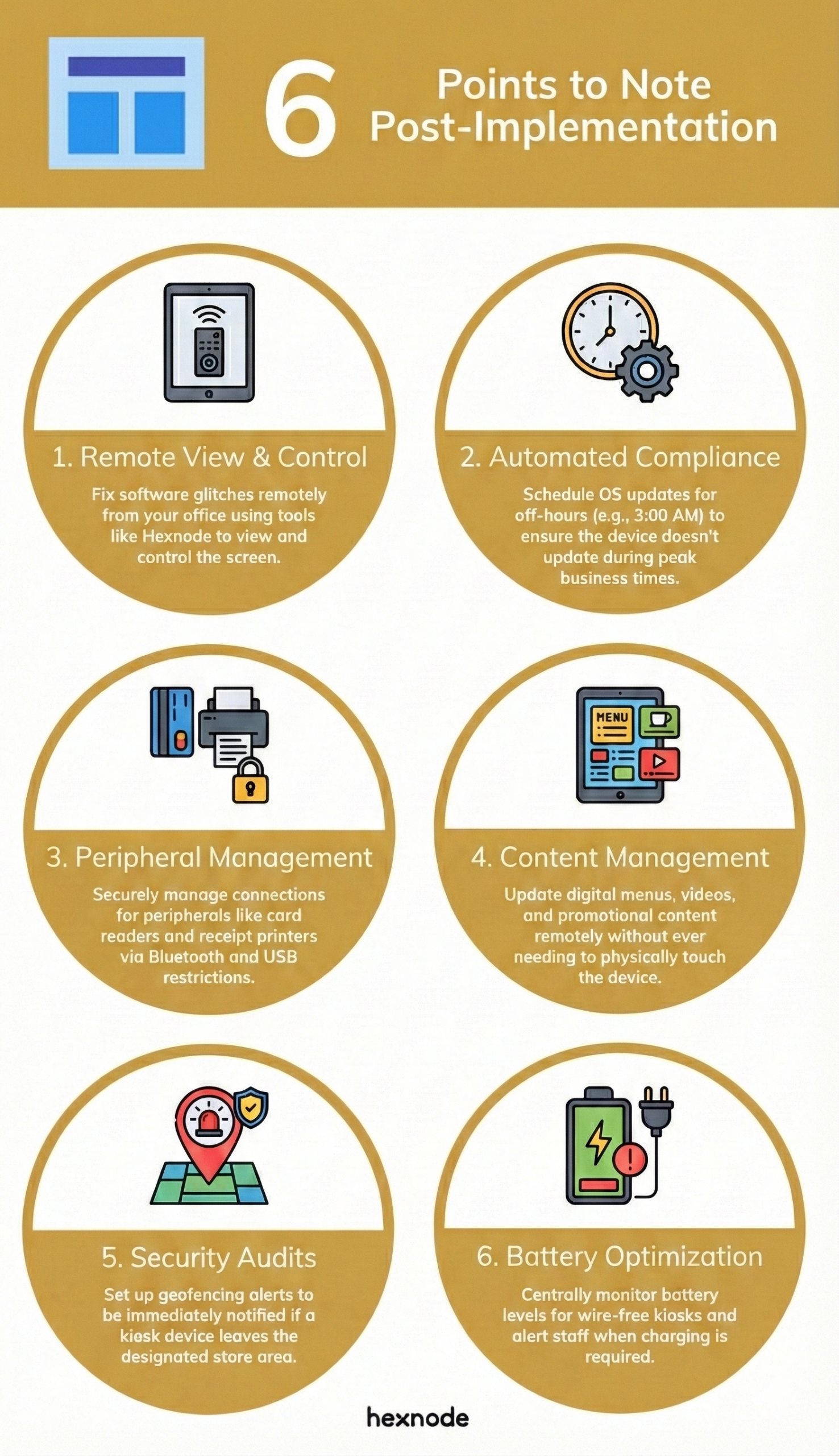
From that point, the fleet is managed from the Hexnode console. Administrators can remotely deploy managed app updates and kiosk policy changes to associated devices, run a Remote Restart on supported devices when needed, and use geofencing to monitor devices against geographic boundaries and trigger supported compliance actions.
Following this sequence, enroll, install, lock, verify, is what turns the “setup is easy” claim into a repeatable process. It scales the same way across one café or a hundred retail sites, because every step happens remotely from a single dashboard.
 Post Implementation Steps
Self-Service Kiosks Across Industries
The same locked-down tablet adapts to very different front-of-house jobs. A few of the most common deployments:
Quick-service restaurants
A self service kiosk restaurant setup runs a digital menu app in single-app mode on a mounted tablet. Diners browse, customize, and pay without waiting for a cashier, and the kitchen receives accurate orders directly. During rush hours, the same hardware can be regrouped to serve a different purpose.
Retail checkout and information
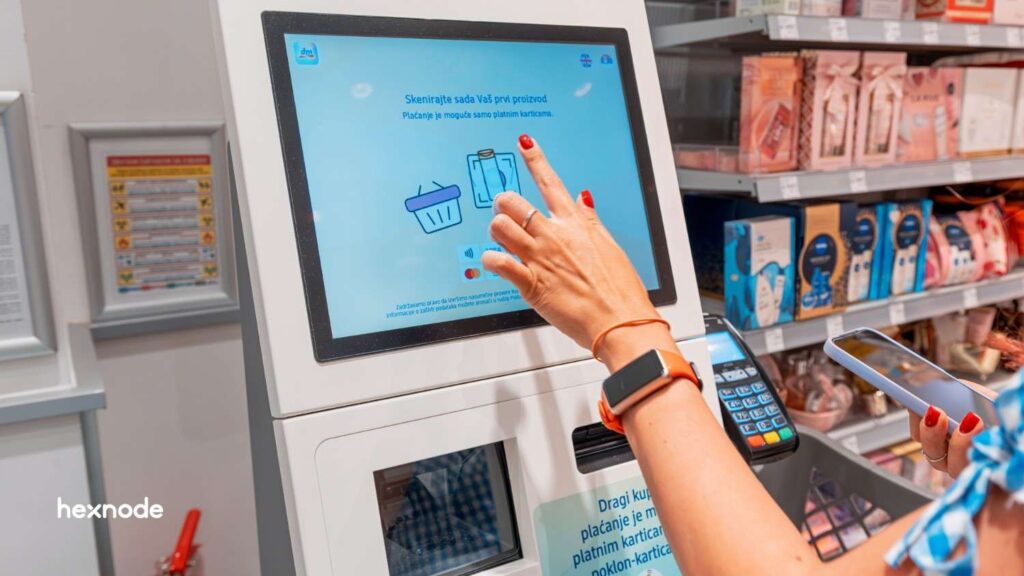
A Retail self service kiosk lets shoppers check prices, look up stock, or complete a self-checkout. Multi-app mode is useful here when the kiosk needs both a catalog app and a checkout app while blocking everything else.
Hospitality and healthcare check-in
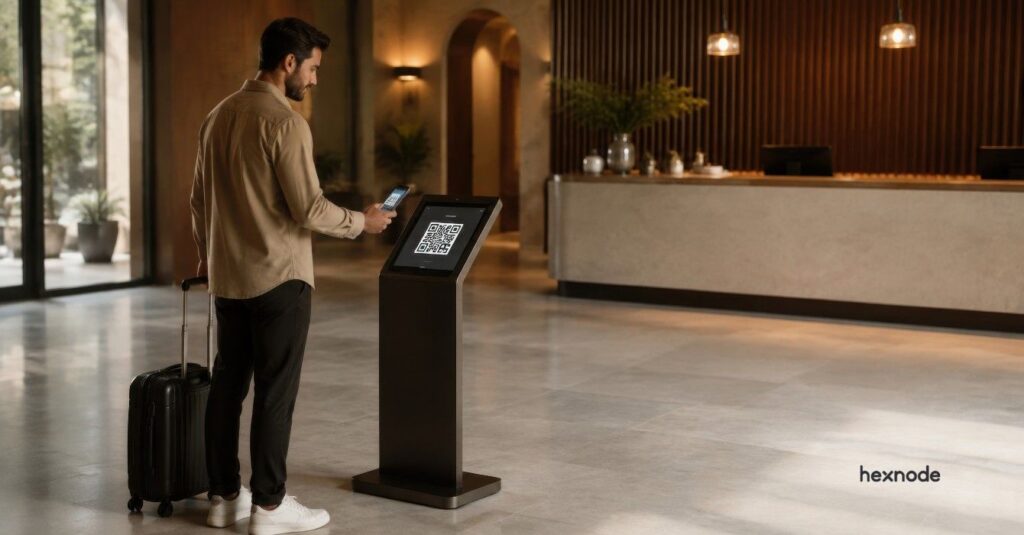
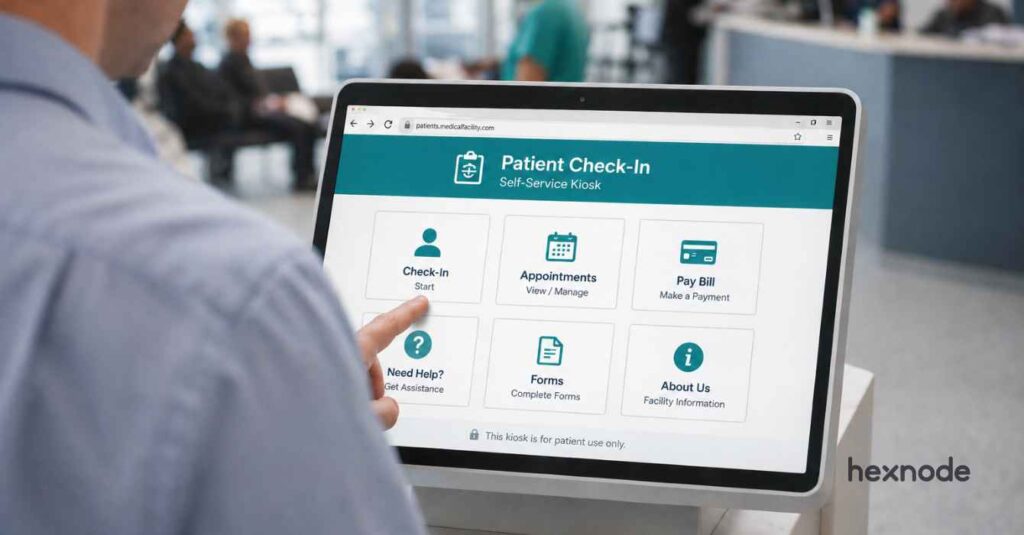
Hotels, clinics, and gyms use kiosks to automate check-in, reducing queues at the front desk. The terminal launches straight into the check-in app on boot, and staff are freed for higher-value interactions.
Entertainment and events
Venues place kiosks at entries to automate ticketing and print wristbands or scan QR codes, with separate concession kiosks letting fans order food quickly.
Because the underlying device is a standard managed tablet, a business can shift a terminal from one role to another by changing its policy, rather than buying new hardware.
A Note on Payments and Security
Any self-ordering kiosk that accepts payment raises an obvious question: how is card data handled? It helps to separate two layers. The kiosk software’s job is to lock down the device environment, so the tablet runs only the approved application, hides system settings, and blocks the peripherals and buttons a customer could misuse. Your POS application and its associated payment hardware or gateway handle the payment processing itself, sitting outside the device-management layer.
In practice this means Hexnode secures the endpoint the payment app runs on, restricting the device to a point-of-sale application and preventing tampering, while your payment provider handles how card data is captured, transmitted, and stored. When evaluating a kiosk payment setup, confirm PCI-related responsibilities with your POS and payment provider directly, since how you architect the payment flow itself determines compliance rather than the device lockdown alone. Pairing a hardened device environment with a compliant payment app is what keeps a self service kiosk pos system both usable and secure.
How to set up a self-service kiosk for your business using Hexnode UEM?
Why Hexnode is the Self-Ordering Kiosk for Business Solution Leader
Hexnode supports Android Zero-touch Enrollment, enrolling compatible devices automatically during initial setup. Once enrolled, administrators can associate kiosk policies remotely.
Many UEMs offer basic kiosk modes. Hexnode provides deeper customization for commercial stability.
- Peripheral Lockdown: Restrict hardware buttons and USB ports. This prevents customer tampering.
- Multi-Platform Support: Hexnode manages iPads, Android tablets, and Windows devices. They are controlled from one dashboard.
- Dynamic Kiosk Modes: Hexnode supports both Single App and Multi-App kiosk modes, allowing administrators to configure devices according to business requirements.
Troubleshooting with Hexnode: An Expert’s Guide
Hexnode provides remote management actions, such as restarting supported devices, and allows administrators to manage kiosk policies remotely.
Things happen in a live environment. An app might crash. A customer might jam the screen.
The “Ghost Touch” Fix: If a kiosk becomes unresponsive, administrators can use the Remote Restart action on supported devices as part of their troubleshooting process.
The “Escape Artist” Prevention: Customers may try to exit kiosk mode. Hexnode sets a secure Kiosk Exit Passcode. Only the manager knows this code.
The Definitive Guide to Kiosk Management and Strategy (2026 Edition)
Pre-Launch Checklist
Before a kiosk goes live in front of customers, run through a short list. Most failed deployments trace back to a skipped step here:
- Supervise the device (iOS) or enroll it in the correct mode before applying any lockdown.
- Install and test the ordering app in normal mode first, so a missing app can’t freeze the device.
- Choose the right kiosk mode: single-app for a focused terminal, multi-app when the kiosk needs a second function.
- Restrict hardware buttons and USB ports, and set a manager-only exit passcode.
- Enable the appropriate Keep Screen On or sleep/wake settings supported by the device platform to keep the kiosk available during business hours.
- Confirm the device boots straight into the app and cannot reach settings or the home screen.
- Verify network connectivity and check that remote actions reach the device from the console.
FAQ
How long does it take to deploy a fleet of self-service kiosks?
With Android Zero-touch Enrollment, compatible devices can enroll automatically during initial setup. After enrollment, administrators can remotely associate kiosk policies without manually configuring each device.
Can one team manage kiosks across different store locations from a single dashboard?
Yes, Hexnode manages iPads, Android tablets, and Windows kiosks from one centralized console. Administrators can push configurations, apply updates, and troubleshoot devices remotely regardless of location. This centralized control simplifies operating large, geographically dispersed kiosk fleets.
What is the difference between single-app and multi-app kiosk mode for a business kiosk?
Single App mode restricts the device to one application, while Multi-App mode allows access only to approved applications. Administrators can configure the appropriate kiosk mode by applying the required kiosk policy.
How do I push a menu or content update to all kiosks at once?
Administrators can remotely update kiosk policies and managed applications from the Hexnode portal and deploy the changes to associated devices without requiring on-site access.
Can a customer exit kiosk mode and access the rest of the tablet?
When kiosk mode is configured, users are restricted to the approved application(s). Administrators can optionally configure hardware button restrictions and kiosk exit passcodes through the kiosk policy.
What happens to a self-service kiosk if it is stolen or removed from the premises?
Hexnode supports geofencing, allowing administrators to monitor devices based on geographic boundaries and configure supported compliance actions when devices enter or leave defined locations.
Did You Know?
- Industry case studies have found that self-service kiosks can increase average ticket size by encouraging add-ons and upselling, although the impact varies by business and implementation.
- Industry research indicates that digital ordering interfaces can improve the visibility and consistency of upsell prompts, contributing to higher average order values in many deployments.
- A 2024 report reveals impactful consumer trends. 66% of consumers explicitly prefer self-service kiosks over staffed checkouts. They prefer the speed and control over their order customization.
Source: PYMNTS Intelligence, “Unattended: The Payments Technology Shifting the Future of Commerce”
The Rise of the Unattended Marketplace
The kiosk industry is growing rapidly. Businesses are replacing traditional retail with unattended marketplaces. Devices can be reused for other needs. This makes self service kiosks a smart strategy. Self-service solutions are in high demand. They will put any business on the map.
Deploy Self-Ordering Kiosks in Minutes with Hexnode
Turn any tablet into a secure, locked-down kiosk—managed and monitored remotely from one Hexnode console.
Sign Up Now