TL;DR:
ChromeOS secure PIN printing prevents unauthorized document access by requiring PIN authentication before print jobs are physically released.
- Security risk: Unattended print jobs can expose confidential information, while inconsistent printer configurations complicate security enforcement.
- Technical requirements: ChromeOS 75+, compatible PIN-enabled printers, supported connection protocols, and properly configured printing policies are essential.
- Hexnode enforcement: Hexnode UEM enables PIN-only printing restrictions through OU-targeted ChromeOS policies, allowing IT teams to standardize secure printing across managed devices.
Why is secure PIN printing necessary on shared ChromeOS devices?
Secure PIN printing on ChromeOS prevents confidential documents from being released at shared printers until the user enters a PIN. This reduces the risk of sensitive information being exposed through unattended print jobs.
Consider an employee printing confidential financial records from a managed Chromebook to a shared department printer. If distracted before picking it up, anyone passing the tray can read or remove the pages—a risk shared across schools, clinics, and enterprises.
ChromeOS secure printing addresses this exposure by holding print jobs on compatible printers until the user authenticates with a PIN at the device.
However, enforcing this protection requires more than enabling a policy. IT administrators must verify supported ChromeOS versions, printer capabilities, connection protocols, and administrative configurations.
What are the security and operational risks of printing without PIN protection?
For IT teams managing distributed ChromeOS environments, inconsistent printing configurations introduce additional challenges:
- Unsecured print output: Users submit sensitive documents without enabling available security controls.
- Tray exposure: Payroll files, financial summaries, and client records left unattended violate privacy mandates like HIPAA, GDPR, or FERPA.
- Configuration drift: Departments configure printers independently, leading to unpatched firmware or disparate security levels.
- Administrative overhead: IT teams spend excessive time troubleshooting conflicting printer settings across distributed environments.
However, PIN printing is only one component of a broader print security strategy, not a complete data loss prevention solution.
Organizations must also enforce secure print transport, appropriate printer access permissions, physical printer security, and documented procedures for handling confidential documents.
How does secure PIN printing work on ChromeOS?
Secure PIN printing on ChromeOS allows users to submit print jobs to compatible printers and release them only after entering the corresponding PIN at the printer.
The process follows four steps:
- Select a printer: The user opens the ChromeOS print dialog and selects a compatible printer.
- Enter a PIN: The user enables PIN printing, where available, and specifies a PIN before submitting the job.
- Submit the print job: The printer receives and holds the document instead of immediately printing it.
- Release the document: The user enters the corresponding PIN on the printer’s control panel to initiate printing.
ChromeOS provides two administrative controls for managing this behavior:
- Default PIN printing mode: Determines whether PIN printing is selected by default when users initiate a print job.
- Restrict PIN printing mode: Controls whether users can print with or without a PIN, allowing administrators to enforce PIN-based printing.
However, these policies cannot enable PIN printing on unsupported hardware. The printer must support PIN-based job release through a compatible driverless configuration or PPD, with supported secure connectivity.
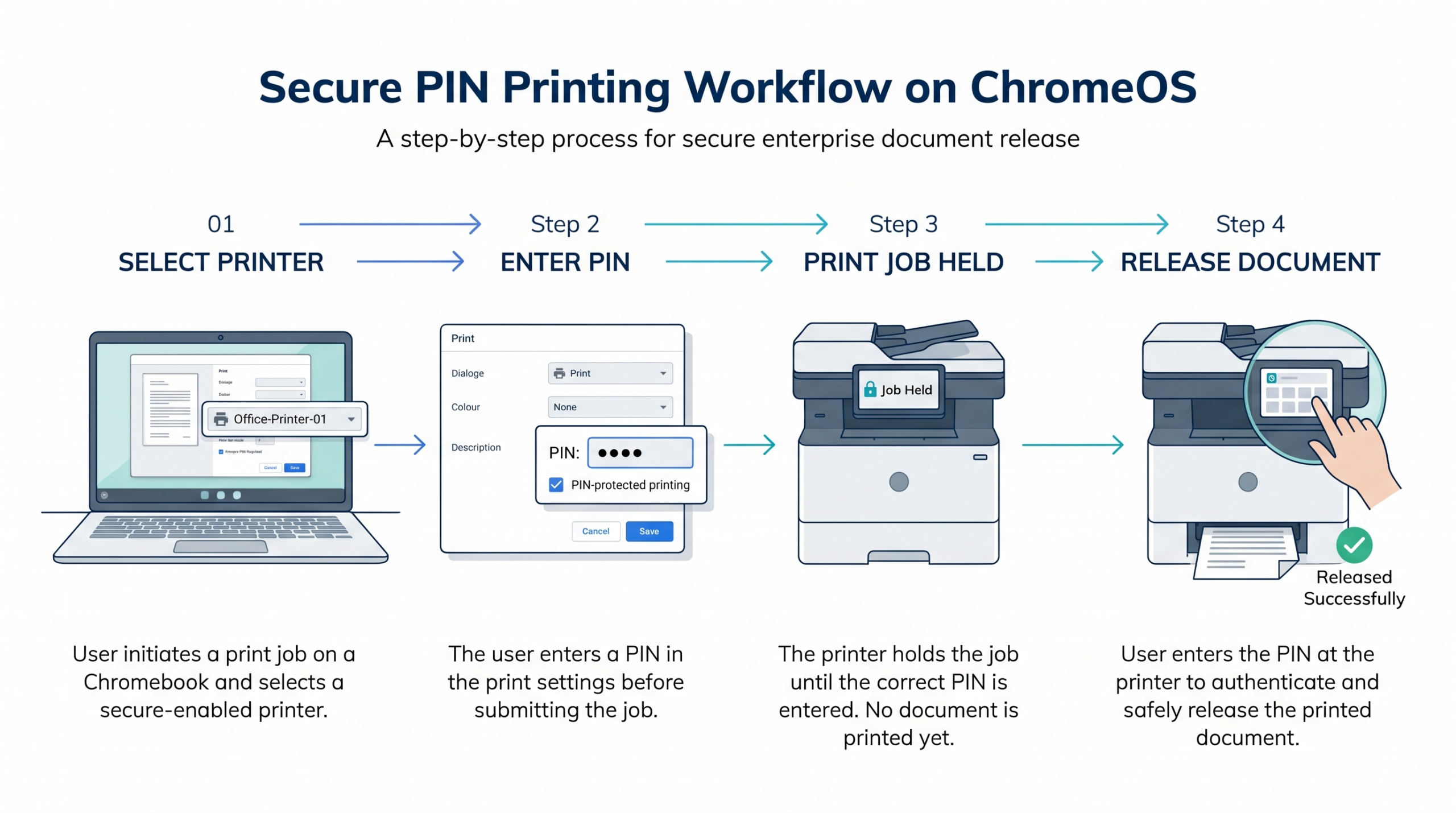 Secure PIN Printing Workflow on ChromeOS
What does PIN printing not protect, and how should shared-device PINs be handled?
PIN printing protects physical document release but does not verify the identity of the person collecting the print job.
If users share PINs, reuse easily guessed codes, or enter them where others can observe, unauthorized individuals may retrieve sensitive documents. IT teams should encourage users to keep print-release PINs confidential and avoid predictable combinations.
PIN printing also does not inherently encrypt documents during transmission or guarantee protection while jobs are stored on the printer.
Comprehensive print security requires combining PIN-protected release, encrypted transport (IPPS/HTTPS), and physical printer security.
What are the requirements for secure PIN printing on ChromeOS?
Secure PIN printing on ChromeOS requires ChromeOS 75 or later, a printer with built-in PIN-printing capabilities, and a supported connection protocol. Administrators must also verify printer compatibility and configure appropriate printing policies before enforcing PIN-protected document release.
1. ChromeOS version and connection requirements
- ChromeOS version: Devices must run ChromeOS 75 or later.
- Printer compatibility: Printers must support PIN-protected print jobs and document release through a physical keypad or control panel.
Google’s ChromeOS printer-management documentation specifies HTTPS or secure IPPS connections for PIN printing. Administrators should verify support for other connection methods, including USB and IPP-over-USB, against the applicable configuration and printer documentation before deployment.
2. Printer configuration requirements
For driverless printing, the printer must support the IPP job-password attribute. Alternatively, compatible PostScript Printer Description (PPD) configurations may enable PIN printing.
Check the manufacturer’s documentation to verify supported printing options, firmware requirements, and PIN-entry functionality before deployment.
3. Administrative requirements
Organization-wide ChromeOS secure printing also requires:
- Managed ChromeOS devices with appropriate administrative permissions.
- Correctly configured local or network printers.
- Defined organizational units (OUs) for consistent policy targeting.
- Printing policies configured to require PIN-protected jobs.
Before enforcing PIN-only printing, administrators should confirm that devices can discover the intended printers and successfully complete ordinary print jobs. This establishes a working printing configuration before introducing additional restrictions.
How do you configure and test secure PIN printing on ChromeOS?
To configure secure PIN printing on ChromeOS, administrators must register compatible printers, configure PIN-printing policies, and validate document release before enforcing restrictions organization-wide. Google Admin console provides native controls for managing printers and printing behavior across managed ChromeOS devices.
Step 1: Prepare and configure compatible printers
Before enabling PIN restrictions, confirm that printers support PIN-protected jobs and are accessible through supported connections.
- Sign in to the Google Admin console.
- Navigate to Devices > Chrome > Printers.
- Select the organizational unit (OU) or group requiring printer access.
- Add the printer using a driverless configuration, manufacturer model, or compatible PPD file.
- Configure the printer connection, using secure IPPS or HTTPS for network PIN printing.
- Assign the appropriate printer permissions and verify printer availability.
Confirm that users can discover the printer and complete a standard print job before introducing PIN restrictions.
Step 2: Configure PIN-printing policies
Navigate to Devices > Chrome > Settings > Users & browsers, select the relevant OU, and locate the PIN-printing controls.
ChromeOS provides two distinct policy settings:
- Default PIN printing mode: Sets PIN printing as the initial preference when users submit print jobs.
- Restrict PIN printing mode: Determines whether users can print with a PIN, without a PIN, or choose between both options.
For environments handling confidential information, configure the restriction to require PIN printing.
Note:
Setting PIN printing as the default does not enforce it. Users may still select non-PIN printing unless the restriction policy prohibits that option.
Step 3: Test PIN-protected document release
Validate the configuration using a pilot group before wider deployment.
- Select a compatible printer from a managed Chromebook.
- Submit a test document with PIN protection enabled.
- Verify that the document remains held rather than printing immediately.
- Enter the corresponding PIN at the printer’s control panel.
- Confirm that the document prints only after successful PIN entry.
- Attempt printing without a PIN to verify that mandatory restrictions are enforced.
Why might PIN printing fail on ChromeOS, and how can IT troubleshoot it?
ChromeOS PIN printing failures typically result from incompatible printers, unsupported connection protocols, incorrect printer configurations, or misapplied printing policies.
Common issues include:
- PIN option unavailable: The printer may lack PIN-printing support, or its driverless or PPD configuration may not expose the required functionality.
- Documents print without PIN authentication: PIN-only restrictions may not be applied, or the printer may not enforce PIN-protected job release.
- Print jobs remain unreleased: Incorrect PIN entry, printer-side job handling, or configuration issues may prevent document release.
- Printer unavailable: Incorrect printer assignments, network connectivity problems, or policy restrictions may prevent printer selection.
How to troubleshoot PIN-printing failures
- Verify ChromeOS compatibility: Confirm that devices run ChromeOS 75 or later.
- Check printer capabilities: Verify PIN-printing support against manufacturer documentation.
- Inspect connection protocol: Verify that network printing uses HTTPS or secure IPPS.
- Review printer configuration: Check driverless printing capabilities or the configured PPD.
- Validate policy application: Confirm that printing restrictions target the intended users or organizational units.
- Retest using a known-compatible printer to distinguish hardware limitations from policy failures.
How can Hexnode enforce secure PIN printing on managed ChromeOS devices?
Hexnode UEM enforces secure PIN printing through the ChromeOS > Configurations > Printing policy, using the Pin requirement setting supported on ChromeOS 75 and later. Administrators can restrict printing to PIN-protected jobs on compatible printers, preventing documents from being released without PIN authentication.
Step 1: Configure PIN requirements
- Log in to the Hexnode UEM portal.
- Navigate to Policies > New Policy.
- Enter a policy name and optional description.
- Go to ChromeOS > Configurations > Printing > Configure.
- Locate Pin requirement and select the appropriate restriction.
Hexnode provides three options:
- Allow printing with and without PIN: Users can choose whether to protect individual print jobs.
- Allow printing only without PIN: PIN-protected printing is disabled.
- Allow printing only with PIN: Users must use PIN printing for supported print jobs.
Step 2: Assign the policy to organizational units
Hexnode associates ChromeOS policies through organizational units (OUs) rather than directly targeting individual devices.
- Navigate to Policy Targets > Domains/OUs.
- Click +Add Domain/OUs.
- Select the integrated Google Workspace account.
- Choose the required parent or child OUs.
- Click OK, then Save.
Selecting a parent OU extends the policy to its child OUs, while selecting a specific child OU limits the assignment to that OU.
Step 3: Configure complementary printing controls
Hexnode also provides:
- Specify the Default Printer: Select preferred printers using name-based or ID-based matching rules.
- Print Job History Expiry (Days): Define how long local print-job history remains on devices.
For managed guest sessions, navigate to ChromeOS > Managed Guest Session > Printing to configure Default PIN printing mode (With PIN / Without PIN) and Restrict PIN printing mode (No restriction, Do not allow PIN printing, or Always require PIN printing).
FAQs
Can users bypass PIN printing restrictions on managed Chromebooks?
On compatible printers configured for PIN printing, the restriction requires users to submit jobs with a PIN. No. When configured to ‘Allow printing only with PIN’, ChromeOS blocks unauthenticated print submissions.
Does ChromeOS secure PIN printing work with all network printers?
No, ChromeOS secure PIN printing requires printers that support PIN-protected print jobs.
Can different departments have different PIN printing policies in Hexnode?
Yes, Hexnode allows administrators to assign ChromeOS printing policies to specific Google Workspace organizational units (OUs). This enables departments organized into separate OUs to receive different printing restrictions based on their requirements.
Does PIN printing protect documents while they are transmitted to the printer?
No, PIN printing controls when a document is physically released rather than encrypting its transmission. Administrators should use secure printing protocols such as IPPS or HTTPS to protect print data in transit.
Can Hexnode enforce PIN printing in ChromeOS managed guest sessions?
Yes, Hexnode provides separate PIN-printing controls under its ChromeOS Managed Guest Session printing configuration. Administrators can configure Default PIN printing mode and Restrict PIN printing mode to manage PIN-printing behavior during managed guest sessions.
What should IT teams test before rolling out ChromeOS PIN printing across multiple offices?
IT teams should verify printer compatibility, secure IPPS/HTTPS connectivity, OU policy inheritance, physical PIN release, and confirmation that non-PIN submissions are blocked.
Ready to secure ChromeOS printing with Hexnode?
With Hexnode UEM, IT administrators can configure PIN-printing restrictions and assign them to Google Workspace organizational units, eliminating the need to configure each managed device individually.
Start with a pilot OU, submit a test print job, and verify that documents are released only after successful PIN entry. Once validated, extend the policy to additional OUs.
Enforce Secure PIN Printing Across Chromebooks
Configure PIN-only printing policies for managed ChromeOS devices and validate secure document release with Hexnode.
Join Now!