TL; DR
Enterprise enrollment connects a ChromeOS device to an organization’s management domain and makes it subject to centrally configured policies.
- Manual enrollment requires an authorized user to complete the process during initial setup. Zero-touch enrollment can enroll eligible, pre-provisioned devices automatically after they connect to the internet.
- Forced re-enrollment can keep wiped devices under organizational management, while ongoing fleet security still depends on consistent policy, application, and lifecycle management.
- Hexnode UEM integrates with Google Workspace and supports individual ChromeOS enrollment, bulk enrollment through Android Zero-Touch pre-provisioning partners, policy management through Organizational Units, and supported remote actions.
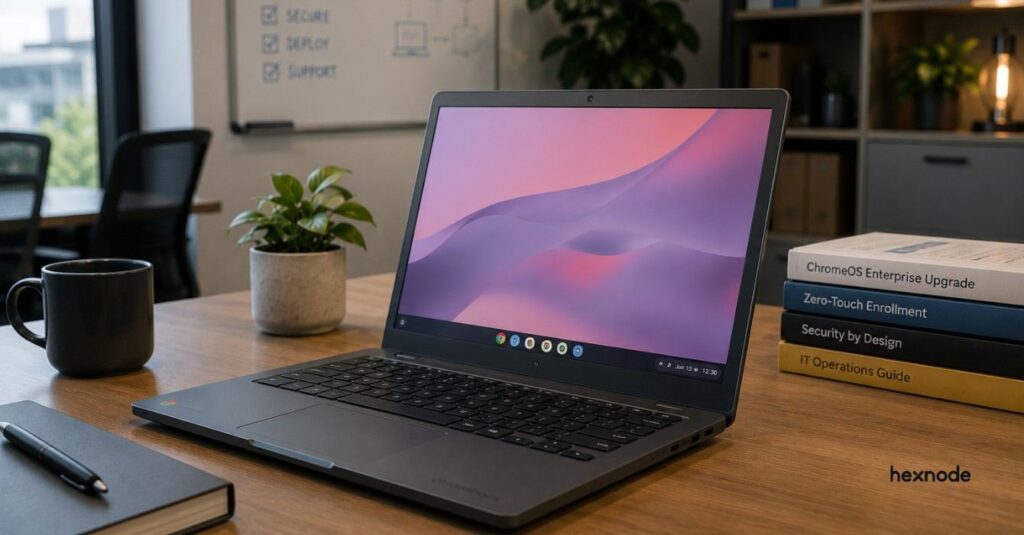
Chrome OS Enterprise Enrollment registers a ChromeOS device with an organization’s managed domain. It gives IT administrators a centralized way to apply configured policies, deploy managed apps and extensions, and maintain oversight throughout the device lifecycle. Organizations can enroll devices manually or use zero-touch enrollment for eligible, pre-provisioned hardware.
What Is Chrome OS Enterprise Enrollment?
Chrome OS Enterprise Enrollment is the process of registering a ChromeOS device with an organization’s managed domain so IT administrators can apply centralized policies and security settings. Once enrolled, the device receives the configuration assigned to its organizational unit or management group instead of relying on local, one-off setup.
Enrollment establishes the management link between the device and the organization. Administrators can then configure policies through Google’s cloud-based management infrastructure and apply them to managed device groups.
Forced re-enrollment can require a wiped ChromeOS device to rejoin the organization. Depending on the selected setting and device support, re-enrollment can happen automatically or require managed-domain credentials. Organizations should deprovision devices that are being retired or permanently removed from management.
Enrollment can also support a broader Zero Trust strategy by bringing devices under centralized policy control. However, enrollment alone does not provide continuous device-posture evaluation or make access decisions. Those outcomes require additional identity, access, and security controls.
Why Manual Chromebook Provisioning Does Not Scale
Without enterprise enrollment, organizations cannot centrally enforce ChromeOS device policies through the Google Admin console. IT teams may instead need to prepare network access, applications, and required configurations on individual devices or through separate provisioning processes.
That approach becomes harder to maintain as a fleet expands across campuses, offices, and remote locations. Independent setup can produce inconsistent configurations, make changes difficult to track, and increase the time required to prepare devices for employees or students.
These inconsistencies also redirect IT resources. Administrators spend more time correcting device-level issues and less time on security monitoring, user support, and strategic projects.
Why Chromebook Management Is Essential for Distributed Workforces
Explore why distributed Chromebook fleets need centralized management to simplify administration across locations.
The Risks and Costs of Unmanaged ChromeOS Devices
Unmanaged ChromeOS devices limit centralized policy enforcement and oversight. This can create three related risks:
Data exposure
Misconfigured devices or insufficient access and data-protection controls can increase the risk of exposing company or student data.
Unauthorized access
Without centrally enforced device-access policies, organizations have less control over who may use managed devices and must rely more heavily on separate identity and network controls.
Compliance gaps
Unmanaged devices make it harder to implement and demonstrate controls that support obligations under regulations such as FERPA and the GDPR.
Consequences depend on the applicable law. GDPR violations can result in administrative fines, while FERPA has a separate federal enforcement framework that can affect an institution’s eligibility for federal education funding.
Unmanaged devices can also create recurring operational costs:
- Reactive troubleshooting: IT teams may spend more time resolving device-specific problems.
- Update administration: ChromeOS devices receive operating-system updates while supported and connected, but centralized management gives administrators additional control over update policies and application deployment.
- Repetitive onboarding: Preparing devices individually increases deployment effort as the organization adds users and locations.
How Does Chrome OS Enterprise Enrollment Work?
Chrome OS Enterprise Enrollment should generally take place during initial device setup. The exact workflow depends on the available upgrade, enrollment configuration, device state, and whether the organization uses manual or zero-touch enrollment.
Prerequisites for enterprise enrollment
Before enrolling a device, confirm the following requirements:
- A managed organizational domain: The enrolling account must belong to the organization’s managed domain and have permission to enroll devices.
- The applicable ChromeOS upgrade: Standalone devices require an available standalone upgrade. Devices bundled with ChromeOS Enterprise Upgrade or Education Upgrade include an integrated upgrade and do not need a separate standalone upgrade. Google’s ChromeOS upgrade documentation explains these models.
- Accepted terms: An administrator must accept the applicable Terms of Service in the Google Admin console.
- Network connectivity: Both manual and zero-touch enrollment require internet access.
- An enrollment-ready device: Organizations should enroll devices during initial setup. Previously used devices may need to be wiped before enrollment.
Eligible organizations can use a free 30-day ChromeOS Enterprise Upgrade trial for up to 50 standalone devices. Google does not offer the same trial for ChromeOS Education Upgrade or Kiosk & Signage Upgrade. Current purchasing and trial details are available in Google’s ChromeOS upgrade purchasing guide.
Manual enrollment versus zero-touch enrollment
| Enrollment method |
How it starts |
Main requirements |
Best suited for |
| Manual enrollment |
An administrator or authorized managed user enters enrollment credentials during initial setup. |
Managed-domain credentials, enrollment permission, an available upgrade, and network access. |
Small deployments, testing, reused devices, and exceptions. |
| Zero-touch enrollment |
An eligible, pre-provisioned device enrolls after it is powered on and connected to the internet. |
Supported hardware, reseller or partner pre-provisioning, an available upgrade, a pre-provisioning token, and network access. |
Large, distributed, or repeatable deployments. |
A bundled ChromeOS upgrade is not the same as automatic enrollment. Zero-touch enrollment requires a separately configured pre-provisioning workflow and eligible devices. Administrators should review Google’s zero-touch enrollment requirements before planning a bulk rollout.
ChromeOS enterprise enrollment steps
- Prepare the Google Admin environment. Confirm the required upgrades, accept the Terms of Service, and review enrollment permissions.
- Configure the organization structure. Create or select the Organizational Units that will receive devices, then configure the applicable device and user policies.
- Choose the enrollment method. Use manual enrollment for administrator- or user-assisted setup. Use zero-touch enrollment when eligible devices have been pre-provisioned by a supported partner.
- Connect and enroll the device. For manual enrollment, an authorized user connects the device and enters managed-domain credentials. For zero-touch enrollment, a properly configured device begins enrollment after it connects to the internet.
- Confirm the device assignment. After enrollment, the device appears in the Google Admin console. By default, it enters the top-level organizational unit unless an enrollment policy assigns it elsewhere.
- Verify policy application. Confirm that the intended settings, apps, extensions, network configurations, and access controls reach the test device before expanding the rollout.
IT teams should test enrollment on one device before deploying it across an office, school, or distributed fleet. This confirms that licensing, Organizational Unit assignment, and policy behavior match the intended configuration.
What Happens After Enrollment?
Enrollment is the starting point of ChromeOS management, not the entire management process. After enrollment, administrators can centrally configure policies for the Organizational Units that contain their managed devices.
As devices synchronize with Google’s management service, they receive the settings assigned to them. Previously received device policies can continue to apply during temporary offline periods, but new policy changes and cloud-dependent services require connectivity.
Ongoing management may include:
- Application and extension deployment
- Network and access configurations
- ChromeOS update policies
- Device inventory and status monitoring
- Lost-device response
- Wiping, deprovisioning, reassignment, and retirement
Streamline ChromeOS Fleet Management with Hexnode UEM
Hexnode UEM connects ChromeOS management with a broader unified endpoint strategy through its Google Workspace integration. Depending on the configured OAuth scopes, the integration can synchronize supported users, user groups, domains, Organizational Units, ChromeOS devices, policies, reports, application details, and telemetry information with Hexnode UEM.
After synchronization, administrators can associate supported ChromeOS policies with the appropriate Google Workspace Organizational Units. Policies apply through those OUs rather than through direct association with individual ChromeOS devices.
Hexnode supports two ChromeOS enrollment paths:
- Individual enrollment: Administrators can enroll ChromeOS devices in Hexnode UEM through the general enrollment workflow.
- Bulk enrollment: Supported deployments can use Android Zero-Touch with a pre-provisioning partner to reduce one-by-one enrollment work.
Once devices are enrolled and synchronized, administrators can use supported ChromeOS policies and management actions from the Hexnode console. They can refresh selected device details with Scan Device and blocklist unwanted applications so they are removed from managed devices and unavailable through the Play Store.
Hexnode also provides supported device-response actions:
- Enable or disable Lost Mode: Administrators can remotely lock a misplaced device and restore access after recovery. Review the ChromeOS Lost Mode requirements before deployment.
- Wipe Device: Administrators can choose to remove user profiles while retaining policies or perform a full factory reset that erases the device.
Together, these capabilities help IT teams manage supported ChromeOS devices alongside other enterprise endpoints while retaining the Google Workspace Organizational Unit structure used by Hexnode for ChromeOS policy management.
For a broader lifecycle overview, read The Complete Guide to Chrome OS Device Management.
FAQs
Is Chrome OS Enterprise Enrollment the same as ongoing device management?
No. Enrollment registers a ChromeOS device with the organization’s domain and establishes the management connection. Ongoing management covers the policies, applications, monitoring, updates, and administrative actions used after enrollment.
Can employees enroll a personal Chromebook with their own Google account?
No. ChromeOS enterprise enrollment requires an account in the organization’s managed domain with permission to enroll devices. A personal Gmail account cannot enroll a device into the organization’s management domain.
Can a Chromebook be removed from an organization’s domain later?
Yes. Administrators can deprovision a ChromeOS device when it is retired, replaced, sold, donated, or permanently removed from service. Deprovisioning removes the device from organizational management. Wiping alone may trigger re-enrollment when forced re-enrollment is configured.
Can an enrolled Chromebook move to another organization’s domain?
A ChromeOS device can be enrolled in another domain unless a policy such as forced re-enrollment prevents the transfer. The current administrator should deprovision the device before resale, donation, or organizational transfer.
Does Chrome OS Enterprise Enrollment require a constant internet connection?
The device needs internet connectivity for initial enrollment and policy synchronization. Previously applied device policies can remain active during temporary offline periods. New policy updates and cloud-dependent services become available after the device reconnects and synchronizes.
Conclusion
Chrome OS Enterprise Enrollment gives organizations a repeatable way to bring Chromebooks under centralized management at the beginning of the device lifecycle. It replaces many device-by-device configuration tasks with centrally governed enrollment and policy workflows.
Enrollment is only the foundation. A secure and manageable fleet also requires consistent policy administration, application control, device visibility, and appropriate lifecycle actions.
For growing and distributed organizations, combining standardized enrollment with ongoing ChromeOS management can reduce repetitive work and improve configuration consistency as the organization adds users, devices, and locations.
Ready to manage ChromeOS at scale?
Bring supported ChromeOS devices into Hexnode UEM and explore centralized enrollment, policy management, app control, and remote administration.
Try Hexnode Now