In 2026, the best iPhone for kiosk deployments depends on your use case. Budget-friendly models suit basic check-ins, balanced devices handle retail POS and inventory scanning, while Pro models support imaging-heavy workflows like ID verification. However, choosing hardware is only half the equation. Secure deployment requires supervised mode, centralized management, and structured implementation. Successful handheld kiosk deployments combine the right iPhone model with enterprise-grade management and repeatable rollout processes.
For years, self-service strategies revolved around heavy, wall-mounted tablets. But in 2026, agility has become a competitive advantage. Organizations are increasingly replacing static enclosures with more flexible kiosk deployments such as iPhones, iPads, and Android devices. These devices enable mobility, faster customer interactions, and real-time operational workflows.
Among these options, the iPhone for kiosk deployments has emerged as a leading choice. As of 2026, over 18% of the world’s population uses an iPhone, representing approximately 1.4 billion active devices globally. Beyond familiarity, Apple’s tightly integrated ecosystem, marked by consistent hardware performance, long-term iOS support, and a robust security architecture, makes the iPhone a dependable iOS kiosk device for enterprise-scale rollouts.
As handheld deployments expand, the question is no longer whether to adopt mobile kiosks, but how to do it right.
In this blog, we examine the suitable iPhone for kiosk, specifically for handheld applications, and how to deploy and manage them securely at scale.
To choose the right iPhone for kiosk deployment, you need to evaluate key hardware and software traits that matter in enterprise environments, especially if you’re planning to roll out devices at scale and manage them over time.
Processing Power: Apple’s A17 and A18/A19 chips deliver faster responsiveness, efficient power use, and improved machine-learning performance for tasks like scanning and image processing.
Battery Life: Handheld kiosks require long screen-on time. Newer iPhones typically offer extended hours of active usage, depending on workload and settings, helping ensure uninterrupted operation during peak shifts.
Display Size: iPhone’s display of around 6.1 – 6.7 inches balances readability with ergonomics. This size range supports clear form entry, scanning, and user navigation without compromising handheld comfort.
Storage Requirements: Models with 128 GB or more offer enough space for app data, media catalogs, and logs without performance degradation.
Camera Capabilities: For barcode scanning, QR codes, ID capture, or proof-of-delivery imaging, camera quality matters. iPhones typically deliver faster focus and better low-light performance, improving accuracy and speed in real-world kiosk tasks.
Connectivity (5G vs Wi-Fi): Fixed locations may rely on Wi-Fi, but field or event kiosks benefit from 5G connectivity for reliable data transfer and seamless cloud access in distributed environments.
iOS Version Compatibility: iPhones often receive iOS updates for years beyond release, extending security patches and management features crucial for enterprise deployments.
As a result, iPhone for kiosk is rapidly expanding beyond traditional touchscreens toward versatile mobile deployments that handle ordering, check-in, scanning, payments, and identity interactions.
Where iPhone for Kiosk Delivers the Most Impact
Use Case Category
Handheld iPhone Kiosk Application
Why It Matters
Retail & POS
Mobile check-out, inventory scanning
Reduces queue times and increases throughput. Complements fixed POS laneways.
Healthcare
Patient self check-in, ID capture
Speeds registration flow and reduces staff burden in busy clinics.
Hospitality
Guest check-in/check-out, ordering
Enhances guest experience with personalization and reduced wait times.
Events & Ticketing
Ticket scanning, badge verification
Improves speed and security at high-traffic venues.
Transport
Ticket validation, boarding pass scanning
Accelerates passenger flow in transit hubs and reduces staffing needs.
Field Operations
Barcode scanning, proof-of-delivery
Enables real-time tracking and documentation in logistics.
Customer Info
Product lookup, wayfinding
Provides self-guided navigation in malls and airports.
Why Businesses Are Investing in iPhone for Kiosk Deployments
Each of these applications requires a carefully selected iPhone for kiosk deployment that matches performance, battery endurance, and camera capability to the task.
Across industries, interactive systems powered by these handheld devices deliver benefits such as:
Faster transactions and check-in times, reducing queues and bottlenecks.
Better order accuracy and customer control, enhancing satisfaction and repeat visits.
Heightened operational efficiency, allowing staff to focus on value-added tasks.
Reduced cost burdens by automating routine interactions.
iOS kiosk mode security – everything you need to know
A comprehensive guide to iOS kiosk mode security essentials.
Choosing the Right iPhone for Kiosk Use
Once you identify which workflows stand to benefit most from handheld kiosks, whether retail POS, healthcare check-ins, or field data capture, you can begin to map those use cases to specific iPhone capabilities (battery, display, camera, etc.).
Apple’s current iPhone lineup spans from affordable mainstream devices to high-performance flagships, giving enterprises a range of options to match diverse kiosk requirements, from cost-effective deployments to camera-centric and performance-intensive workflows. The following models are relevant for enterprise iPhone for kiosk deployments in 2026:
iPhone 17e – Budget / mainstream option (A19 chip)
iPhone 17 – Balanced performer with A19 chip
iPhone 17 Pro – High-end performance and camera system
iPhone 17 Pro Max – Bigger battery and enhanced imaging
iPhone Air – Thin, lightweight model expected to feature the A19-series chip
For Basic, Cost-Sensitive Kiosks, Choose iPhone 17e
If your kiosk deployment focuses on simple workflows such as visitor check-in, feedback collection, appointment registration, or basic internal tools, the iPhone 17e is often the most practical choice. It combines reliable performance with Apple’s A19 chip, a 6.1-inch Super Retina XDR display, and modern connectivity features designed for everyday workloads. The device is positioned as the most affordable model in the iPhone 17 lineup, making it suitable for large fleet deployments where cost efficiency matters.
Why it works:
Cost-efficient for large fleet rollouts
Sufficient power for standard kiosk apps
Lightweight and easy to handle
Where it may fall short:
Single rear camera limits advanced scanning or ID capture use cases
For organizations prioritizing scale and budget efficiency over imaging performance, this is the most strategic entry point.
For a Balanced, All-Purpose iPhone Kiosk, Choose iPhone 17
If your kiosk deployment spans retail POS, inventory scanning, mobile checkout, or customer engagement workflows, the iPhone 17 (or even, iPhone 16) offers the most balanced option.
Powered by the A19 chip, it provides stronger performance, better battery efficiency, and improved camera capability, making it ideal for business-critical environments.
Why it works:
Fast, responsive interface for transaction-heavy workflows
Bright 6.3″ display enhances usability
Reliable battery for full-shift operations
Where it may fall short:
Camera is strong, but not on par with Pro models for advanced imaging
For most enterprise handheld kiosk deployments, this is the safest default recommendation.
For Imaging Accuracy, Choose iPhone 17 Pro or Pro Max
If your use case involves ID verification, document capture, healthcare intake, compliance documentation, or proof-of-delivery workflows, imaging performance becomes non-negotiable.
In these environments, the iPhone 17 Pro or Pro Max is the right decision. The A19 Pro chip and advanced multi-lens camera system provide superior low-light performance, depth sensing, and image precision.
Why it works:
Advanced camera array for accurate capture
Strong GPU and sustained processing power
Pro Max offers the largest battery in the lineup
Where it may fall short:
Higher upfront cost per device
For Better Aesthetics and Portability, Choose iPhone Air
If your deployment is customer-facing in premium retail, hospitality, concierge services, or brand-driven environments, design and ergonomics matter as much as performance.
The iPhone Air combines the A19 Pro chip with a thinner, lighter form factor.
Why it works:
Elegant, slim design enhances brand perception
Strong performance for most kiosk applications
Large, clear display
Where it may fall short:
Single-lens camera limits advanced imaging use
This is ideal for environments where presentation and mobility influence customer experience.
How They Compare at a Glance
Model
Chip
Best For
Pros
Cons
iPhone 17e
A19
Basic kiosks
Budget, solid battery
Limited imaging
iPhone 17
A19
Balanced business
Strong performance
Mid-tier camera
iPhone 17 Pro
A19 Pro
Imaging workflows
Advanced cameras
Higher cost
iPhone 17 Pro Max
A19 Pro
Battery-heavy use
Premium battery
Premium cost
iPhone Air
A19 Pro
Concierge kiosks
Slim, premium feel
Less versatile camera
Turning an iPhone into a Secure Kiosk at Scale
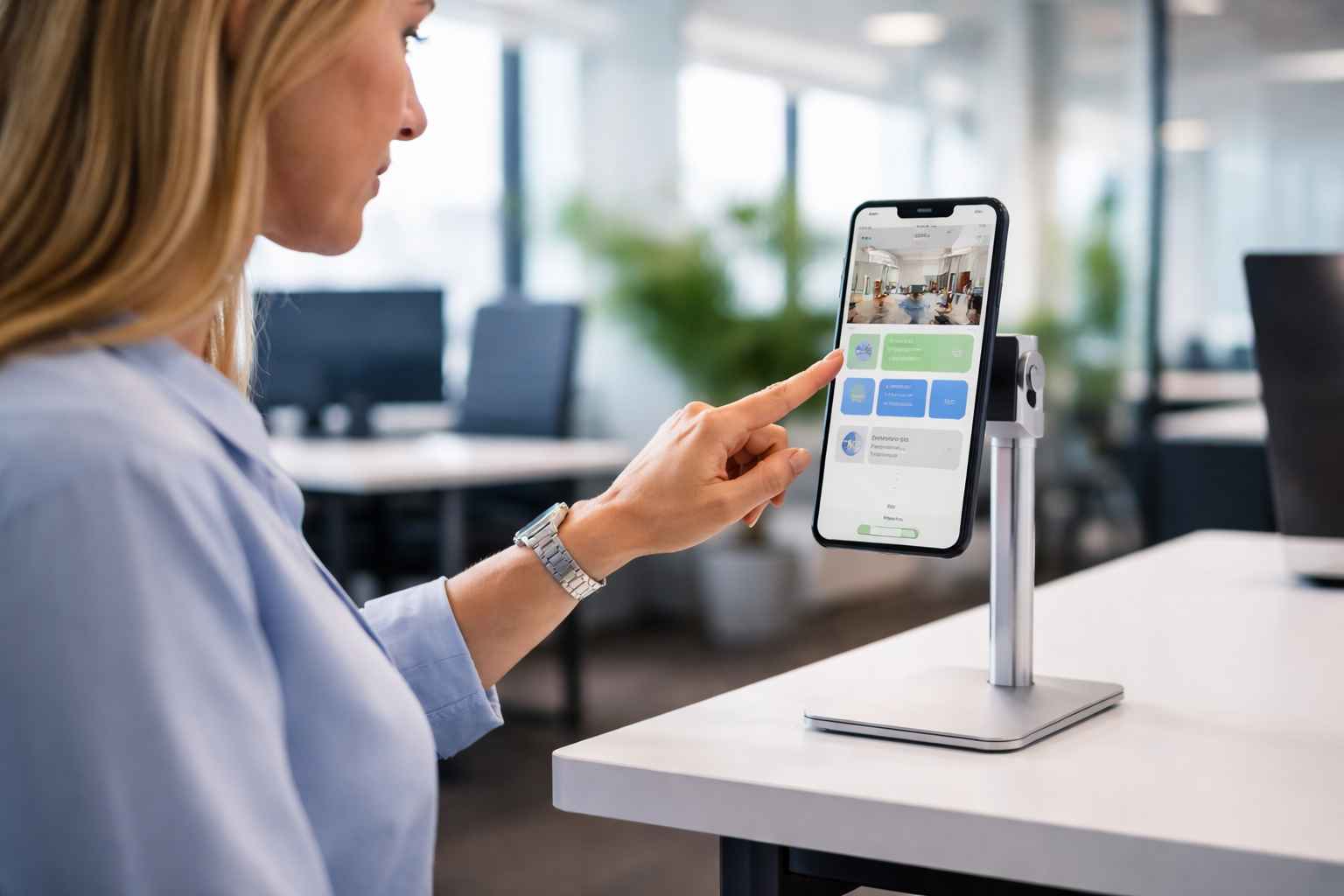
A person using iPhone on kiosk mode
An iPhone, straight out of the box, is not a kiosk. It is a consumer device designed for flexibility, with access to settings, notifications, app installation, and system controls. In a controlled business environment, that flexibility becomes a liability.
If unmanaged, a kiosk device can:
Exit the intended app
Access system settings
Install unauthorized software
Drift from compliance policies
Expose sensitive data
When deploying an iPhone for handheld kiosk use, secure lockdown and centralized oversight are not optional; they are foundational.
Guided Access & Enterprise Supervision: What You Need to Know
Apple includes several built-in iOS capabilities that can support limited kiosk use. One of them is Guided Access. It is a built-in iOS feature that can lock an iPhone to a single app, which is useful for quick trials, personal devices, or small-scale kiosks where an admin is onsite and hands-on. It’s available directly in iOS Accessibility and is easy to enable.
For enterprise kiosk deployments, Apple provides Supervised Mode, which unlocks deeper lockdown capabilities, from single-app and multi-app kiosk modes to hardware button restrictions and system setting blocks, all controllable centrally. Supervision is essential for kiosks but alone won’t manage hundreds or thousands of devices. To scale securely and consistently across locations, organizations need centralized orchestration through an enterprise iOS management solution.
Why Enterprises Still Need a Dedicated Management Layer
Even with Apple’s Guided Access, real deployments fail for practical reasons: inconsistent setup and configuration drift over time.
This is where “kiosk mode” stops being a device setting and becomes an operating model:
Provisioning should be repeatable (zero‑touch enrolment, standardized profiles).
Kiosk behaviour must survive restarts and updates (managed single‑app payload behavior).
Non‑essential experiences should be suppressed (supervised restrictions).
Support must be remote-first (view device state, collect logs).
Apple positions enterprise deployment around Apple Business Manager/School Manager paired with “your chosen device management service” to get control and flexibility at scale.
Introducing Hexnode UEM as the Control Layer
Hexnode UEM sits above Apple’s management primitives as the central orchestration layer. It handles provisioning, policy enforcement, monitoring, and lifecycle operations from a single console across platforms. For iPhone kiosk deployments specifically, Hexnode operationalizes Apple’s supervised kiosk capabilities into repeatable controls: configure kiosk modes, apply restrictions, enforce apps, manage connectivity, and maintain compliance, without requiring hands-on work per device.
Hexnode iOS Kiosk Management Capabilities
Hexnode enhances iOS security by combining Apple’s Supervision framework with a set of remote management features. This synergy ensures that kiosks remain secure, compliant, and functional without requiring physical intervention.
Kiosk Modes
Hexnode supports multiple iOS kiosk approaches: Single App, Multi‑App, and Autonomous Single App Mode, plus Web‑app kiosk patterns for controlled browsing/URL access. This lets you match the kiosk model to the workflow (one task, several tasks, app‑triggered lock/unlock, or web-first kiosks).
Advanced Kiosk Settings
Kiosk success often depends on suppressing non‑task features. Hexnode policies can control items like hardware buttons and kiosk behavior, aligning with Apple’s managed App Lock options (e.g., disabling Sleep/Wake, Volume Buttons, Touch, rotation/motion). This prevents user exits and reduces tampering.
Business Container for iOS
Hexnode’s Business Container adds control over how corporate data moves between apps, supporting stricter separation in mixed-use scenarios. Apple’s own restriction model distinguishes managed vs unmanaged document flows; Hexnode builds administration around these controls to reduce data leakage risk.
App Management
Hexnode can enforce mandatory application presence (including kiosk apps) and supports silent app installation in iOS kiosk contexts where Apple allows it, thereby reducing reliance on user Apple IDs and lowering rollout friction. This is key when the kiosk must be functional immediately after enrollment.
App Allowlisting/Blocklisting
Hexnode provides policy-driven allowlisting and blocklisting of iOS apps: lock devices to only what the kiosk workflow needs, hide everything else, and reduce the chance of drift into consumer apps. This functions as a practical control to keep the kiosk dedicated‑purpose.
Network Enforcement (Wi‑Fi, VPN, Per‑App VPN)
Hexnode can push iOS network configurations over the air such as Wi‑Fi profiles for secure auto‑join, VPN for encrypted transport, and Per‑App VPN to ensure only designated kiosk apps route traffic through corporate tunnels. This is critical for kiosks operating outside controlled LANs.
Remote Troubleshooting and Maintenance
Hexnode supports Remote View for iOS, enabling admins to view device screens in real time to diagnose user issues, plus remote actions like device restart to recover stuck kiosk states.
Real-time Compliance and Audit-ready Reporting
Hexnode offers compliance posture and reporting mechanisms (including security/compliance report sets and device inventory views) that help prove kiosk state during audits and ongoing monitoring. This is especially relevant for regulated environments where kiosk configuration and app state must be demonstrable.
Featured Resource
The Ultimate Guide to Kiosk Management: Everything your business needs to know
Download the whitepaper to learn how you can adopt the right kiosk management strategy for your business.
Implementation Roadmap: A Step-by-Step Deployment Guide
Deploying handheld iPhone kiosks at scale requires a systematic decision path to manage risk and ensure a successful outcome.
Define Needs and Scenarios: Identify the core function (POS, check-in, field service) and the operating environment (indoor, outdoor, high traffic).
Audit Provisioning Workflows: Analyze the current process for procuring assets. Organizations should seek to replace manual setup with Zero-Touch deployment to improve speed and consistency.
Establish ABM/Hexnode Connection: Link your ABM portal to Hexnode by downloading the key from Hexnode and uploading the server token to ABM.
Define Configuration Profiles: Create a checklist of settings every new device should have, categorized by role or department. This includes Wi-Fi profiles, VPN credentials, and required enterprise apps.
Configure Kiosk Policies: Select the app or app group to be used in kiosk mode. Enable advanced settings like “Manually exit kiosk mode” with a secure PIN for technician access.
Run a Pilot Program: Test the workflow with 5-10 devices to ensure they enroll correctly and that all required apps install silently.
Finalize and Scale: Finalize the “Drop-Ship” workflow, where devices are shipped directly from Apple or a reseller to the field location, automatically configuring themselves upon first boot.
Choose the Right iPhone for Kiosk for Your Use Case
Whether your use case involves retail POS, healthcare check-ins, field service scanning, or concierge engagement, the right model depends on workload, environment, and scale. But hardware alone is never the full strategy. Secure supervision, centralized control, and structured implementation determine whether a kiosk fleet performs reliably or becomes operational overhead.
When deploying iPhone for kiosk mode at scale, success lies in combining the right device with disciplined execution and enterprise-grade management.
Frequently Asked Questions (FAQs)
1. Is Guided Access enough for business kiosk deployments?
Guided Access is suitable for small-scale or temporary setups. However, it lacks centralized management, remote monitoring, and bulk configuration capabilities. For enterprise iPhone kiosk deployments, Supervised Mode combined with an iPhone MDM solution is recommended.
2. What is the best iPhone for kiosk use?
The best iPhone for kiosk depends on your use case. Budget deployments may suit entry-level models, while imaging-heavy workflows benefit from Pro devices. Retail POS and general business kiosks often perform best with balanced mid-tier models offering strong battery and camera performance.
3. Can iPhones be used as handheld POS devices?
Yes. Many businesses use iPhones as handheld POS (Point of Sale) devices, enabling mobile checkout, queue busting, and real-time inventory scanning when configured in kiosk mode.
Secure and Scale Your iPhone for Kiosk Deployments
Configure kiosk mode, enforce policies, push apps, and monitor compliance across your entire fleet, all from a single console.
Curious, constantly learning, and turning complex tech concepts into meaningful narratives through thoughtful storytelling. Here I write about endpoint security that are grounded in real IT use cases.