TL;DR:
A website kiosk locks a device to a secure browser and approved URLs, eliminating digital distractions that hurt productivity.
- Consumer apps and open browsing drain focus, bandwidth, and security across business devices.
- A web-based kiosk lockdown whitelists URLs, blocks peripherals, and clears session data to keep devices contained.
- Deployed via Hexnode UEM, it delivers cross-platform lockdown on Android and iOS with remote management and zero-touch enrollment.
Digital distraction kills productivity. Businesses need robust tools to keep devices focused, and the answer is a dedicated website kiosk.
A website kiosk is a restricted interface that locks a device to a specific browser. It allows access only to a single URL or a predefined list of whitelisted websites.
This guide covers everything about web-based kiosk applications. It also includes a step-by-step setup guide using Unified Endpoint Management.
What is a Website Kiosk?
A website kiosk turns a standard device into a dedicated tool. It restricts the user interface to a secure browser window.
A web-based kiosk can be configured to hide browser elements such as the address bar, navigation controls, and status bar, depending on the kiosk browser settings. This creates a “tunnel” for the user, so they interact solely with the authorized web content. This is achieved with web-based kiosk lockdown software. The software prevents users from minimizing the browser, and access to system settings or unrelated sites is blocked. For detailed steps, admins can refer to the guide on how to set up a website kiosk.
How Does a Web-Based Kiosk Application Work?
Web-based kiosk applications lock managed devices to approved websites using a kiosk browser and policy-based restrictions. This engine enforces strict URL policies.
UEM solutions deploy this mode effectively. The kiosk mode functions as follows:
- Whitelists URLs: It blocks all traffic except for specific domains via website whitelisting.
- Disables Peripherals: Depending on the operating system and device management solution, kiosk deployments can restrict access to peripherals such as USB devices to help reduce tampering.
- Clears Data: It wipes cache and cookies after a user session ends.
The Definitive Guide to Kiosk Management and Strategy (2026 Edition)
The Advantages of a Web Kiosk Solution
A web kiosk solution reduces data usage and boosts security. It improves focus by eliminating distractions.
Deploying a web-based kiosk application offers three distinct edges:
- Heightened Security: Website whitelisting restricts access to approved websites, helping reduce exposure to unauthorized or potentially malicious content.
- Controlled Data Costs: A web-based kiosk lockdown saves bandwidth. Devices cannot stream videos or access social media.
- Streamlined User Experience: Users avoid complex menus. The device shows exactly what is needed immediately.
Top Use Cases for Website Kiosks
Website kiosks are versatile tools used across industries. They power POS systems, digital signage, and secure testing.
1. Point of Sale (POS) & Retail
Retailers use web kiosks to replace bulky registers. Tablets locked to checkout systems allow staff to process transactions anywhere.
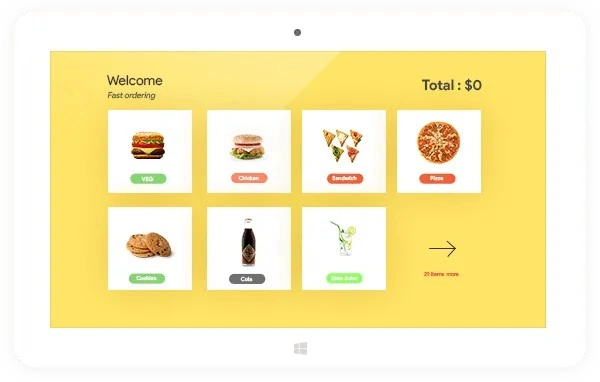 Website kiosk for ordering
2. Dedicated Data Collection
Banks and hospitals use kiosks for secure forms. The kiosk can clear data after a timeout, which keeps customer PII secure between sessions.
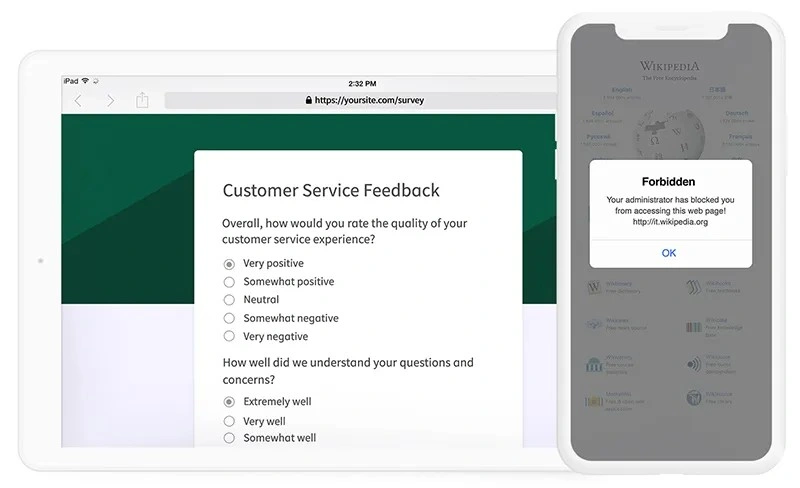 Website kiosk for feedback
3. Digital Signage and Agendas
Event organizers use web-based kiosks to display agendas. The device locks to the event website. Attendees view schedules but cannot change settings.
4. Logistics and Task-Specific Devices
Drivers use devices locked to a web-based logistics portal. This keeps the driver focused on the route and removes the distraction of personal apps.
What is a kiosk browser?
Learn what a kiosk browser is, how it secures devices, and why Hexnode is ideal for enterprise kiosk management.
Why Hexnode is the Website Kiosk Solution Leader
Hexnode leads in cross-platform support and remote troubleshooting. It offers advanced browser customization capabilities.
Standalone browser apps lack scale. Hexnode provides:
- Zero-Touch Enrollment: Enrollment methods such as Android Zero-touch Enrollment automate device provisioning, applying assigned management policies during setup.
- Granular Web Controls: On supported Android kiosk browsers, administrators can disable JavaScript, configure cache behavior, clear cookies and browsing data, and control file downloads.
- Remote Management: IT teams can troubleshoot via remote management without sending a technician.
First-Hand Setup Experience: Configuring with Hexnode
Setting up requires a Kiosk Policy, and the right browser engine must be selected for the OS.
Hexnode allows administrators to push these settings remotely. Here is how the process works across different platforms.
Setting Up a Website Kiosk on Android
Android website kiosks can use Hexnode Kiosk Browser or Hexnode Browser Lite to provide advanced website kiosk controls and browser customization. The Hexnode Kiosk Browser offers great stability.
- Create a Policy: Go to Kiosk Lockdown > Android Kiosk Mode.
- Whitelist URLs: Enter the specific URLs to be allowed.
- Configure UI: The status bar can be hidden or the back button disabled.
- Advanced Toggles: Enable “Clear Cache” for a fresh state.
What is an Android Kiosk Browser?
Setting Up a Website Kiosk on iOS
iOS web kiosks utilize Web Clips or the Hexnode Browser. This creates a restrictive environment for users.
The approach differs slightly for Apple devices:
- Safari Kiosk: On supervised devices running iOS 9.3 or later, configure an iOS Web App Kiosk policy and select Safari to make approved web apps available as bookmarks in the browser.
- Hexnode Browser: Administrators can use Hexnode Browser Lite for Web App Kiosk on iOS, configuring the browser toolbar and navigation controls to match kiosk requirements.
Setting Up a Website Kiosk on Windows
Windows website kiosks use the Hexnode Kiosk Browser or Microsoft Edge. This locks a dedicated user account to approved web content.
Hexnode supports website kiosk mode on Windows 10 Pro, Enterprise, and Education editions (version 1803 and later) and Windows 11 Pro, Enterprise, and Education editions. The setup differs from mobile in that it runs inside a restricted local user account.
- Create a Policy: Navigate to Kiosk Lockdown > Windows Kiosk Lockdown > Website Kiosk and click Configure.
- Assign the Account: Enter the name of the local user account that should run in website kiosk mode.
- Install the Browser: Install the Kiosk Browser or Microsoft Edge app on the user account set up to run in kiosk mode.
- Apply the Policy: Associate the policy with the target devices. On sign-in, the device launches directly into the locked-down website.
iOS-kiosk-browser
Troubleshooting with Hexnode: Expert Tips
Troubleshooting involves managing pop-ups and downloads. Kiosks must recover automatically from network failures.
Even the best setups face edge cases. Here is how to handle web-based kiosk issues using Hexnode:
- Issue: External Links Break the Kiosk.
The Fix: Whitelisted sites might link to third parties. All redirect URLs must be added to the Hexnode whitelist.
- Issue: The Device is “Stuck” Loading.
The Fix: Use Remote View to inspect the device, and configure Scheduled Refresh or Reload Web App settings to automatically reload web content based on the configured policy.
- Issue: Users Access Settings via Pop-ups.
The Fix: Check “Disable System Bars” in Android settings. This prevents users from escaping the web-based kiosk lockdown.
Did You Know?
70% of mobile investment is shifting to frontline workers.
According to Techstep, citing Gartner’s The Rise of the Frontline Worker predicts that frontline workers will receive 70% of mobile technology investments by 2025, up from a 60/40 split between desk-based and frontline workers in 2020. This shift highlights the need for secure tools like web-based kiosks. These tools empower deskless employees without the distractions of consumer apps.
FAQ
What is the difference between a website kiosk and single app mode?
Single app mode locks a device to one specific application, whether native or web-based, while a website kiosk specifically restricts the device to a browser displaying whitelisted URLs. A website kiosk removes browser elements like the address bar and navigation buttons to prevent users from leaving the approved content. On iOS, single app mode can be combined with web filtering to create a browser-based kiosk experience.
Can a website kiosk work offline or during network outages?
A website kiosk depends on an internet connection to load its web content, so a network failure can leave the device stuck or unresponsive. Administrators can set the kiosk browser to reload the web app once network connectivity returns, or apply scheduled refresh settings where supported. Remote view tools also let IT teams diagnose loading errors without physically accessing the device.
How do you prevent users from escaping a web-based kiosk through pop-ups or external links?
Add all legitimate redirect and third-party URLs that whitelisted sites rely on to the kiosk whitelist so approved workflows do not break. To stop users from reaching system settings, disable system bars on Android and block pop-ups within the browser controls. These configurations keep the user contained within the authorized web content.
Is a web-based kiosk suitable for handling sensitive customer data?
Yes, a web-based kiosk can securely handle sensitive data when managed through an UEM solution. Administrators can configure the kiosk to clear cache, cookies, and browsing data after each session, which prevents personally identifiable information from persisting between users. This makes it appropriate for use cases like banking forms and hospital check-ins.
Does a website kiosk help reduce mobile data and bandwidth costs?
Yes, a website kiosk lowers data consumption by restricting devices to only approved URLs. Because users cannot stream video, browse social media, or access unrelated sites, bandwidth is reserved for essential business functions. This makes kiosks cost-effective for fleets of deskless or frontline devices.
Can any website be deployed as a kiosk, or does it need to be optimized?
Any responsive website can function as a kiosk, but touch-optimized sites deliver the best user experience on tablets and touchscreens. The site should avoid linking to unauthorized external domains, since those redirects can break the lockdown unless whitelisted. Testing the site’s navigation flow before deployment ensures users stay within the intended content.
Stop Digital Distraction with Hexnode Web Kiosk Solution
Whitelist URLs, clear session data, and manage kiosks remotely across Android, iOS, and Windows with Hexnode.
Sign Up Now