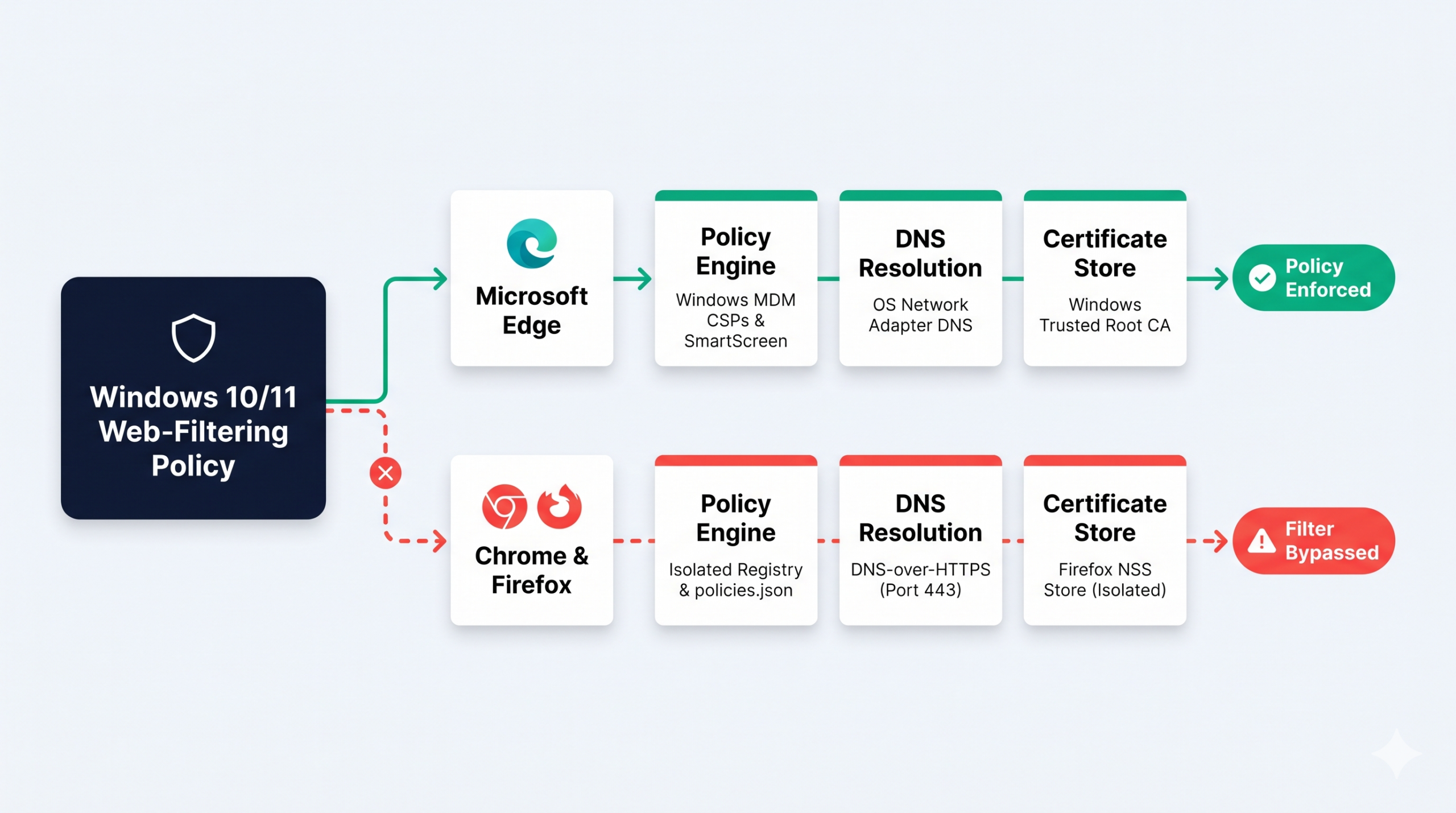
Native Windows web-filtering policies work in Edge but fail in Chrome and Firefox because third-party browsers rely on isolated policy stores, DNS-over-HTTPS, and separate certificate repositories.
Unfiltered third-party browsers create security blind spots, expose endpoints to threats, and jeopardize compliance audits.
Consistent enforcement requires combining OS-level network protection, browser-specific ADMX templates (with DoH disabled), and application controls to block unauthorized browsers.
Hexnode UEM centralizes multi-browser Web Content Filtering, app blocklisting, and browser configurations to eliminate policy gaps across Windows 10 and 11 fleets.
Why Does a Windows Web-Filtering Policy Work in Edge but Fail in Chrome or Firefox?
Windows web-filtering policies often fail in Chrome and Firefox because native OS filtering hooks directly into Microsoft Edge’s Configuration Service Providers (CSPs) and SmartScreen engine. Conversely, third-party browsers rely on isolated policy stores, separate root certificate repositories, and independent DNS-over-HTTPS (DoH) protocols that bypass standard OS-level rules.
For endpoint administrators, this architectural divide creates an immediate operational gap. You deploy a URL blocklist and verify that restricted domains are blocked in Microsoft Edge—only for end users to launch Google Chrome or Mozilla Firefox and reach the exact same sites within seconds. Without deliberate windows web filter browser selection and cross-browser policy alignment, native restrictions remain trivially easy to circumvent.
Managing this fragmented browser governance across hybrid Windows 10 and Windows 11 fleets leaves IT teams constantly reacting to policy drift. Instead of enforcing a single security baseline, administrators must reconcile conflicting rule engines across multiple browsers on the same managed endpoint.
What Are the Security and Compliance Risks of Unfiltered Third-Party Browsers?
Partial browser enforcement creates critical visibility blind spots across managed endpoints, directly undermining your organization’s security posture and regulatory compliance. When web filtering stops at Microsoft Edge, policy gaps expose corporate data and force IT teams into constant manual remediation.
Leaving Chrome and Firefox unfiltered introduces immediate security and operational liabilities:
Unmitigated Threat Exposure: Users can bypass Edge-only restrictions in third-party browsers to reach unvetted web apps, shadow IT cloud storage, or phishing sites—unless separately configured endpoint and network protections block the destination.
Compliance Audit Risks: Browser-filtering gaps can complicate compliance under risk- and control-based frameworks:
HIPAA: Browser-access gaps should be assessed as part of the risks to electronic protected health information and addressed with appropriate safeguards.
SOC 2: Gaps may matter in an examination when they undermine controls relevant to the system under review.
ISO/IEC 27001: Browser-access risks should be addressed through the organization’s risk assessment and applicable controls.
Administrative and Helpdesk Drag: Incomplete windows web filter browser selection generates recurring helpdesk tickets over erratic site access and consumes engineering hours troubleshooting policy drift across Windows devices.
How Do Windows Browsers Handle Web-Filtering Policies Differently?
Windows browsers handle web-filtering policies differently because Microsoft Edge is tightly integrated into the Windows operating system, whereas Google Chrome and Mozilla Firefox operate as decoupled, cross-platform applications. Edge natively inherits OS-level security baselines, network stacks, and reputation services, while third-party browsers maintain independent configuration architectures that ignore Windows-specific filtering hooks unless explicitly configured.
When an administrator deploys a single OS-level web restriction on a Windows 10 or Windows 11 endpoint, identical filtering rules produce conflicting outcomes depending on the browser in use.
how Windows web-filtering policies enforce rules in Microsoft Edge
Three core architectural layers determine whether a browser enforces or bypasses those restrictions:
Policy Ingestion Engines: Edge automatically parses native Windows Mobile Device Management (MDM) policies and OS-level security controls. In contrast, Chrome and Firefox require policies addressed to their own management interfaces; Chrome also supports cloud-delivered policies.
Root Certificate Trust Stores: Network-based web filters and secure web gateways rely on TLS inspection to evaluate encrypted web traffic. While Edge trusts certificates in the Windows Trusted Root Certification Authorities store by default, third-party browsers can utilize independent certificate repositories, causing HTTPS filtering to fail or trigger certificate errors.
DNS Resolution Pathways: Traditional web filters inspect standard DNS queries at the OS network adapter level to block unauthorized domains. However, third-party browsers frequently prioritize encrypted DNS-over-HTTPS (DoH) protocols, routing domain lookups directly to external resolvers and circumventing local DNS enforcement.
Pinpointing where these execution paths diverge is critical for planning effective windows web filter browser selection. Each architectural layer introduces distinct enforcement gaps across managed Windows endpoints that require targeted remediation.
Native Edge Integration vs. Isolated Chrome and Firefox Policy Engines
Microsoft Edge is built directly into the Windows ecosystem. This architecture enables native integration with Microsoft Defender SmartScreen reputation rules and modern Windows MDM policy channels. However, Chromium-based Microsoft Edge enforces its own dedicated enterprise policies rather than deprecated legacy Browser Policy CSP settings. Additionally, Windows provides no generic URL blocklist that Edge automatically inherits. Instead, administrators configure Edge’s URLBlocklist through an officially supported management channel. Valid deployment methods include the MSEdge.admxadministrative template, MDM policy ingestion, and documented registry settings.
Google Chrome and Mozilla Firefox completely ignore Edge-specific Windows CSPs. Instead, both browsers rely on isolated policy engines that read exclusively from dedicated Windows Registry paths or local configuration files:
Google Chrome: Enforces policies stored under HKLM\SOFTWARE\Policies\Google\Chrome (or HKCU), which can be configured through Group Policy, supported MDM settings, or direct deployment of documented registry values.
Mozilla Firefox: Queries HKLM\SOFTWARE\Policies\Mozilla\Firefox or reads a local policies.json file placed inside the browser’s distribution installation directory.
DNS-over-HTTPS (DoH) and Separate Root Certificate Stores
Organizations often enforce DNS-based web filtering at the OS network adapter or gateway level. However, DNS-over-HTTPS (DoH) enables third-party browsers to sidestep local inspection. Mozilla Firefox’s built-in DoH and Google Chrome’s Secure DNS encapsulate domain lookups inside encrypted HTTPS traffic on port 443. Routing queries directly to external resolvers like Cloudflare or Google renders local DNS sinkholes ineffective.
Network-level HTTPS inspection proxies encounter an additional roadblock due to Firefox’s decoupled certificate architecture:
Certificate Store Behavior: While Microsoft Edge and Chrome consume enterprise root certificates from the Windows Trusted Root Certification Authorities store, Firefox uses its own Network Security Services (NSS) store—though Firefox 120 and later automatically trust third-party root certificates installed in the operating system’s certificate store by default.
Inspection Warnings: If Firefox’s automatic operating-system root trust is disabled (or on legacy versions), an inspection certificate may require additional trust configuration to avoid persistent TLS security warnings.
Secure Web Gateway vs Web Content Filtering
Compare Secure Web Gateways and Web Content Filtering to see how each protects endpoints and choose the right fit.
URL Redirect Chains and Unmanaged Browser Sprawl
Even when policies reach Chrome and Firefox, exact-match URL rules frequently break down during multi-step URL redirect chains. Permitted primary domains frequently redirect users to secondary authentication portals, identity providers, or Content Delivery Network (CDN) subdomains. When administrators omit these dependencies from an allowlist, web access fails unpredictably. Conversely, incomplete blocklists miss alternate domain aliases that serve restricted content.
Unmanaged browser sprawl further undermines browser-scoped filtering:
Unsupported Browsers: Alternative browsers like Brave, Opera, or Vivaldi do not inherit Edge, Chrome, or Firefox policies—and since Hexnode’s Windows Web Content Filtering supports Edge, Chrome, and Firefox, other browsers require separate controls.
User-Space Binaries: User-writable locations like %LocalAppData% can permit unauthorized browser execution when application controls allow it, though installation location alone does not determine whether a managed browser’s policies apply.
How Can IT Admins Enforce Consistent Windows Web Filtering Across Browsers?
To enforce consistent Windows web filtering across all browsers, IT administrators must implement a unified, defense-in-depth strategy. Reliable Windows web filtering and cross-browser enforcement rely on three core technical layers. Administrators combine OS-level network protections, browser ADMX templates that disable bypass protocols, and strict application control blocking unsupported browsers.
Treating the operating system, authorized browsers, and execution environment as interdependent policy layers closes third-party filtering gaps.
OS Edition Requirement:
Windows 10 and Windows 11 Home editions do not support enterprise MDM Configuration Service Providers (CSPs) or Group Policy ADMX templates. Centralized multi-browser web filtering requires Windows 10 or 11 Pro, Enterprise, or Education endpoints.
Step 1: Enforce OS-Level Network Protection Below the Browser Layer
To prevent third-party browsers from bypassing browser-scoped restrictions, anchor your filtering directly at the Windows TCP/IP stack. Enabling Microsoft Defender Network Protection (via Set-MpPreference -EnableNetworkProtection Enabled) extends SmartScreen reputation blocking to third-party browsers like Chrome and Firefox. This control terminates malicious connections immediately after the TCP/IP handshake completes. Pairing it with Microsoft Defender for Endpoint indicators and disabled QUIC/Encrypted Client Hello also blocks custom unauthorized domains. Administrators pair browser controls with system-level DNS filtering, Windows Defender Firewall IP outbound rules, or Windows Firewall Dynamic Keywords for FQDN resolution. Combining these controls enforces domain blocks uniformly at the network layer.
When compiling URL allowlists or blocklists for these network-layer controls, map out complete URL redirect chains and subdomain variations. Administrators explicitly allowlist required authentication portals, identity provider endpoints, and Content Delivery Network (CDN) domains. This safeguard prevents legitimate web applications from failing mid-redirect.
Featured Resource
Centralize Microsoft Defender Settings with Hexnode UEM
See how Hexnode UEM simplifies Microsoft Defender management by centralizing Windows security policy deployment.
Step 2: Deploy Browser-Specific ADMX Policies and Disable DoH Bypasses
Administrators standardize application-layer enforcement by ingesting official ADMX templates for Google Chrome and Mozilla Firefox. These templates deploy seamlessly through Group Policy or MDM OMA-URI configurations. Administrators map Edge restrictions directly to Chrome’s URLBlocklist and Firefox’s WebsiteFilter policies. This parity ensures Windows web filtering enforces identical domain rules across every sanctioned browser.
Simultaneously deploy targeted hardening policies to prevent browsers from routing around local network inspection:
Disable Encrypted DNS Bypasses: Set DnsOverHttpsMode to off in Chrome, and in Firefox set DNSOverHTTPS.Enabled to false and DNSOverHTTPS.Locked to true—preventing users from re-enabling DoH and forcing domain lookups through your monitored local DNS resolvers.
Unify Root Certificate Trust: Set Firefox’s ImportEnterpriseRoots policy to true so it queries the Windows Trusted Root Certification Authorities store, preventing TLS inspection failures.
Step 3: Restrict Unauthorized Browsers with Application Control
Finally, close unmanaged browser sprawl by enforcing application allowlisting or blocklisting via AppLocker, Windows Defender Application Control (WDAC), or UEM app blocklists. Administrators block unsupported browsers such as Brave or Opera while restricting execution from user-writable directories like %LocalAppData%. These controls prevent standard users from running portable browser binaries that bypass device policies.
After deploying your configurations, audit policy ingestion directly on a target endpoint. Administrators inspect edge://policy, chrome://policy, and about:policies across each respective browser. This verification confirms that URL blocklists, DNS restrictions, and certificate settings are active and free of parsing errors.
Pro Tip
Quick Policy Audit: Don’t rely solely on MDM sync status to confirm enforcement. Open edge://policy, chrome://policy, and about:policies directly on a target Windows endpoint to verify that your URL blocklists, DoH restrictions, and certificate settings are active and free of parsing errors.
How Does Hexnode UEM Centralize Windows Web Filtering Across Edge, Chrome, and Firefox?
Hexnode UEM eliminates multi-browser policy gaps from a single centralized console. Administrators enforce uniform governance by combining URL filtering, system-wide browser registry enforcement, and application blocklisting. Instead of maintaining separate administrative templates across isolated tools, IT administrators can manage cross-browser web restrictions uniformly across Windows endpoints.
Through Web Content Filtering (Policies > Windows > Security > Web Content Filtering), Hexnode natively enforces URL-based blocklists and allowlists across Microsoft Edge, Google Chrome, and Mozilla Firefox on Windows 10 and 11 (Pro, Enterprise, and Education). Effective Windows web filtering requires explicitly selecting all three browsers inside the policy. Otherwise, Chrome and Firefox bypass Edge-only rules. Admins can import a CSV containing previously identified redirect URLs.
To harden endpoints further, IT teams pair Web Content Filtering with complementary Hexnode controls:
Application Management – Blocklist / Allowlist (Policies > Windows > App Management > Blocklist/Allowlist): Blocks unsupported browsers like Brave or Opera via publisher or file path rules.
Browser Settings (Policies > Windows > Configurations > Browser Settings) & Execute Custom Script (Manage > Devices > Actions > Others > Execute Custom Script): Enforces system-wide Chrome extension policies and OS-level hosts file restrictions across all user profiles.
Configuration Check
Inside Hexnode’s Web Content Filtering policy (Policies > Windows > Security > Web Content Filtering), you must explicitly check Microsoft Edge, Google Chrome, and Mozilla Firefox under browser selection. Leaving Chrome and Firefox unselected leaves both browsers unrestricted even when the policy reports a successful deployment status.
FAQs
Why does a URL remain accessible in Chrome or Firefox even after applying browser-specific blocklists?
A URL typically remains accessible when the target browser is omitted from policy selection or the policy has not yet synced. Access can also persist if an exception rule overrides the block or the URL pattern fails to match redirect subdomains. Administrators verify browser selection, policy ingestion (via chrome://policy or about:policies), URL matching, and exceptions. In Hexnode UEM, IT teams trigger a device sync and restart the browser to apply changes.
Which Windows editions support centralized web filtering across Chrome and Firefox?
Centralized web filtering across Chrome and Firefox requires Windows 10 or Windows 11 Pro, Enterprise, or Education editions. Windows Home lacks the enterprise MDM Configuration Service Providers and Group Policy support required to enforce browser restrictions.
How can Hexnode UEM prevent Windows users from bypassing web filters with other browsers or extensions?
Hexnode UEM pairs multi-browser Web Content Filtering with Application Management blocklists to govern browser usage. Administrators block unsupported browsers like Brave or Opera using publisher or file path rules. Admins can also deploy Browser Settings for system-wide Chrome extension controls and custom scripts for OS-level hosts file restrictions.
Ready to Eliminate Browser Policy Blind Spots Across Your Windows Fleet?
Unified endpoint security requires closing the policy gap between native Windows tools and third-party browsers. IT teams must enforce this parity without adding manual administrative overhead. Standardizing your windows web filter browser selection ensures consistent enforcement and eliminates unmanaged browser bypasses across your entire organization.
Enforce Multi-Browser Web Filtering Across Windows
Deploy unified URL blocklists across Edge, Chrome, and Firefox from one console with Hexnode UEM.
Associate Product Marketer at Hexnode focused on SaaS content marketing. I craft blogs that translate complex device management concepts into content rooted in real IT workflows and product realities.