Effective Linux troubleshooting matches screen access or terminal investigation to the evidence required, combining both when visible symptoms and system conditions must be correlated.
Screen access captures user workflows and interface errors, while terminal access examines services, processes, storage, logs, and configuration.
Collect symptoms, reproduction steps, timestamps, context, and system evidence before changes; apply one justified intervention and repeat the original task to verify recovery.
Hexnode UEM supports this workflow through Remote View, authorized Remote Control, and Linux Live Terminal on compatible devices.
Why do Linux support tickets need different troubleshooting methods?
Different Linux troubleshooting methods are necessary because visible symptoms and underlying system failures require different evidence. Observing a graphical session reveals what the user experiences, while command-line investigation helps examine the system behind that experience.
“The application is not working.” That familiar support ticket could describe a frozen interface, a failed background service, or insufficient disk space. Each possibility calls for different evidence, even though the reported outcome sounds identical. An error message might provide a starting point without explaining the underlying failure.
For IT administrators supporting distributed workstations and shared devices, the first decision is where to begin investigating. Screen access can help clarify the user’s actions and reproduce visible behavior. A terminal can help inspect services, storage, and other system conditions. Some tickets require both: observing the failed task, checking relevant system evidence, and returning to the application to understand how those findings relate to the user’s experience.
What happens when IT chooses the wrong troubleshooting method?
Choosing an unsuitable troubleshooting method can prolong downtime, increase repeat tickets, and prompt changes without sufficient evidence. Technicians may investigate the wrong layer while the affected task remains unavailable.
Repeated screen-sharing sessions consume technician time when the investigation needs service status, logs, or storage checks. Conversely, command-line investigation alone may overlook the user’s exact workflow, including the action that triggers an error. The application may appear healthy during system checks yet still fail when the user repeats that task.
Premature intervention can also remove useful evidence. Restarting an application can erase its visible error state before anyone records the message or reproduction steps. Unnecessary configuration changes introduce new variables, making it harder to distinguish the original fault from the effects of troubleshooting.
Before restarting or changing settings, capture the symptom, its timing, and relevant observations. Record subsequent changes so another technician can follow the investigation without repeating the same checks.
When should you use screen access or a terminal for Linux troubleshooting?
Remote viewing reveals the graphical session; remote control allows interaction with that session; and a remote terminal enables command-line investigation. Viewing and controlling are separate capabilities: seeing a screen does not automatically grant permission to operate it. Start with screen access for observable interface behavior and terminal access for questions about services, processes, storage, or configuration.
Reported problem
Preferred starting method
Evidence needed
Reason to switch methods
Interface errors
Remote viewing; control when interaction is authorized
Exact error, affected screen, and reproduction steps
Inspect logs or processes when the interface does not explain the failure.
Incorrect application settings
Screen access for settings exposed in the interface
Selected values, user context, and resulting behavior
Inspect configuration files when settings differ from expected values or fail to persist.
Failed services
Terminal
Service status, relevant logs, and dependency failures
Return to the application to test the affected user task after intervention.
Application cannot connect to its server
Screen access to capture the error; terminal for connection checks
Exact error, destination hostname, timestamp, and relevant connectivity findings
Use terminal checks when the visible error does not explain the connection failure; return to the application to retest.
Disk pressure
Terminal
Available space, inode usage, and the affected filesystem
Observe the application if its save location or error remains unclear.
Device without a graphical desktop
Terminal
Relevant logs, processes, service status, and resource usage
Observe an affected client’s screen if its workflow needs investigation.
These starting points guide evidence collection; neither method independently establishes the cause. Available access, technician permissions, and the reported task also influence which method is practical.
For example, use screen access to reproduce an application error and capture the exact message and time. Then inspect relevant logs, service status, or storage conditions through the terminal. Compare those findings with the observed failure before choosing a corrective action.
After applying a justified change, return to the application and repeat the original task. Confirm that the user can complete it and that relevant system indicators remain healthy.
What evidence should IT collect before changing a Linux device?
Before remediation, collect the reported symptom, reproduction steps, timestamps, affected device and user context, and relevant system evidence. Establish what failed, when it happened, and which task the user could not complete.
Visual evidence captures the user’s experience. Record exact error messages, take relevant screenshots, and document the sequence of actions leading to the failure. Include the selected application options or save location when they affect reproduction. A screenshot captures one moment; it may not reveal what happened immediately beforehand.
Terminal evidence describes relevant system conditions. Collect application logs, service status, running processes, resource usage, and configuration details associated with the affected task. Preserve useful command output with its collection time so another technician can interpret it alongside the reported incident.
Neither category independently guarantees a root-cause diagnosis. An interface error may describe a symptom, while a log entry may record a downstream consequence. Correlate observations by time, affected component, and reproduction steps before attributing the failure to a specific cause.
Keep the escalation record concise:
Device: Identifier, Linux distribution, and distribution version.
Application and user: Application version and relevant user or session context.
Timing: Incident date, time, timezone, and evidence collection times.
Observations: Reported symptom, reproduction steps, screenshots, and relevant system findings.
Investigation: Commands executed, their outputs, changes attempted, and the result of each change.
Open questions: Remaining uncertainty, missing evidence, and checks still required.
Before attaching evidence to tickets, redact credentials and unrelated personal information from screenshots, logs, configuration excerpts, and command outputs.
Live Terminal and Linux Automation: A Practical Guide
Simplify Linux administration with Live Terminal, reusable scripts, and centralized automation in Hexnode UEM.
What should you check before starting remote Linux troubleshooting?
Before initiating support, verify device reachability, method compatibility, technician permissions, and required user participation. These preparation checks establish which Linux troubleshooting methods are available before evidence collection begins.
Confirm that the device is powered on, connected, and reachable through the intended support channel. A device appearing in an inventory does not necessarily mean a remote session can start.
Graphical access: Check whether a desktop session exists and whether the support tool supports its display environment. Confirm that someone can approve screen sharing when required. If interaction is necessary, verify remote control support and any separate authorization requirements.
Terminal access: Confirm the supported connection route, such as an approved SSH connection or management-console terminal. Check that the diagnostic utilities needed for the investigation are installed. Establish the account’s effective privileges and whether specific checks require additional permissions.
Platform and agent compatibility: Verify support for the device’s Linux distribution and version. Where the connection depends on a management agent, check that it is running and meets the tool’s version requirements.
Network access: Validate the destinations, ports, and proxy or firewall requirements documented for the selected tool. Apply those requirements to the actual connection route.
Keep tool-specific prerequisites separate from general Linux behavior. A graphical support tool’s display restrictions do not automatically apply to terminal access.
For unreachable devices, establish a fallback, such as an on-site contact who can check power and connectivity. Before disruptive changes, agree on a maintenance window and how to reconnect if the intervention interrupts the support session.
How do you troubleshoot Linux problems and verify the fix?
Classify the symptom, choose an available access method, collect evidence, make a controlled change, and retest. Switch methods when necessary to connect the user’s experience with relevant system conditions.
1. Confirm the affected task and scope.
Establish what the user was trying to do, when the problem started, and whether it affects other users or devices. Identify the expected result and the steps that reproduce the failure.
2. Select the starting method.
Use screen access to observe interface behavior or clarify the user’s workflow. Choose terminal access for system-level investigation. Confirm that the selected method is available and authorized before starting the session.
3. Collect evidence before changing configuration.
Suppose a desktop application fails to save a file. Observe the attempt, capture the exact error, and record the destination and timestamp. Preserve this evidence before restarting the application or changing its settings.
4. Switch methods to fill evidence gaps.
Move to the terminal to check storage availability on the destination filesystem and inspect relevant application logs. Choose commands based on the evidence you need, using the reference below. If insufficient space explains the failure, identify an approved cleanup procedure for expendable data. Do not infer disk pressure from the save error alone.
First terminal checks for the evidence you need
Question
Command
What it shows
Does the destination filesystem have available space and inodes?
df -h /path/to/destination and df -i /path/to/destination
Filesystem identity, available space, and inode usage.
Is the relevant service running?
systemctl status SERVICE --no-pager
Current service state and any reported failure details.
What did the service record during the incident?
journalctl -u SERVICE --since "START" --until "END"
Timestamped messages associated with the service during the selected period.
What does the application’s own log show?
tail -n 50 /path/to/application.log
The last 50 log lines; check whether their timestamps cover the incident.
Which processes are consuming resources?
top
Process IDs, CPU usage, and memory usage during the problem.
Replace example paths and SERVICE with the actual destination directory, log file, and service unit name. Replace START and END with incident timestamps in YYYY-MM-DD HH:MM:SS format. The systemctl and journalctl examples apply to systems using systemd.
5. Apply one justified change with a recovery plan.
Confirm what the cleanup procedure removes, preserve necessary evidence, and establish how to recover affected data. Perform the agreed action within the approved window. Record the change and its immediate result before attempting another intervention.
6. Repeat the task and verify system conditions.
Return to the application, save to the original destination, and confirm that the file opens correctly. Recheck available space and relevant errors. Record the outcome; if the failure persists, escalate with the evidence package, attempted change, and remaining uncertainty.
How does Hexnode support visual and command-line Linux troubleshooting?
Hexnode UEM provides Remote View, Remote Control, and Linux Live Terminal for different Linux troubleshooting methods. Remote View helps technicians observe reported symptoms, while Remote Control enables authorized interaction. Linux Live Terminal supports interactive commands with immediate output for system-level investigation.
For capturing visual evidence and reviewing sessions, Hexnode documents three tools:
Screenshot: Capture the current remote view, including a visible error.
Record: Record screen activity, with options to pause and resume.
Session History: Review past remote support sessions.
Session History should not be treated as a complete audit trail of terminal commands. Keep relevant commands, outputs, and change records in the incident evidence package.
The graphical support documentation lists Debian-, Fedora-, and Mint-based distributions with Hexnode Agent 2.8.7 or later. Both Remote View and Remote Control require a GUI. Remote Control requires X11 and does not work with Wayland; apply this restriction specifically to control.
Under Admin > General Settings, select Enable Remote View and Enable Remote Control. The device user must grant screen-sharing permission. After viewing begins, the technician selects Request Control, which requires the user’s separate acceptance before interaction starts.
Linux Live Terminal supports Debian, Fedora, and Ubuntu devices. Its interactive output helps technicians investigate system conditions as questions arise. For example, after observing an application failure, use available terminal utilities to inspect relevant logs, service status, or storage conditions. Select commands according to the device’s distribution and installed utilities.
When a Web Content Filtering policy applies, Hexnode requires allowlisting https://*.hexnodemdm.com. Its documentation also cautions administrators about issues caused by commands executed with root access. Review a command’s scope before execution, collect evidence first, and use the agreed recovery plan for changes.
Match each capability to the evidence missing from the ticket. Use visual captures to preserve observable behavior and terminal output to document relevant system findings. Correlate both with the incident timestamp before deciding on remediation.
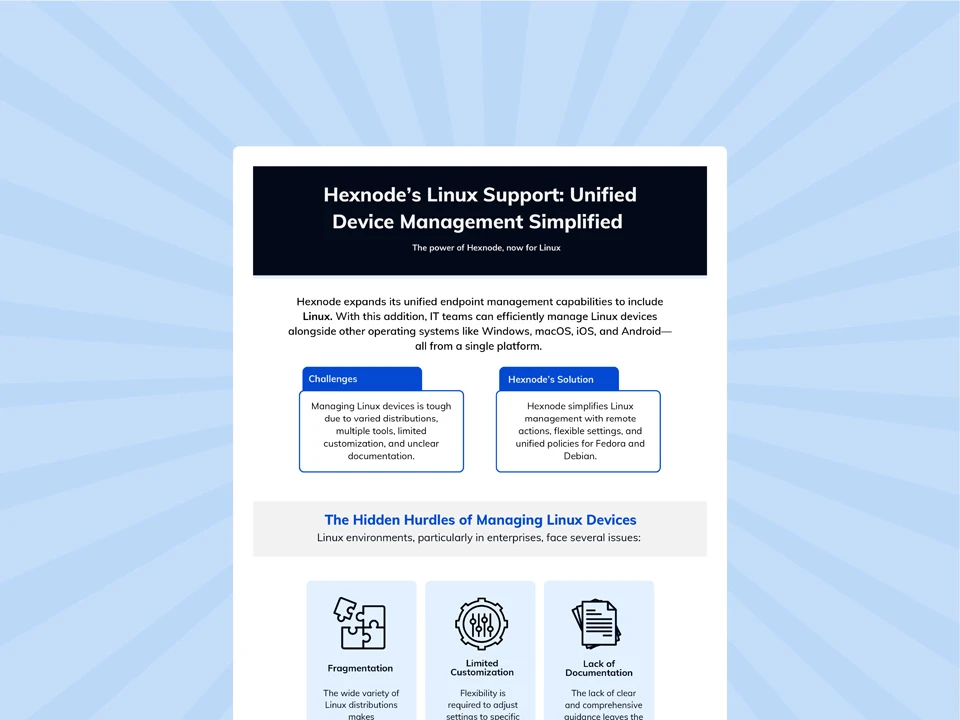
For setup instructions, follow the existing Live Terminal and Linux Automation walkthrough.
Feature Resource
Hexnode’s Linux Support: Unified Device Management Simplified
Download to learn how Hexnode simplifies Linux device management.
What is the difference between Hexnode Remote View and Remote Control for Linux?
Remote View lets a technician observe the graphical session, while Remote Control enables interaction with it. The device user must approve screen sharing and separately accept a technician’s request for control.
Can Hexnode Remote Control work on Linux devices using Wayland?
No, Hexnode Remote Control requires X11 and does not work with Wayland. Remote View and Remote Control also require the Linux device to have a graphical user interface.
Can Hexnode troubleshoot a Linux device without a graphical desktop?
Linux Live Terminal can support command-line investigation on compatible Debian, Fedora, and Ubuntu devices without relying on a graphical session. Technicians can use available utilities to examine services, logs, processes, storage, and other relevant system conditions.
Should technicians use screen access and Live Terminal in the same Linux support session?
Using both methods is appropriate when the visible symptom does not reveal the underlying system condition. A technician can reproduce and record the interface error, inspect related logs or services through Live Terminal, and then repeat the original task to verify the fix.
Does Hexnode Session History provide a complete audit trail of Live Terminal commands?
Session History should not be treated as a complete record of terminal commands. Technicians should preserve relevant commands, outputs, timestamps, and configuration changes in the incident evidence package.
How can you evaluate Linux troubleshooting with Hexnode?
Evaluate Hexnode’s documented troubleshooting capabilities on a small set of representative Linux devices. Include workstations and shared devices that reflect your team’s regular support workload.
Use the pilot to:
Verify feature compatibility for each device.
Test required technician permissions and user approvals.
Reproduce a visual issue and investigate a system issue.
Capture useful screenshots, observations, and command output.
Confirm recovery by repeating the original user task.
Bring your Linux distributions, desktop environments, and common support scenarios to discuss the appropriate troubleshooting approach. Use your pilot findings to identify access requirements, evidence gaps, and practical next steps.
Hexnode’s Linux Support: Unified Device Management Simplified
Simplify Linux device management with Hexnode UEM. Start your free trial today.
I’m a technical content writer at Hexnode who loves simplifying tech. I break down complex ideas, remove the fluff, and help readers clearly understand our product for what it actually is: simple, reliable, and built to solve real problems.