Preconfiguring Google Accounts on work iPhones reduces manual setup, minimizes onboarding delays, and improves device readiness.
The challenge: Manual account setup creates configuration errors, authentication issues, and repetitive IT support tasks.
The solution: UEM enables IT to provision Google Account settings remotely, while employees complete authentication and verify service synchronization.
The Hexnode advantage: Hexnode’s Google Accounts policy, %email% wildcard, and device targeting simplify account provisioning across managed iPhones, making employee onboarding more consistent and scalable.
Why does Google Account setup complicate iPhone onboarding?
IT hands a new employee a company-managed iPhone, but device enrollment is only part of the onboarding process. If IT has not preconfigured the corporate Google account through device management, employees must add it manually to access work email, calendars, and contacts through native iOS applications. This creates an additional configuration step before the device is fully ready for work.
Manual account setup introduces several operational challenges:
Inconsistent account details: Employees may enter incorrect email addresses or overlook required settings.
Repeated setup instructions: IT must guide employees through the same configuration process for every new device.
Authentication issues: Incomplete sign-ins or failed verification can delay access and generate help desk tickets.
These challenges become more difficult to manage when onboarding multiple employees simultaneously.
Making Google Account setup on work iPhones part of the standard onboarding workflow reduces repetitive configuration tasks. IT can preconfigure account settings through device management, while employees complete the required Google authentication themselves.
What happens when Google Account setup is left to employees?
Leaving Google Account configuration to individual employees can delay device readiness and increase IT support overhead. An incomplete setup may prevent new hires from accessing corporate email, meeting invitations, shared calendars, and business contacts, affecting their ability to work from day one.
Inconsistent account configuration also creates administrative challenges:
Incorrect account selection: Employees may add personal or unintended Google accounts instead of their assigned corporate accounts.
Unverified service configuration: IT may lack confirmation that Mail, Calendar, and Contacts are correctly configured and synchronizing.
Additional troubleshooting: Authentication failures, missing account permissions, or synchronization errors can generate support requests.
As onboarding volumes increase, manually guiding employees through account setup becomes difficult to sustain. IT teams spend more time repeating instructions and resolving configuration issues across devices.
A documented, repeatable provisioning process helps standardize Google Account setup on work iPhones, reduce avoidable errors, and establish consistent onboarding checks without replacing necessary authentication or security controls.
iOS Onboarding: A Guide to Device and App Enrollment
Explore iOS enrollment methods, supervision, and strategies for preparing devices before employee handoff.
How does Google Account configuration work on managed iPhones?
Google Account configuration on managed iPhones uses device management settings to provision corporate account information without requiring employees to enter every detail manually. This allows IT to prepare devices for access to work email, calendars, and contacts as part of the onboarding process.
Apple supports this through the Google Accounts configuration payload (com.apple.google-oauth), which delivers account information to enrolled iPhones. Once authenticated, employees can enable supported Google services through native iOS applications, including:
Mail: Access corporate Google email.
Contacts: Synchronize business contacts.
Calendar: View meetings, invitations, and scheduled events.
Notes: Use supported account-based note synchronization, where available.
This configuration applies to Apple’s native account integration. It does not automatically sign employees into separate Google applications such as Gmail or Google Drive.
Importantly, account provisioning and authentication are separate processes. IT supplies the required account details through a configuration profile, but the payload does not contain passwords or authentication credentials.
After the configuration is installed, employees must sign in through Google’s authentication process and complete any required multifactor authentication (MFA). Only then can authorized services begin synchronizing, subject to the organization’s Google Workspace policies.
Important Note
Deploying a Google Account configuration does not automatically authenticate the employee or enable access to Google services. Users must complete Google sign-in and any required MFA before Mail, Calendar, and Contacts can synchronize.
What information is required to configure a Google Account?
Configuring a Google Account on a managed iPhone requires basic account information that identifies the employee’s corporate account and determines how it appears on the device.
Apple’s Google Accounts payload requires the full Google email address. Administrators can optionally specify an account username, which appears in outgoing messages, and an account description to help employees identify the account in Mail and Settings.
Predefining these settings reduces repetitive data entry and maintains consistency across device deployments. However, account configuration details are not authentication credentials. Employees must still sign in and complete any required verification.
Before distributing configurations, organizations using Google Workspace should confirm that employee accounts are active, the required services are enabled, and supported authentication methods are available.
How should IT prepare work iPhones for Google Account provisioning?
Before configuring Google Accounts, IT must verify device enrollment, account availability, and management compatibility. These prerequisites help ensure configurations reach the intended employees without unnecessary setup failures.
1. Verify device enrollment and compatibility
Confirm that each iPhone is enrolled in a compatible Unified Endpoint Management (UEM) solution and supports the intended Google Account configuration. Identify whether the device uses Automated Device Enrollment, Device Enrollment, or User Enrollment. Corporate-owned and personally owned devices may have different management capabilities and restrictions.
2. Prepare employee account information
Verify the following before assigning configurations:
Corporate email address: Match the assigned Google Workspace account to the employee receiving the device.
Account availability: Confirm the account is active and accessible.
Required services: Identify whether employees need Mail, Calendar, Contacts, or supported Notes synchronization.
3. Establish and test the provisioning sequence
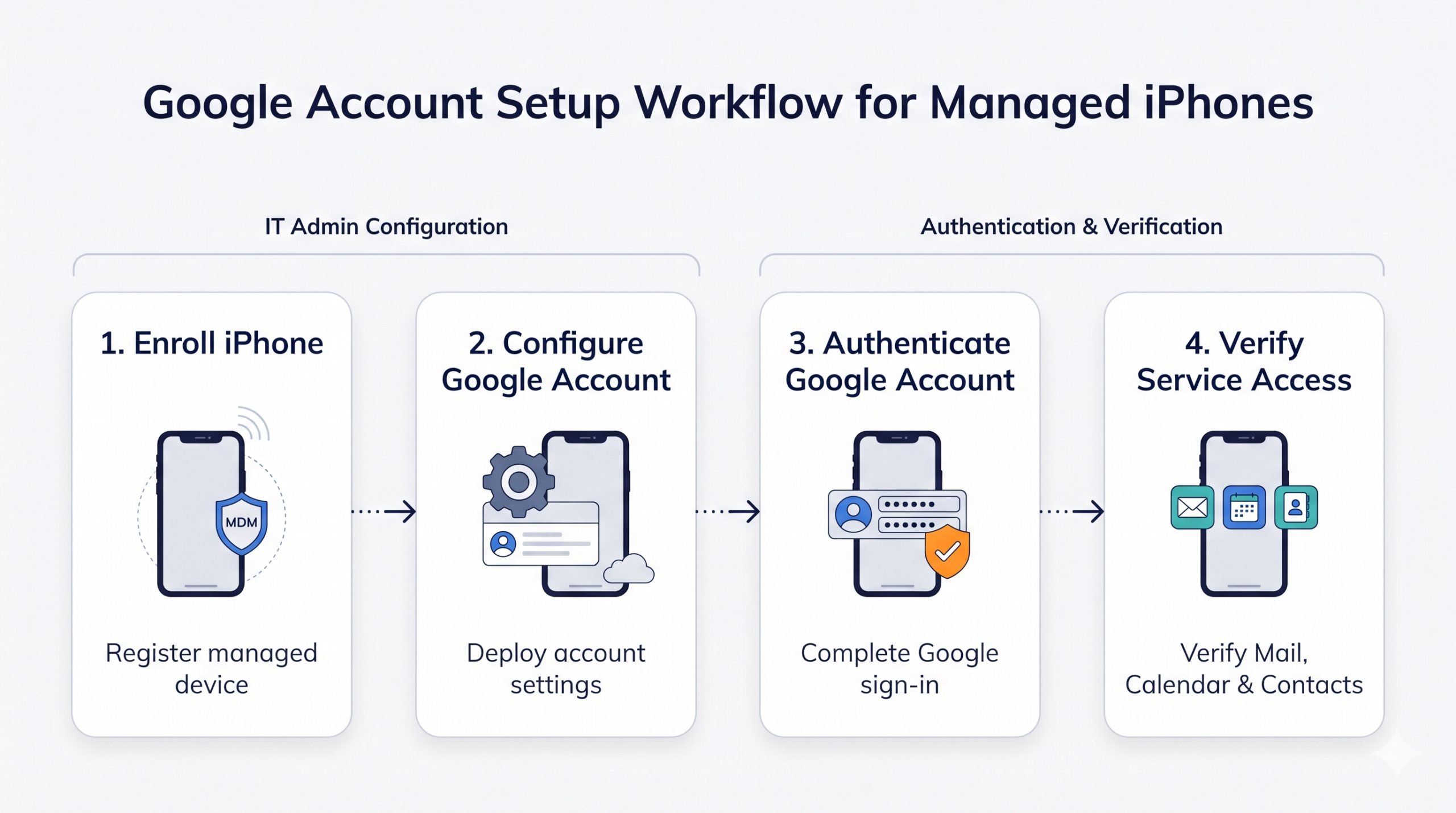
Follow a consistent workflow: enroll the iPhone → apply account configuration → complete employee authentication → verify service synchronization.
Test this sequence on a small group of devices, checking account assignment, authentication, and service availability before incorporating it into the standard onboarding process.
Featured Resource
Choose the Right iOS Enrollment Method
Explore iOS enrollment options, from Apple Business Manager to Google Workspace-based enrollment.
How can IT make Google Account setup part of the iPhone onboarding process?
Integrating Google Account setup into iPhone onboarding requires a defined provisioning workflow that connects device enrollment, account configuration, employee authentication, and service verification.
IT administrators can follow these six steps:
Enroll the work iPhone: Register the device using the organization’s supported UEM enrollment method. Confirm that enrollment is complete and the device can receive configuration profiles.
Prepare the Google Account configuration: Create a configuration containing the employee’s corporate email address, account name, and any required account settings.
Assign the configuration: Target the appropriate device or user, ensuring the account information corresponds to the employee receiving the iPhone.
Deploy the configuration: Deliver the account settings through device management and verify that the configuration is successfully installed.
Complete employee authentication: Ask the employee to sign in to their Google account and complete any required multifactor authentication.
Verify service synchronization: Confirm that corporate email, calendar events, and contacts are accessible through the corresponding native iOS applications.
For larger deployments, user-specific configurations or supported identity variables can populate account details automatically, reducing the need for individual profiles. However, this depends on accurate employee records and device-to-user assignments within the management system.
Finally, include account verification in the employee onboarding checklist. A successfully delivered configuration does not necessarily mean authentication is complete or services are synchronizing correctly. Verify all three stages before marking the device ready for use.
Google Account Setup Workflow for Managed iPhones
How can IT troubleshoot Google Account setup failures on iPhones?
Google Account setup failures typically involve configuration delivery, authentication, or service synchronization. Identifying which stage failed helps IT resolve issues without repeatedly deploying the same configuration.
Common issues include accounts not appearing on devices, incorrect email addresses, incomplete Google authentication, and missing synchronization in native iOS applications.
Follow this troubleshooting sequence:
Verify device enrollment: Confirm that the iPhone remains enrolled in the UEM solution and can receive configuration updates.
Check configuration assignment: Ensure the Google Account configuration targets the correct device or user and was successfully installed.
Validate account information: Confirm that the configured email address matches the employee’s assigned corporate Google account.
Review authentication status: Check whether the employee completed Google sign-in, including any required multifactor authentication.
Test service synchronization: Verify that Mail, Calendar, and Contacts are enabled and synchronizing as expected.
Document recurring failures and their resolutions to simplify future troubleshooting. Test configuration changes on pilot devices before wider redeployment.
Successful device enrollment does not confirm Google Account readiness. IT must separately verify configuration delivery, authentication, and service synchronization before marking onboarding complete.
How does Hexnode simplify Google Account setup during iPhone onboarding?
Hexnode UEM simplifies Google Account setup on work iPhones through its dedicated Google Accounts policy, allowing IT administrators to preconfigure corporate account details and distribute them to managed devices.
To configure a Google Account in Hexnode:
Log in to the Hexnode UEM portal.
Navigate to Policies > New Policy > Create a fully custom policy > iOS > Accounts > Google Accounts.
Click Configure and enter the required account settings.
The available settings include:
Account description: An optional label displayed in the Mail and Settings apps.
Account name: The user’s name, displayed in sent messages.
Email address: The corporate Google account address.
Audio Call App: An optional application for calling synchronized contacts, supported on iOS 10 and later.
The Email address field supports the %email% wildcard, which retrieves the enrolled user’s email address from Hexnode’s user records. Administrators can reuse the same configuration across employee devices instead of manually entering individual addresses.
Hexnode’s Google Accounts policy supports iOS devices running iOS 9.3 or later, with support for supervised devices, unsupervised Device Enrollment, and User Enrollment, subject to the applicable enrollment requirements.
Assigning Google Accounts during onboarding
Administrators can select +Add Account to configure multiple Google accounts within one policy.
To distribute the configuration, open the Policy Targets tab and select the appropriate targets:
Devices
Device Groups
User Groups
Domains/OUs
Once the policy is deployed, the configured account is added to native iOS services, including Mail, Contacts, and Calendar.
However, Hexnode does not deploy Google passwords or bypass authentication. Employees must complete Google sign-in and any required verification before corporate information can synchronize.
Alternative: Deploy Custom Configuration
For administrators requiring a custom profile, Hexnode provides iOS > Configurations > Deploy Custom Configuration. This feature supports Apple’s com.apple.google-oauth payload through a validated configuration profile.
IT must prepare and test the profile before deployment to avoid conflicting or unsupported settings.
During device reassignment or offboarding, removing the associated Google Accounts policy removes the configured account and its synchronized local emails, contacts, and calendars from the iPhone. It does not delete the underlying Google Workspace account or its cloud-stored data.
FAQs
Can IT configure Google Workspace accounts on iPhones before employees receive them?
Yes, IT can preconfigure Google Workspace account details on managed iPhones using supported device management profiles. Employees must still authenticate their accounts and complete any required verification before accessing corporate services.
Does configuring a Google Account through MDM also sign users into Gmail and Google Drive?
No, an MDM-delivered Google Accounts configuration provisions account settings for supported native iOS services, not separate Google applications. Employees must sign into apps such as Gmail and Google Drive independently, unless another supported authentication mechanism is configured.
Can IT assign different Google Accounts to employees using the same MDM policy?
Yes, MDM solutions that support user-specific identity variables can populate individual account details within a reusable configuration. In Hexnode, the %email% wildcard retrieves the enrolled user’s email address, provided the associated user record contains accurate information.
What happens to a managed Google Account when an iPhone is reassigned to another employee?
Removing the associated Google Accounts configuration policy removes the managed account and its synchronized local data from the iPhone. The underlying Google Workspace account and cloud-stored information remain unaffected, allowing IT to prepare the device for another employee.
Can Google Workspace administrators enforce MFA for accounts configured through MDM?
Yes, Google Workspace administrators can require supported multifactor authentication methods through organizational security policies. MDM account provisioning does not bypass these requirements, so employees must complete the applicable authentication process before accessing protected services.
Can employees use personal and corporate Google Accounts on the same managed iPhone?
Yes, iPhones can support multiple Google Accounts, allowing personal and corporate accounts to coexist when organizational policies permit. However, configuring a corporate account through MDM does not automatically restrict personal accounts or prevent data from being transferred between them.
Ready to make Google Account setup part of iPhone onboarding?
Preparing Google Account configurations before employees receive their work iPhones reduces repetitive setup tasks and establishes a more consistent onboarding process.
Hexnode’s Google Accounts policy, %email% wildcard, and policy-based device targeting help IT preconfigure account details across managed iPhones, while employees complete their own Google authentication.
Try Google Account provisioning with Hexnode to test account configuration on a pilot iPhone, verify successful authentication and synchronization, and incorporate the validated workflow into employee onboarding.
Simplify Google Account Setup on Work iPhones
Configure Google Accounts, assign policies, and prepare managed iPhones for employee onboarding with Hexnode.
Associate Product Marketer at Hexnode focused on SaaS content marketing. I craft blogs that translate complex device management concepts into content rooted in real IT workflows and product realities.