Why do school devices need a security review after summer?
School devices need a security review after summer because their software, user assignments, and settings may no longer match the school’s requirements. A school device fleet security reset helps IT teams check stored devices, take-home laptops, shared classroom devices, and reassigned equipment before teaching resumes.
Devices kept offline may have missed updates, while equipment used over the break may still carry temporary policy exceptions. Student and staff changes can also leave devices assigned to previous users or configured for last term’s classroom needs.
Some devices may already meet the approved configuration. Others need attention, but last term’s inventory and compliance records cannot establish which ones. IT teams need current information about installed software, applied settings, and device assignments to identify gaps and determine what requires correction before handing equipment back to students and teachers.
What happens when schools overlook unresolved device security gaps?
Unresolved device security gaps can interrupt teaching, block learning applications, and expose school information. They also concentrate troubleshooting at the start of term, when IT teams face competing demands.
Interrupted lessons: Updates, restarts, and configuration fixes during class can reduce teaching time.
Failed application access: Incorrect restrictions can prevent students and teachers from using approved learning tools.
Help-desk pressure: Similar problems across classroom devices can generate simultaneous support requests for a small IT team.
Security exposure: Outdated software may leave known vulnerabilities unresolved. Previous users’ files, active sessions, or excessive permissions can expose information on reassigned devices.
Why do reopening deadlines increase the pressure?
Schools have fixed reopening dates and limited IT capacity. When unresolved issues surface after distribution, administrators must correct them while supporting lessons already underway, leaving less time to investigate failures and verify fixes.
Hexnode amping up the classroom device management game for schools
Explore how Hexnode simplifies classroom device management for IT teams.
What is a school device fleet security reset?
A school device fleet security reset checks and corrects device records, software, security settings, user assignments, and access before the new term. The goal is to restore the school’s approved settings. Erase or re-enroll devices only when needed for reassignment, recovery, or a management issue.
This review complements regular patching, monitoring, and account maintenance. The checks depend on each device’s ownership, operating system, enrollment, and classroom use.
Where can summer drift appear across a school device fleet?
Summer drift describes changes or unresolved gaps that build up during the break. It is a descriptive term, not a formal cybersecurity classification.
Area
Possible summer gap
What IT must verify
Management connectivity
Device has stopped reporting.
Latest check-in, connectivity, and enrollment.
Software versions
Updates remain pending.
Installed versions, missing updates, and vendor support.
Security policies
Outdated settings or temporary exceptions remain.
Applied settings and approved exceptions.
Applications
Required apps are missing or outdated.
Installed apps, versions, and classroom requirements.
User assignments
Device remains assigned to a previous user.
Current user, access permissions, and leftover data or sessions.
A missed check-in does not prove a device is compromised or its policies were removed. Obtain current information before deciding what needs fixing.
How can IT teams complete a school device fleet security reset?
Start by checking the fleet’s current condition, correcting access and software gaps, restoring approved settings, and verifying readiness before distribution. Assign an owner and completion deadline for each stage, leaving time to recover unavailable devices and retry failed changes.
Step 1: Reconcile inventory and reconnect returning devices
Match asset records against the equipment the school expects to use this term.
Account for devices: Check storage, take-home returns, classroom carts, repairs, and replacements. Confirm each device’s asset identifier, assigned user or location, and availability.
Refresh device information: Power on and connect devices, confirm management enrollment, and collect current inventory details.
Separate unknowns from confirmed problems: Track unreachable devices separately from those reporting failed updates, missing applications, or incorrect settings.
Group the work by platform, campus, ownership, and intended use so technicians can handle similar requirements together. Give every unresolved device a responsible technician and a next action. Keep it off the ready list until the required checks are complete.
Step 2: Review user assignments, access, and retained data
Match device assignments, identity groups, and application access to the current student and staff roster. Account for graduating students, new starters, departing staff, and role changes.
Before reassigning equipment:
Remove access and local administrator privileges that the previous user no longer needs.
Review previous users’ accounts, active sessions, and locally stored files.
Preserve required school records before approved cleanup or erasure.
Changing the owner in an inventory record does not itself revoke application access or delete stored data. Coordinate these changes with identity and application administrators, then verify the results in the relevant systems.
For privileged accounts, check that multifactor authentication is enabled and that authentication methods belong to the current authorized administrator.
Step 3: Update software and identify unsupported devices
Check operating systems, browsers, learning applications, and security software against approved versions.
Prioritize updates: Address gaps based on vulnerability severity, device exposure, and operational importance.
Verify vendor support: For Chromebooks, check the Auto Update Expiration date and extended-update conditions. Opting in on affected older models removes Android apps, their data, and Google Play, which may affect classroom use.
Plan installation: Schedule downloads, installations, and restarts. Check bandwidth, power, and available storage first.
Confirm results: Verify installed versions afterward and investigate failures. Set a replacement plan or an approved temporary exception for devices that cannot meet requirements.
Step 4: Restore the approved security and classroom configuration
Compare the settings applied on devices with the school’s approved baseline.
Security controls: Review screen locks, encryption, local administrator privileges, and application restrictions where supported.
Classroom access: Check browser and content-access settings, required learning applications, and approved teaching resources.
Connectivity and management: Verify Wi-Fi profiles, certificates, and security agents where applicable.
Remove obsolete exceptions and resolve conflicting policy assignments. Check certificate validity and confirm that required applications and agents work after the changes.
Keep platform capabilities and classroom needs in view. Restrictions must allow accessibility tools and legitimate teaching activities. Test changed settings on representative devices before applying them to larger groups, including devices with different operating systems, enrollment methods, and shared-use arrangements.
Step 5: Verify readiness and release devices in stages
Test student, teacher, and shared-device workflows before distribution. Confirm sign-in, school Wi-Fi, learning applications, required restrictions, and behavior after a restart.
Use a clear release checklist:
Recent, successful management contact.
Approved software versions.
Applicable security controls confirmed.
Correct user or classroom assignment.
Working access to required learning resources.
Confirm completed changes, current device status, and classroom workflows before marking equipment ready. Release devices by campus or year group. Assign unresolved issues an owner and next action and arrange spare equipment or alternative teaching options for delays.
Step 6: Continue checks after devices return to classrooms
Schedule recurring reviews of stale check-ins, failed updates, configuration exceptions, and assignment changes throughout the term.
Measure readiness against all devices scheduled for deployment, including unreachable equipment. Report devices with unknown status separately and record an owner and review date for each approved exception.
Use recurring faults and support requests to improve the next return cycle. Adjust storage and charging routines, return deadlines, reassignment checks, and maintenance schedules based on the problems the team encounters.
Featured resource
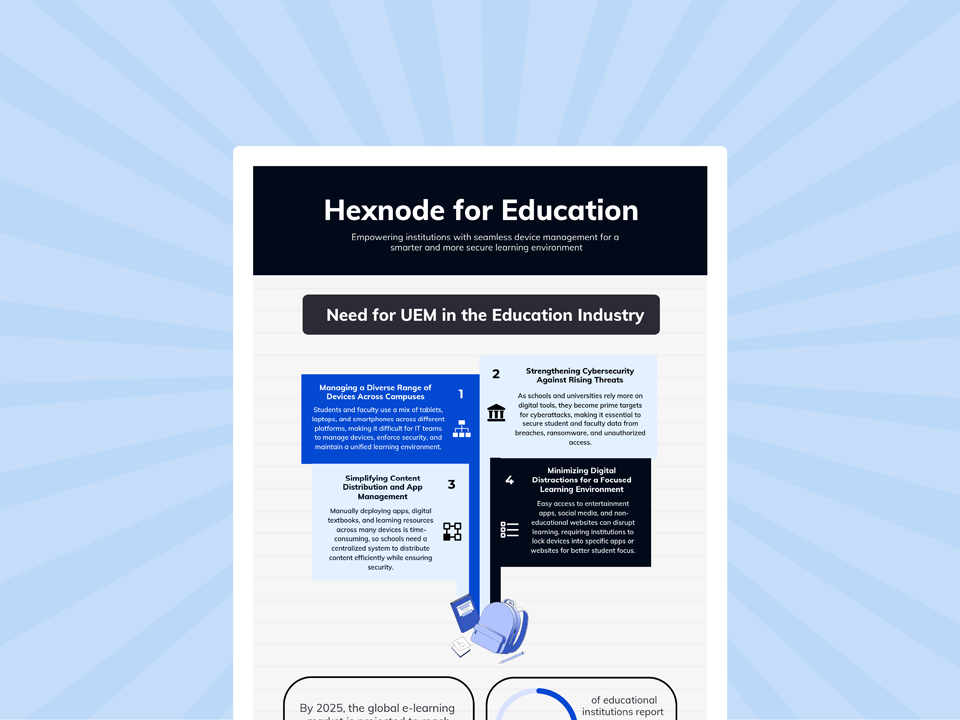
Hexnode for Education
Discover how Hexnode UEM simplifies educational device management, strengthens security, and supports focused digital learning.
How does Hexnode UEM support a school device fleet security reset?
Hexnode UEM supports a school device fleet security reset through Scan Device, platform-specific update controls, and Device Compliance Reports. Available controls and reported information depend on the device’s platform, enrollment, and connectivity.
Refresh device information and identify unresolved gaps
Use Scan Device to refresh details such as installed applications, battery level, and storage. Scheduled Device Scan supports daily or weekly checks. Confirm that the scan succeeded before treating the information as current.
Within Device Compliance Reports, use:
Inactive devices to find equipment that has not communicated within the configured inactivity period.
Non-compliant devices to identify devices that fail configured compliance requirements.
Use these reports to prioritize follow-up. Their results reflect configured criteria and available device information.
Apply update controls suited to each platform
Windows: Use Patches & Updates – Auto to set update criteria, require approval, schedule deployment, and target device groups. Configure maintenance windows around teaching hours.
macOS: Use Patches & Updates – Auto to schedule approved updates for selected groups. Enable Install and reboot only during maintenance window to control installation and restart timing.
iPadOS: Use the Update OS remote action on supervised iPads to download or install available updates. Installation may require the user’s passcode.
Android: Use the OS updates policy to install manufacturer-provided updates automatically or during inactive hours. This requires Android Enterprise Device Owner enrollment, and manufacturer restrictions may affect behavior.
ChromeOS: Configure Auto Update, Auto-update target version, and Release channel, then apply the policy through Google Workspace organizational units. Auto Update and target-version settings require ChromeOS 19+; Release channel requires ChromeOS 11+. Check vendor support separately.
Check policy deployment and remediation results
Review the device’s Policies sub-tab for applied, pending, or failed policies. Check reported security information, such as encryption or passcode status where available, and test the relevant classroom workflows.
Use Action History reports to find pending or failed commands that need attention before distribution. Check the resulting device state alongside the command status, particularly when troubleshooting an unexpected outcome.
These records support readiness checks. They do not independently prove complete security or legal compliance.
Which school devices should IT include in a security reset pilot?
Include devices representing the fleet’s operating systems, enrollment methods, and classroom uses. Test student, teacher, and shared-device workflows, including accessibility tools. Resolve any access or compatibility problems before expanding the rollout.
How should schools handle devices returned after the security reset?
Check late-returned devices against the same readiness requirements before putting them back into classroom use. Refresh their inventory information, address outstanding updates, and verify assignments and security settings. Provide spare equipment if these checks would delay teaching.
What should a temporary device security exception include?
Record the affected device, unresolved issue, approval, responsible owner, and review date. Document any usage restrictions and the planned fix or replacement. Reassess the exception at the review date instead of allowing it to continue indefinitely.
Prepare your school device fleet for the next term
Prepare your school’s devices by resolving outstanding gaps and confirming classroom workflows before distribution. Check that students and teachers can sign in, access learning applications, and use approved resources. Assign remaining fixes and arrange spare equipment for devices that need more attention.
Request a Hexnode demo to plan your school device fleet security reset.
Get school devices ready for the next term
Resolve device security gaps and confirm classroom readiness with Hexnode UEM.
A storyteller for practical people. Breaks down complicated topics into steps, trade-offs, and clear next actions—without the buzzword fog. Known to replace fluff with facts, sharpen the message, and keep things readable—politely.